LinkHMS’s pharmacy module offers a valuable feature that allows Pharmacists to create additional order invoices for cases such as over-the-counter sales or internal stock use, where a prescription isn’t required.
- Navigate to the Orders tab in the Pharmacy module and use the + New Invoice button displayed in the upper right corner.
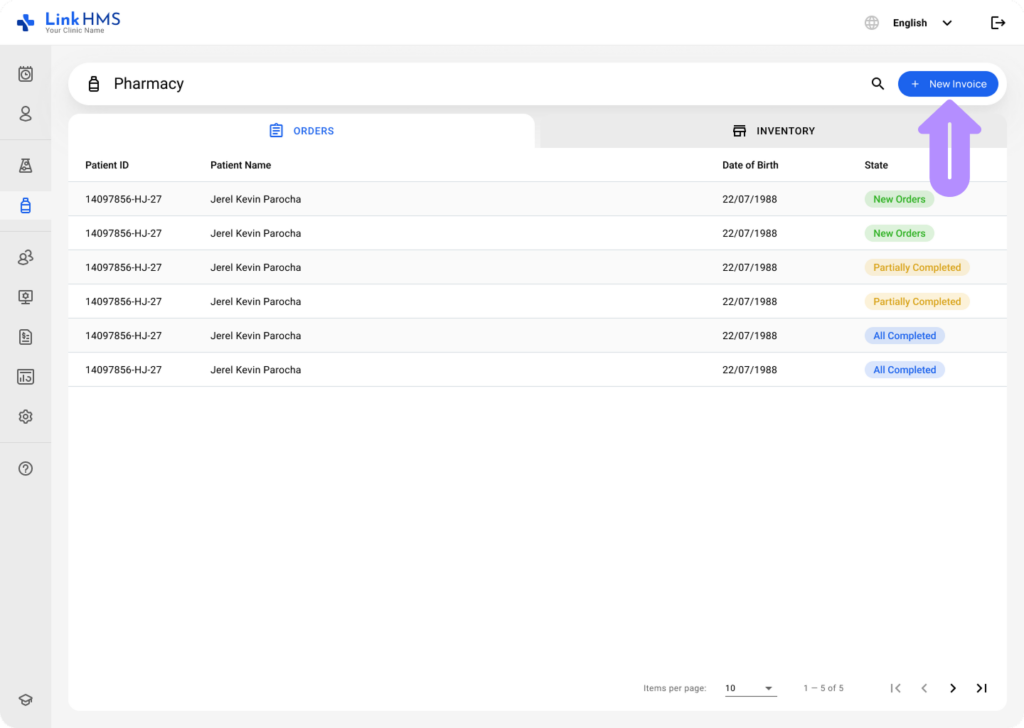
- Click the + New Invoice button to fill in the details and create the invoice without a prescription.
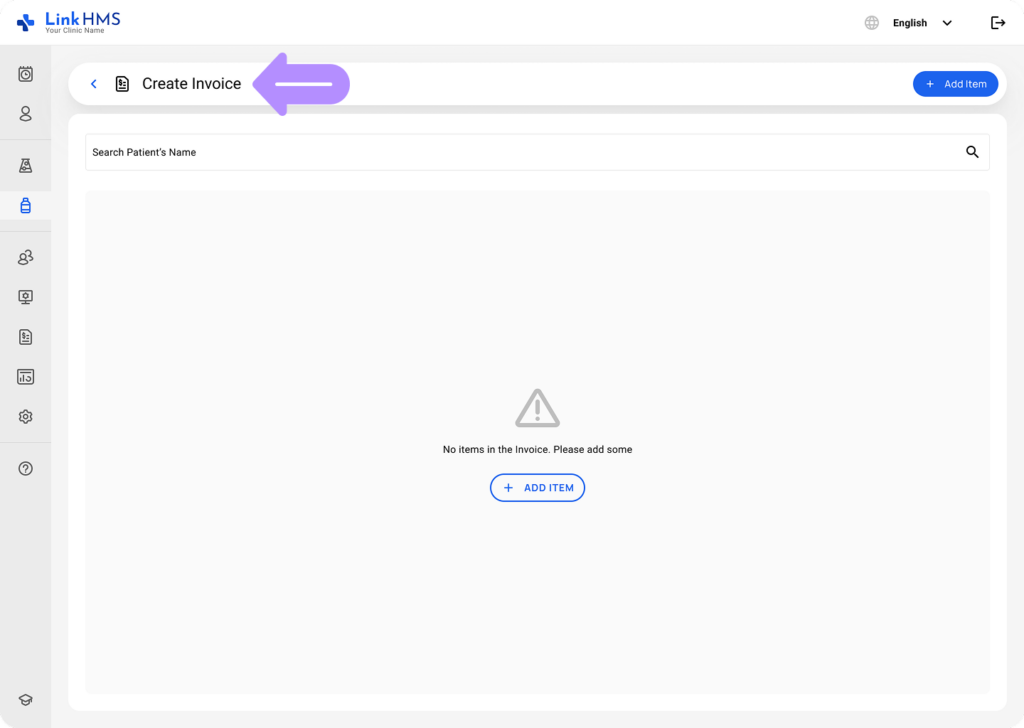
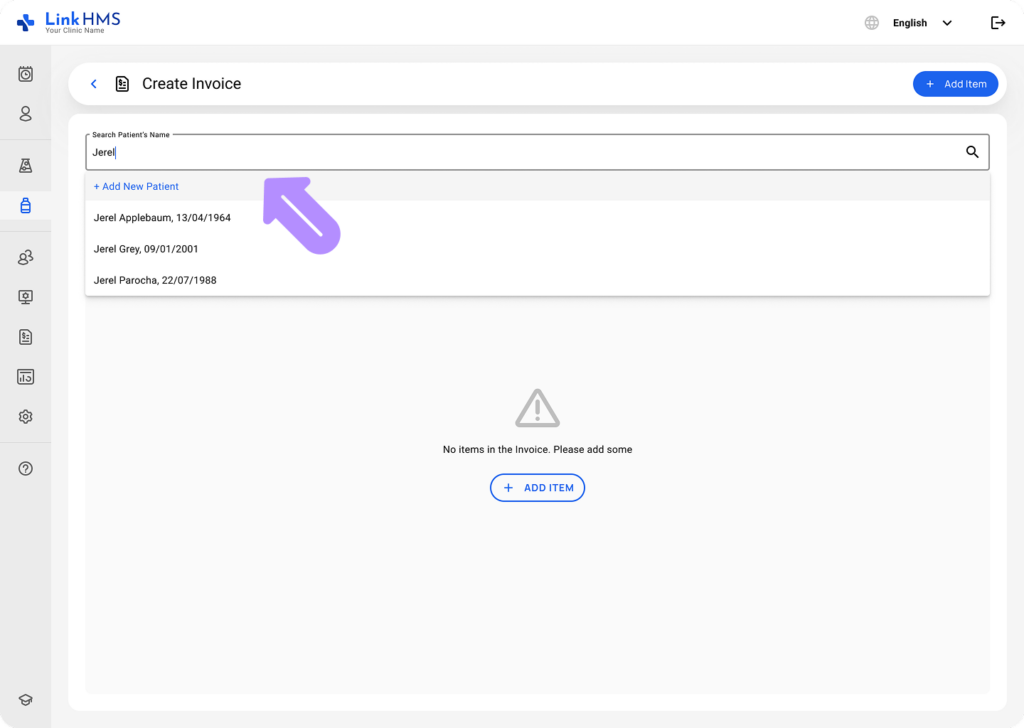
- Select the patient from the dropdown menu or click Add New Patient.
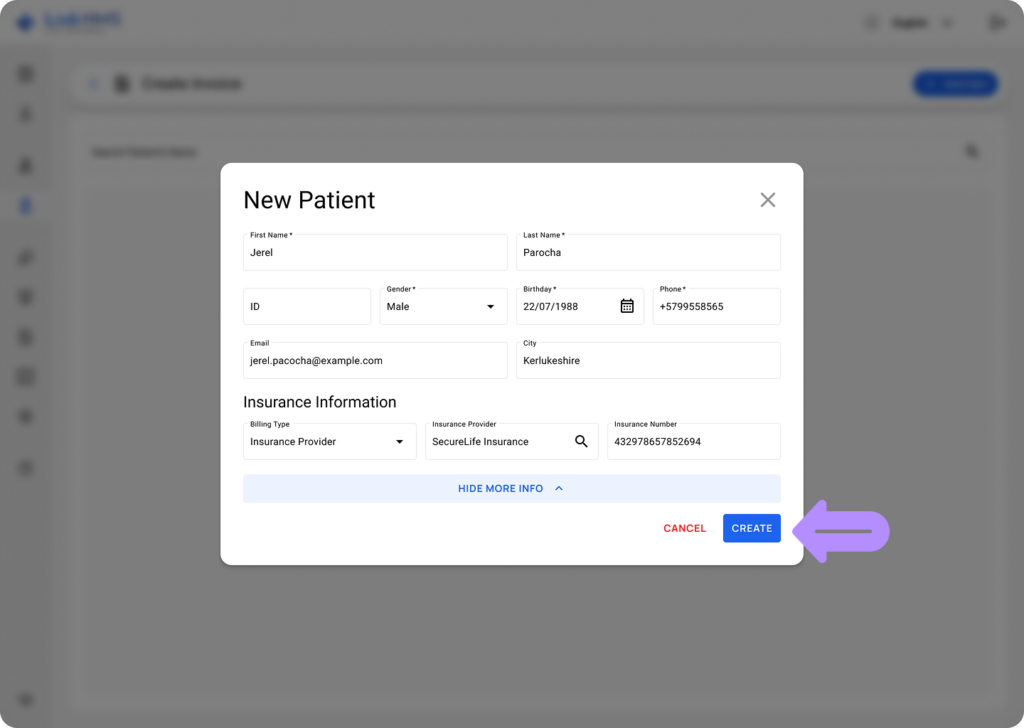
- For the new patient, fill in the required information (First Name, Last Name, Gender, Birthday, Phone, Email, City, Billing Type, Insurance Provider, Insurance Number) in the pop-up window and click Create.
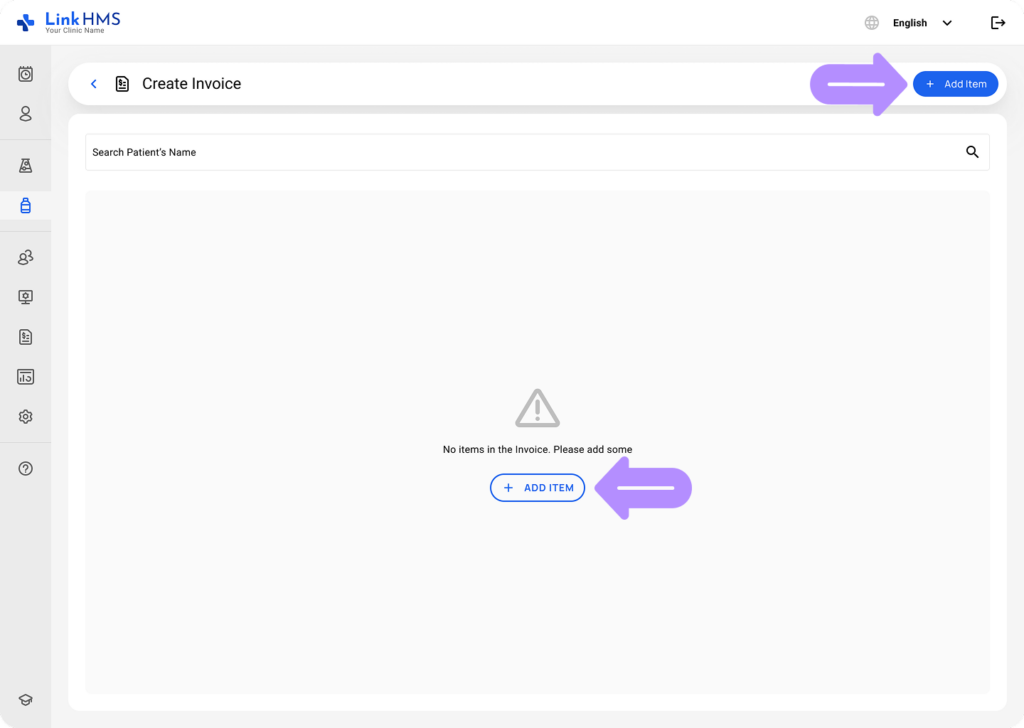
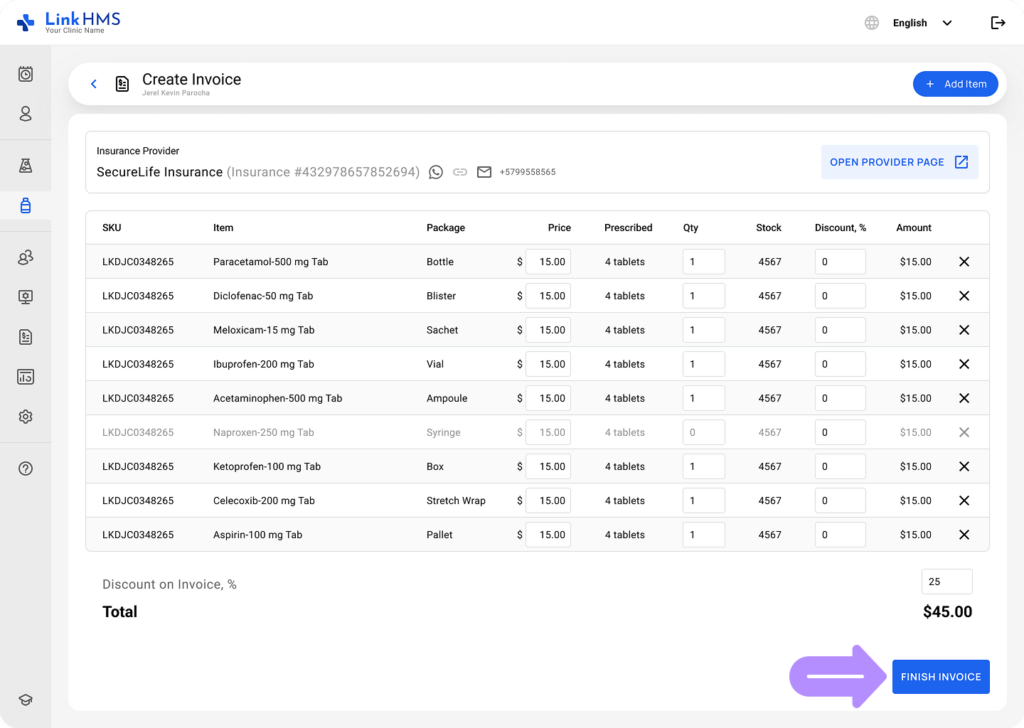
- Click the + Add Item to include inventory items in the invoice.
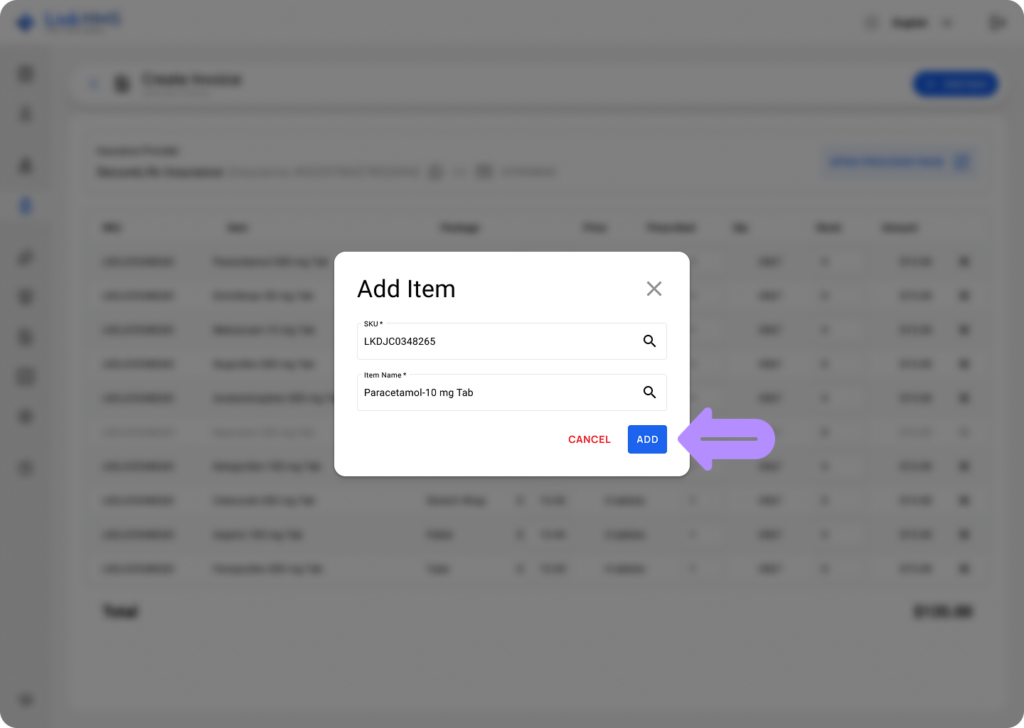
- Enter the SKU and Item Name, then click Add to include the item.
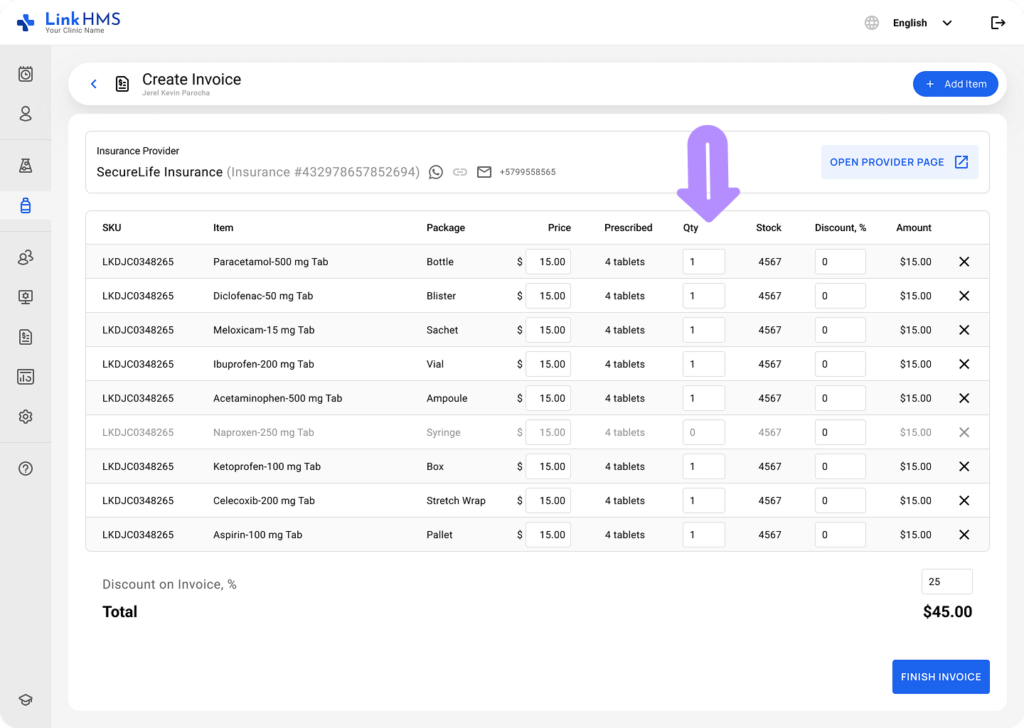
- Check the list of added medicines and choose the necessary quantity.
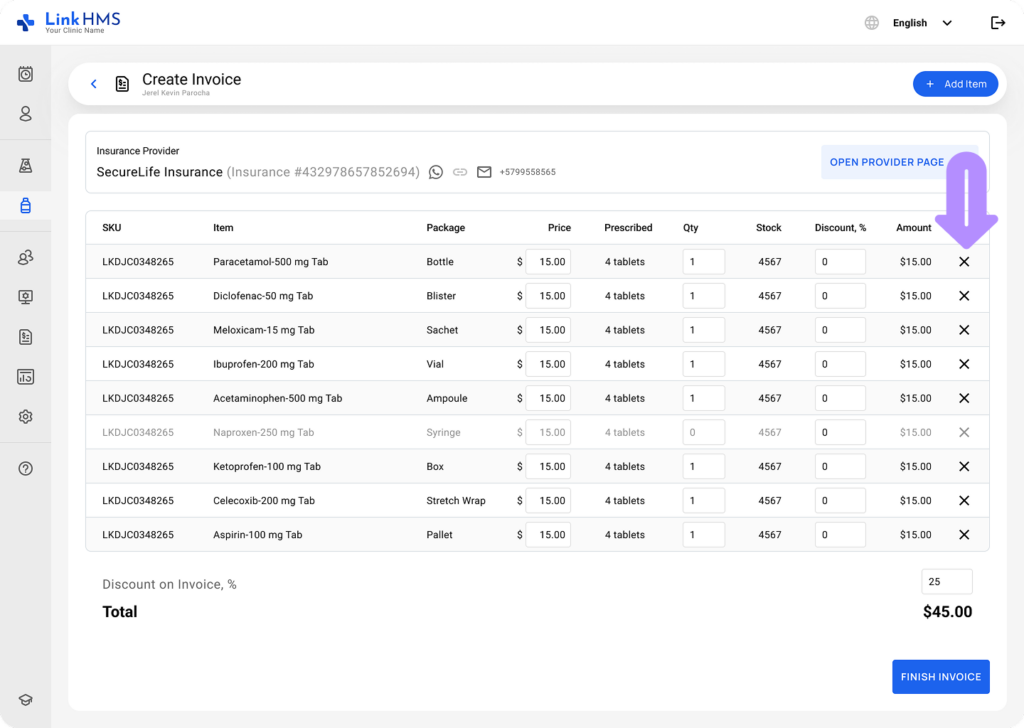
- If required, click X to remove an item.
- When all the necessary items are listed, click the Finish Invoice button.
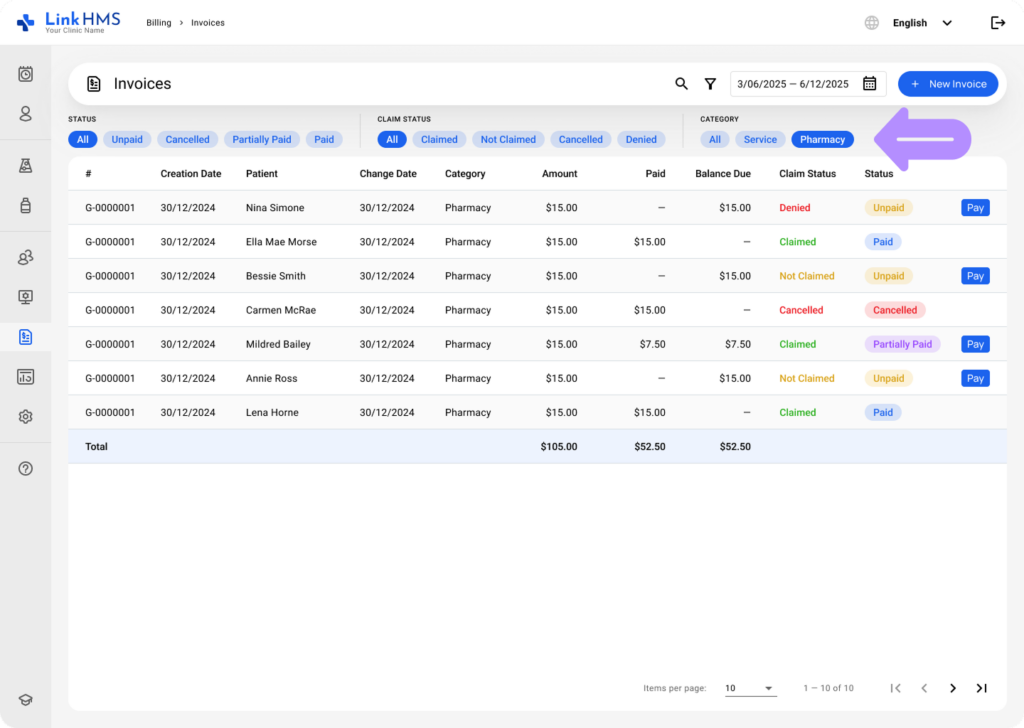
- The created invoice automatically appears in the Billing tab under the Pharmacy category.
- See more instructions on how to manage pharmacy invoices.