Find Inventory Items
When you need to quickly locate some inventory items, use the search and filters.
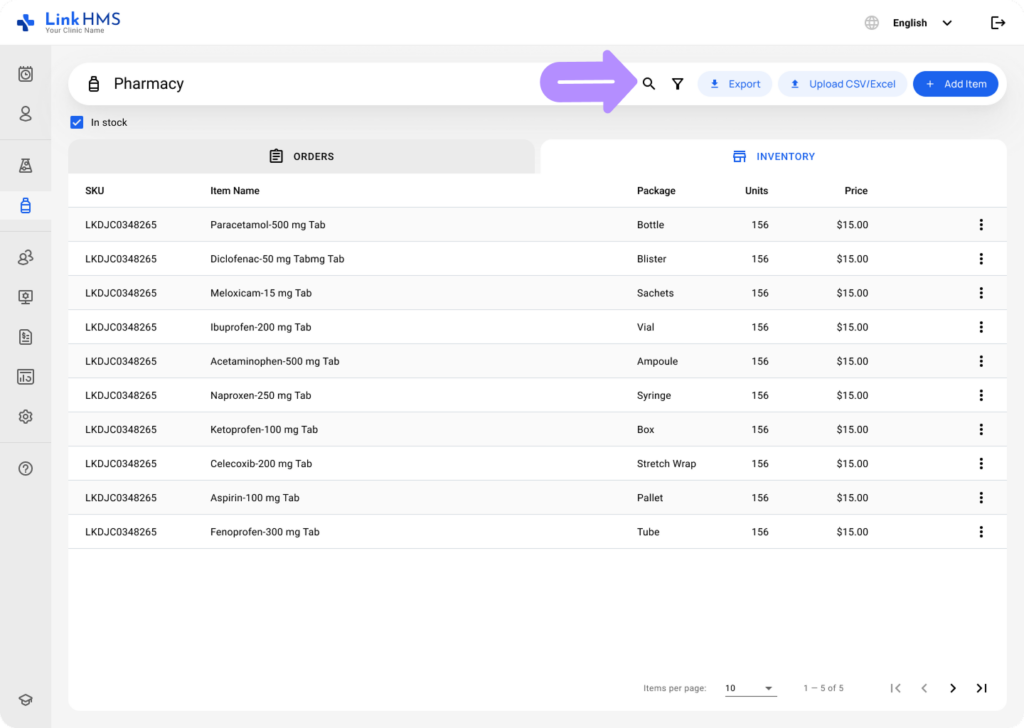
- Use the search bar to quickly find items by name.
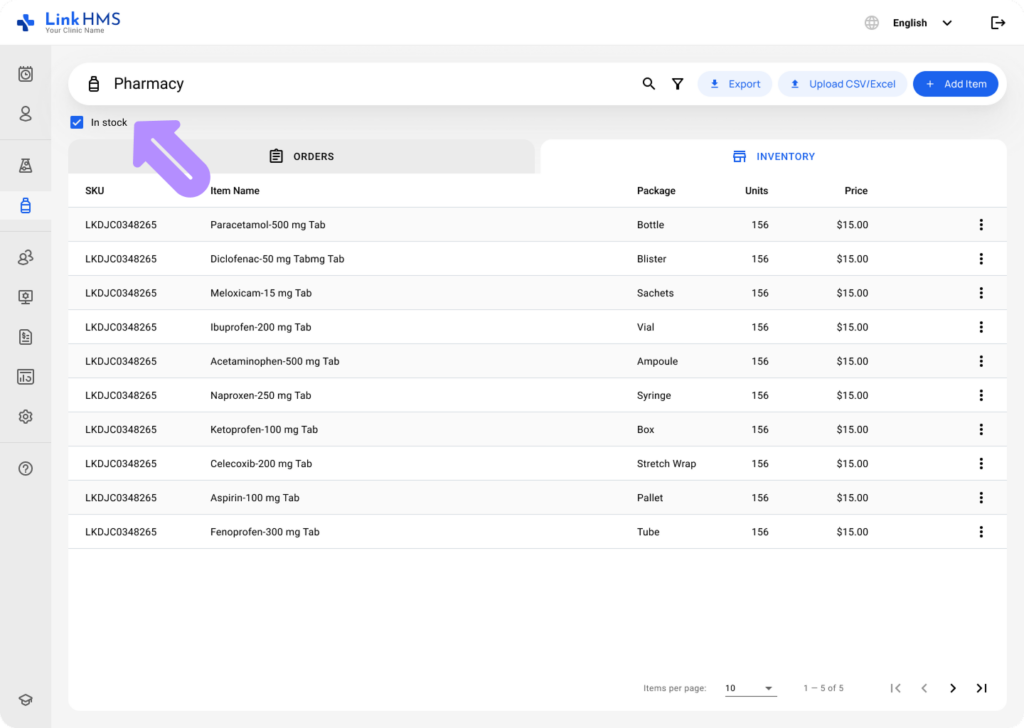
- Check the In Stock box to display only items currently available in inventory.
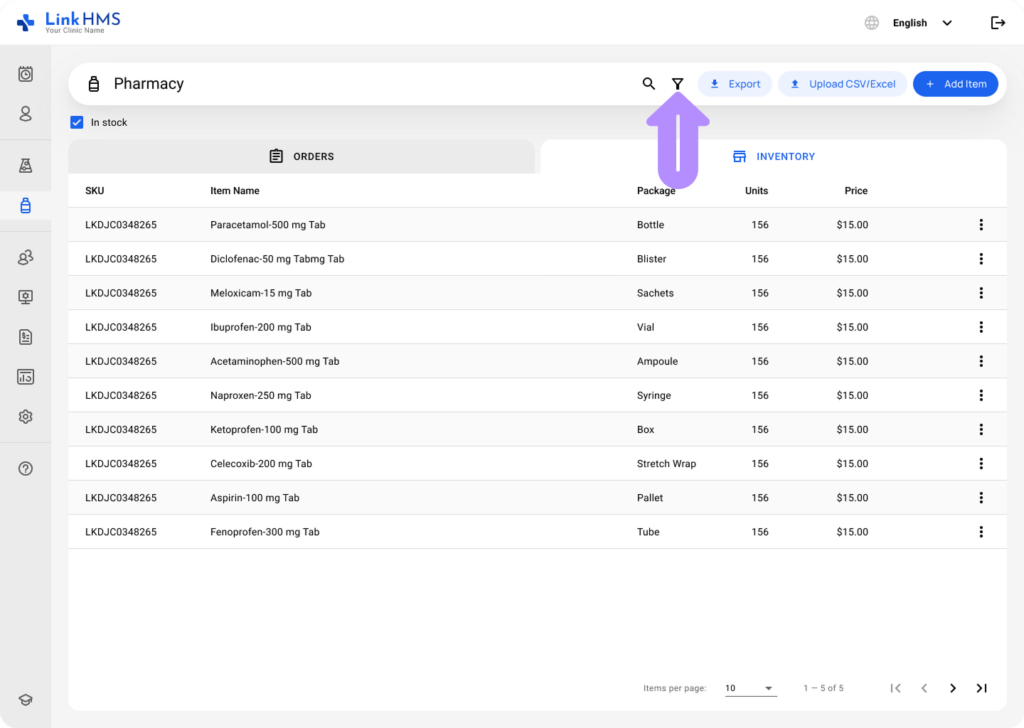
- Click the Filter icon to sort them.
- To add more filters, click the + Add a Filter button. Narrow down the inventory using Package and/or Unit filters.
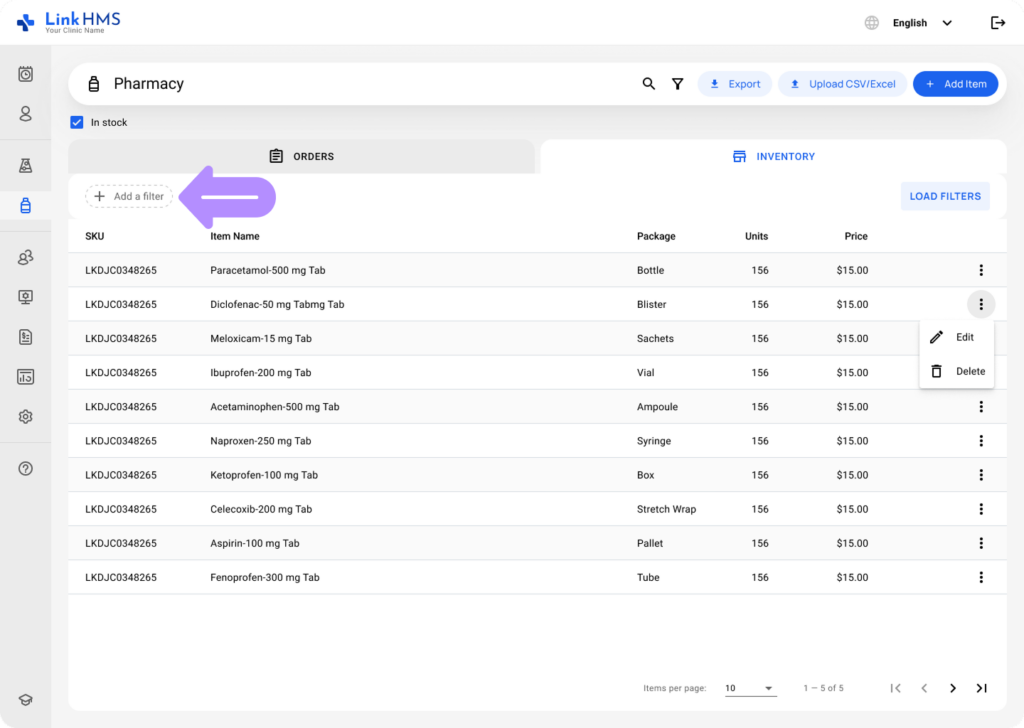
- Locate the required inventory item.
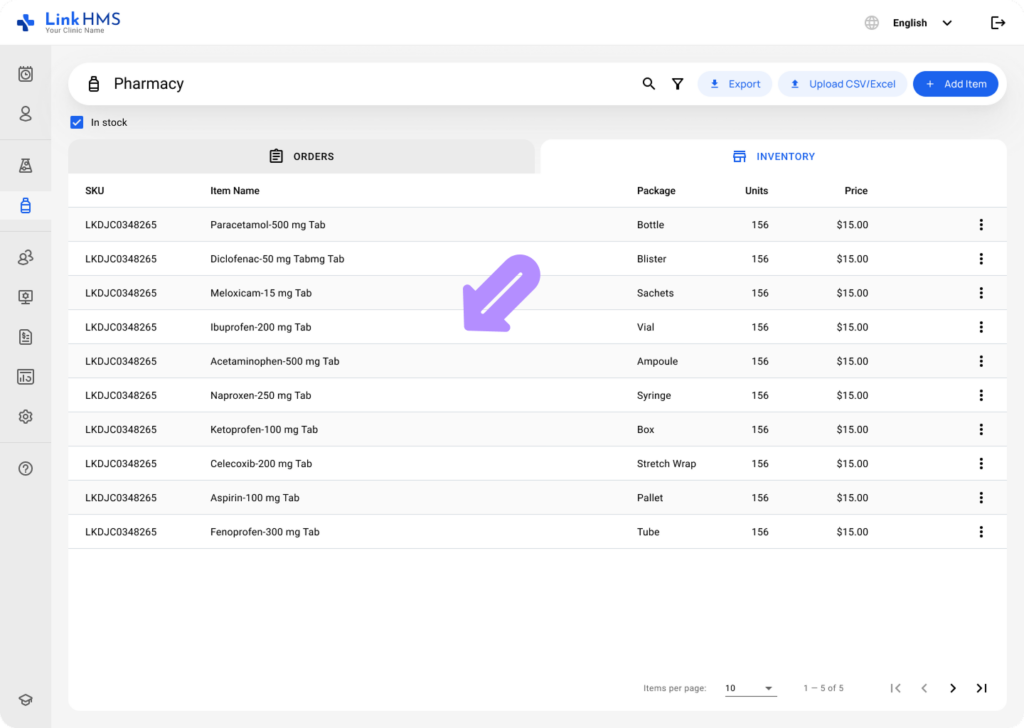
Edit and Delete the Inventory Item
- Click the three-dot menu next to the required stock item to choose Edit or Delete.
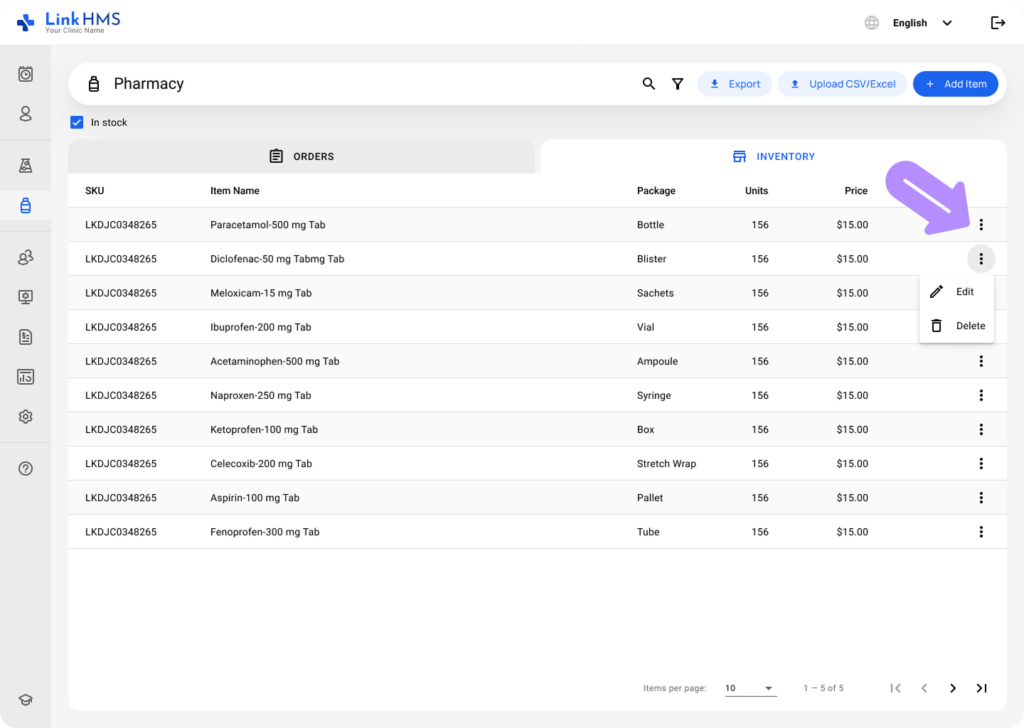
- Edit: Update the inventory item, including its name, unit price, stock level, packaging type, or comments, and click the Update button to save the added details.
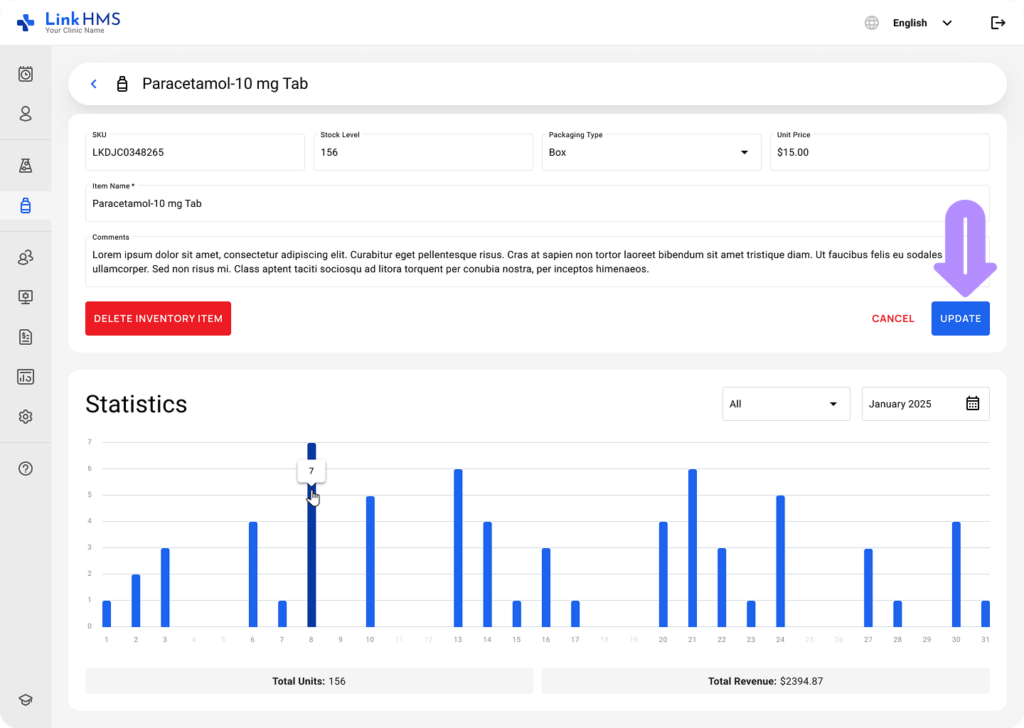
💡Notes
To update the stock level, enter the total current amount in stock, not just the new shipment quantity. For example, if you already have 20 items and have received 10 more, you should enter 30 (20 existing + 10 new). If you want the system to perform the calculations, use the stock level update through the Excel inventory upload.
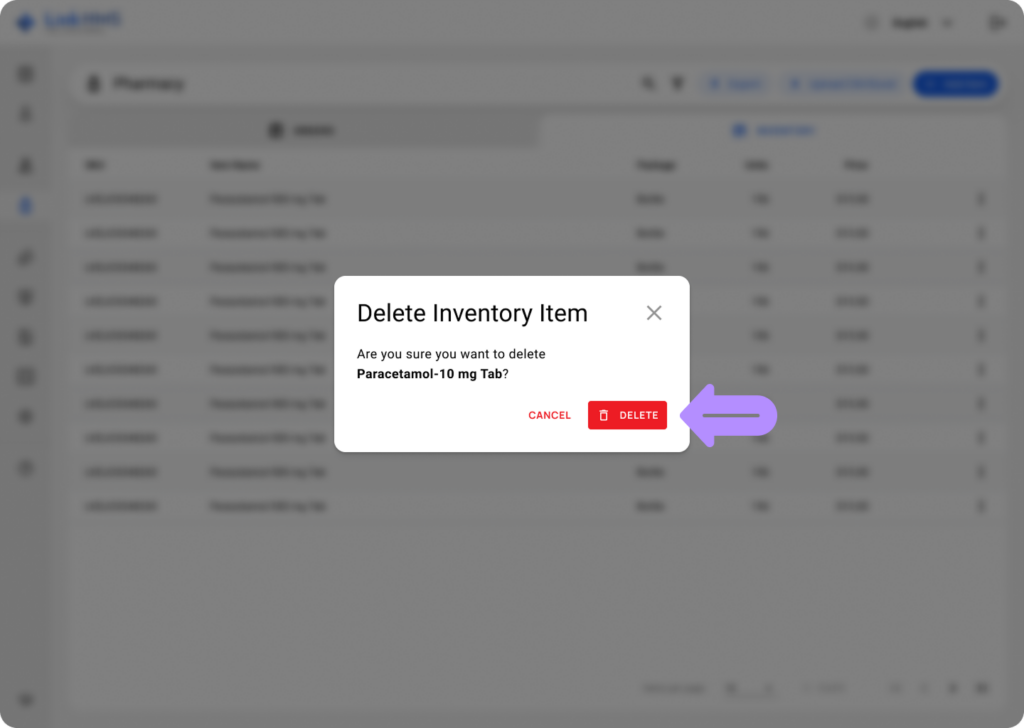
- Delete: Permanently remove the stock item from Inventory.
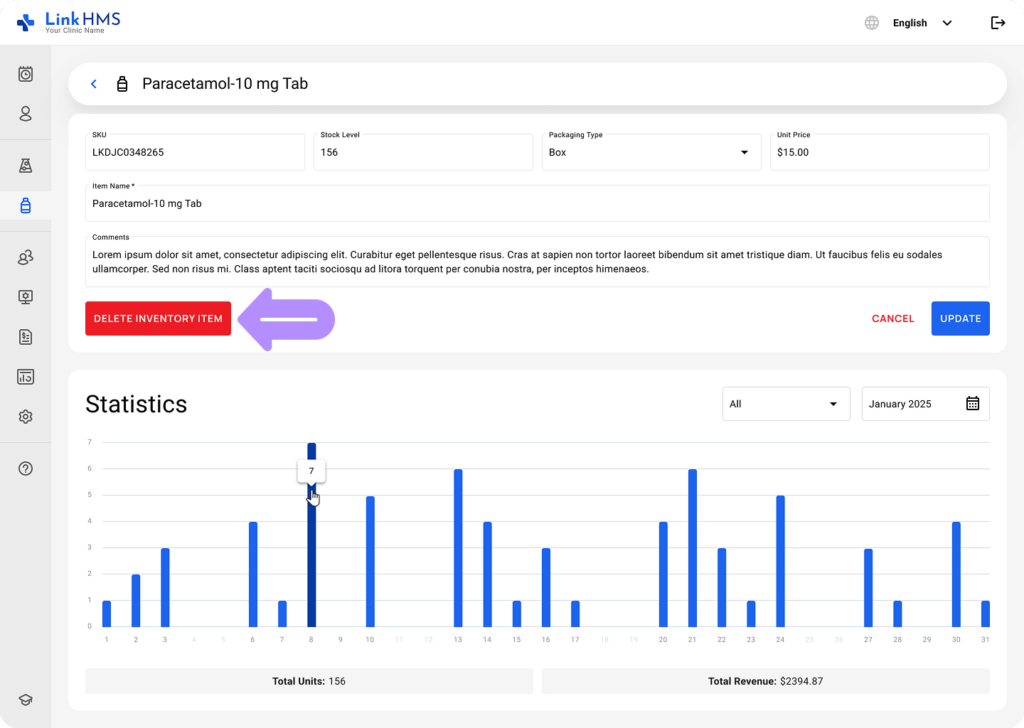
- A pop-up window will appear. Click the Delete button to confirm that you want to remove the item (this action cannot be reversed).
💡Notes
When an inventory item is referenced in Invoices, Prescriptions, Statistics, or other records, it should not be deleted.