You can customise one staff member’s access in Human Resources → Permissions. For example, you can allow one nurse to view pharmacy inventory without changing the Nurse role’s defaults.
The clinic owner can manage all roles and users. An Admin can manage non-Admin roles and users; only the owner can change Admin permissions.
How do I open a user’s permissions?
- Open Human Resources from the left-hand menu.
- Find and select the staff member. Use filtering and searching in Human Resources if needed.
- Open the Permissions tab.
- Expand the module you want to manage and find the relevant section or action.
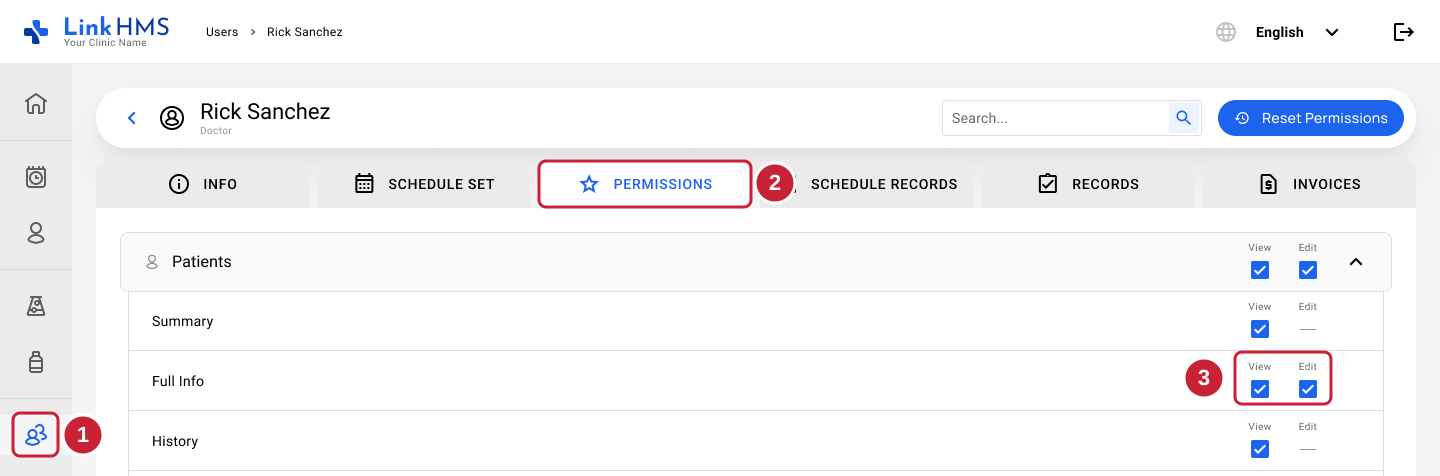
How do I change the user’s access?
Select or clear the available View and Edit controls. Changes save automatically and affect this user only.
- View allows access to the relevant information.
- Edit allows the changes covered by that permission. Turning Edit on also turns View on.
- Turning View off also turns off the corresponding Edit permission.
- A dash means no separate permission of that type is configurable. Existing role rules still govern those actions.
For example, leave Patients → Full Info → View on and clear Edit to let the user read those patient details without updating them.
Will this change the permissions for other users?
No. Individual changes do not update the role template or another staff member’s access. The user also keeps their assigned role.
The first individual change makes the user’s entire permission set independent of the role template. This applies to every configurable permission, including ones you did not change.
For example, you give Ada, a nurse, extra inventory access. Later, you change patient-record permissions for the Nurse role. Ada does not receive that later change because she now has her own permission set. To update the defaults for other staff, see changing role permissions for your clinic.
How do I make the user follow their role again?
On the same user’s Permissions tab, select Reset Permissions. See how to reset a user’s permissions to the role defaults for the full steps.
This removes all individual adjustments and applies the role’s current defaults. Future changes to that role will then apply to the user again. Check their existing access before resetting: the reset can remove extra access or restore access that you previously restricted.
Why can’t I change a particular permission?
Only selected areas of Patients, pharmacy inventory, Billing and Administration → Services are configurable. Other areas retain their existing role rules.
Admin permissions can only be changed by the clinic owner. Also, Claims → Edit currently does not change who can create or edit claims. Those actions still follow the user’s role. See the invoice, payment and insurance claim permissions guide for details.
For the relationship between organisation defaults and individual access, see How do user roles and permissions work in LinkHMS?.
Related permission guides
- How do I change role permissions for my clinic?
- How do I reset a user’s permissions to the role defaults?
- How do I control who can view and edit patient records?
- How do I hide patient phone numbers from certain users?
- How do I control who can edit pharmacy inventory, medication prices and stock?
- Why can’t I access a module or edit information in LinkHMS?