A user’s role sets their starting permissions in LinkHMS. You can manage these permissions for everyone who follows that role’s defaults, or customise access for one staff member.
For example, you can give all nurses the same access to patient information, then allow one nurse additional access to pharmacy inventory without changing access for the rest of the team.
How do role permissions and individual user permissions work together?
- Role permissions are the organisation’s defaults. They apply to new users and existing users who still follow that role’s settings.
- Individual permissions apply to one user. Changing a staff member’s permissions does not change the role template or anyone else’s permissions.
- The first individual change makes the user’s whole permission set independent. Later changes to the role template no longer apply to that user—even for permissions you did not edit individually.
- Reset Permissions restores the connection. The user returns to the current permissions for their role and follows future changes to that role again.
What does this look like in practice?
Ada and Ben both have the Nurse role and initially follow its defaults. You customise Ada’s permissions to give her additional pharmacy access. Ben continues to follow the Nurse role.
Later, you change the Nurse role’s patient-information permissions. Ben receives that change; Ada does not. Ada keeps her complete individual permission set until you change it directly or reset it to the current Nurse defaults.
Who can manage permissions?
- Account owner: can manage all role templates, including Admin, and individual users’ permissions.
- Admin: can manage non-Admin role templates and non-Admin users. Admin-role and Admin-user permissions are read-only, and their reset controls are unavailable.
- Other roles: do not have access to the permission-management screens.
How do I change permissions for a role across my organisation?
- Open Settings using the cog icon in the left menu.
- Select the Permissions tab.
- Select the role you want to manage, such as Nurse.
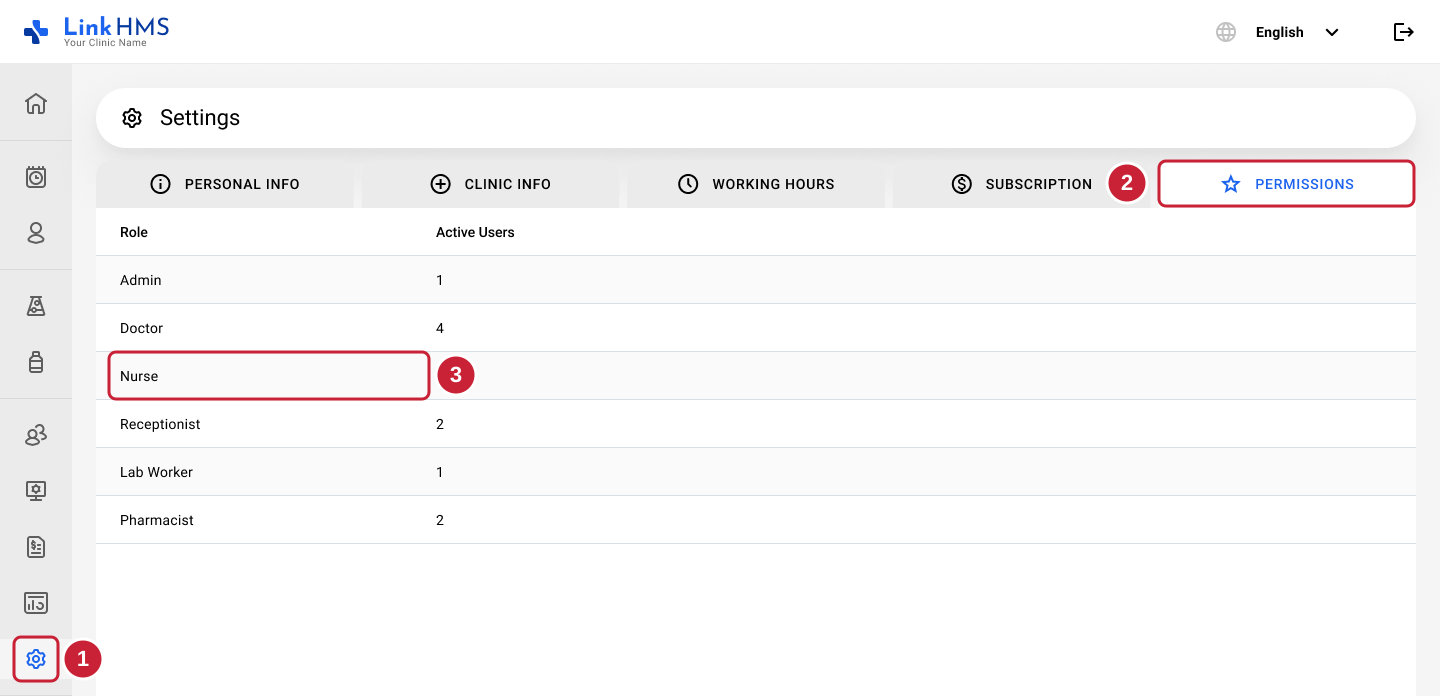
Open the relevant module and select or clear the available View and Edit checkboxes. Changes save automatically.

Before changing a role: these changes apply to all users who still follow that role’s defaults. Users with individual permission sets keep their existing settings.
How do I change permissions for one user?
- Open Human Resources and select the staff member. Use filtering and searching in Human Resources if you need help finding them.
- Open the user’s Permissions tab.
- Change the relevant View or Edit controls. Changes save automatically.
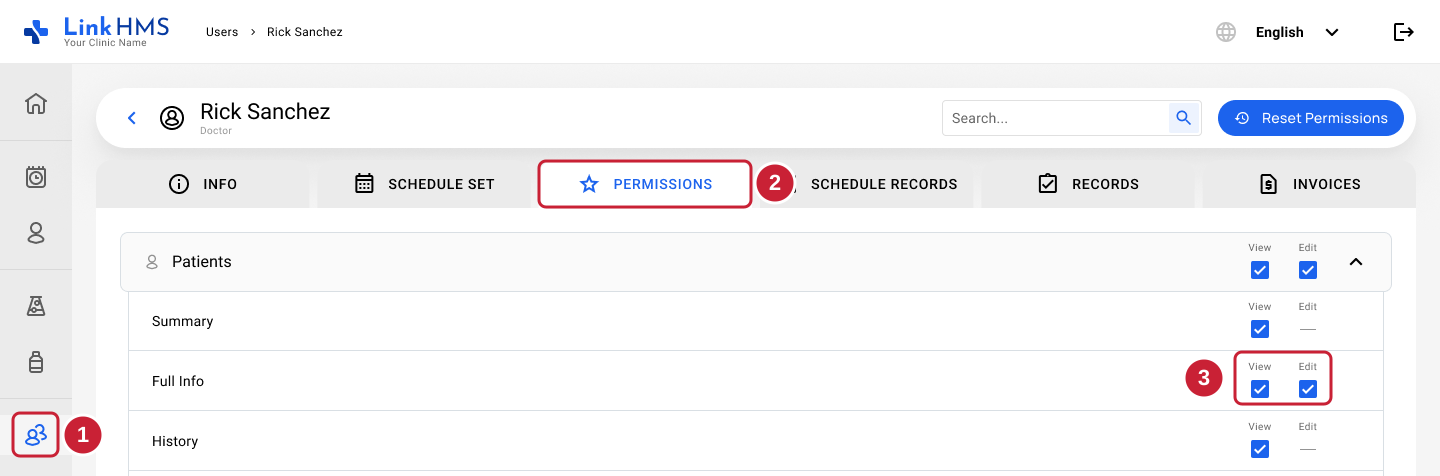
Remember: the first individual change makes this user’s entire permission set independent of the role template. It does not change their assigned role or update other users.
How do I reset a user’s permissions to their role defaults?
Open the staff member’s Permissions tab and select Reset Permissions.

Resetting removes the user’s individual permission set and applies the role template as it exists now. Future changes to that role will apply to this user again.
Check before resetting: this can remove extra access or restore access you previously restricted. It does not restore an older saved version of the user’s settings.
What is the difference between View and Edit permissions?
- View allows the user to see the relevant information.
- Edit allows the supported changes for that permission. Enabling Edit also enables View; disabling View also disables Edit.
- A dash in the Edit column means that no separate configurable Edit permission is available for that item. Existing role rules still determine the actions the user can perform.
Permission controls cover selected areas of Patients, Pharmacy inventory, Billing, and Administration → Services. For example, pharmacy access can distinguish medication details, prices and stock. A permission to view clinical information does not automatically grant every clinical action.
Claims exception: the Claims View permission controls visibility. The Claims Edit setting does not currently change access to claim actions; those actions continue to follow the existing role rules.
Why did a role-permission change not affect a user?
Check whether the user has individual permissions. If they do, edit their permissions directly or use Reset Permissions to make them follow their role again. Also check that you changed the correct role.
Why is a module or tab unavailable?
A module can disappear from the menu when the user has no access to it. Some tabs remain visible but display a no-access message. Check the user’s effective permissions—either their individual settings or the role defaults they follow.
Does changing permissions change a user’s role or account status?
No. The role is selected when creating a new user and cannot be changed afterwards. Permissions adjust access within that membership. To disable a staff account, use Managing user status: Active and Inactive.