💡Notes
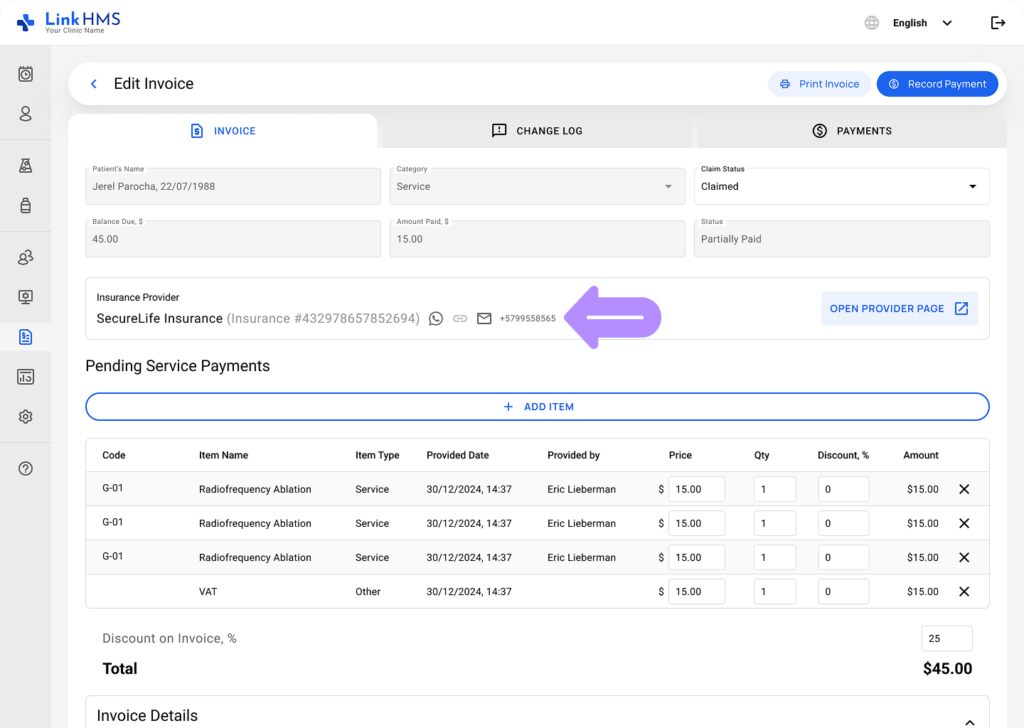
LinkHMS includes a quick-contact box in invoices that allows you to view patient insurance details and reach the assigned provider directly during invoicing.
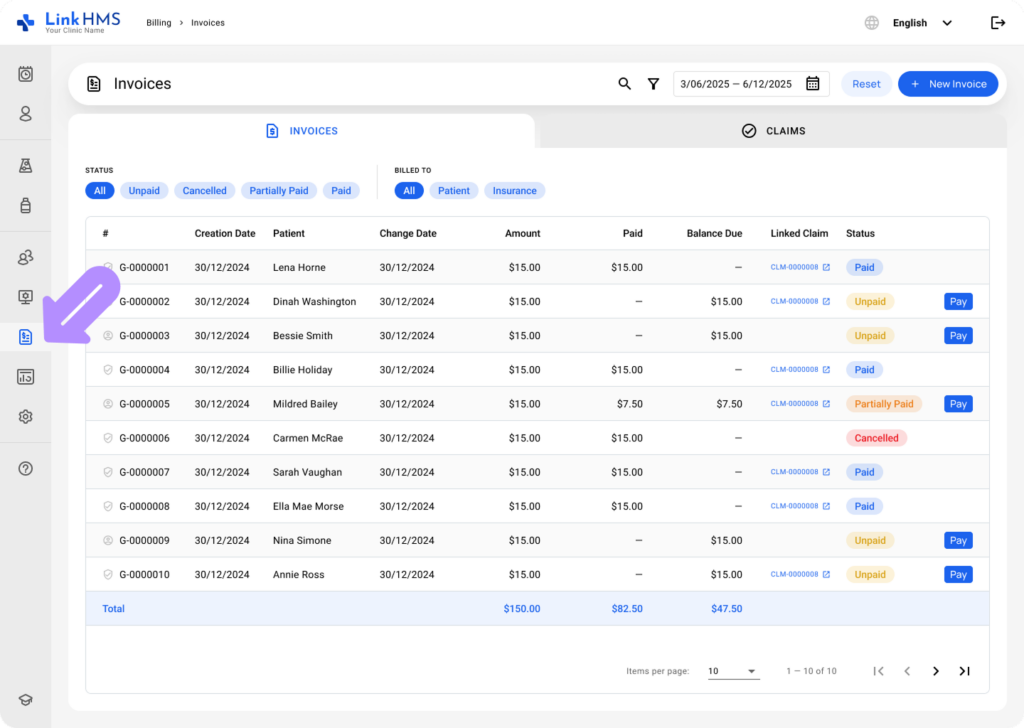
- Go to Billing using the menu on the left and open the Invoices tab.
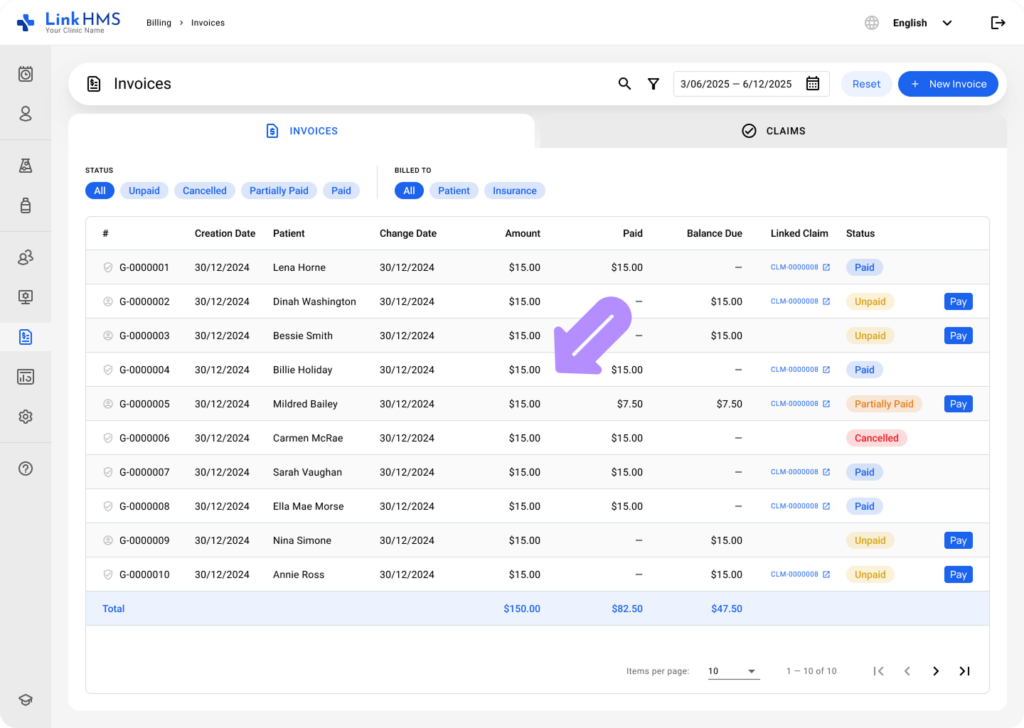
- Select the required patient’s invoice to view its details and submit the claim to the provider.
💡Notes
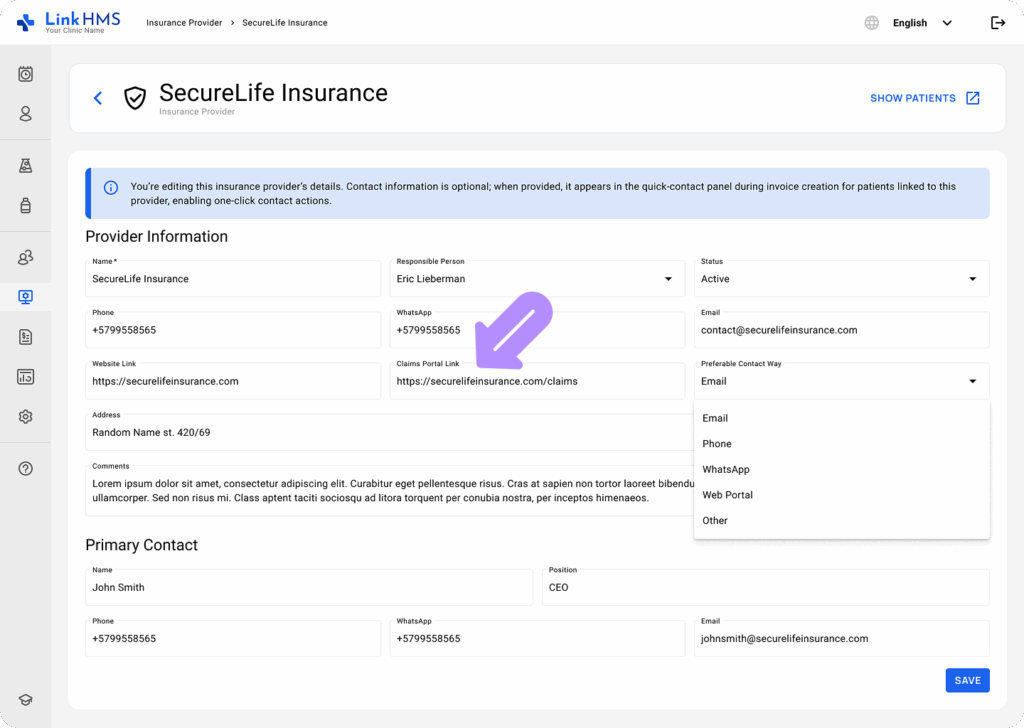
If the insurance provider’s profile includes a claims portal link, it will also be available in the quick-contact box in the patient’s invoice for faster access. You can add the claims portal link to the Claims Portal Link field in the Insurance Provider profile, as described in this article: Creating and Editing Insurance Providers in LinkHMS.
- Navigate to the quick-contact box with the patient’s insurance information and the provider’s contacts. Click the Link icon to follow the claims portal link for further submission on the provider portal.
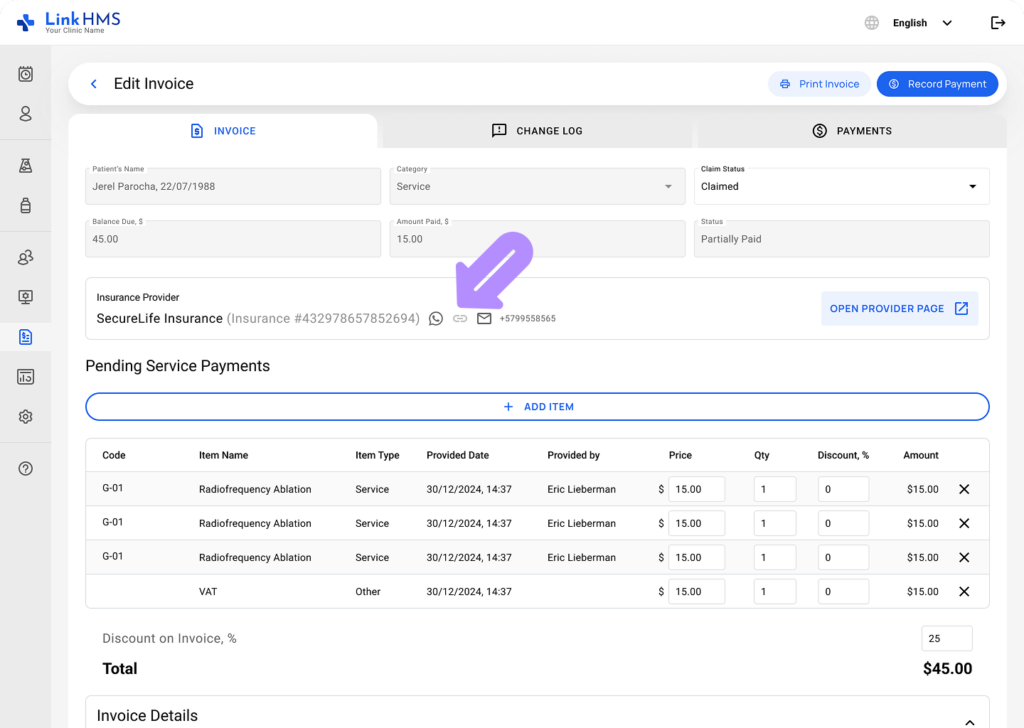
- If the claims portal link isn’t added, you can use any other contact option (email, phone, WhatsApp, website, or other) to submit the claim to the outlined provider.