LinkHMS enables you to accurately track and bill for medical procedures, inpatient charges, analyses, medicines, and other services during the patient’s stay, supporting transparent financial management.
💡Notes
The system automatically creates a new invoice when a patient is admitted for inpatient care. It remains open until discharge to invoice all provided services, and can be finalized in the Invoices tab.
Adding New Service Charges to the Admission Invoice
Once the patient is admitted, an invoice draft is automatically created, and the authorized users can also include extra services in the invoice.
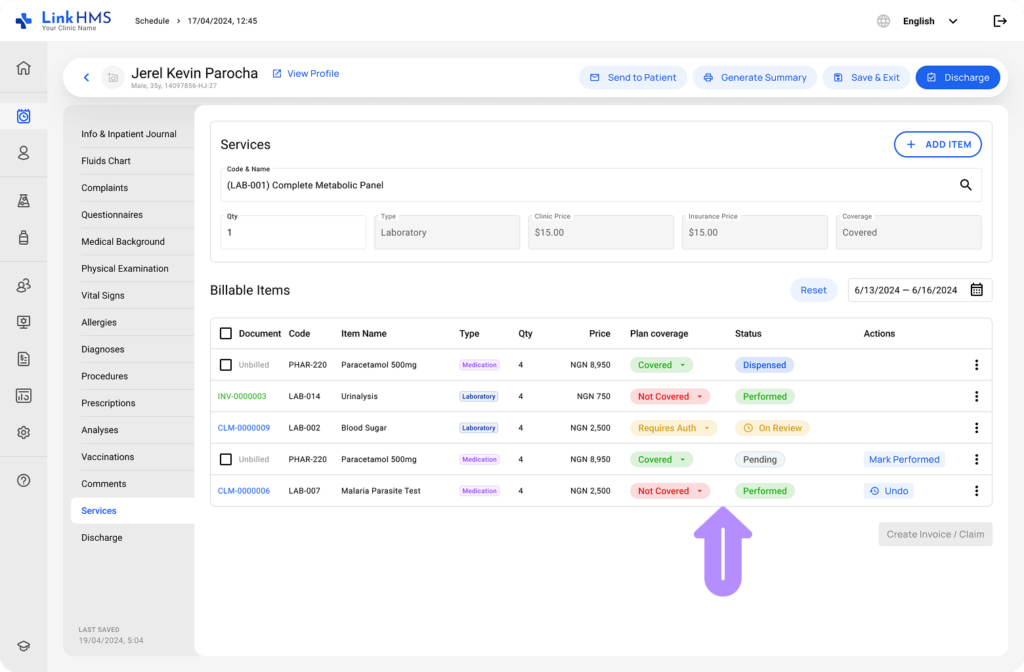
- Navigate to the Service tab to select more services for invoicing.
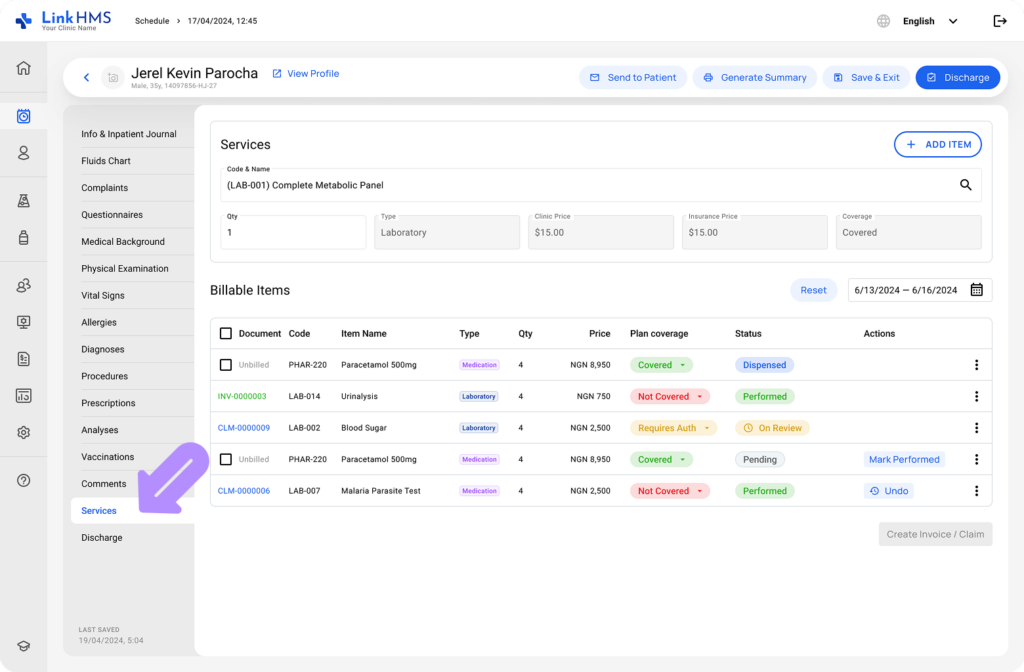
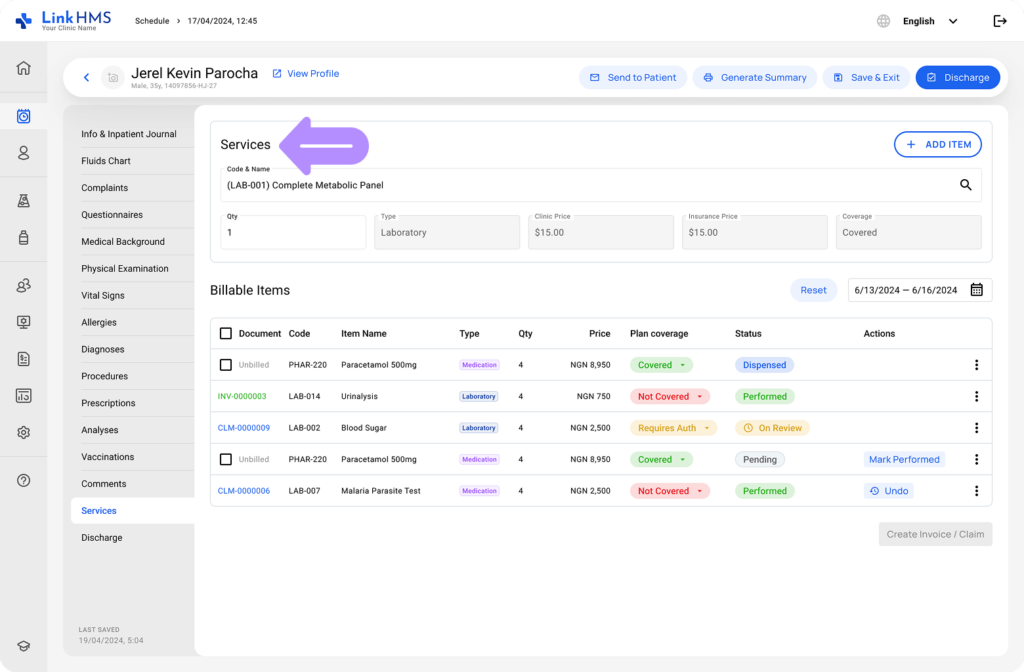
- Select the required service and specify the quantity. The type, clinic price, insurance price, and coverage are added automatically as they’re previously specified for every service in the Administration module.
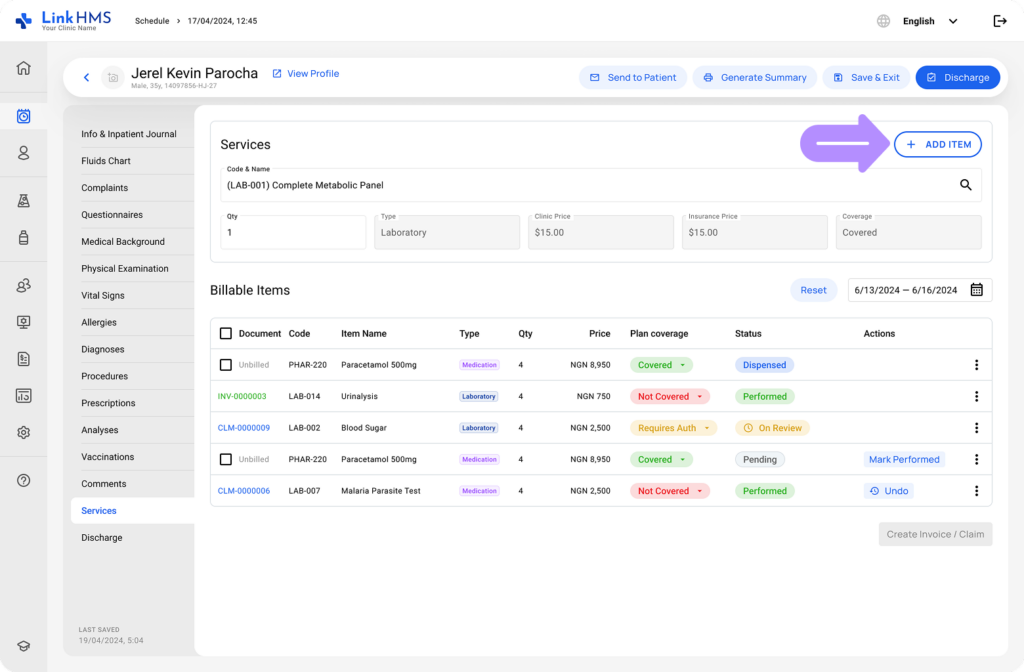
- Click the + Add New Record button to list a new service on the invoices.
- If needed, review the added services for details such as plan coverage and status.
💡Notes
Every provided service appears as a separate record, so you can continue adding all the required services to the patient’s admission invoice within the same tab.
Adding Lab Test Charges to the Admission Invoice
All the billable analyses are also included in the inpatient admission invoice.
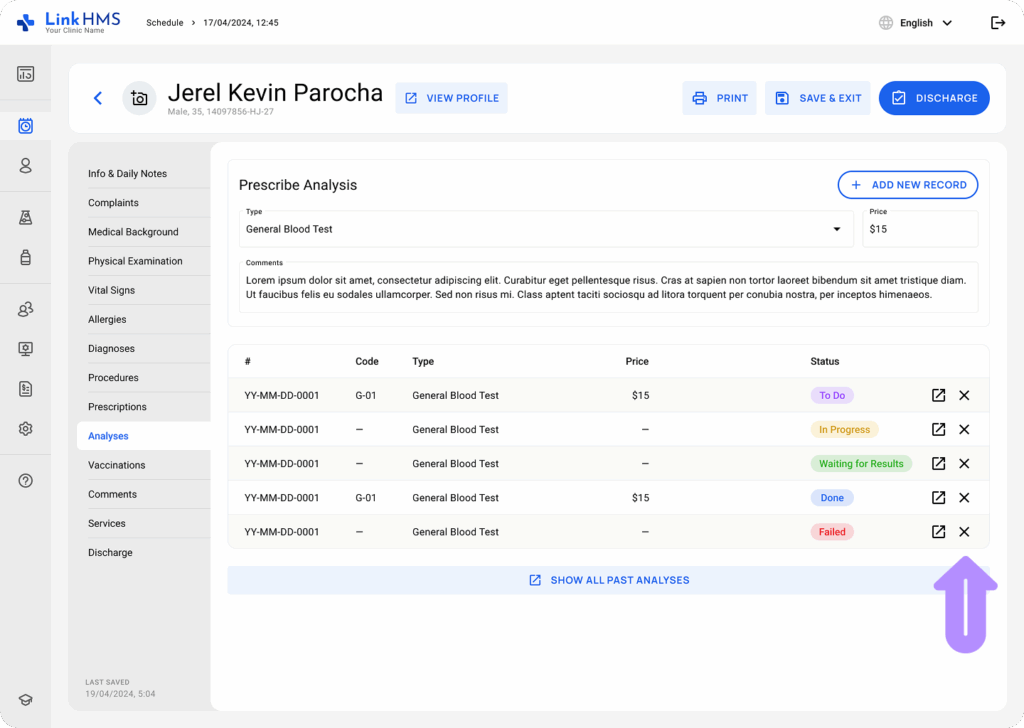
- You can also navigate to the Analyses tab to invoice the assigned lab tests.
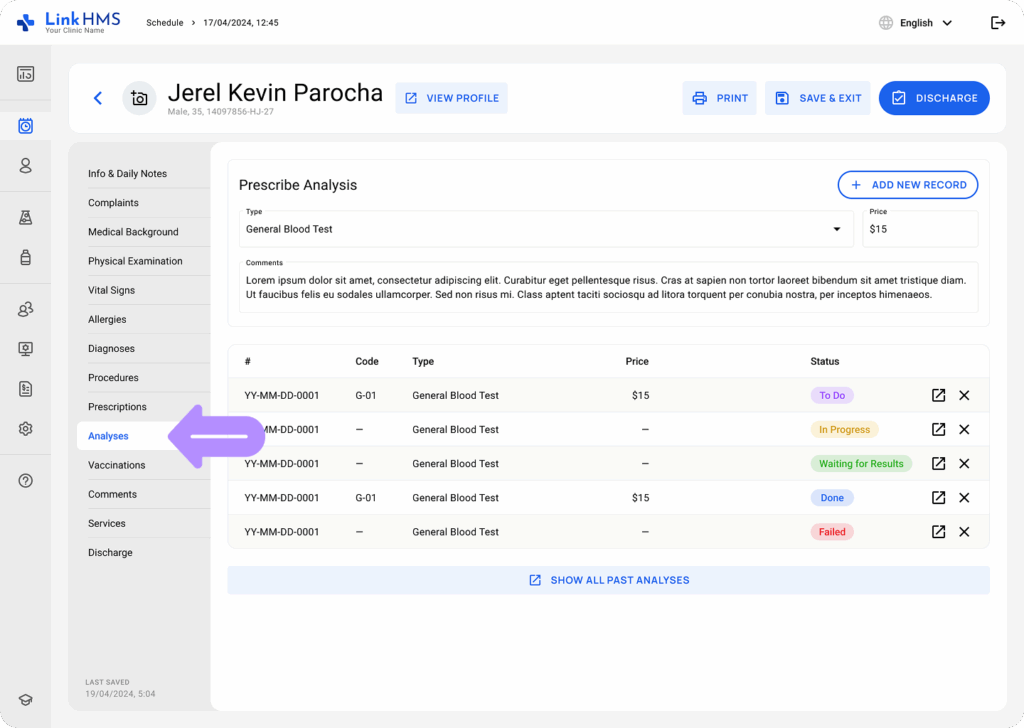
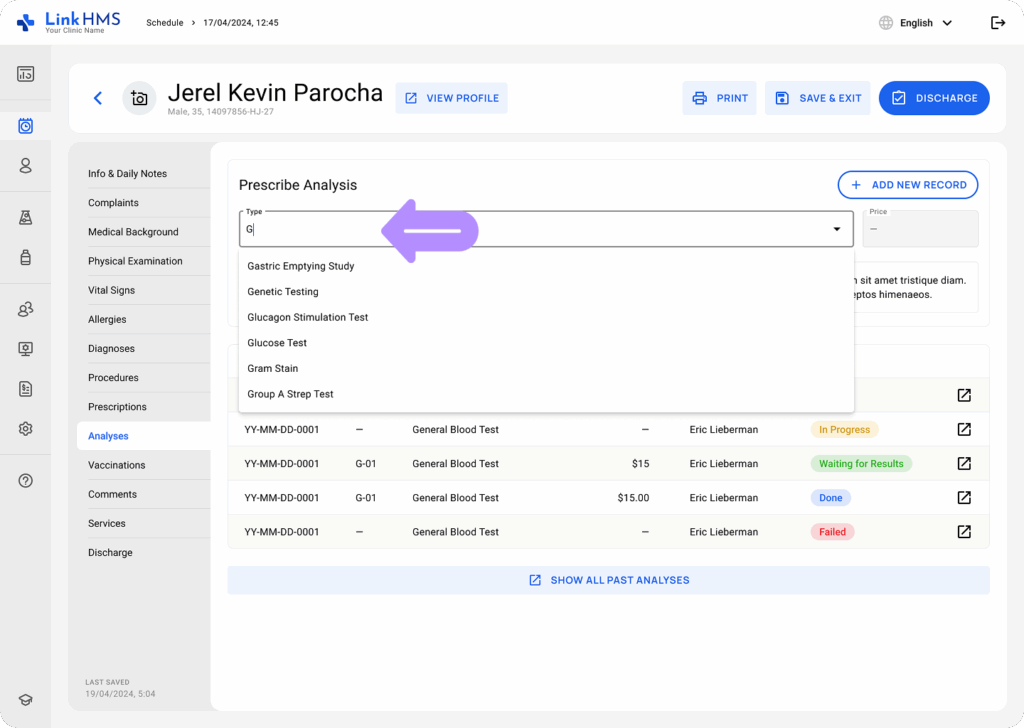
- Select the required analysis to prescribe and add optional comments. The price is included automatically as it’s previously set for every lab test in the Administration module.
- Click the + Add New Record button to prescribe the analysis and invoice its charges to the inpatient admission. Repeat the step if you need to add other analyses.
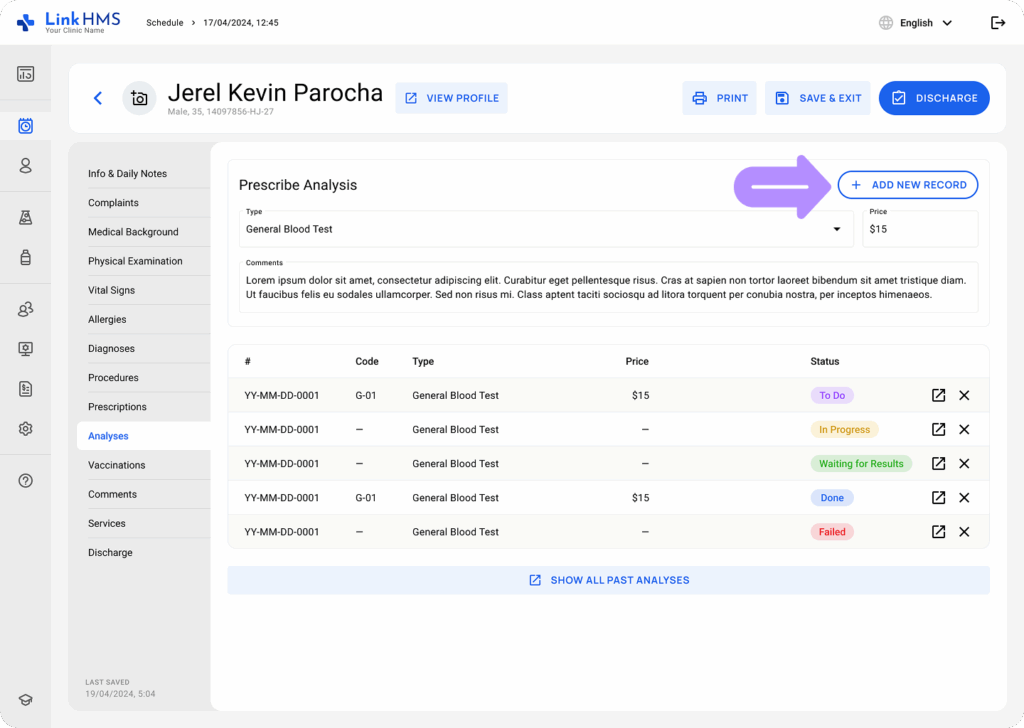
- If required, click X to remove added lab test charges.
Reviewing the Invoiced Services before the Discharge
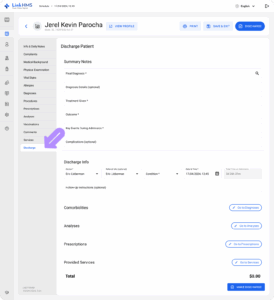
- Navigate to the Discharge tab to review the invoiced charges.
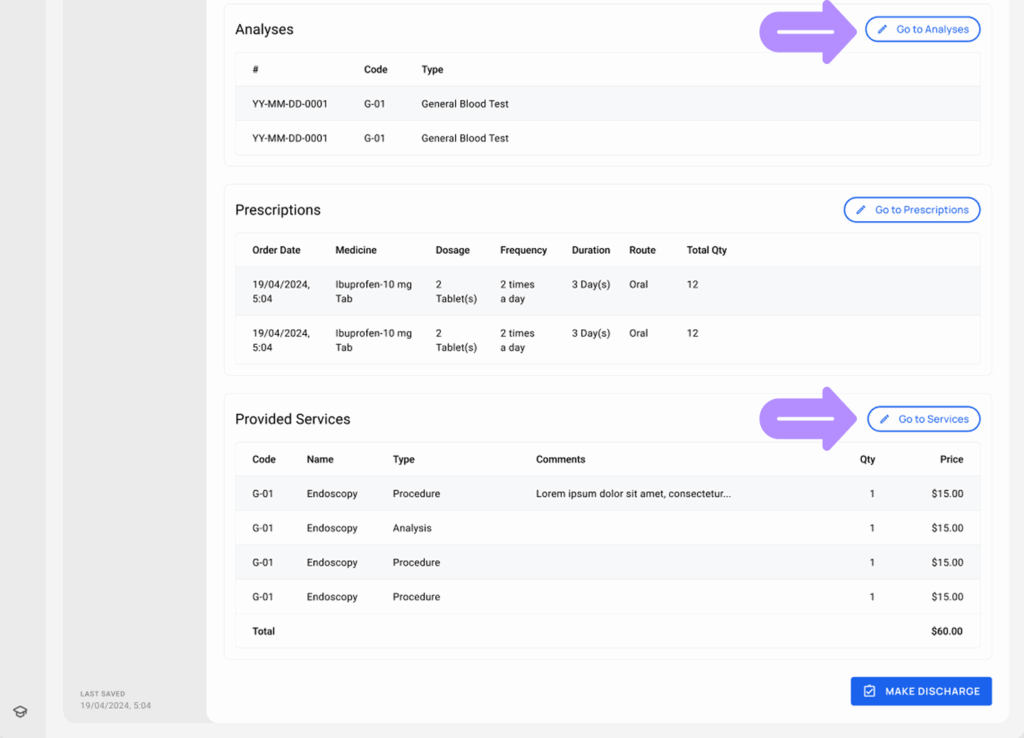
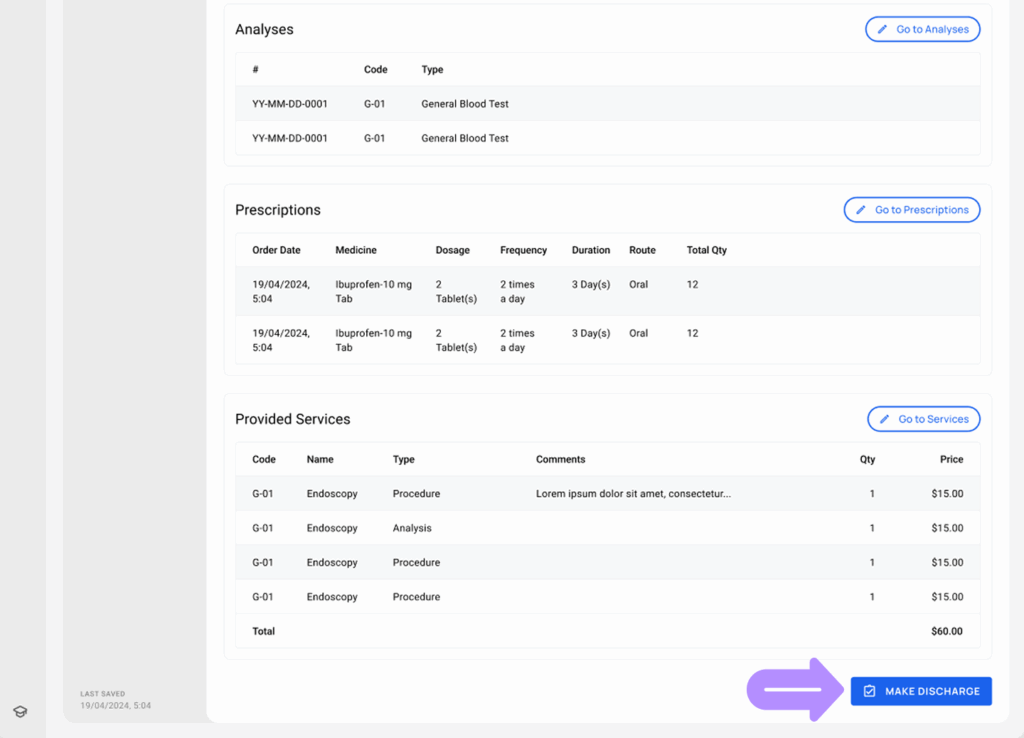
- Review the list of included payments. If necessary, use the ‘Go to Analyses’ and ‘Go to Services’ buttons to modify the list of added analyses or services.
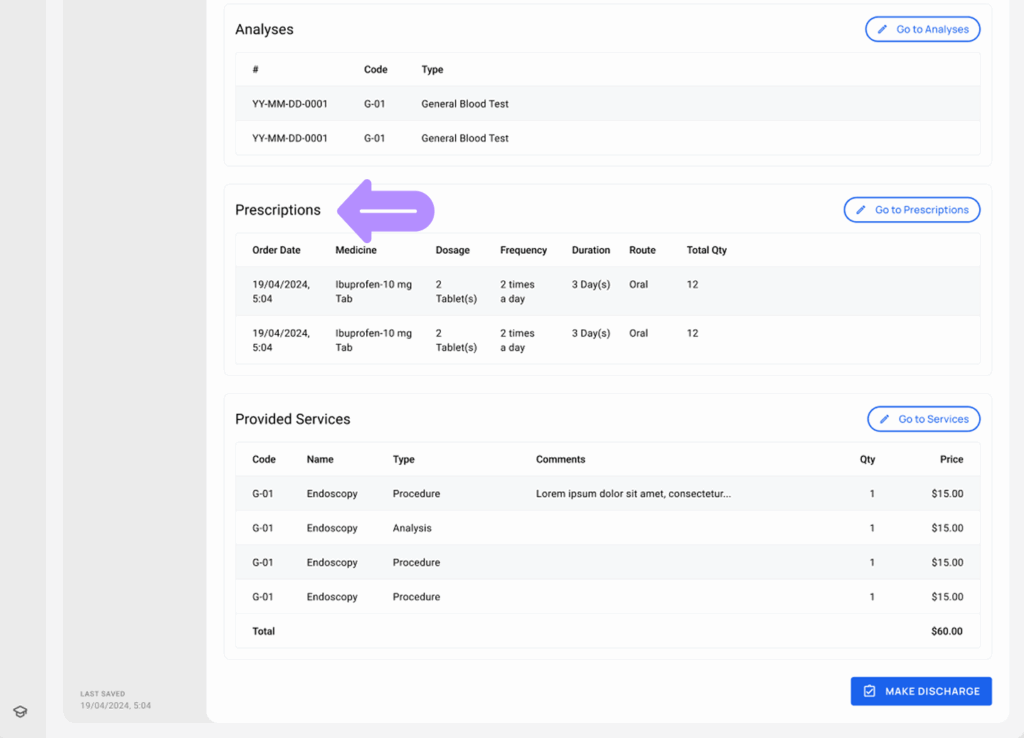
- You can also view a list of prescribed medicines billed for pharmacy orders.
💡Notes
Prescription invoices can also be managed separately within the Pharmacy module. Check the detailed guide on Creating and managing prescription invoices.
- Click the Make Discharge button when all necessary records have been reviewed and completed, and the patient is ready to be discharged.
💡Notes
Additional charges can still be added to the same admission invoice when it’s finalized in the Invoices tab by Receptionists or Clinic Admins. Follow the guide on Managing Invoices in LinkHMS.
Printing the Inpatient Invoice
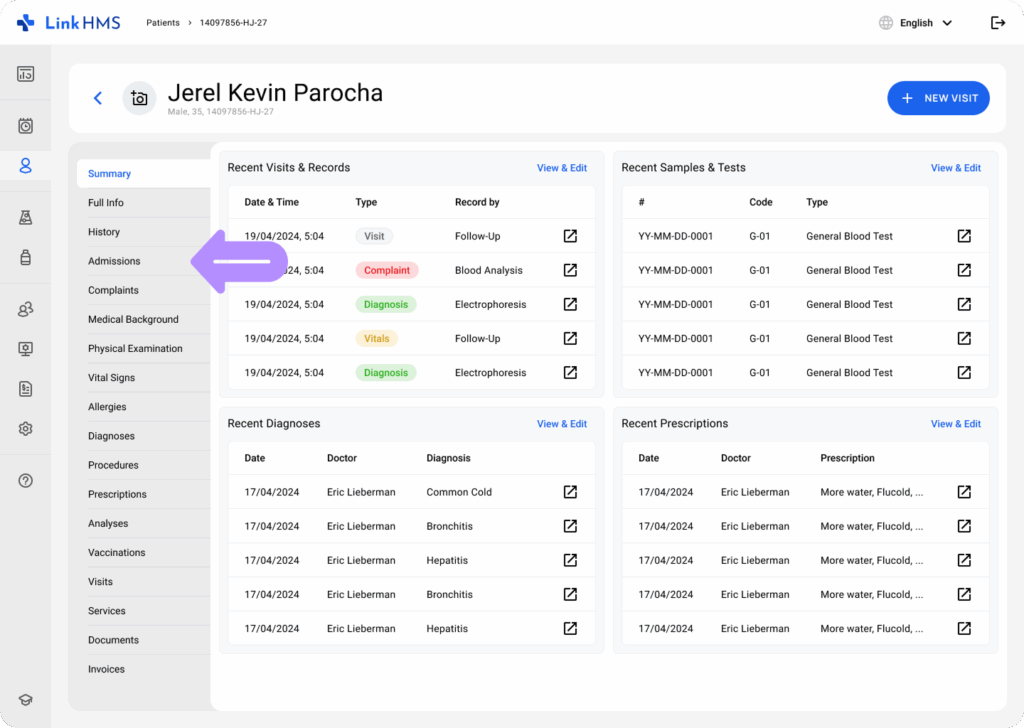
- Navigate to the Patient’s Profile and select the Admissions tab.
- Locate the required admission and click on it to open the details.
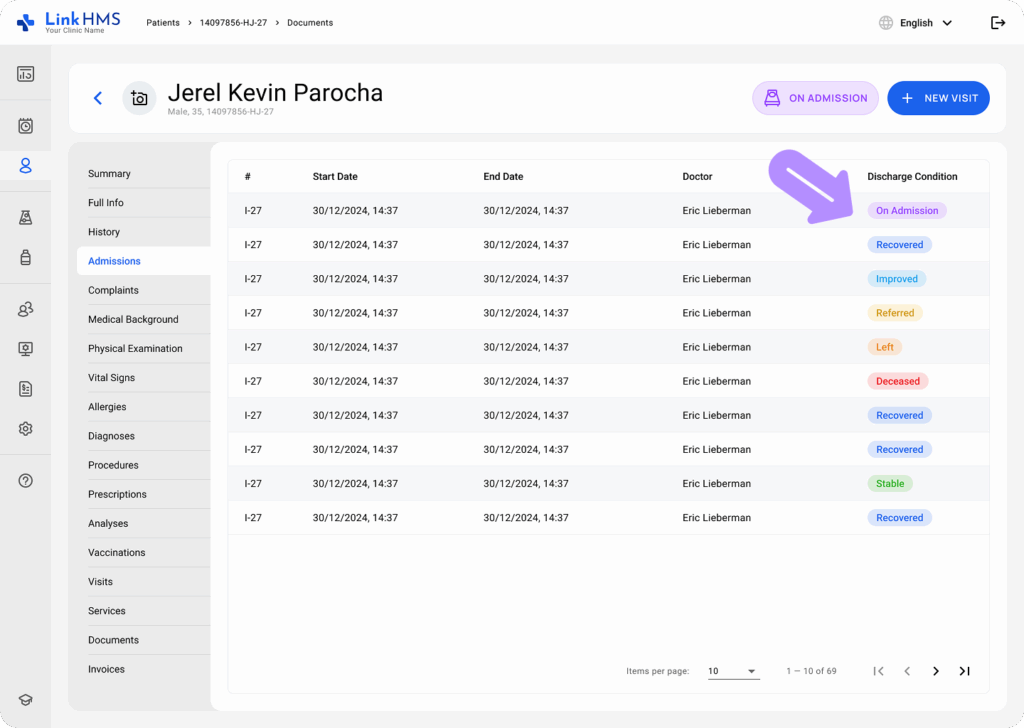
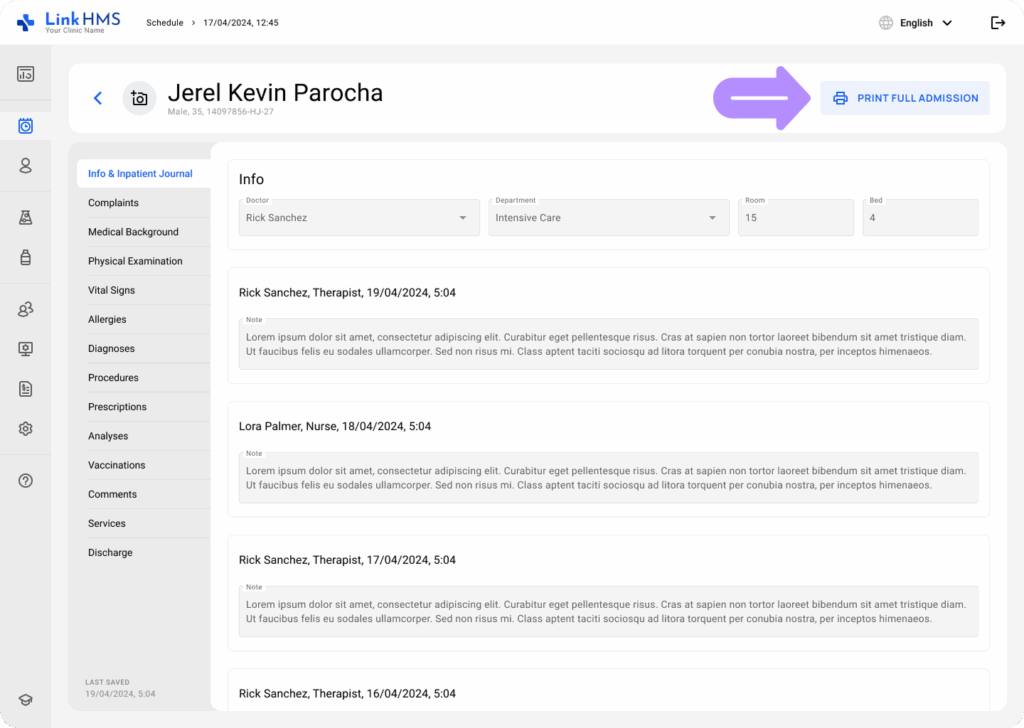
- Click the Print Full Admission button to preview the PDF file with the created invoice and the summary discharge. Use the browser’s print settings to print or save the inpatient invoice.