LinkHMS enables you to create an invoice based on the services recorded in EMR. Patient profiles keep a complete record of all services provided to them, whether added during a scheduled visit by a doctor or during a walk-in appointment by reception staff. Besides, you can create a new invoice manually for any patient and add services that were not linked to a visit or admission, or were not entered into the EMR by the doctor or administrator for any reason.
Creating the Invoice
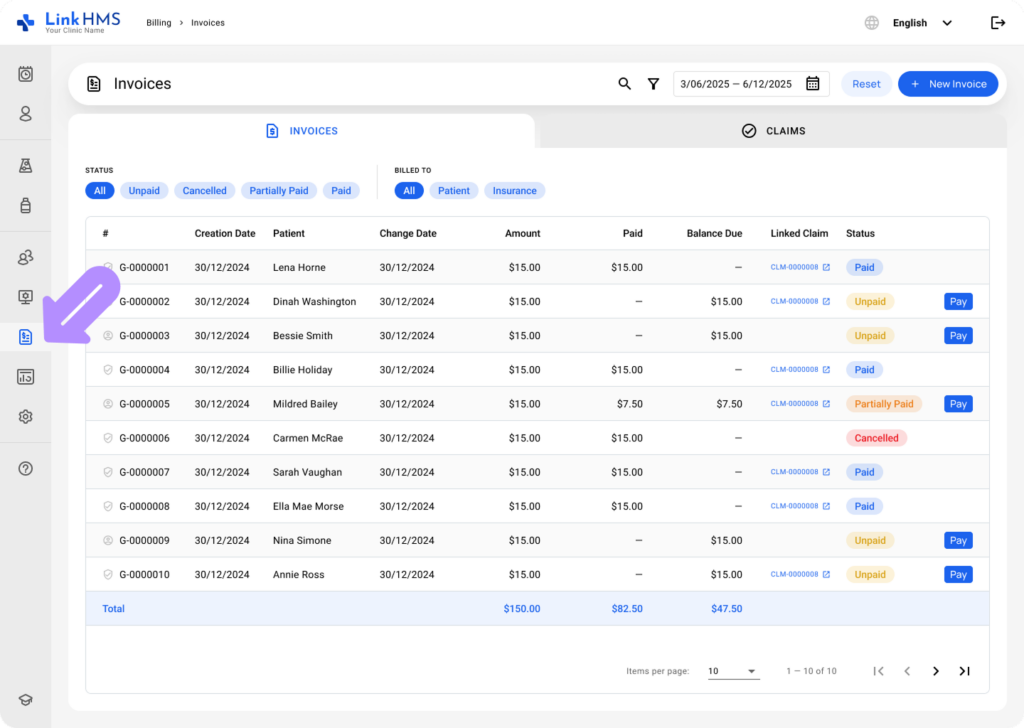
- Navigate to Billing from the menu on the left, and open the Invoices tab.
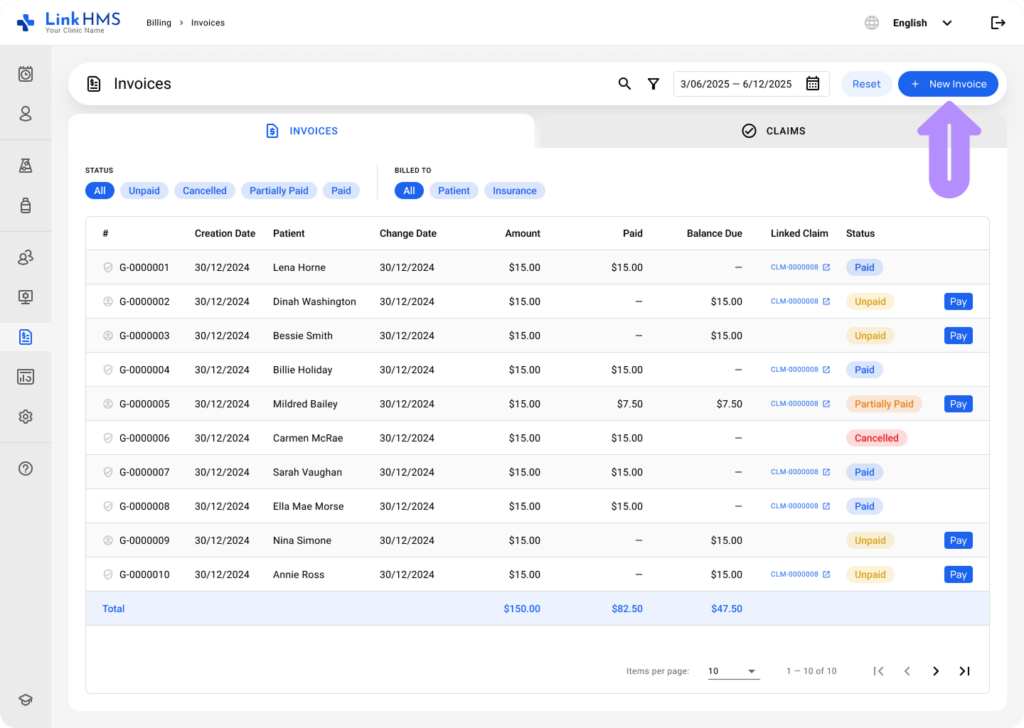
- Click the + New Invoice button in the upper right corner.
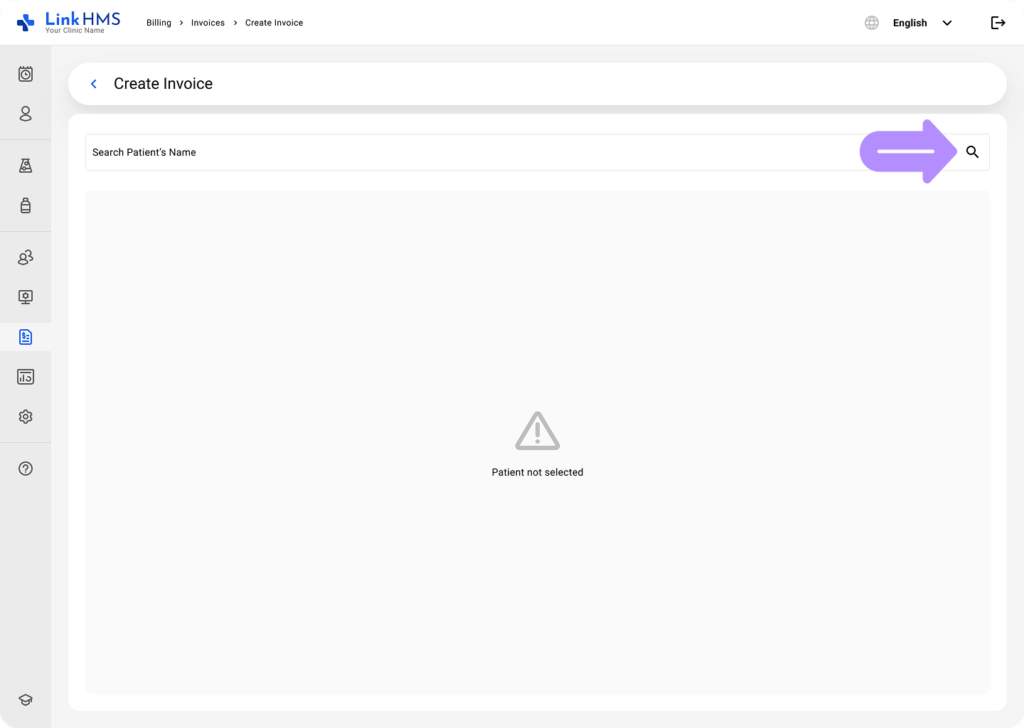
- Search the patient’s name to select the patient you are creating the invoice for.
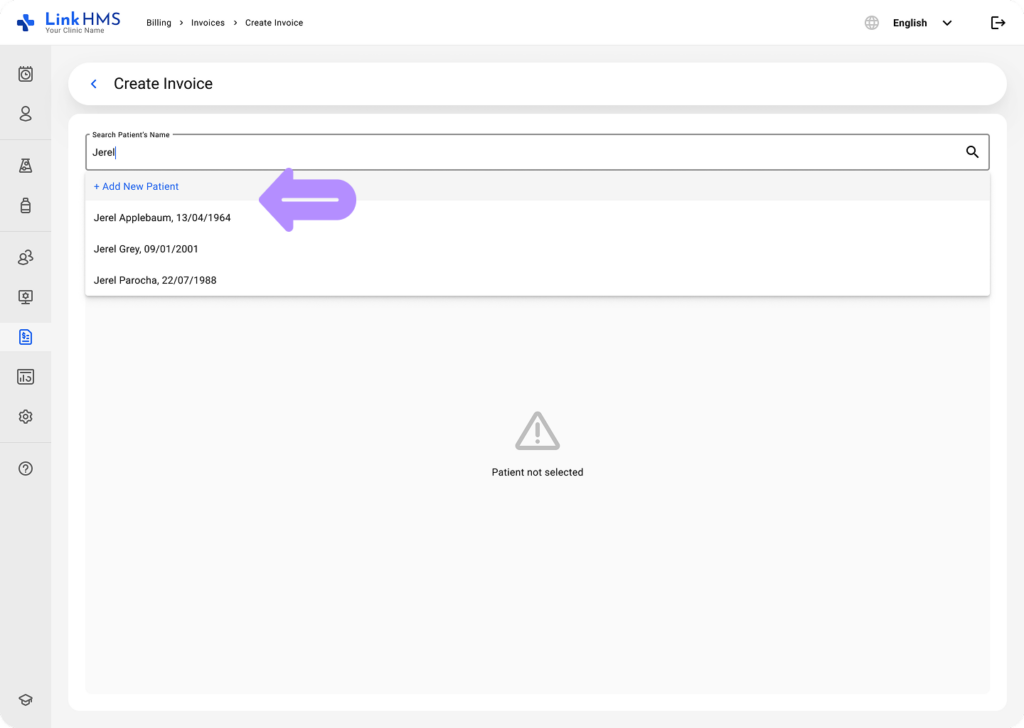
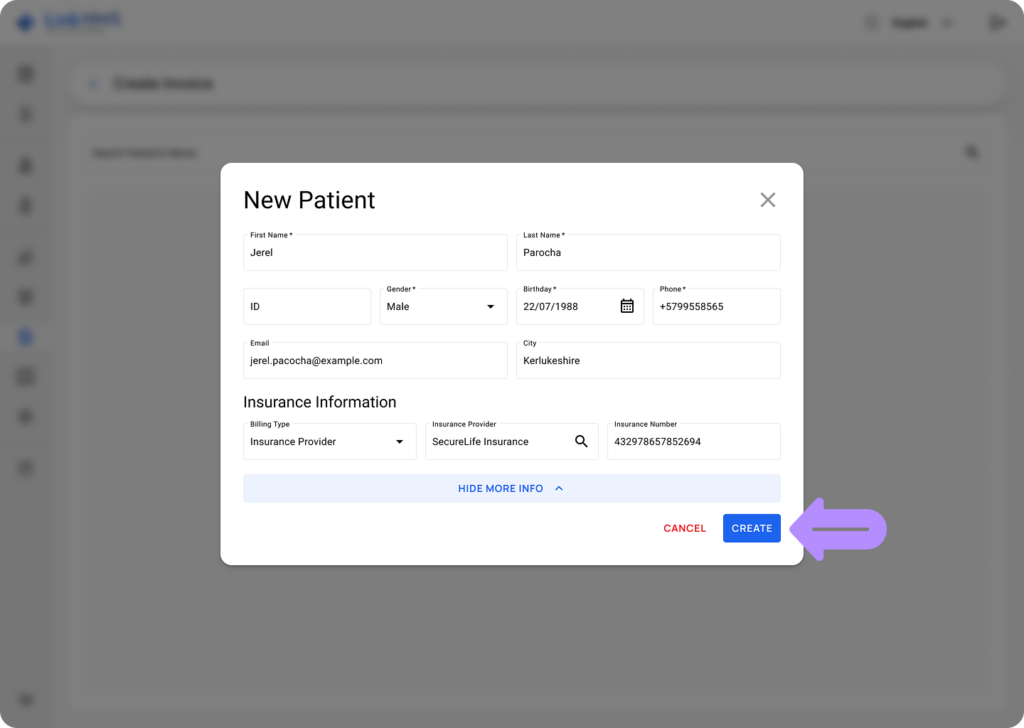
- Choose an existing patient from the dropdown menu or click + Add New Patient to create the invoice for new patients.
💡Notes
In the pop-up window for new patients, enter the required details (First Name, Last Name, Gender, Birthday, Phone, Email, City, Billing Type, Insurance Provider, and Insurance Number) and click the Create button to add the patient and save the information.
Choosing Services
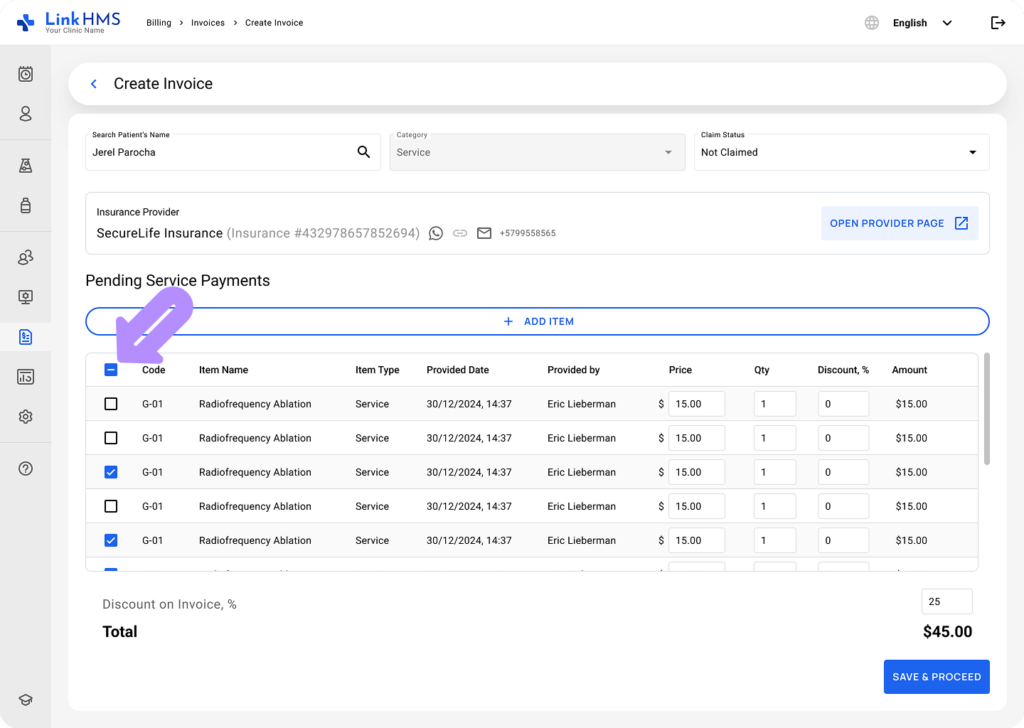
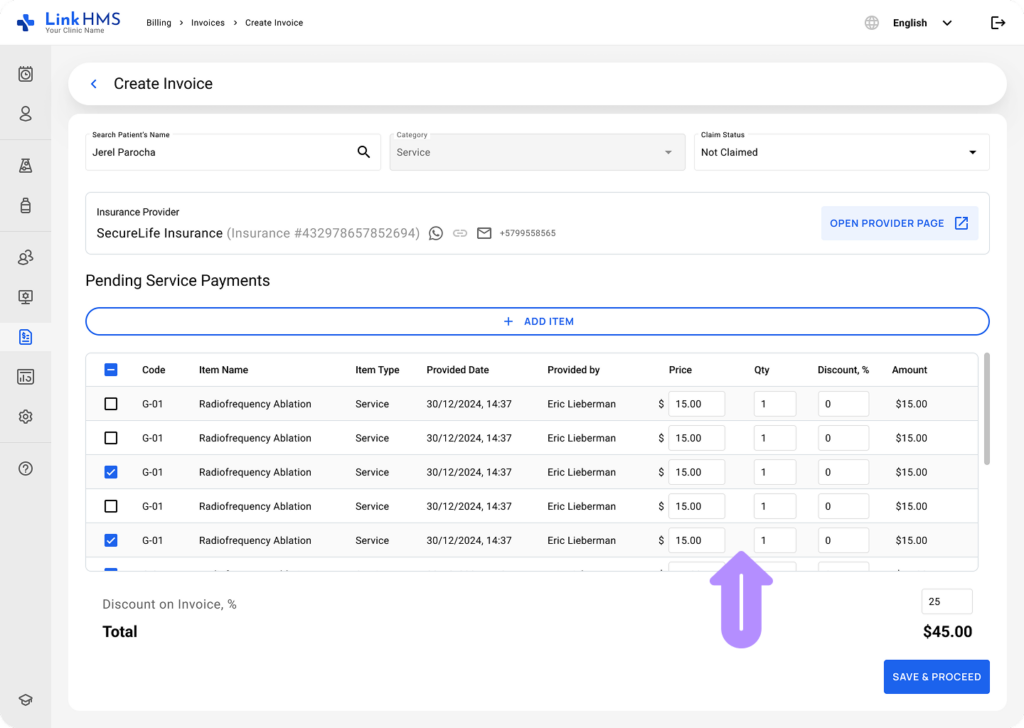
- Review the list of pending service payments for the existing patient (previously recorded by other clinic staff). Use the checkboxes to select specific charges to be included in a single invoice. To select all items at once, click the checkbox at the top of the list.
Adding More Services
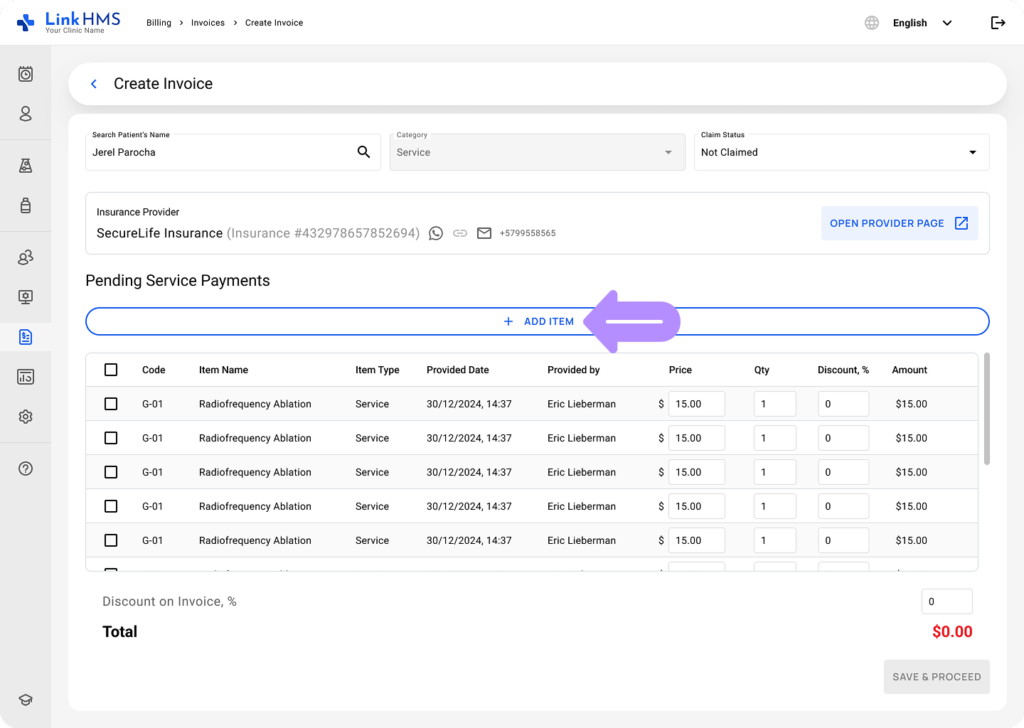
- You can include as many services as needed in the invoice by adding more items.
💡Notes
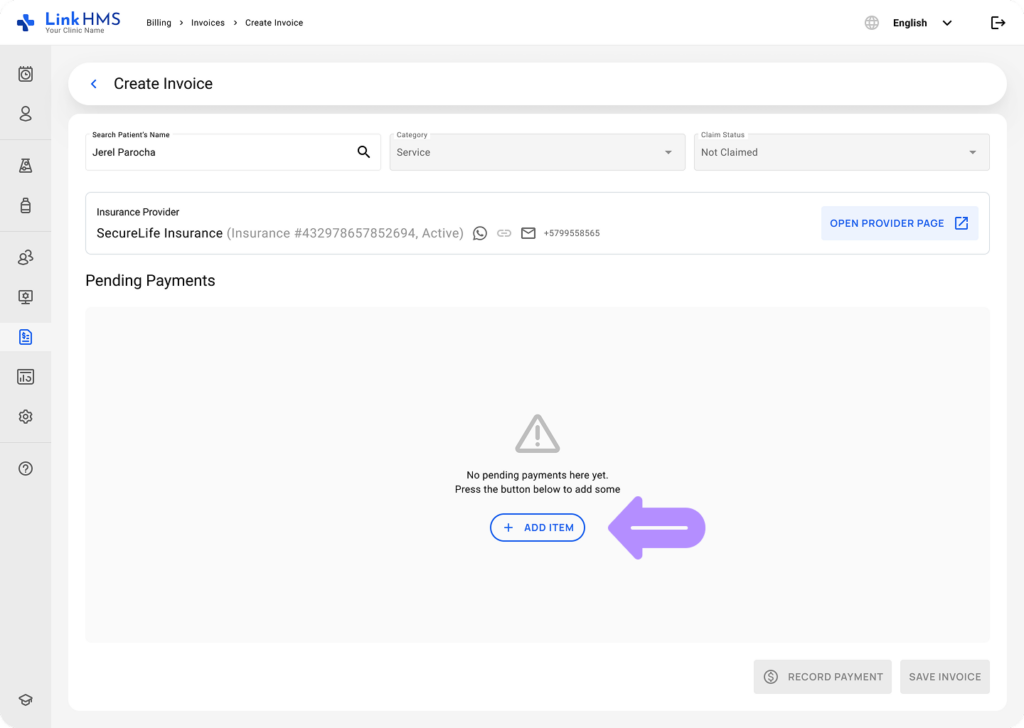
For new patients, there are no pending payments, but you can use the + Add Item in the middle to include the required service charges in the invoice.
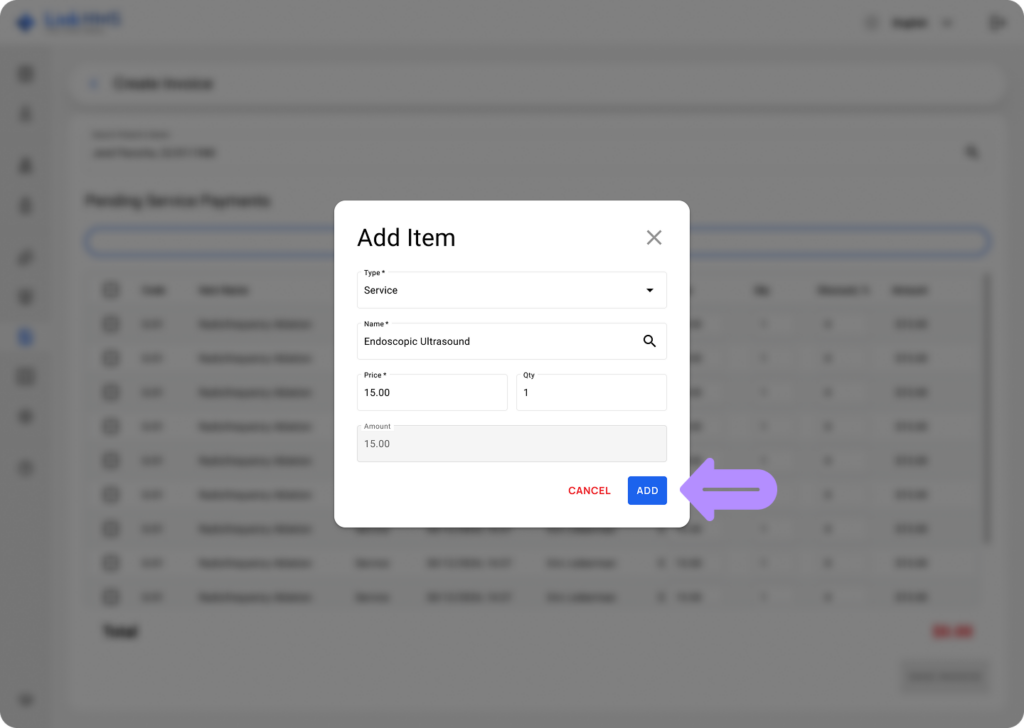
- Specify the item type, service name, price, and quantity needed.
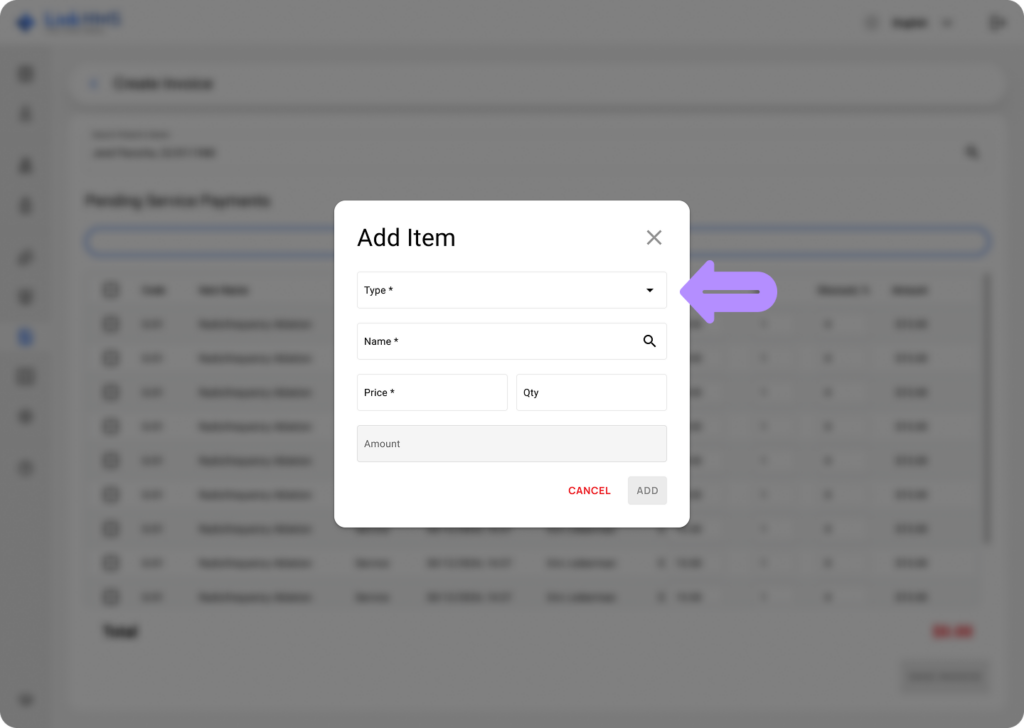
- Click the Add button to add the service charge to this invoice.
Saving the Invoice
- Review the list of added services, choose the necessary quantity, and specify the price.
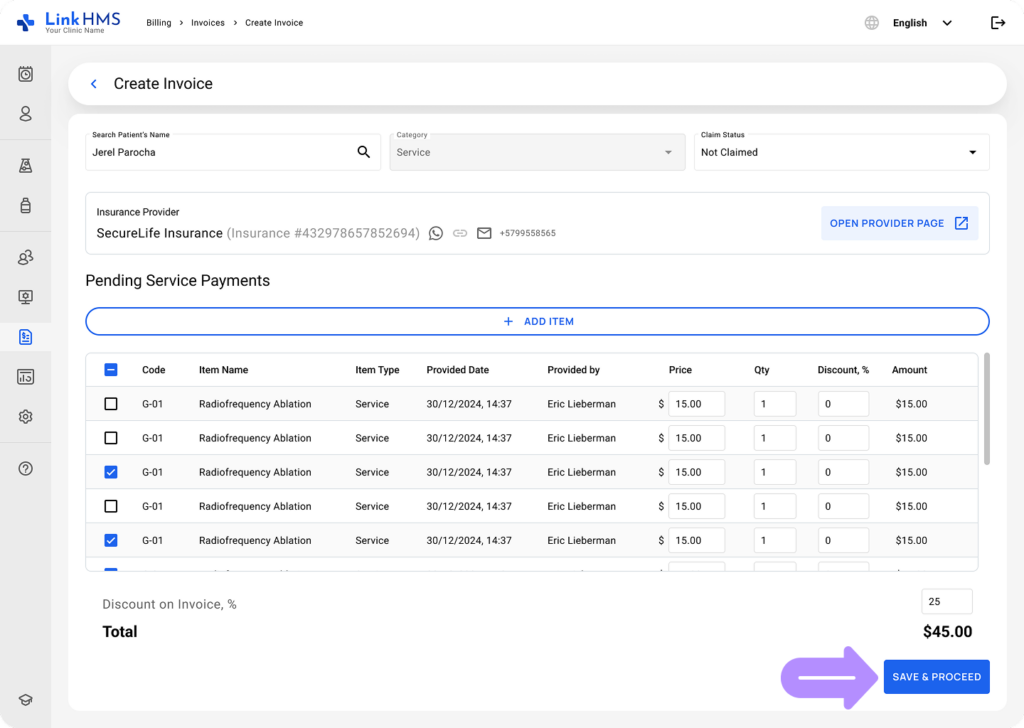
- Click the Save & Proceed button to create the invoice for the chosen services.
💡Notes
The newly created invoice is now listed in the Invoices tab, where you can review details, edit and finalize it, update the status, record and track payments.
You can also refer to the complete guide on How to manage and edit invoices.