💡Notes
Discounts can be applied either to individual items or to the entire invoice, reducing the price accordingly so that the final price is displayed in the amount due. It helps maintain transparent billing and precise tracking of savings for both the clinic and the patient.
Opening the Invoice
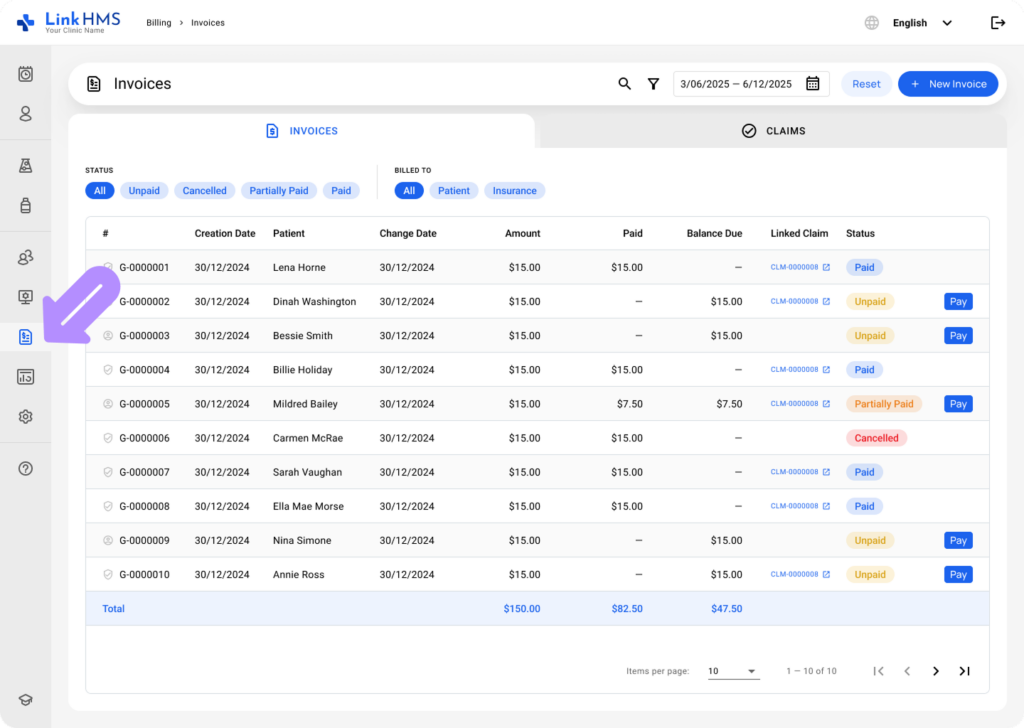
- Navigate to Billing from the left-side system menu and open the Invoices tab.
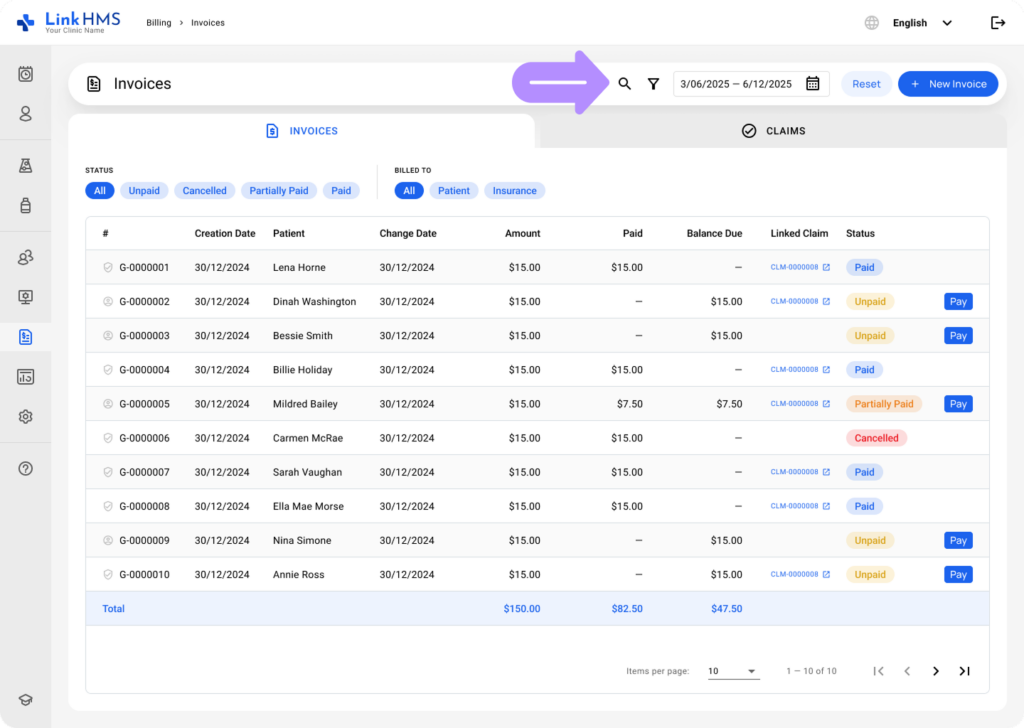
- Locate the invoice to which you’d like to apply discounts. For quicker access, refer to the additional guide on How to browse and search invoices.
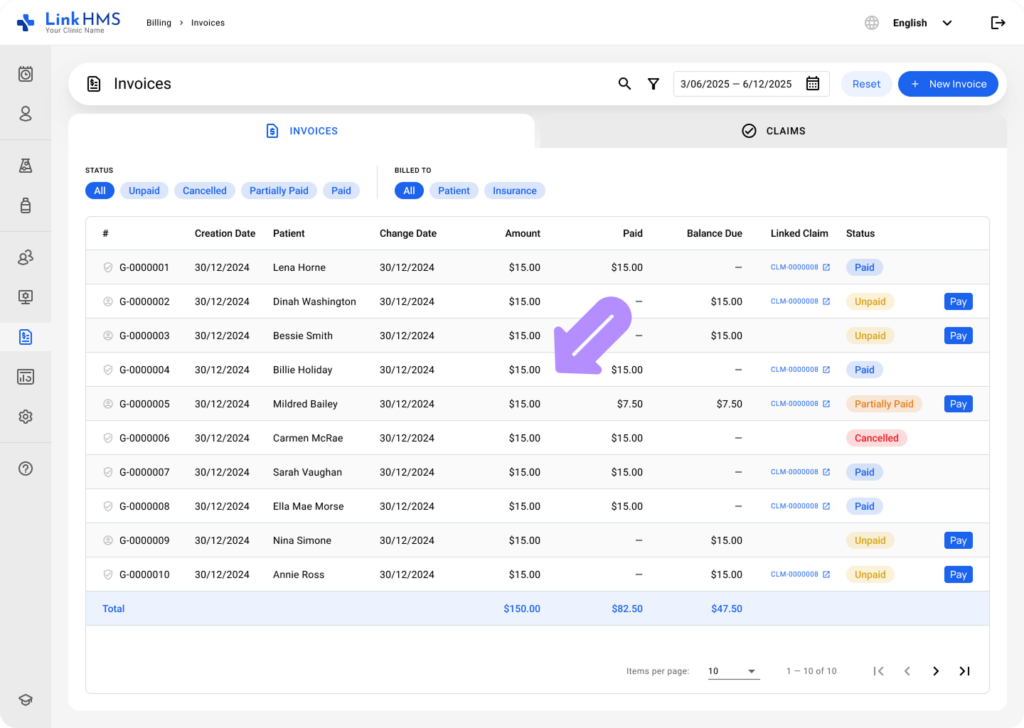
- Click the required invoice to open it and proceed with applying discounts.
Applying Discounts per Service
💡Notes
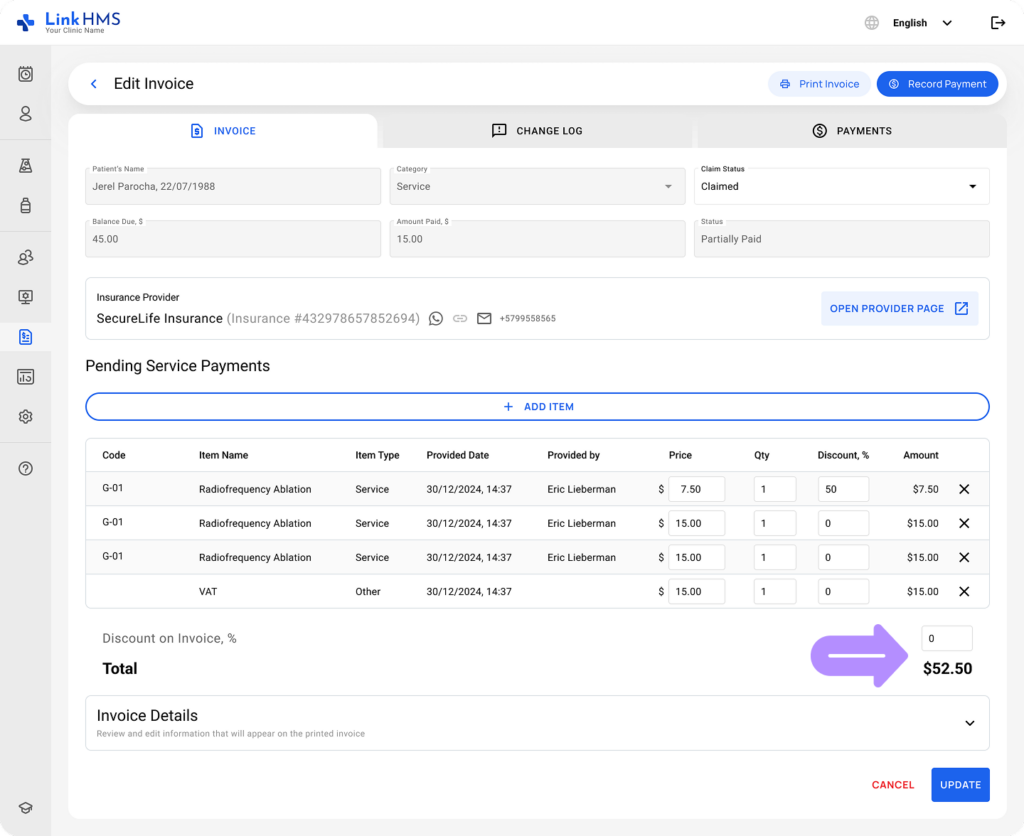
You can apply discounts to individual services by setting different percentages for each or only for selected ones, and the system will automatically update the service prices accordingly.
- Go through the list of services and enter the required discount in the corresponding discount field to adjust the price for the specific service.
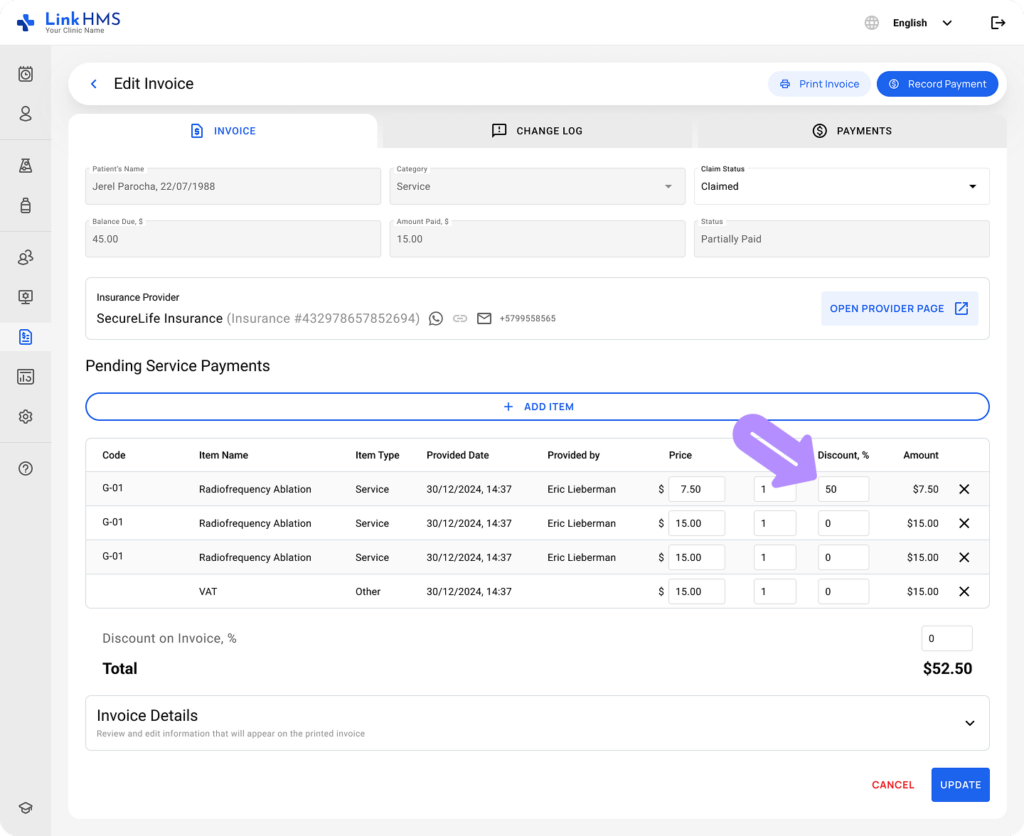
- Once applied to every required service on the invoice, the system will automatically recalculate and update the total invoice amount in real time.
Applying Discounts to the Entire Invoice
💡Notes
You can apply a discount to the entire invoice, and the system updates the final invoice total.
- Select the discount as a percentage in the Discount on Invoice field to apply it to this invoice.
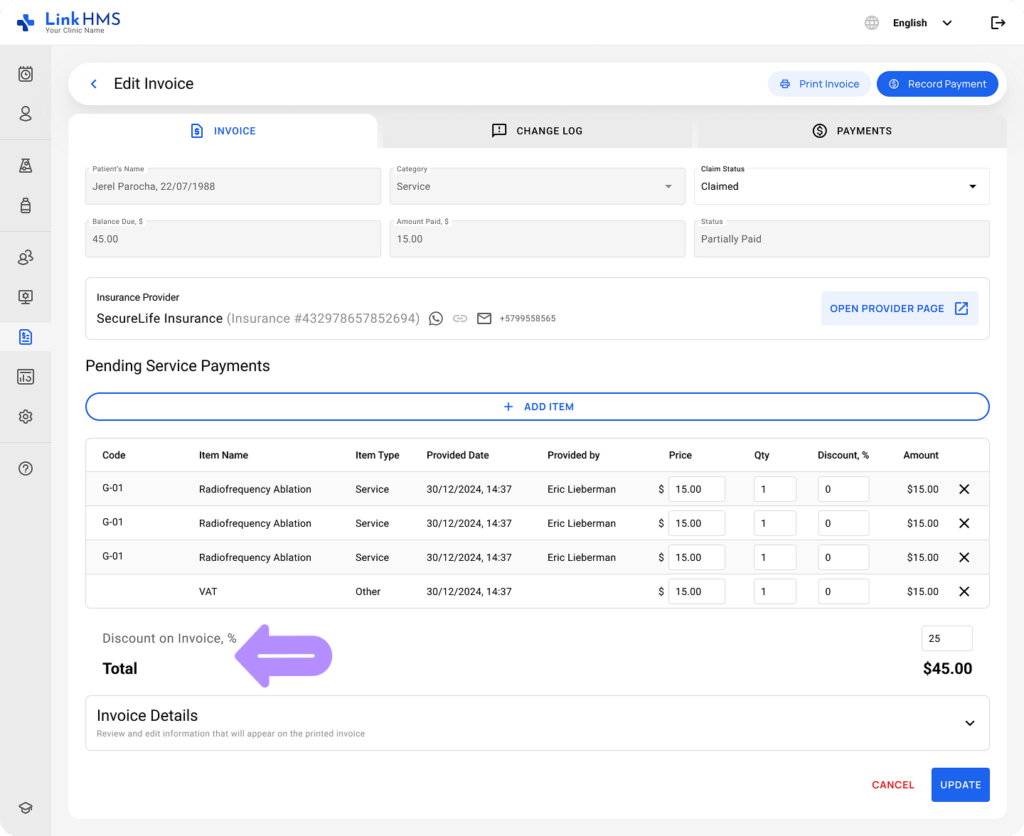
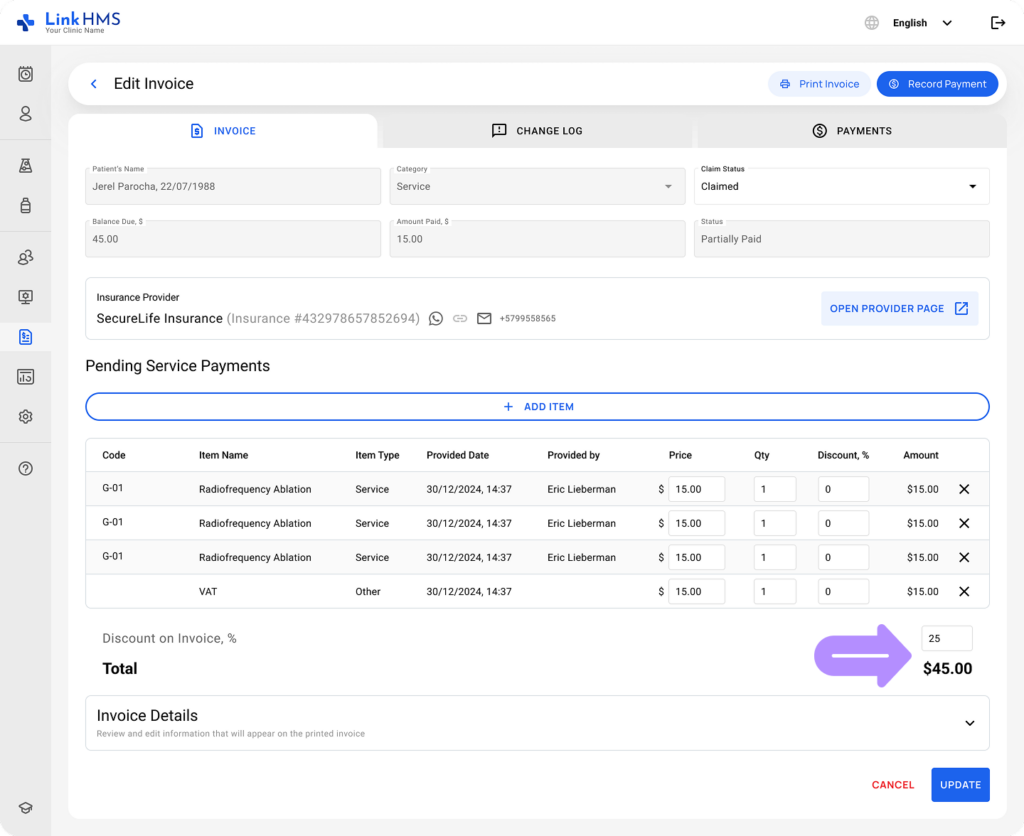
- The system automatically recalculates and updates the total invoice in real time, applying the same discount to all included services.
Saving the Changes
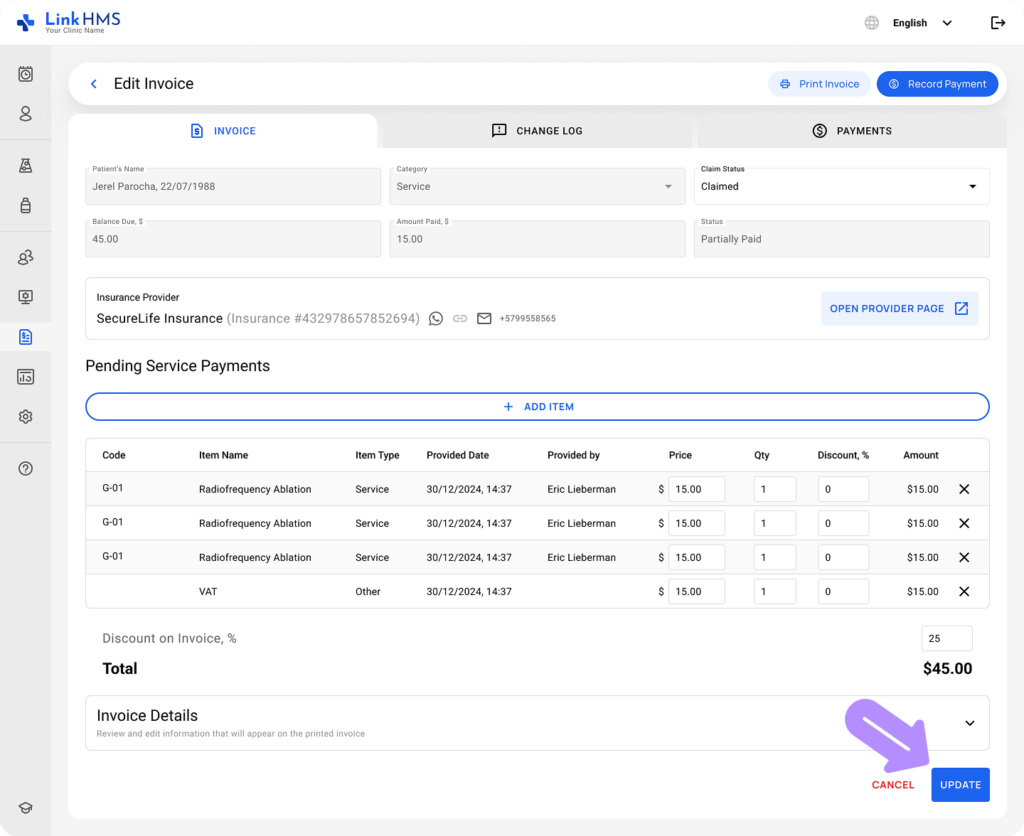
- Once you’ve reviewed and applied all necessary changes, click the Update button to save the changes.
- When required, you can continue managing and editing the invoice, or proceed with finalizing it. Use the detailed guides ons on How to manage and edit invoices or How to finalize the invoice.