Accessing Invoices
- Navigate to the Billing section from the left-side menu and open the Invoices tab.
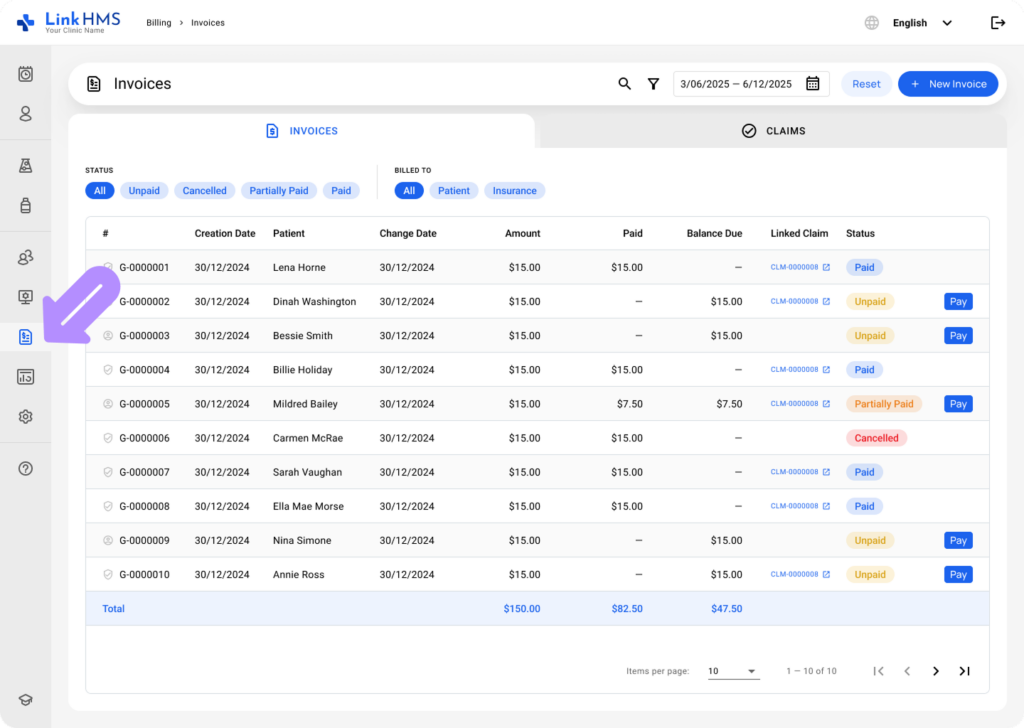
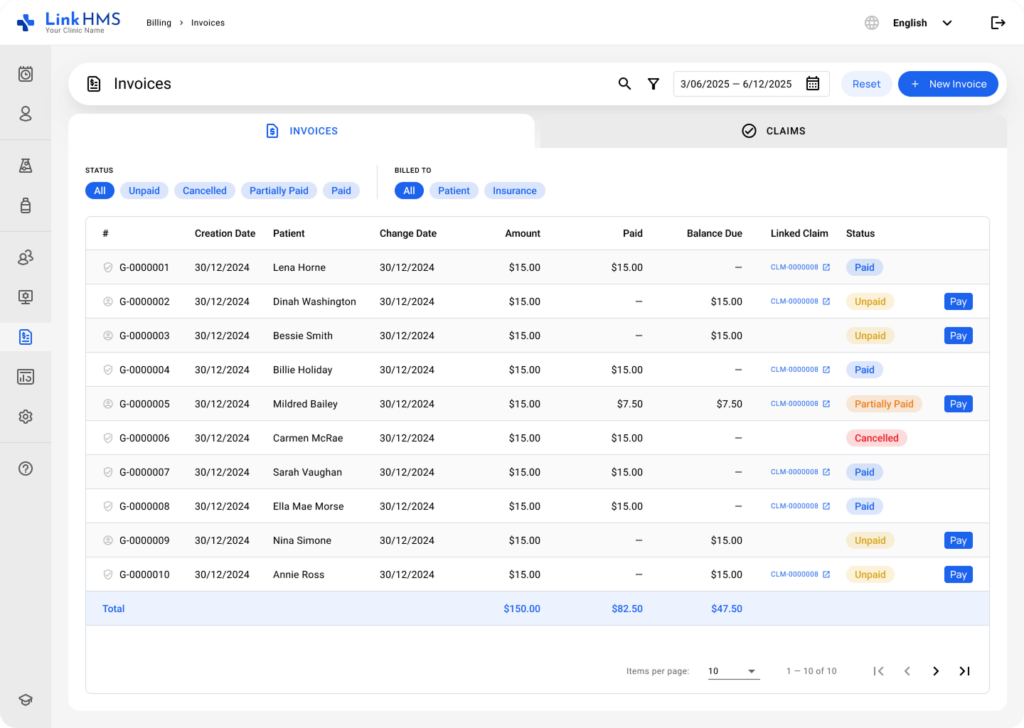
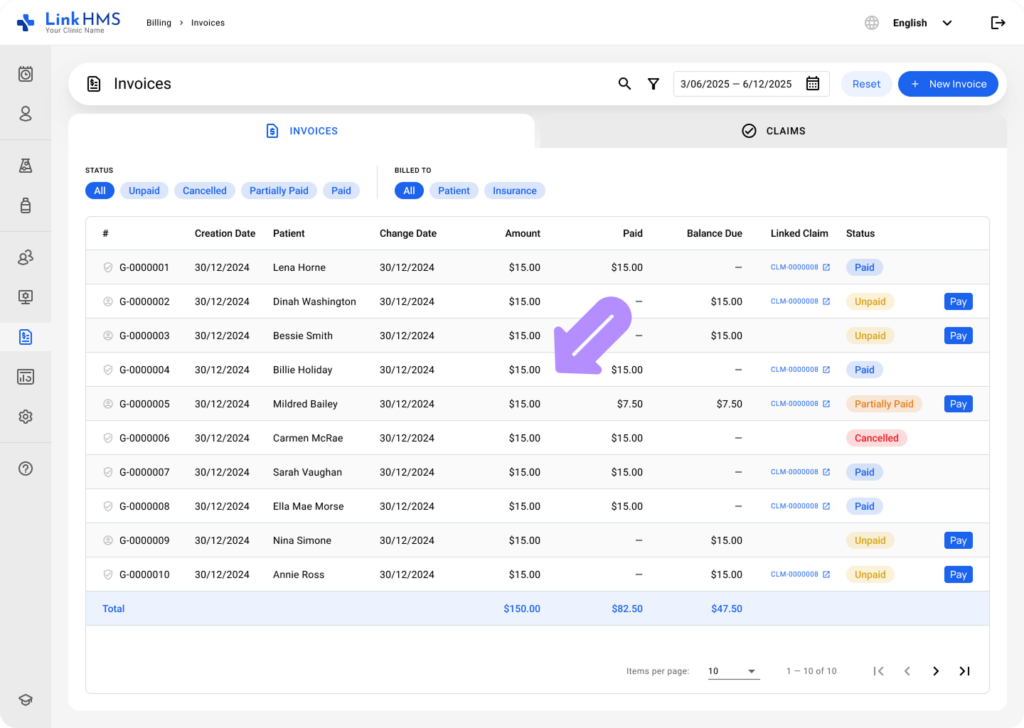
- Review the list of invoices, which includes columns for invoice number, creation date, patient name, change date, amount, paid, balance due, linked claim, and status, to select the necessary invoice.
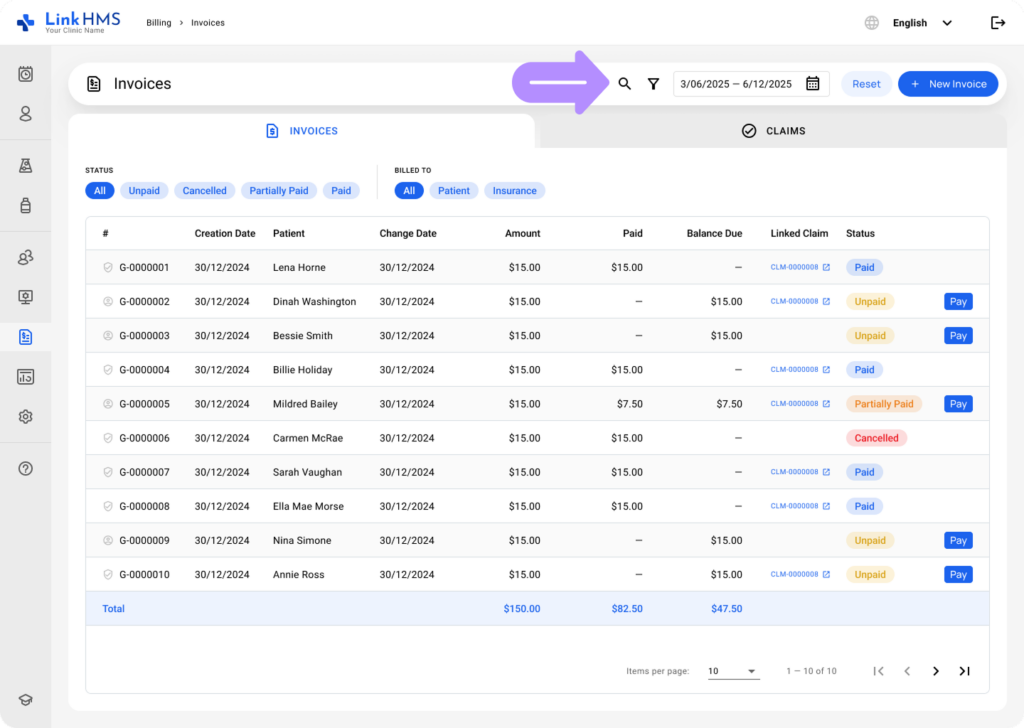
Searching the Invoice
- Use the search bar to locate a specific invoice faster.
Filtering Invoices
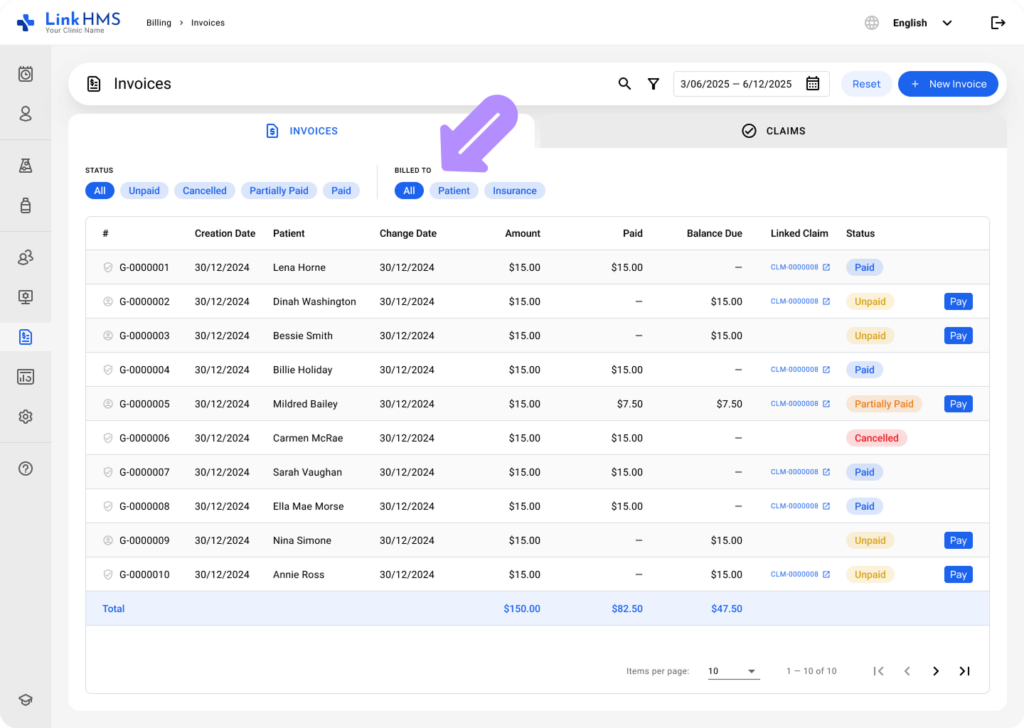
- Apply the built-in Status filter to search for the invoice based on the payment status, such as All, Unpaid, Cancelled, Partially Paid, or Paid.
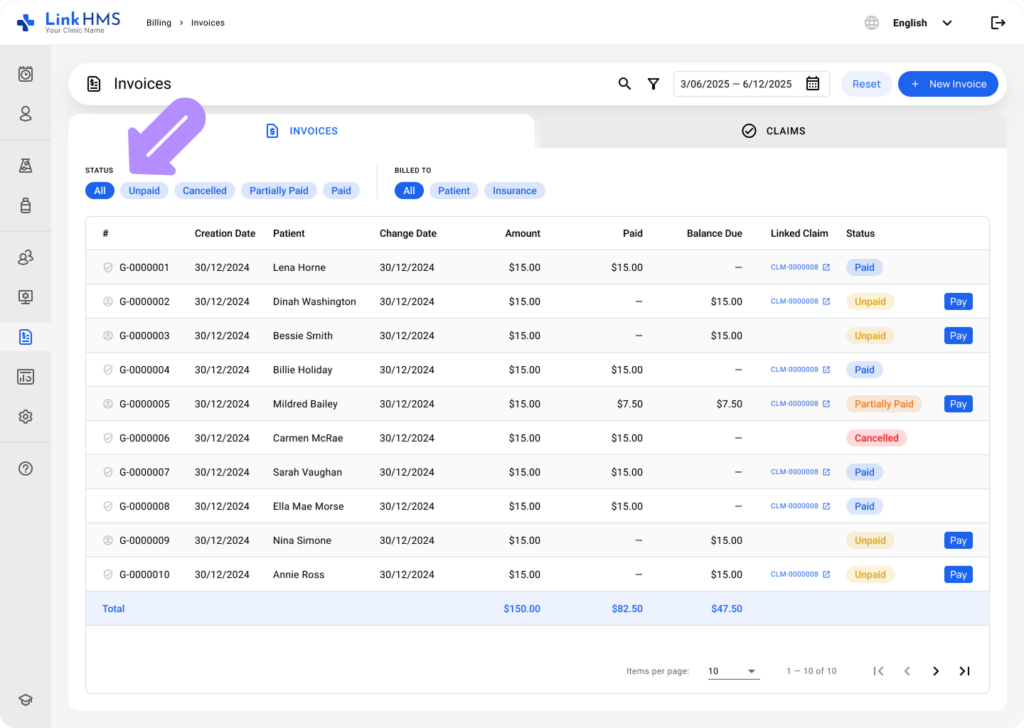
- Use the built-in Billed to filter to find invoices by billing recipient: All, Patient, or Insurance.
- Click the Filter icon to add extra filters for Patient, Change Date, Amount, Paid, and Balance Due.
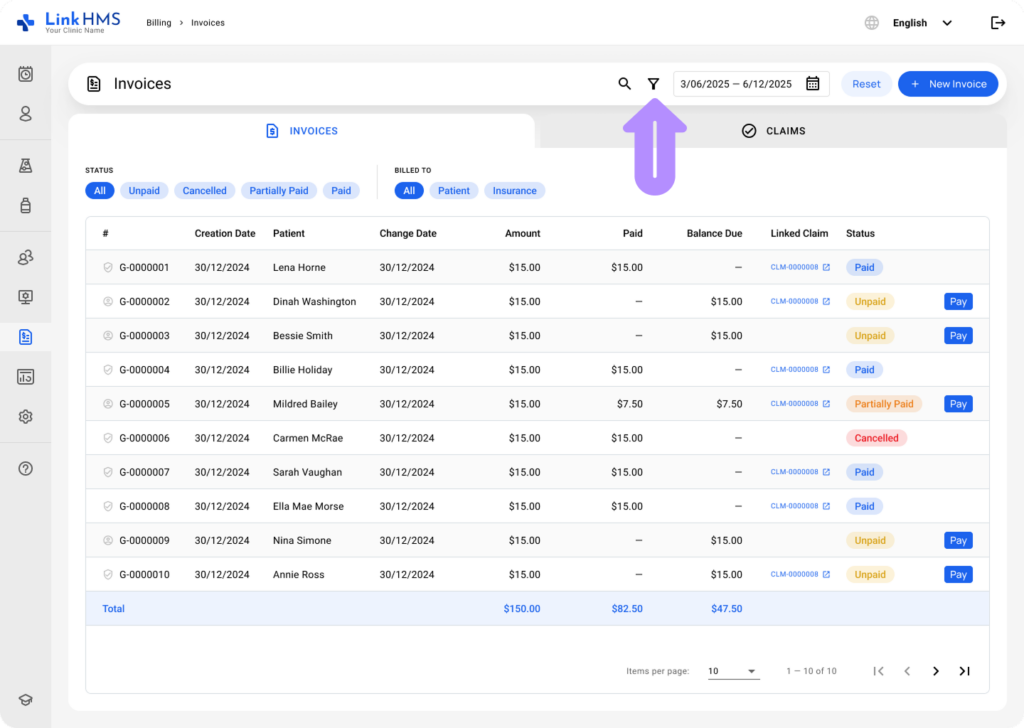
- Apply the chosen filters to shorten the list and locate the necessary invoice.
Searching by Date Range
- Click on the Date Range field in the top right.
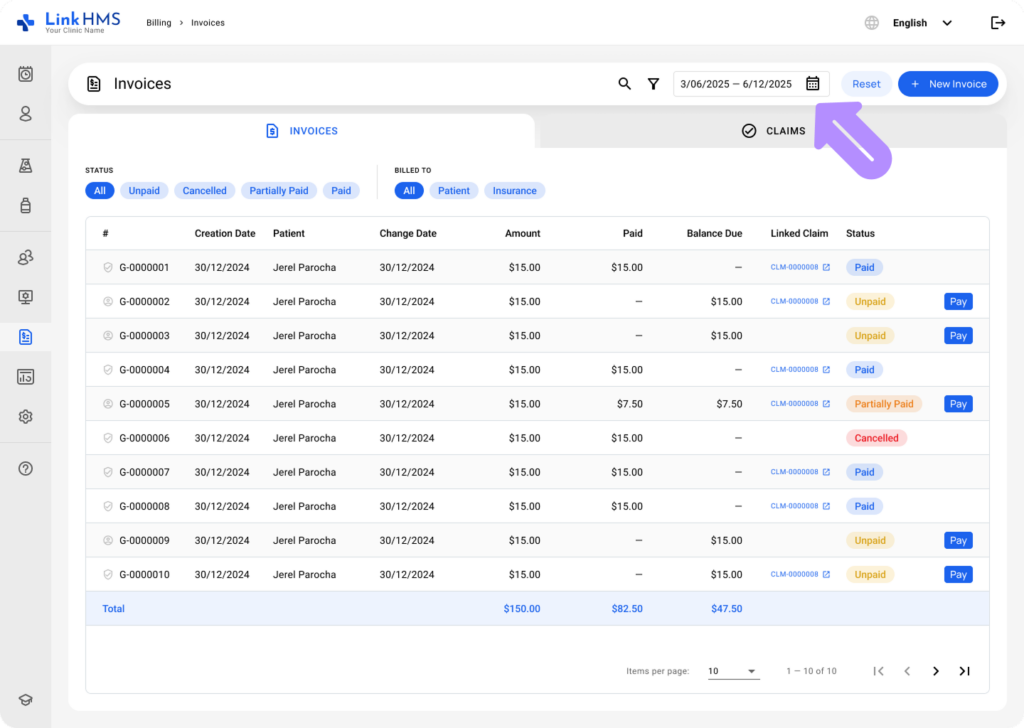
- Select a start and end date from the calendar. The list will update to display invoices within the chosen range.
- Find the required invoice and click to view its details.
- Use the complete guide on How to manage and edit invoices for step-by-step instructions and detailed information on working with invoices.