💡Notes
If you want to add VAT to the invoice or anything that is non-standard and has not been added to your LinkHMS account as a service, you can add it as an Other Item type to the invoice.
Accessing the Invoice
- Go to Billing from the menu on the left and open the Invoices tab.
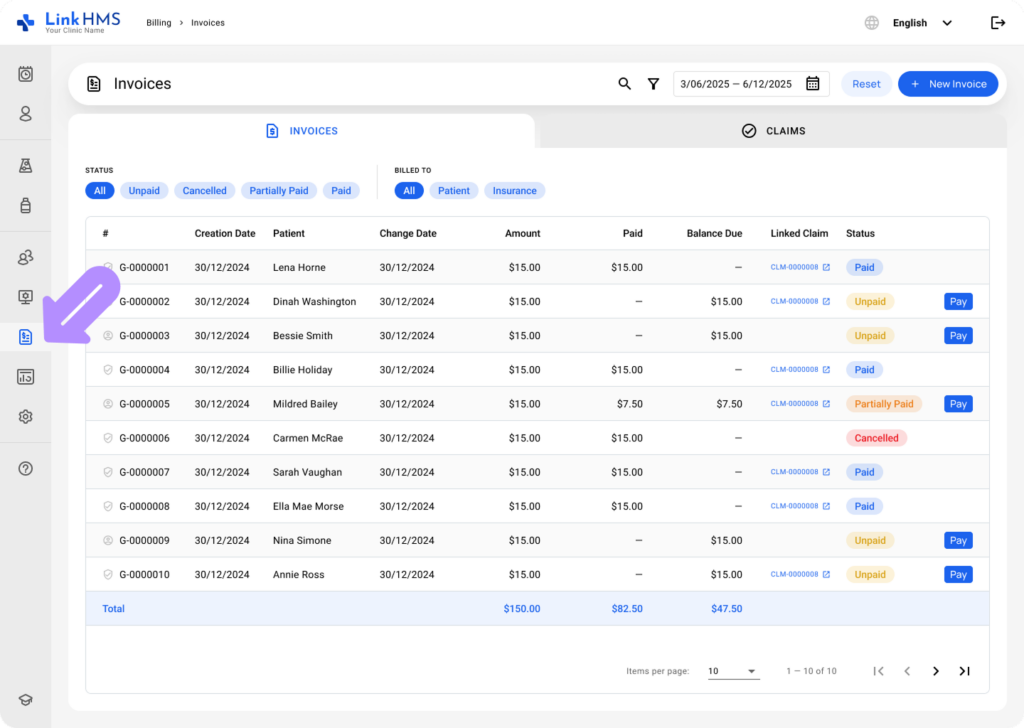
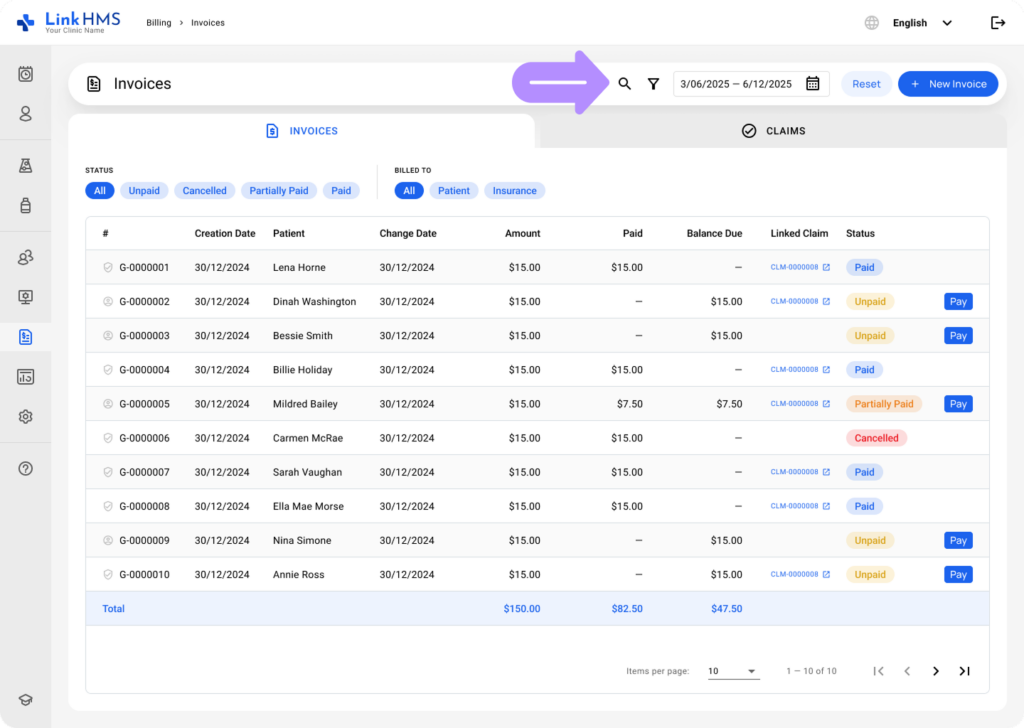
- Find the invoice where VAT needs to be added. You can use additional filters or the search bar. For more details, check the complete guide on How to browse and search invoices.
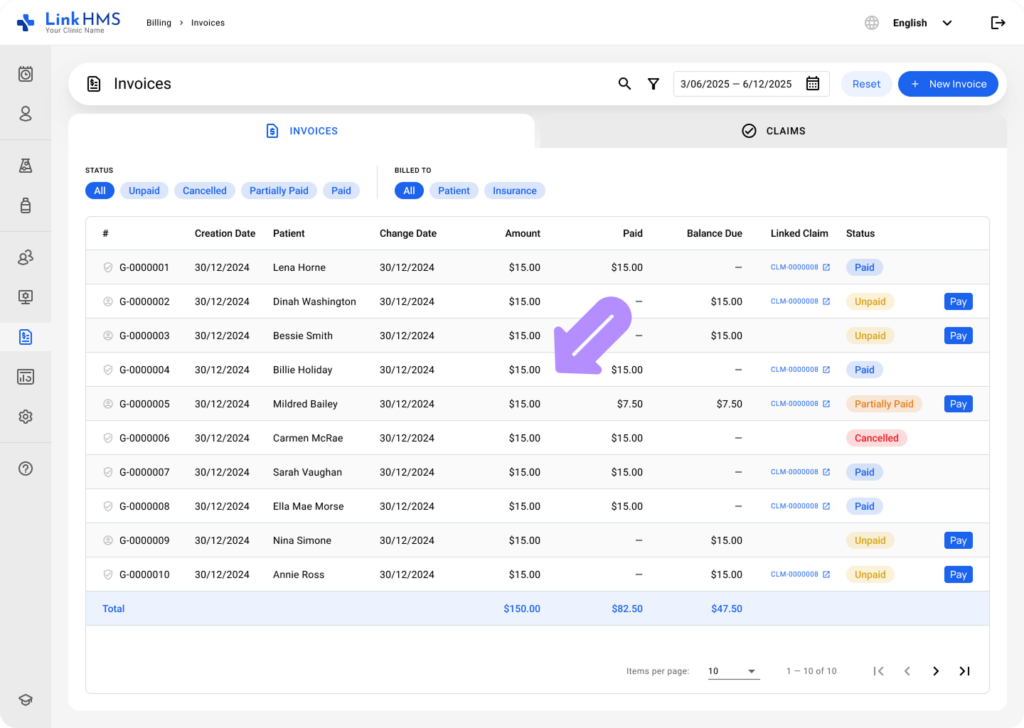
- Open the necessary invoice for applying VAT.
Adding VAT to the Invoice
💡Notes
You can easily add more services or charges to open invoices through LinkHMS. Find the complete guide on How to manage and edit invoices.
- Click the + Add Item button to include VAT or any custom charge not in your service list.
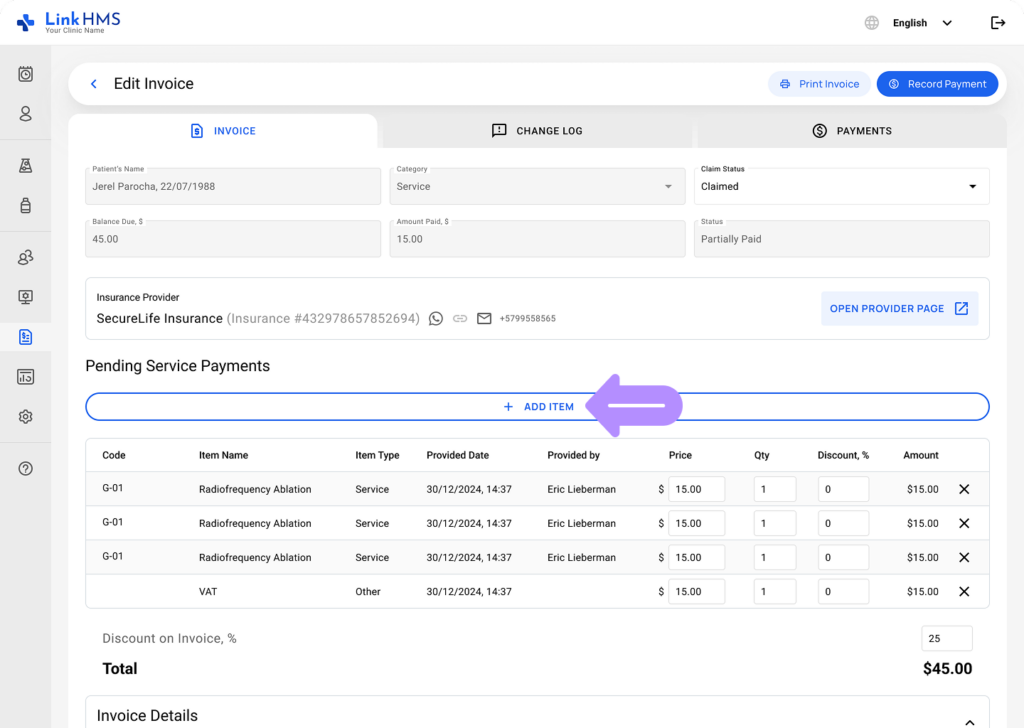
- Enter the item details to add a new charge to the invoice.
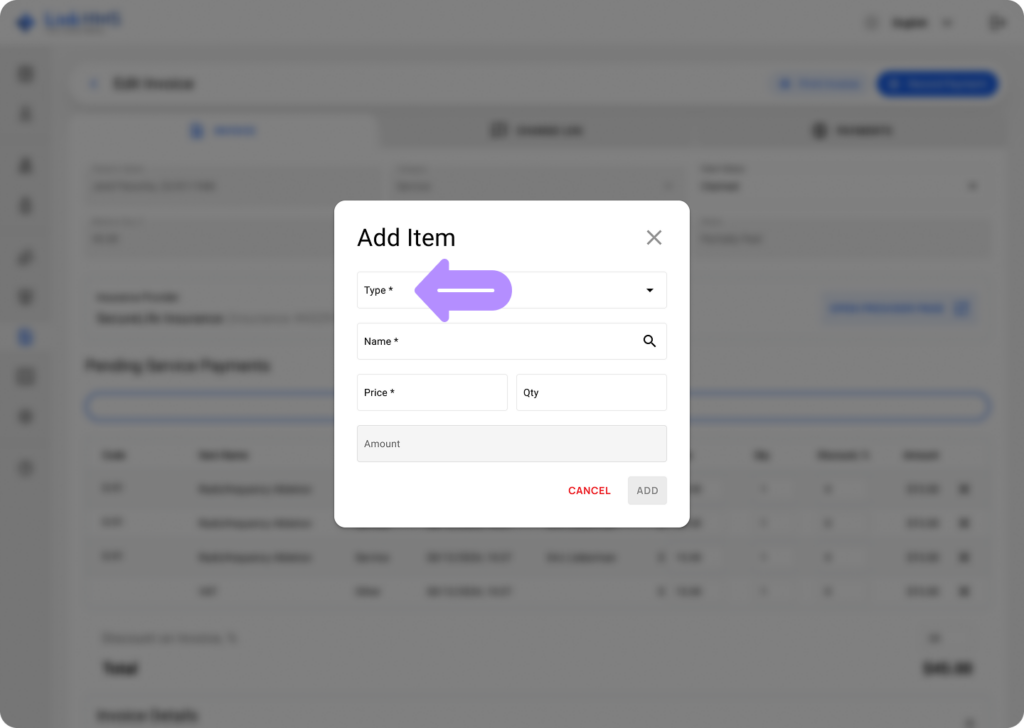
- Complete the required fields in the pop-up named Add Item.
- Type (required): Select the item type – Other.
- Name (required): Name the service item (e.g., VAT, custom charge)
- Price (required): Input the VAT amount.
- Quantity (required): Select the amount needed (e.g., 1, 2, …).
💡Notes
Please note that additional charges like VAT must be calculated manually and added as a separate line item to the invoice, as the system does not perform this calculation automatically.
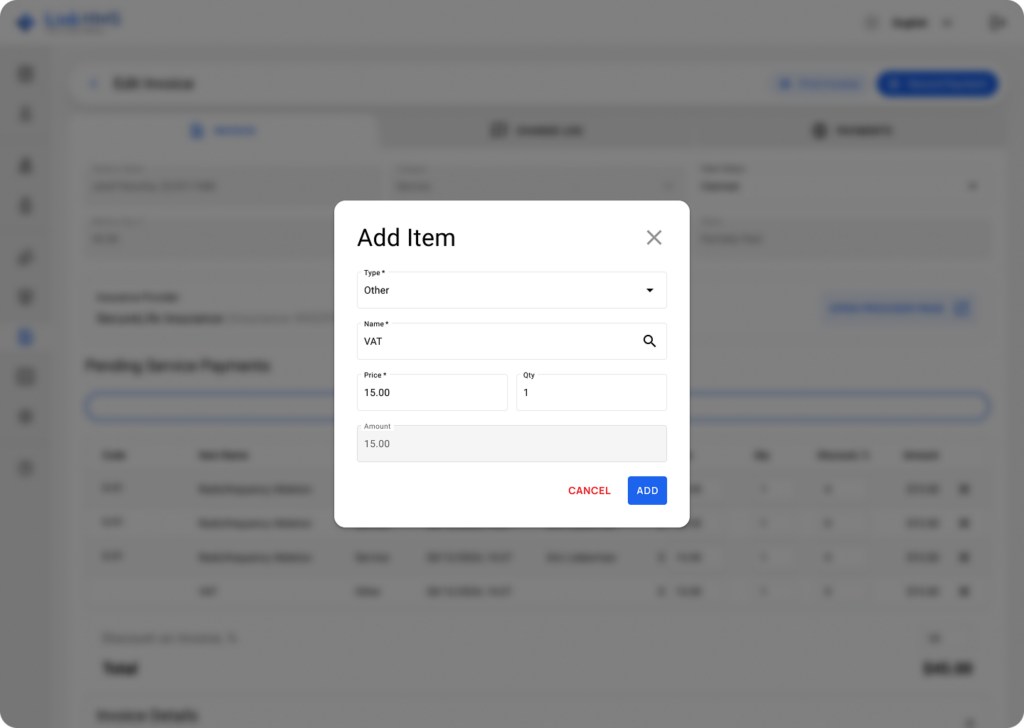
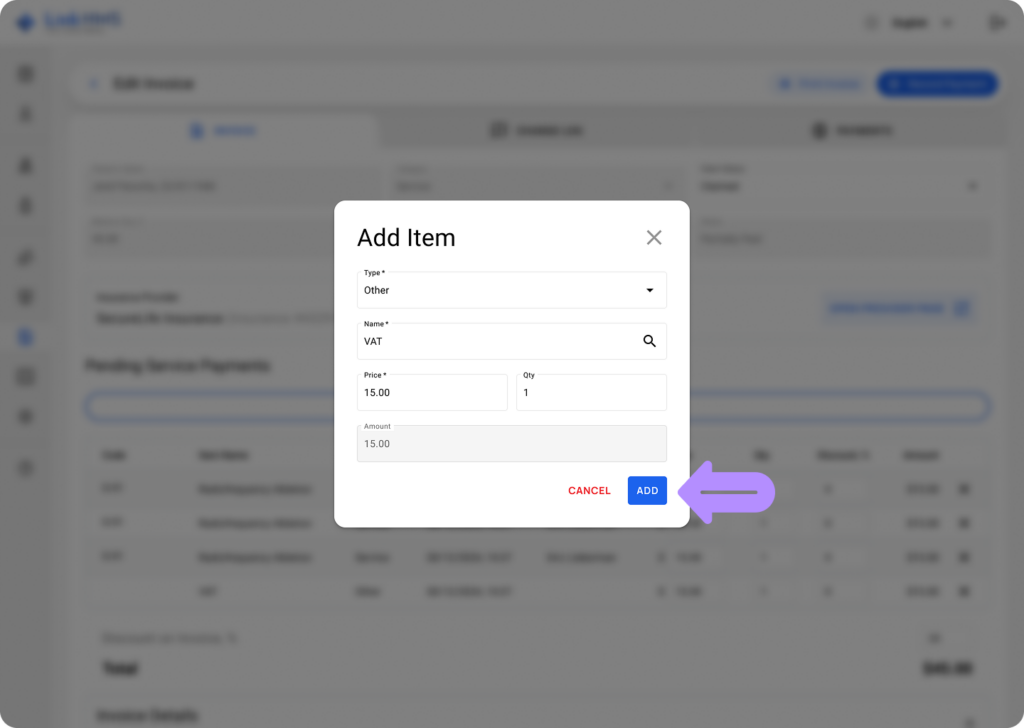
- Click the Add button to add VAT to the invoice.
- Now, you can see VAT as a listed item among other service charges. If needed, you may adjust the price or change the quantity.
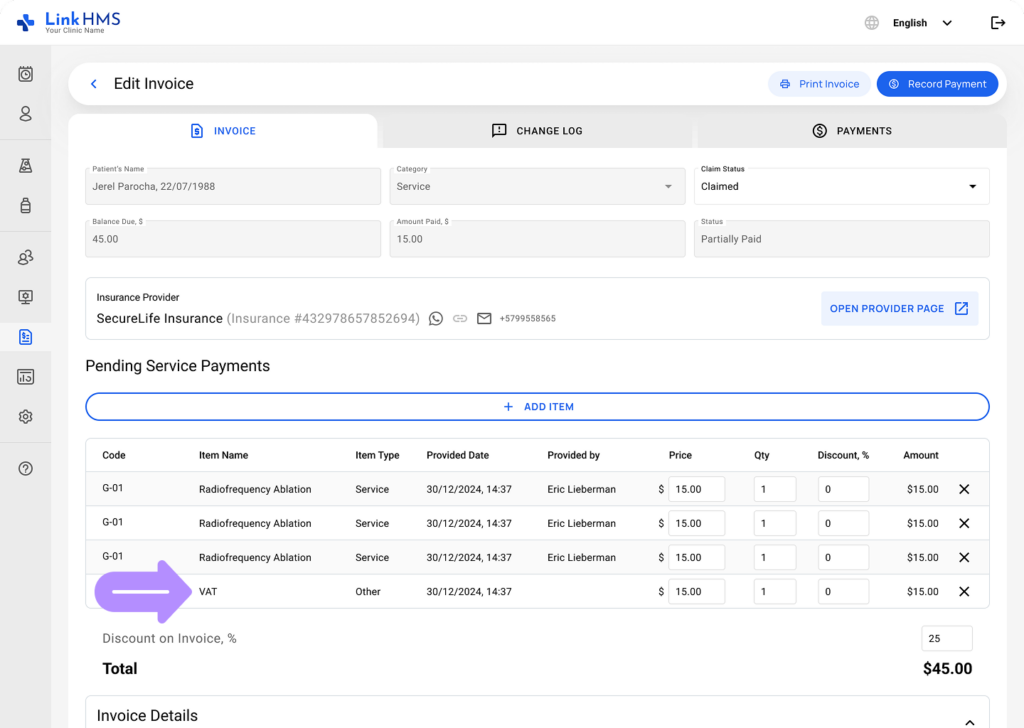
- Review the changes made, then click Update to save.
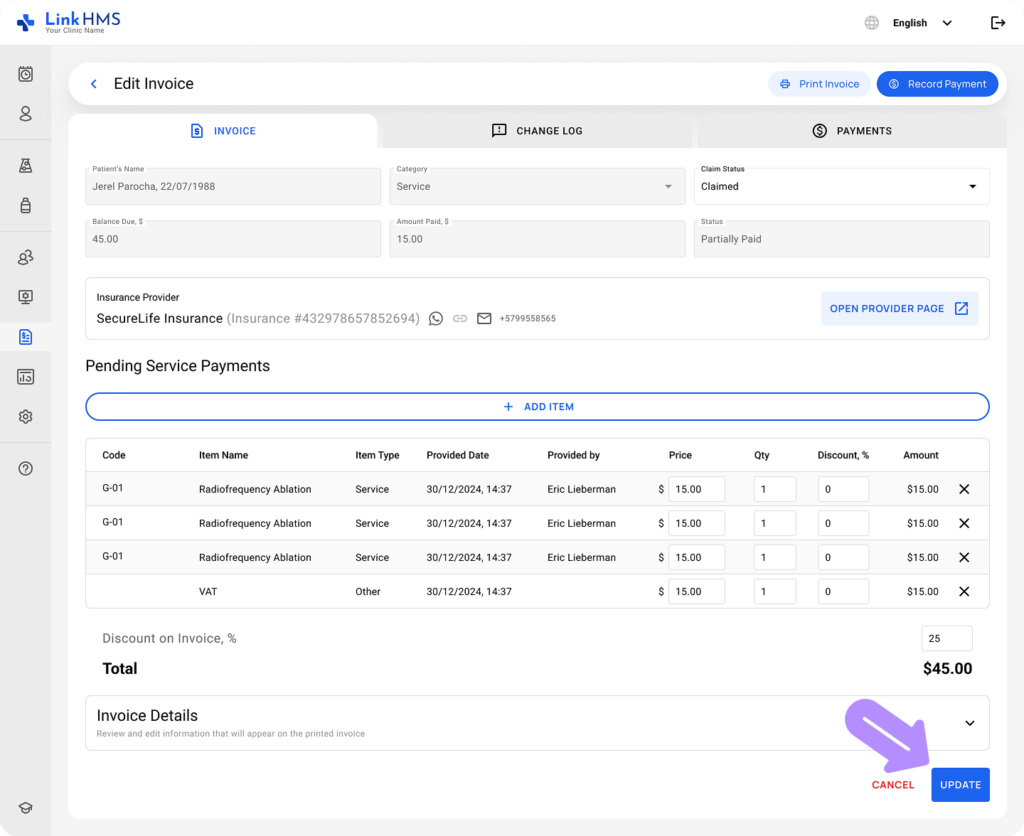
- To complete the invoice, please follow the step-by-step guide on How to finalize invoices.