Email verification helps prevent patient information from being sent to the wrong inbox. Before LinkHMS can use an email address for patient communication, it confirms the address belongs to the patient linked to the record. The patient receives a unique verification code at that address and provides it to confirm access. Once verified, the email is linked to that patient record and can be used for sending documents and automatic notifications. You only need to verify the address once, unless it changes later.
Where can you verify from
You can start email verification from the patient’s profile or when sending a document. The verification process is the same in both cases.
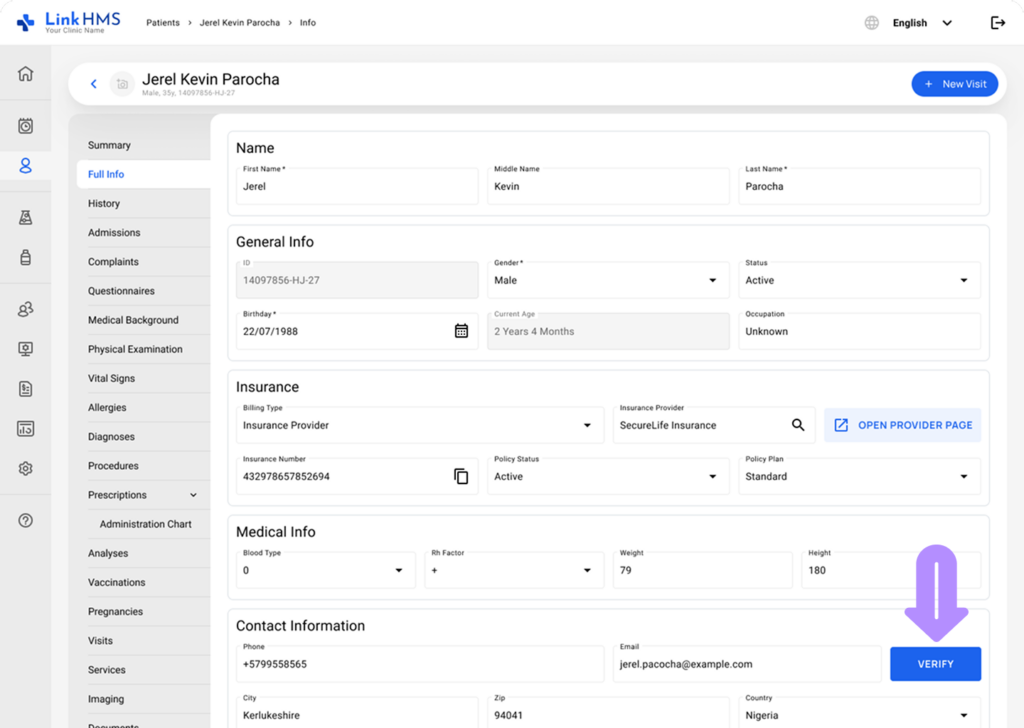
- The patient’s profile. Open the Full Info tab and enter the email in the profile’s email field. Once it’s a valid format, the Verify button beside it becomes active. Click it, and the pop-up opens with that email already filled in, still editable if you need to correct it.
💡Notes
For a new patient, the profile must be saved first before the Verify button becomes active. Saving and email verification are two separate actions. Saving a patient profile creates or updates the patient record, but it does not verify the email address. The patient record has to exist before it can be verified. You can save a profile with no email or an unverified email and complete verification later.
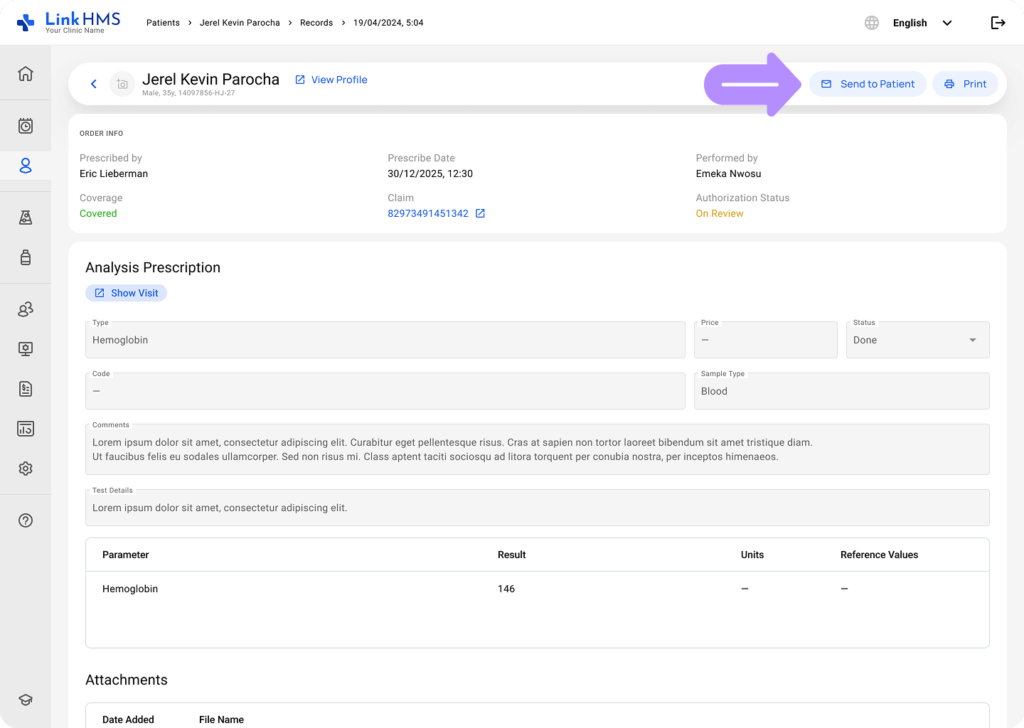
- Any document view. Patient records include documents you can share by email from Visits, Analyses, Admissions, and Invoices, with the Send to Patient button. If the patient does not have a verified email, clicking Send to Patient opens the verification pop-up, either empty if no email is on file or pre-filled with the existing unverified address.
How to verify a patient’s email
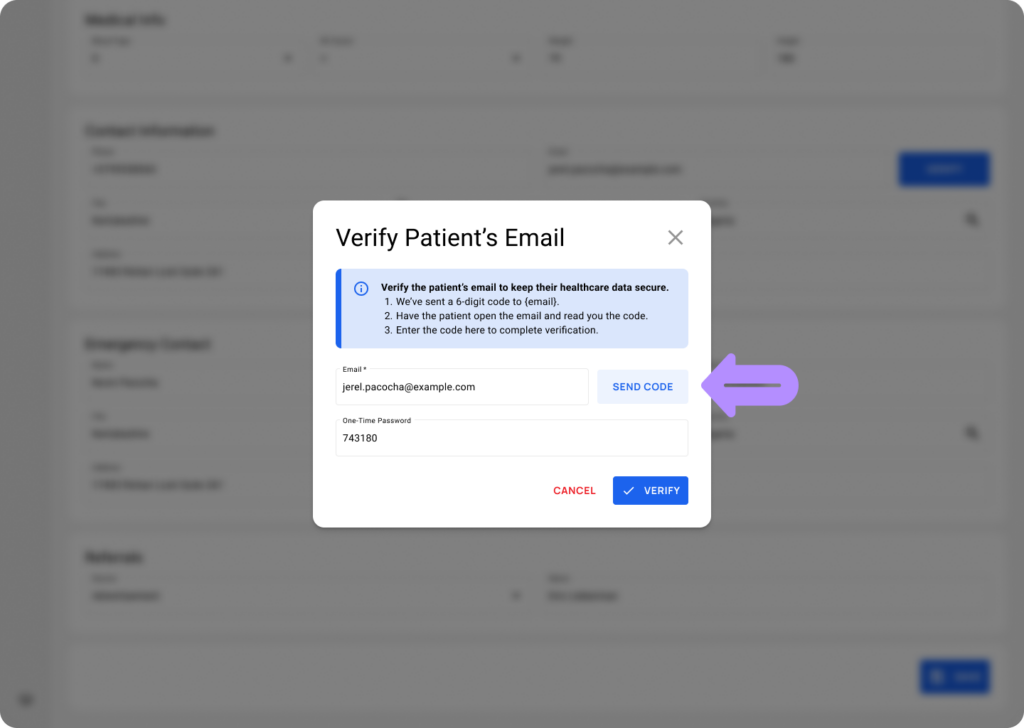
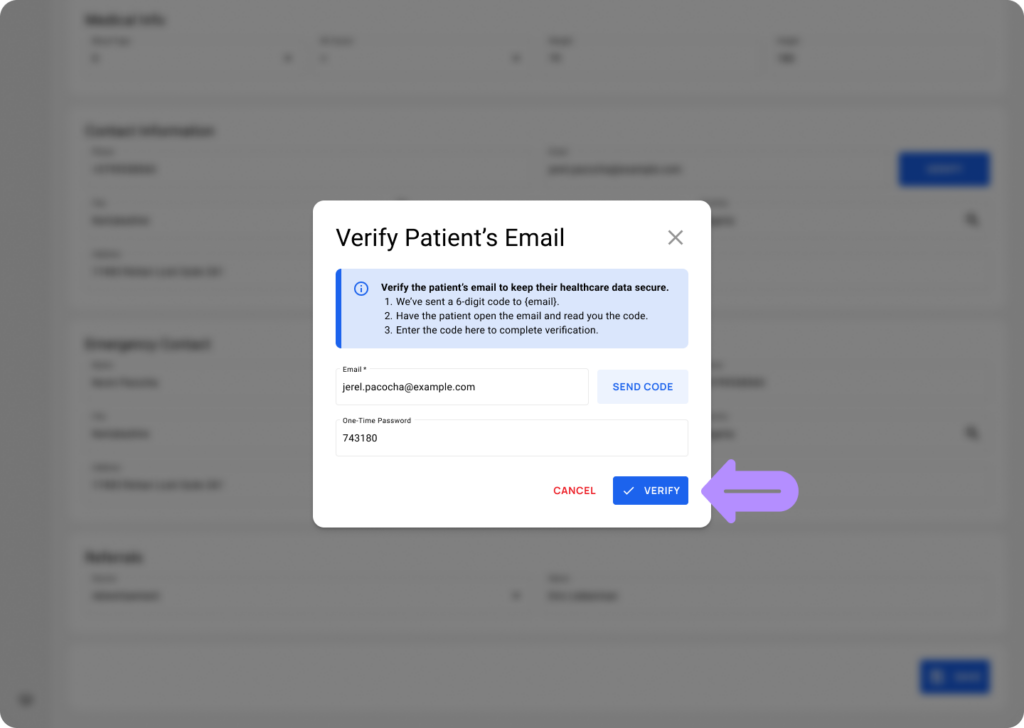
1. Enter or confirm the patient’s email. An invalid format shows an inline error, and Send code stays disabled until the format is valid.
2. Click Send code. LinkHMS generates a 6-digit code and emails it to that address.
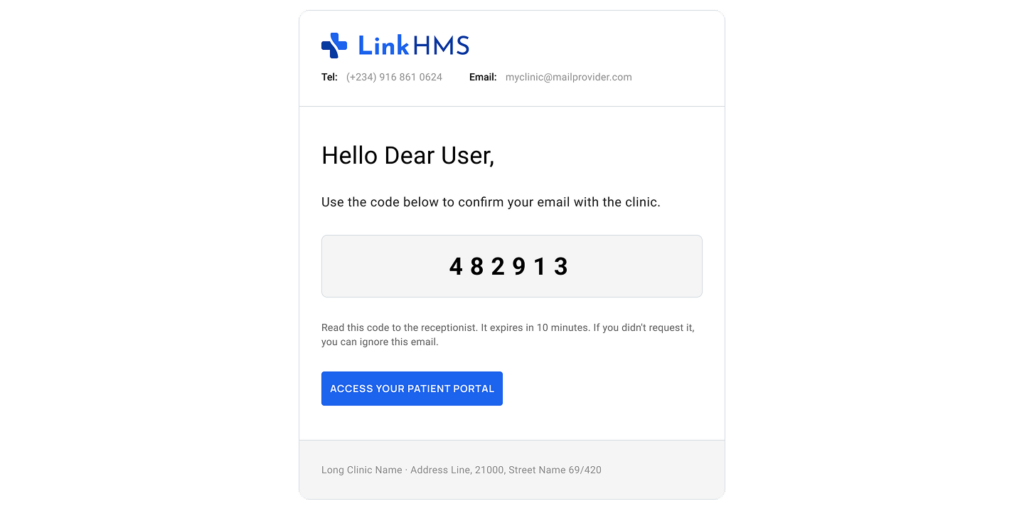
3. Ask the patient to check their email and read the code back.
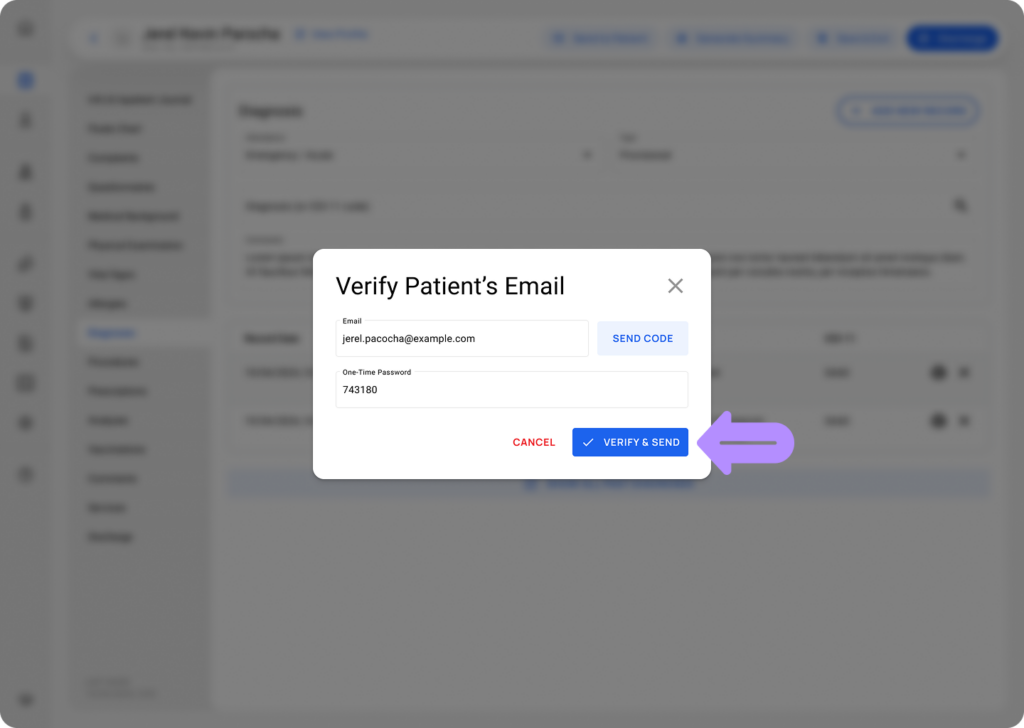
4. Enter the code and click Verify or Verify & Send.
What happens during verification?
Verification is completed by a single action button. This action depends on where you started:
- From the patient’s profile, select Verify to verify and save the email.
- From a document, select Verify & Send to verify the email and send the document immediately.
A correct code marks the email as verified and saves it to the patient’s record. It confirms that the email address is accessible to the patient and prevents documents from being sent to an incorrect or mistyped address.
What if the verification code doesn’t work?
If you enter the code incorrectly, LinkHMS displays an error, and you can enter it again without restarting the process.
Verification codes remain valid for 10 minutes. If the code expires, request a new one using Send code. The patient receives a new code, and a new 10-minute verification period begins.
Can the same verified email be used for multiple patients?
Each verified email address can be linked to only one patient record. Once an email is verified for one patient, you can’t verify the same address for another patient.
For example, if a parent wants to use the same email address for two children, they can verify the address for only one child’s patient record. A different email address is required for the second patient.
This one-to-one relationship helps ensure that when LinkHMS sends patient information, the verified address is associated with the correct patient record.
What happens after the email is verified?
LinkHMS saves the verified email to the patient’s record, where it can be used across the platform for patient communication.
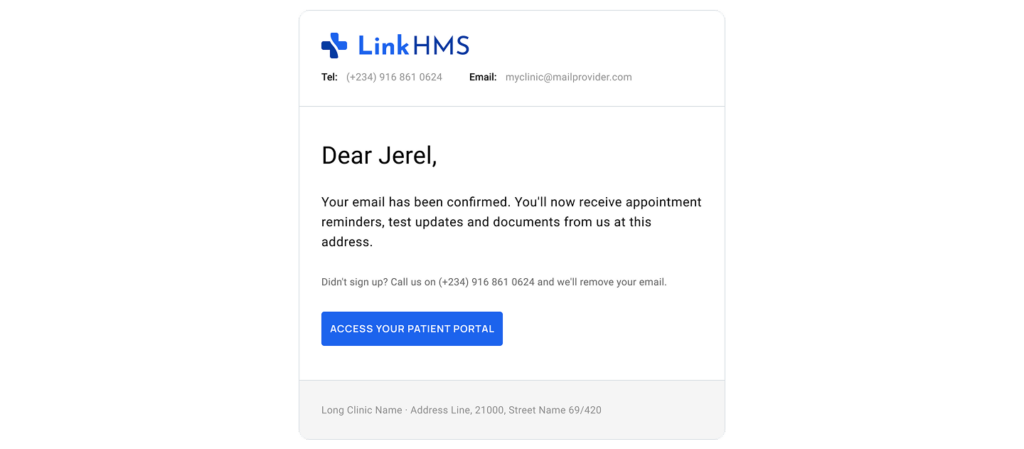
Automatic notifications can be sent to the verified address when relevant events occur, such as appointment confirmations, reminders, or notifications that lab results are ready. Staff can also use the verified address to send available patient documents directly when required.
For more details, refer to the related guides on Which emails do patients receive automatically and How do I send a document to a patient.
What happens if I change a verified email?
Editing a verified email reverts it to unverified. If a patient gives you an updated address, entering it doesn’t verify it automatically; it has to go through the 6-digit code step again before anything else can be sent or used for automatic patient notifications. The verified email is saved on the patient’s record until it changes.