Not every patient document needs to be sent as soon as it’s created. Test results, invoices, and other documents may need review or completion in the patient record before you share them.
That’s why LinkHMS leaves document sending in the hands of clinic staff. Instead of sending these files automatically, you decide what to send and when, whether the patient requests a copy, needs a document for a referral, or your clinic needs to share information after a visit.
This guide explains which patient documents you can send directly from LinkHMS, where to find the Send to Patient option, and how to send each one.
Which documents can be sent?
When you’re ready to share a document with a patient, start from the patient’s EMR and open the relevant tab. The Send to Patient button appears next to Print, so you can send the document directly from the same place where you review or print it.
- Visit summaries. Send it from a current or past visit where a summary is available. If a patient requests a copy, open the relevant visit and use Send to Patient.
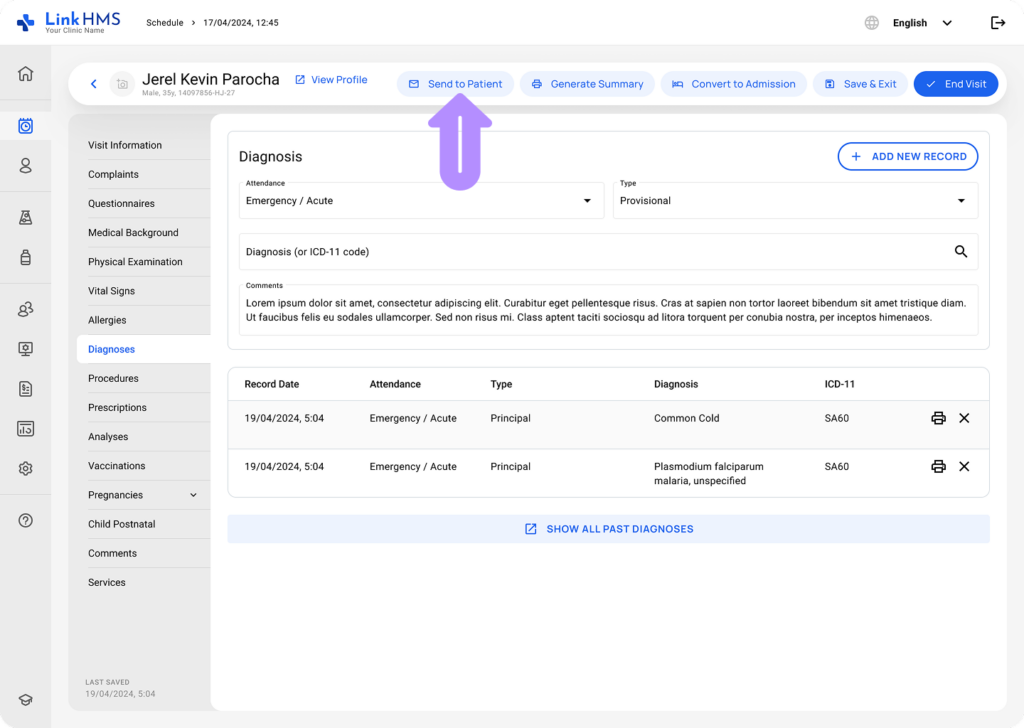
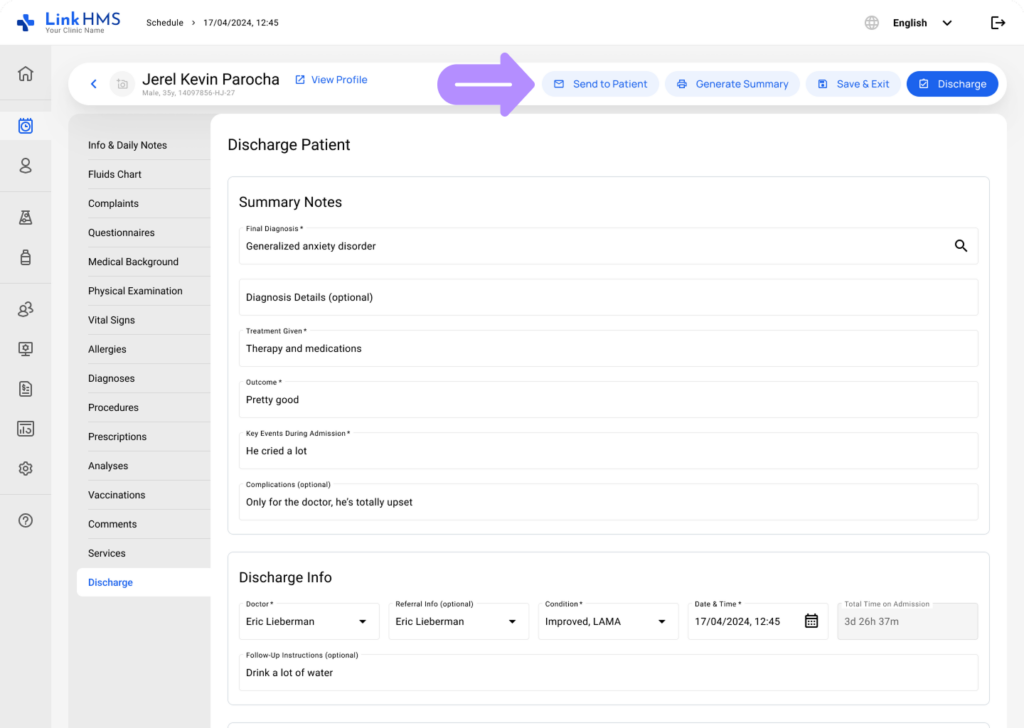
- Discharge summaries. Share the completed discharge summary whenever the patient needs it, whether during discharge or sometime afterward. The document remains available from the relevant admission for future sending with the Send to Patient button.
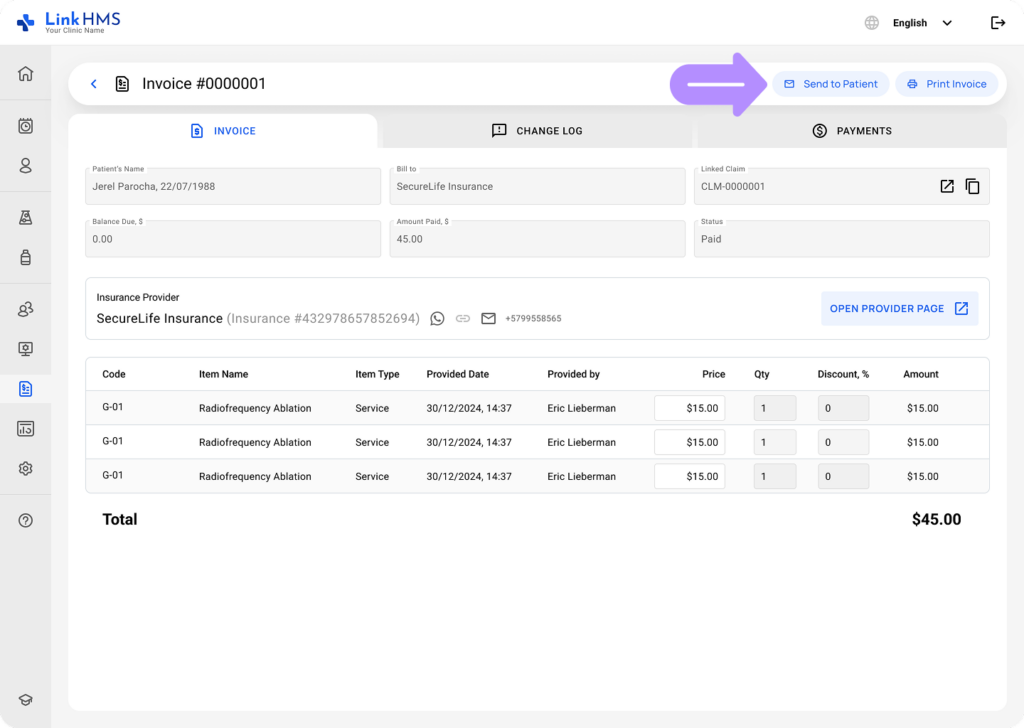
- Invoices. Open the Invoices tab, which links to all invoices associated with the patient in the Billing module. Find and open the invoice you need, then select Send to Patient to email it.
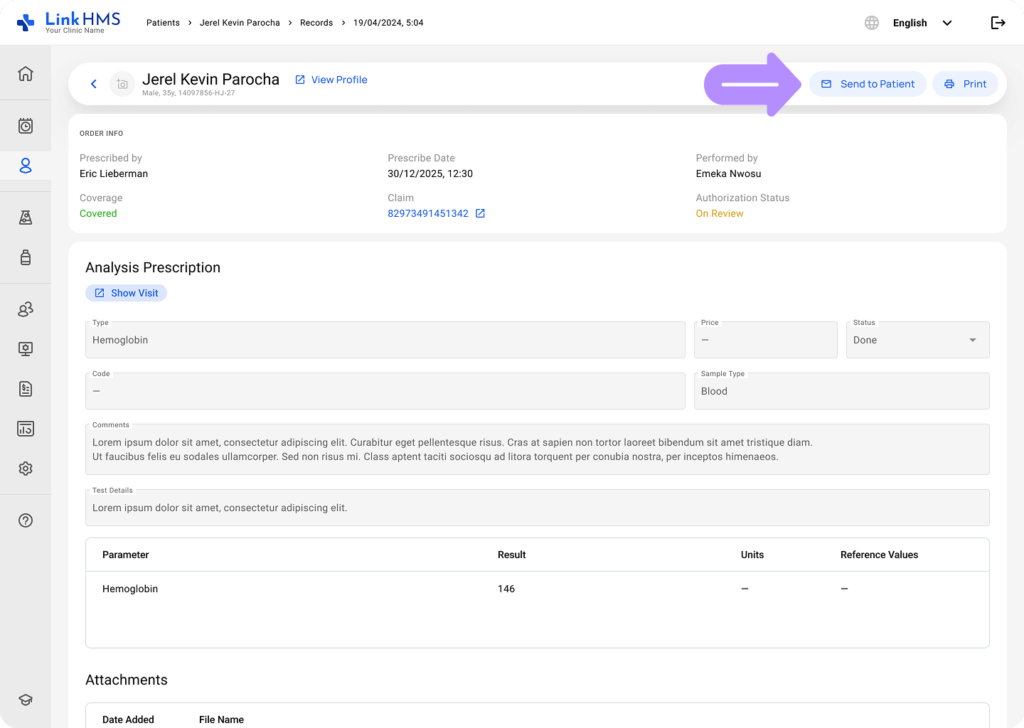
- Lab test results. From the patient’s Analyses tab, choose the relevant test and use Send to Patient to deliver the result as a PDF attachment. Lab specialists can also send completed test results directly from the Laboratory module. For detailed steps, see How do I send a test result to a patient.
How to send patients’ documents
💡Notes
Patient documents may contain sensitive personal, medical, or financial information. For this reason, LinkHMS sends documents only to a patient’s verified email address. If the email hasn’t been verified yet, you’ll need to complete verification before LinkHMS can send the document.
Once you’ve located the document you want to share, you can send it directly from the tab where it is available. The process is similar for visit summaries, discharge summaries, invoices, and other supported documents.
- Select the document you want to send. Review the information and make sure you’ve chosen the correct document for the patient.
- Find the Send to Patient button and click it. LinkHMS will open the sending window with the patient’s email info before confirming the send.
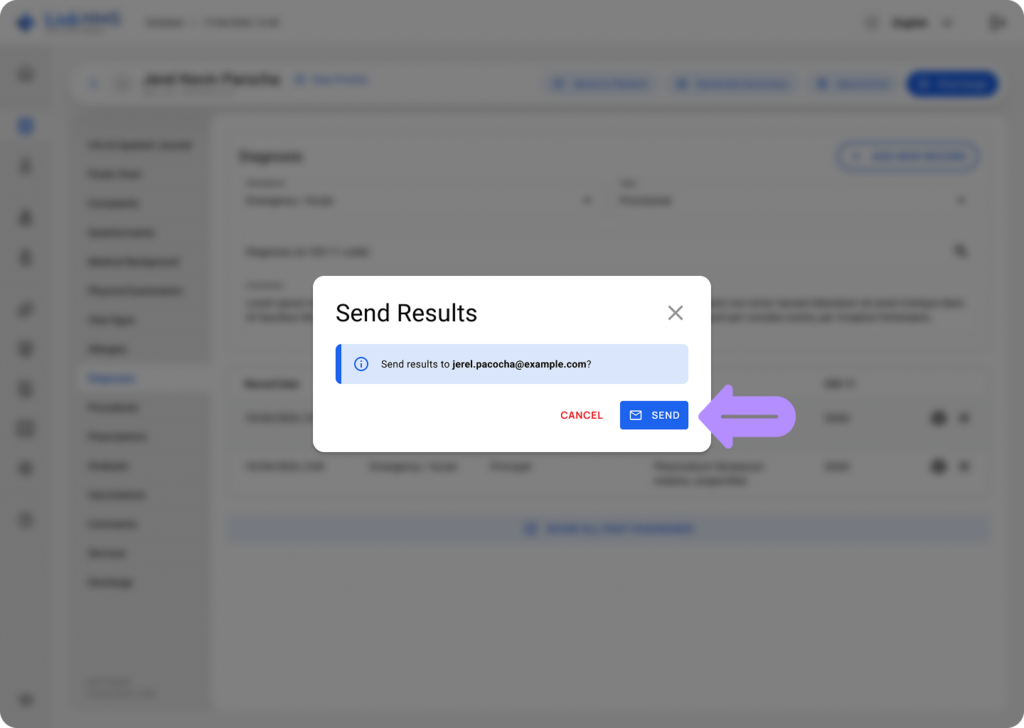
- Check the email address before sending. If the patient already has a verified email, confirm that the displayed address is correct and click Send.
💡Notes
If the patient’s email is missing or unverified, LinkHMS will ask you to complete the verification process first. This ensures patient documents are sent only to a verified email address. Once verified, you can use the email for future document sending and notifications.
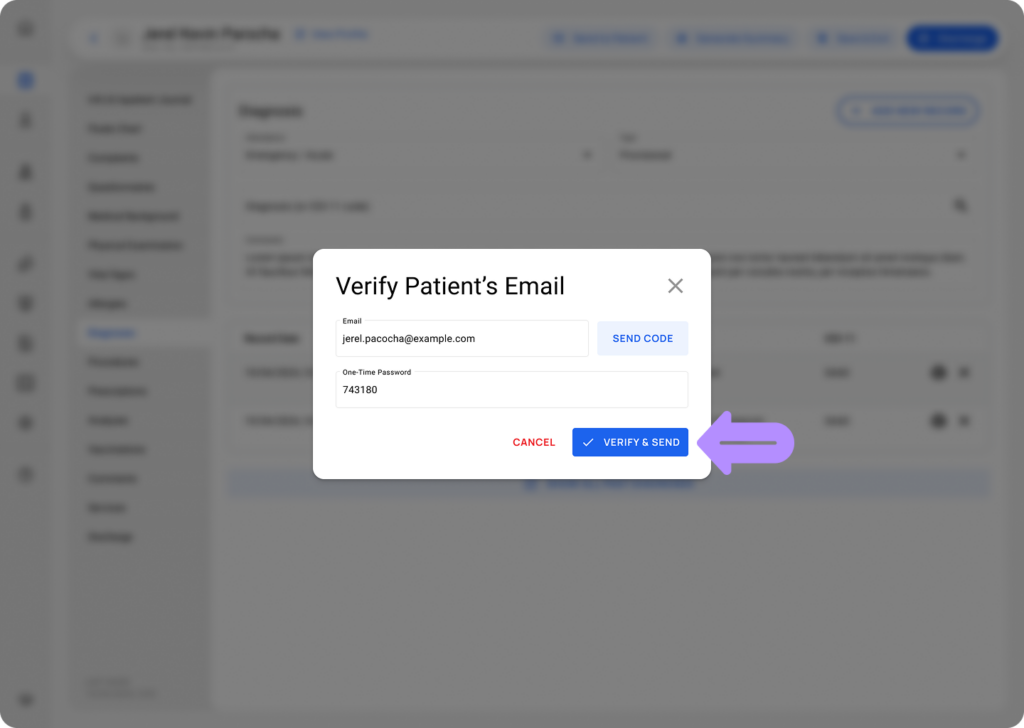
- Unverified email: The saved address appears automatically. Send the verification code, enter it, and click Verify & Send to verify the email and send the document.
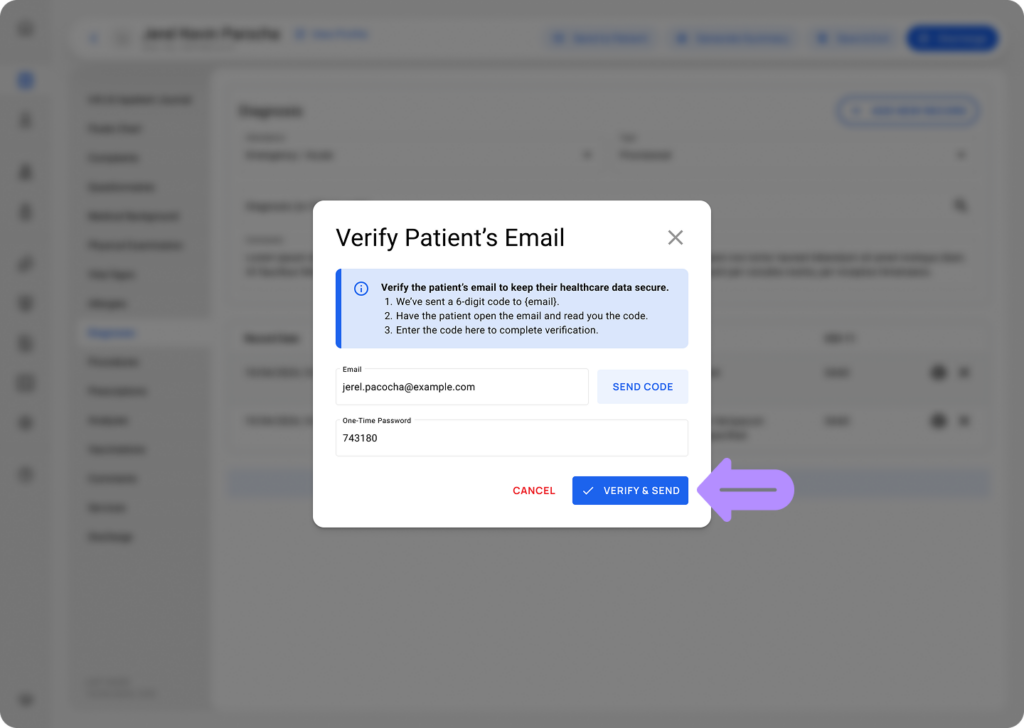
- No email: Enter the patient’s email, send and enter the verification code, then click Verify & Send. Once verified, the email can be used for future document sending, notifications, and automatic emails. For more details, see Which emails do patients receive automatically.
What the patient receives
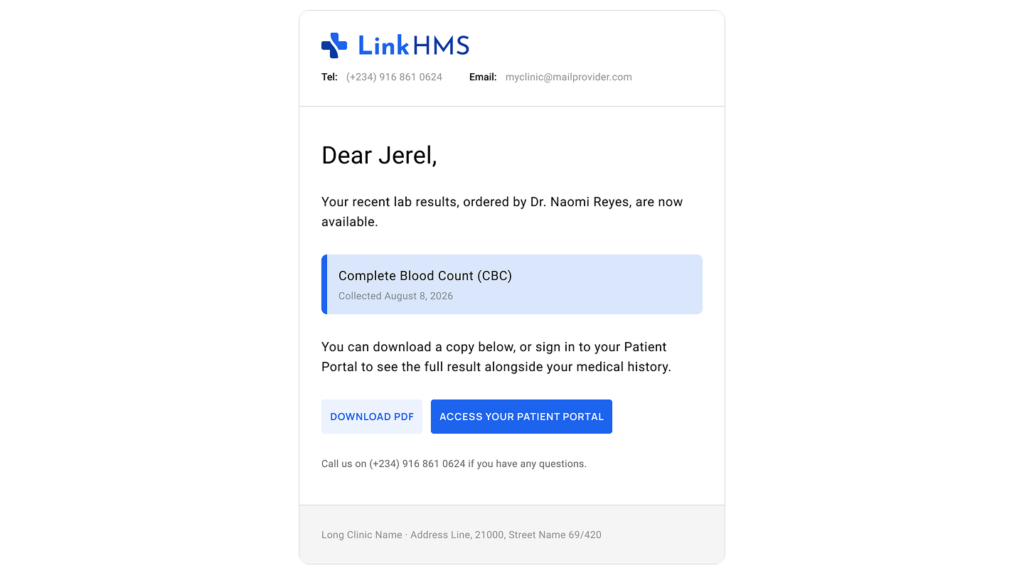
The patient receives the document directly in their inbox as a PDF attachment, using the same file generated by Print. The email body simply notes that the document is attached, with no separate download link or page to open. It also automatically includes the clinic name, logo, and contact details already added to the system, with no additional setup required.
Attachments have no expiry and can’t be recalled once sent, which is why LinkHMS requires the patient’s email to be verified before sharing any document. If the patient needs another copy later, simply open the document and use Send to Patient again.