💡Notes
LinkHMS allows your clinic to maintain accurate records with built-in payment tracking and reconciliation. Each invoice clearly shows the amount paid, balance due, and totals for full payment visibility.
- The Invoices tab shows Amount Paid and Balance Due for each invoice, providing a quick overview of payments.
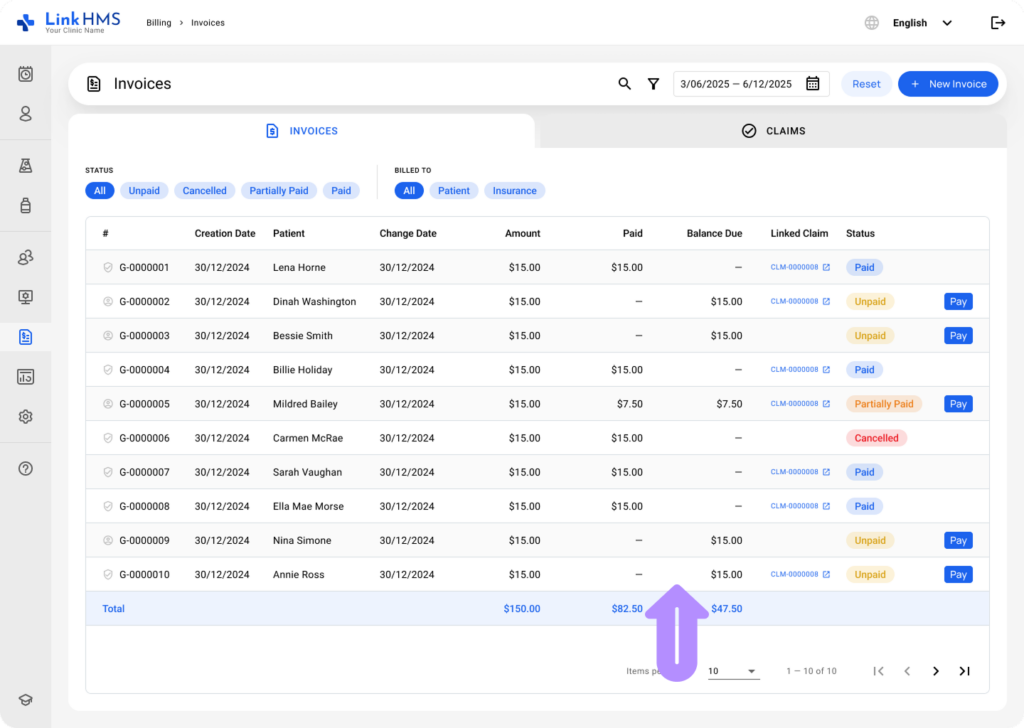
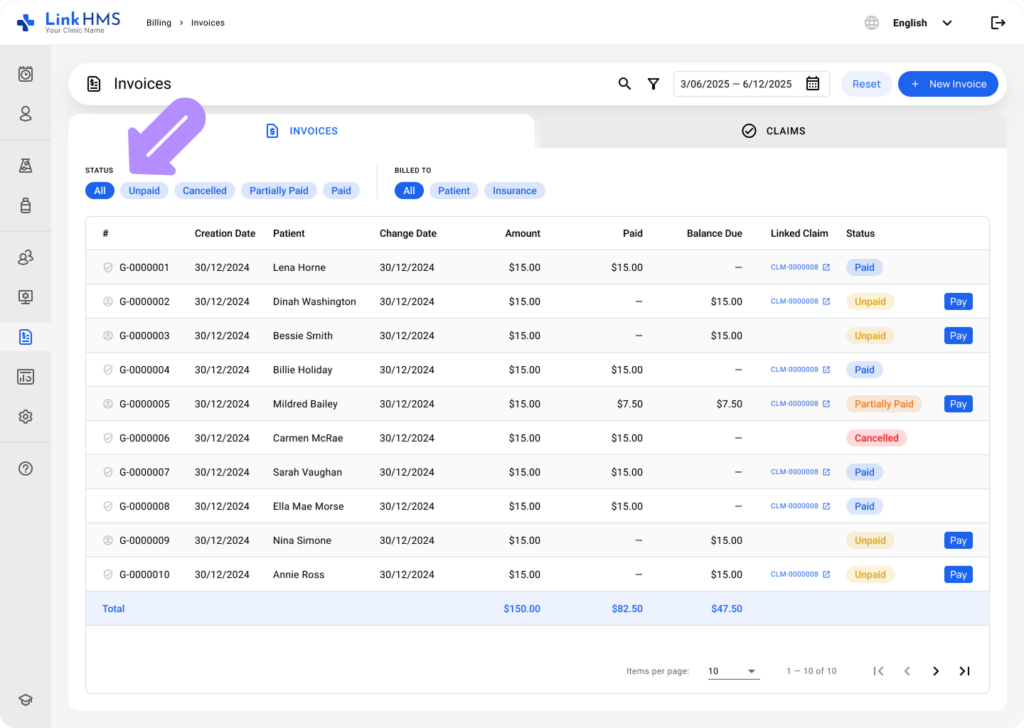
- Also, use the invoice statuses to understand each invoice’s payment state.
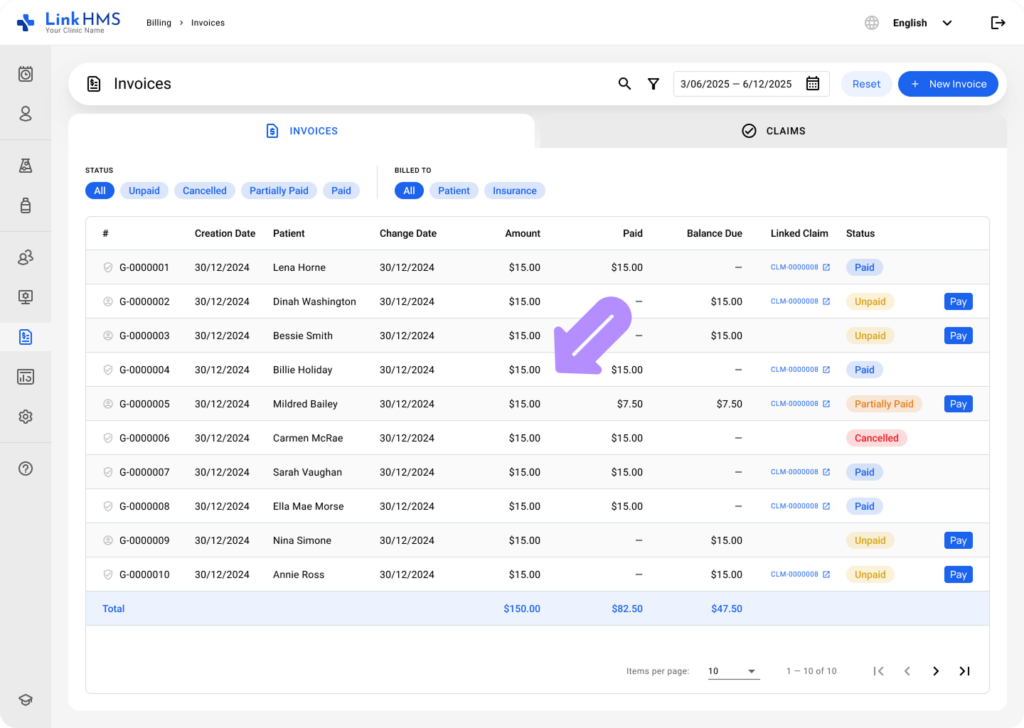
- For full details, open the required invoice.
- Navigate to the Payments tab.
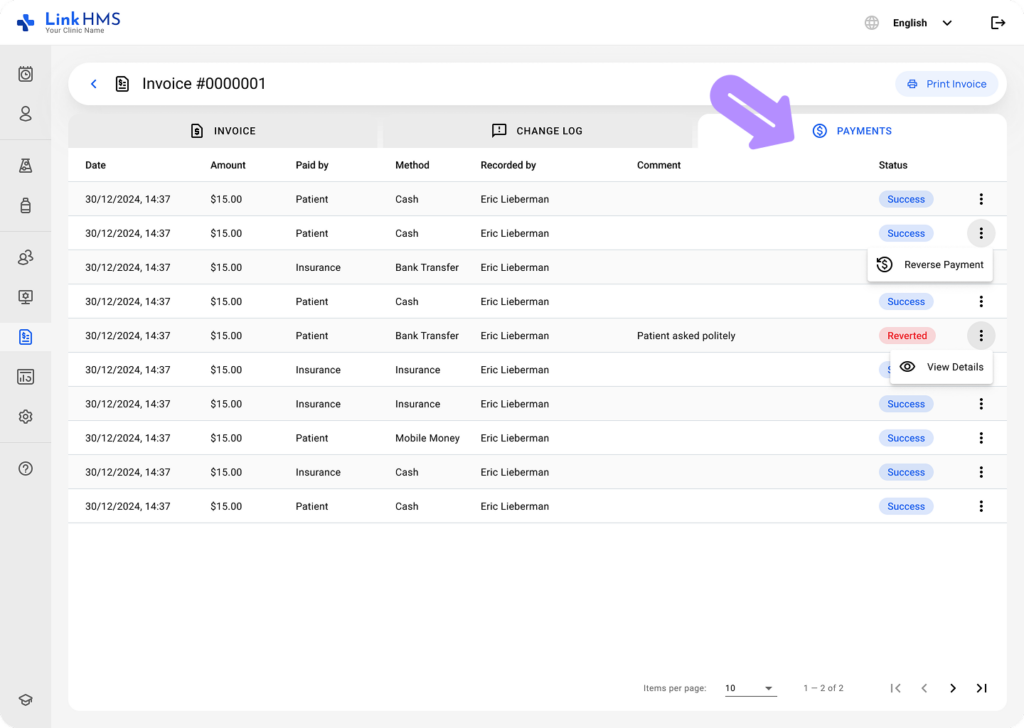
- View a complete list of all payment transactions with key details.
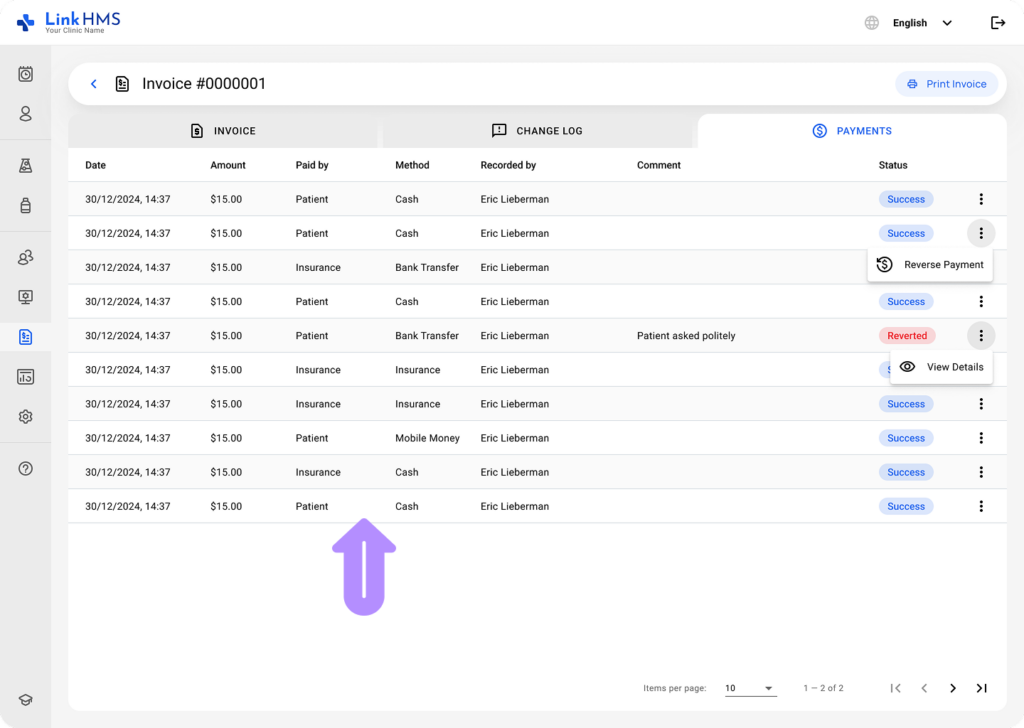
- Date – shows when the payment was recorded.
- Amount – indicates how much was paid.
- Paid by – shows who made the payment (Patient or Insurance).
- Method – indicates how the payment was made (Cash, Card, Bank, or Mobile Money).
- Recorded by – displays who added the payment.
- Comments – leave any additional notes.
- Status – shows the result of the transaction (Success or Reverted).
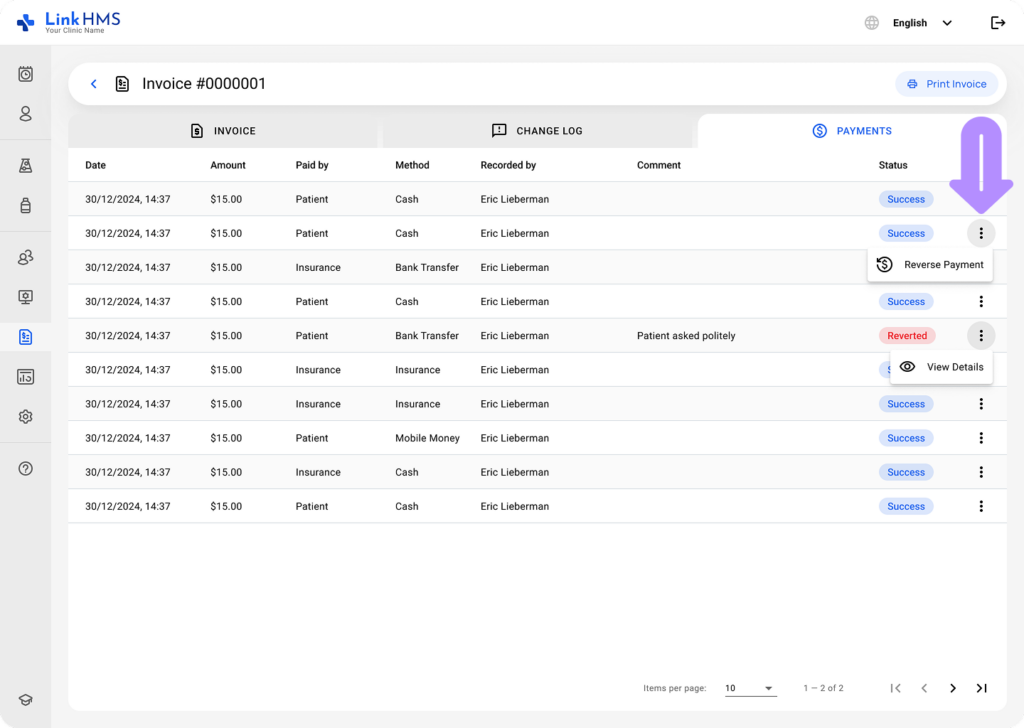
- You can also view details of reversed transactions.
💡Notes
The reverse payment feature in LinkHMS lets you undo a recorded payment; you can find the full guide on how to reverse the payment.
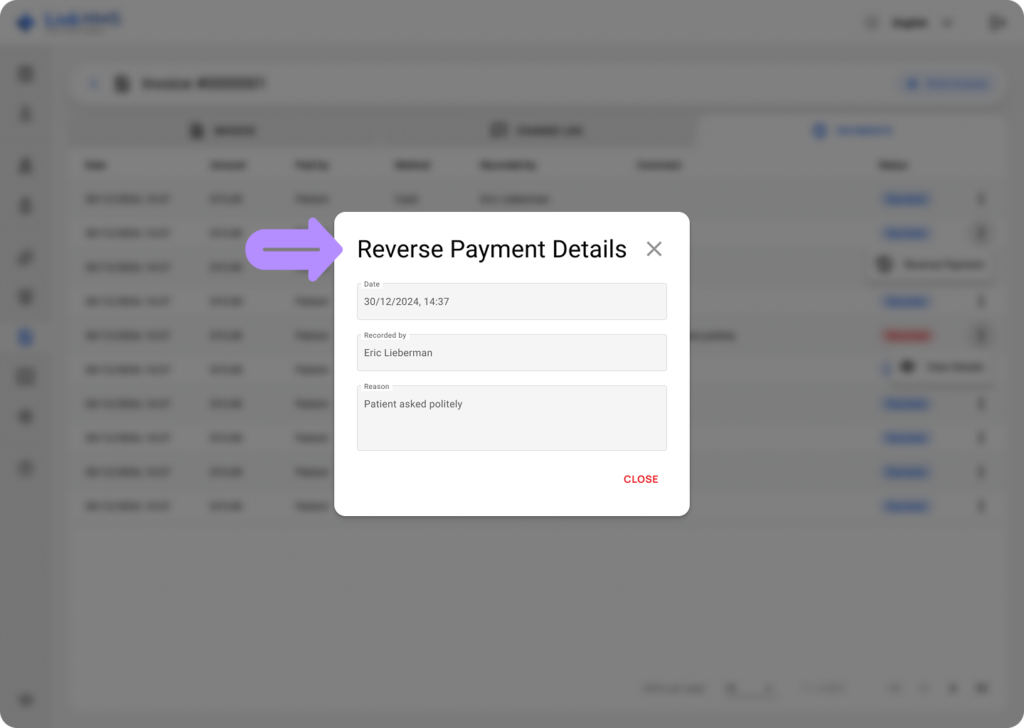
It helps you monitor payment history, verify transactions, and track the status of each payment for the invoice.