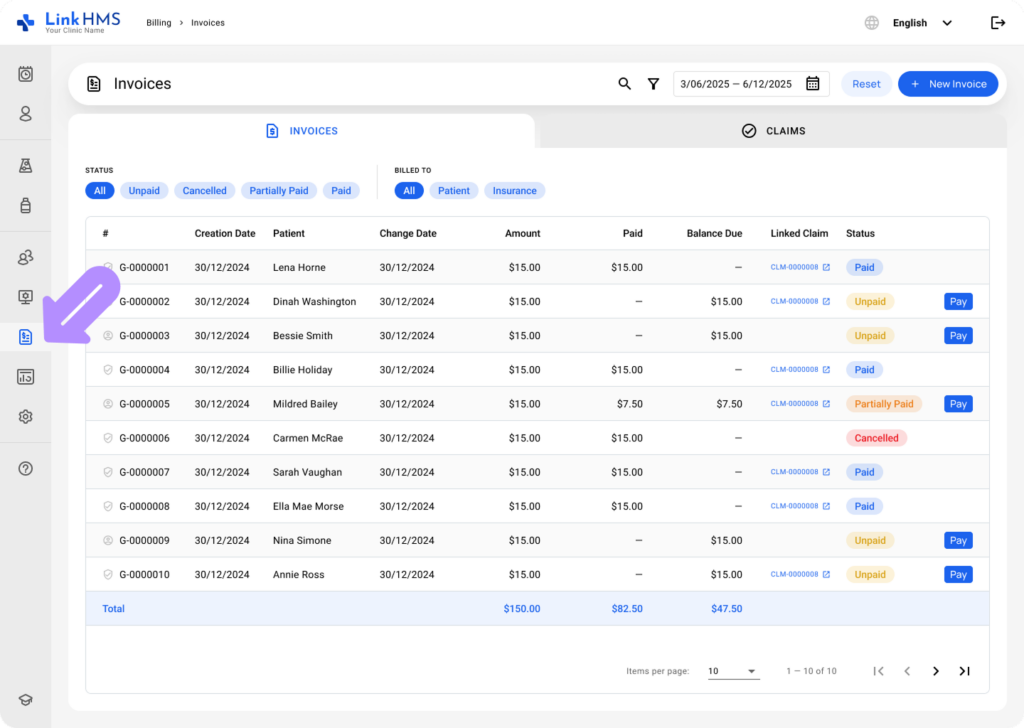
- Navigate to Billing from the left-side menu and open the Invoices tab.
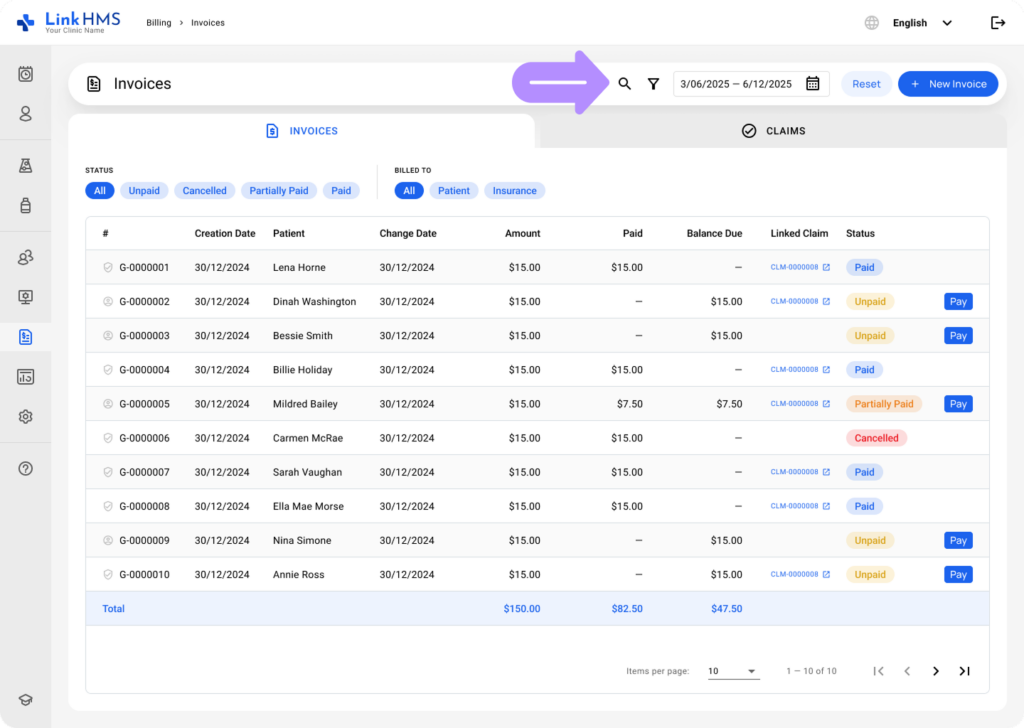
- Use filters or the search bar to quickly find the needed invoice. For more details, see the guide on how to browse and search for invoices.
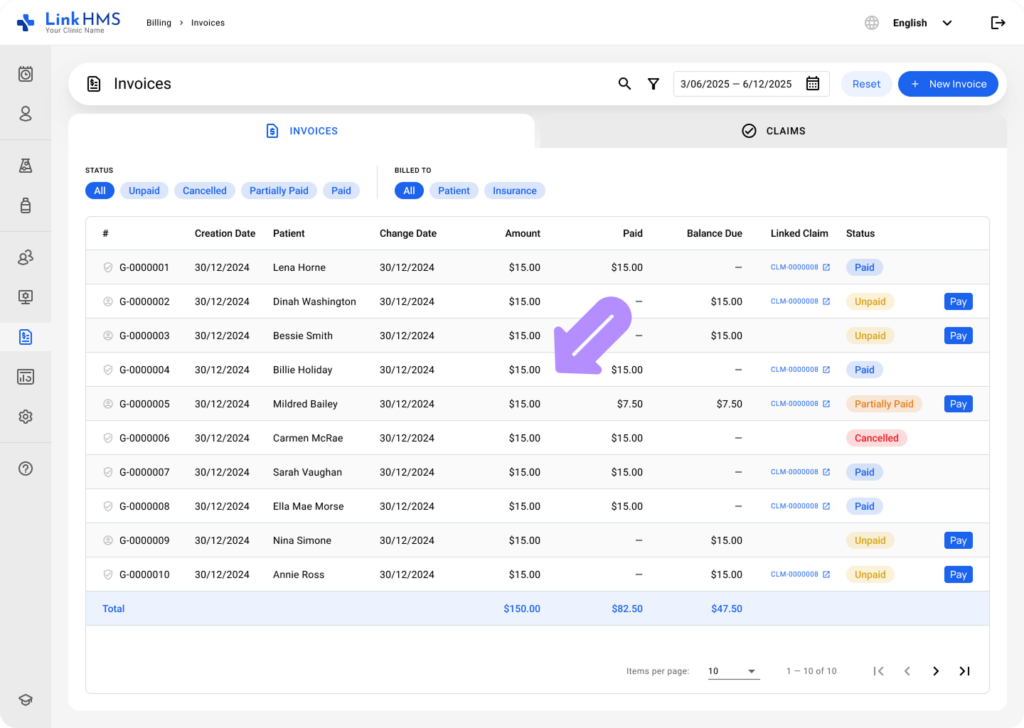
- Click the required patient’s invoice to open it.
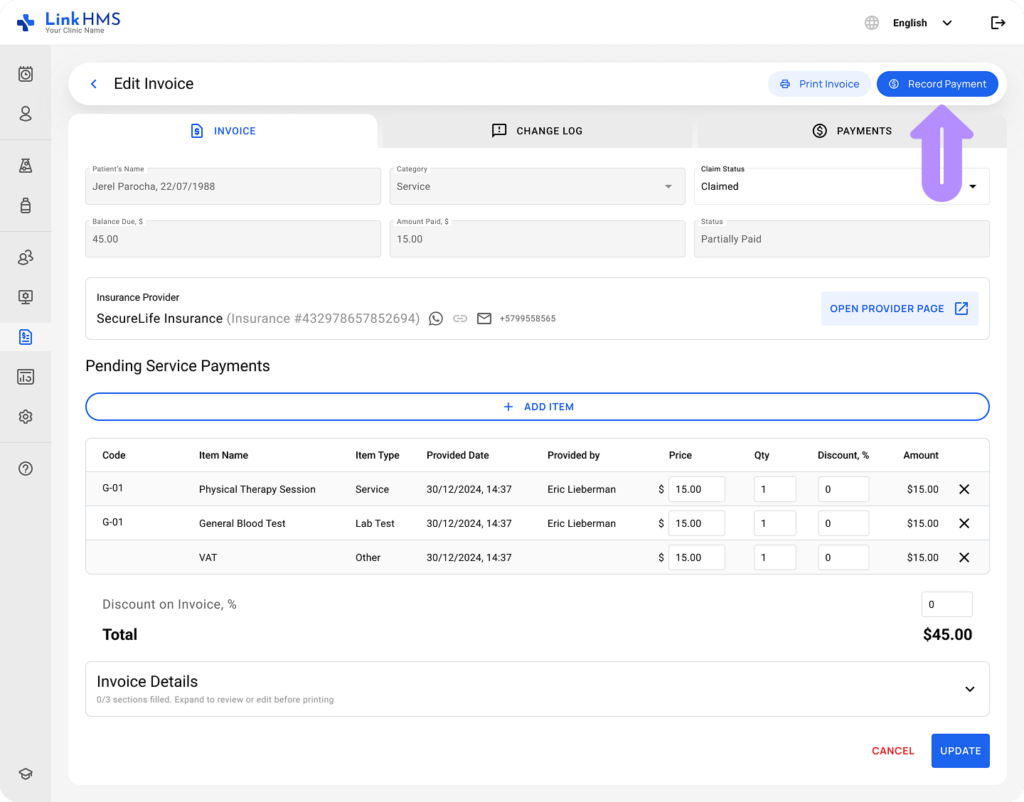
- Use the Record Payment button to add a new payment.
- You can also use the Pay quick button directly from the invoices list.
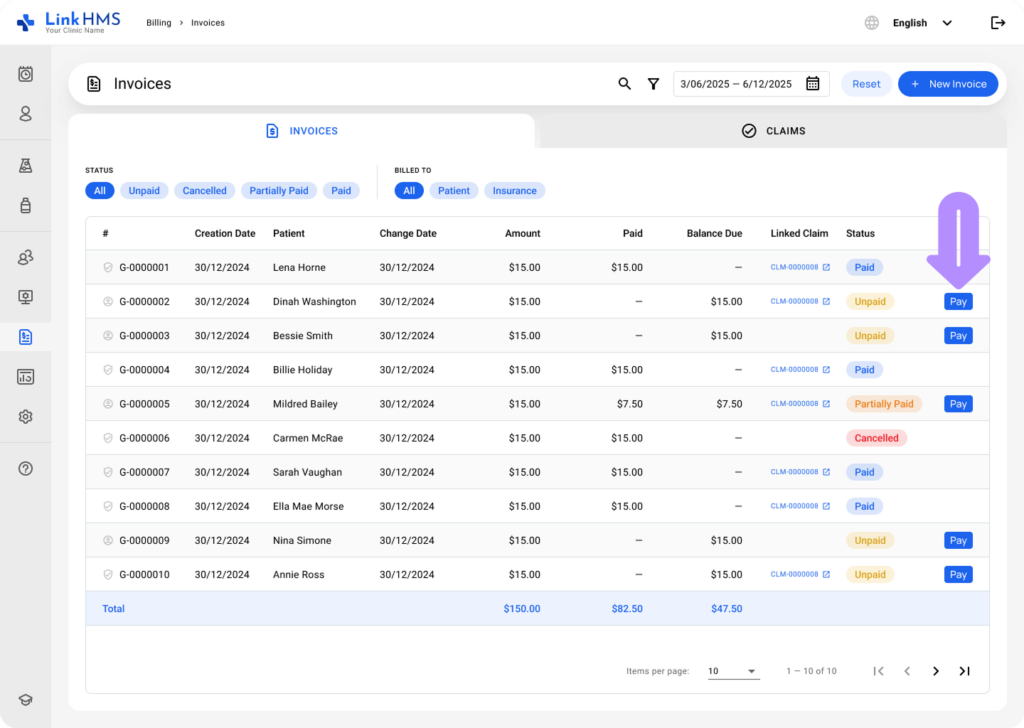
- In both cases, it opens the Record Payment pop-up to proceed with the payment details.
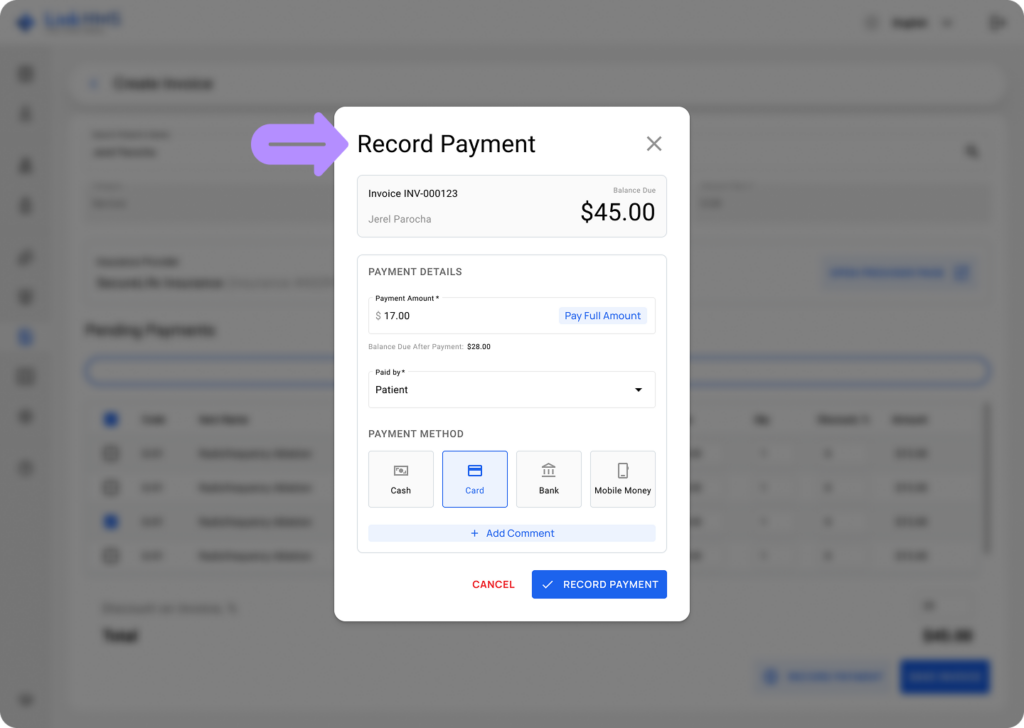
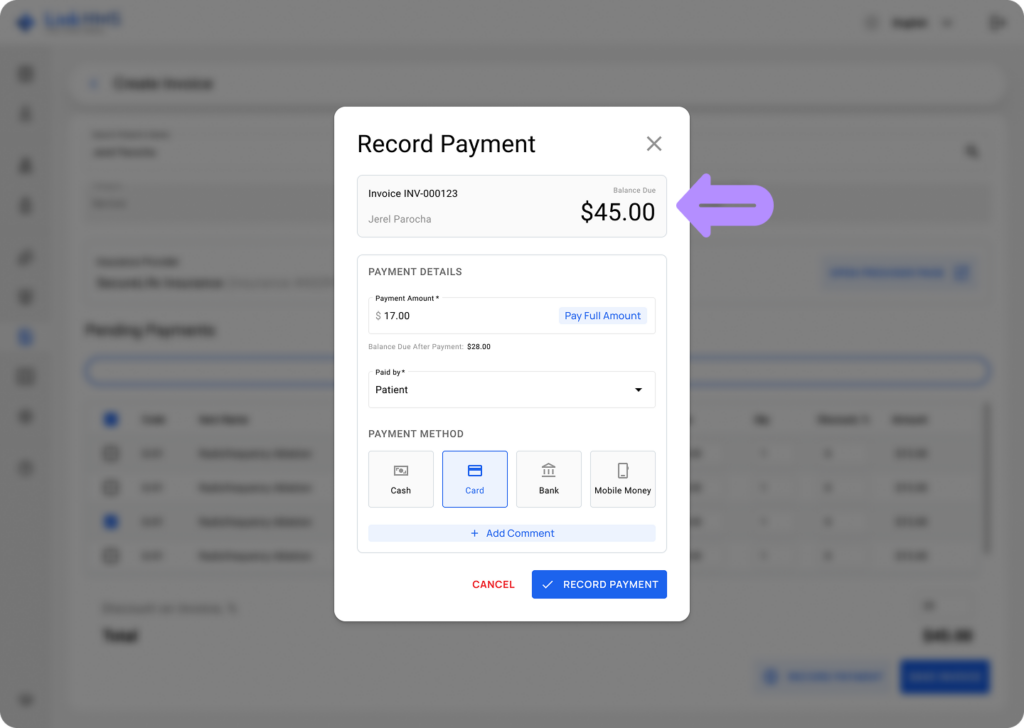
- Review the invoice details and the current Balance Due.
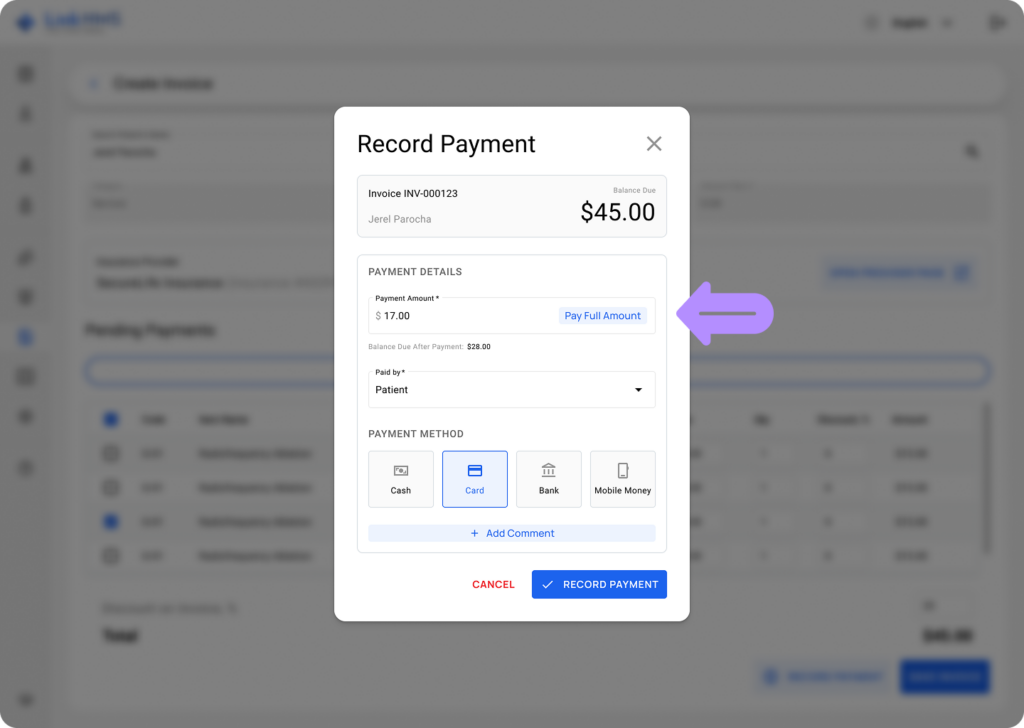
- Enter the Payment Amount or click Pay Full Amount.
- Select who the payment is Paid by ( Patient or Insurance).
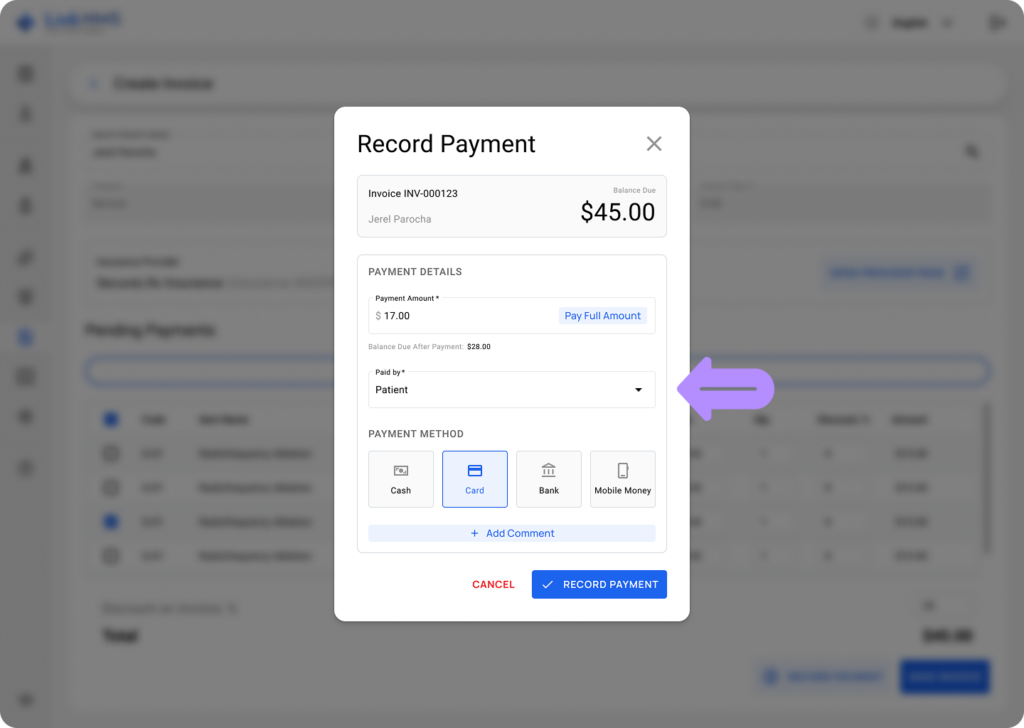
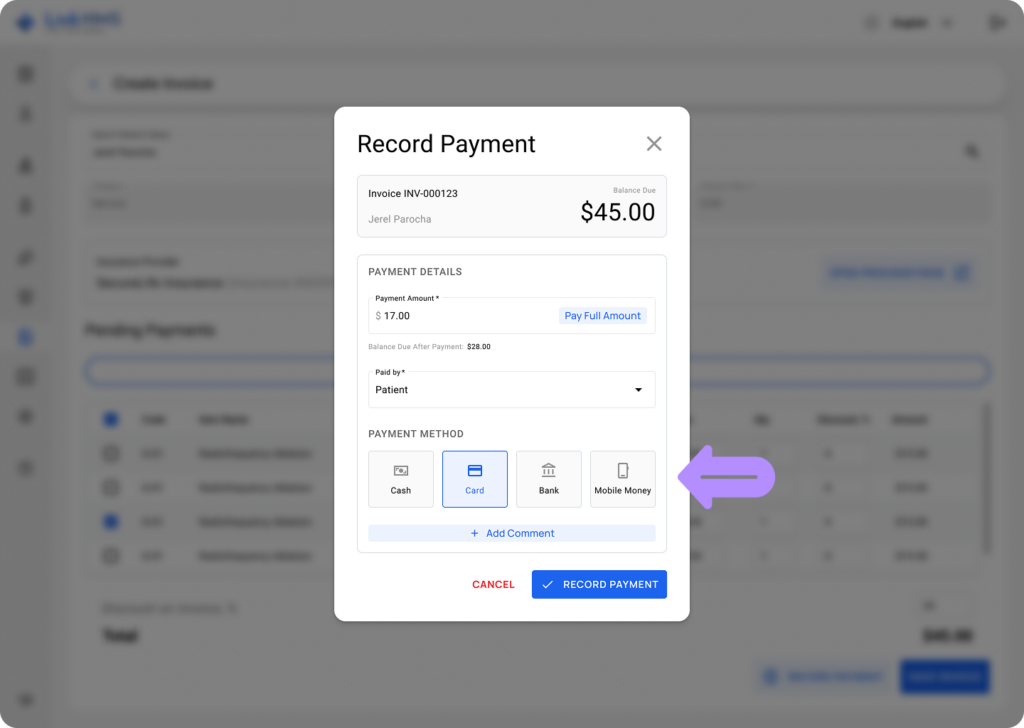
- Choose the Payment Method (Cash, Card, Bank, or Mobile Money).
💡Notes
If paid by Insurance, the payment method is set to Insurance and cannot be changed. If paid by a Patient, you can choose any method except Insurance.
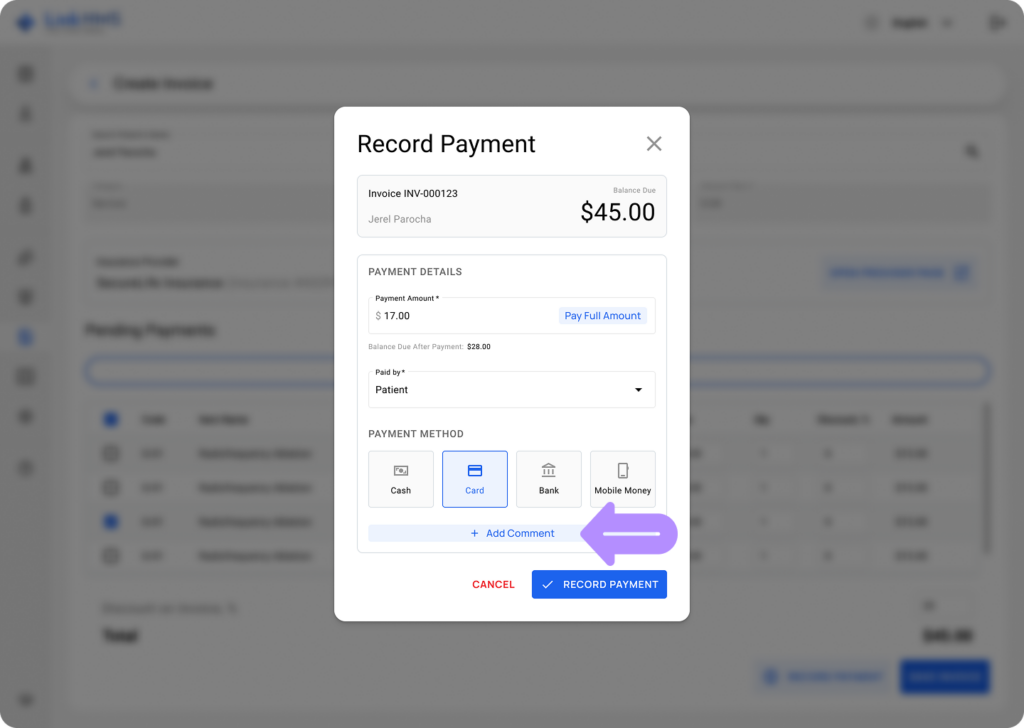
- (Optional) Add any notes using Add Comment.
- Click Record Payment to save.
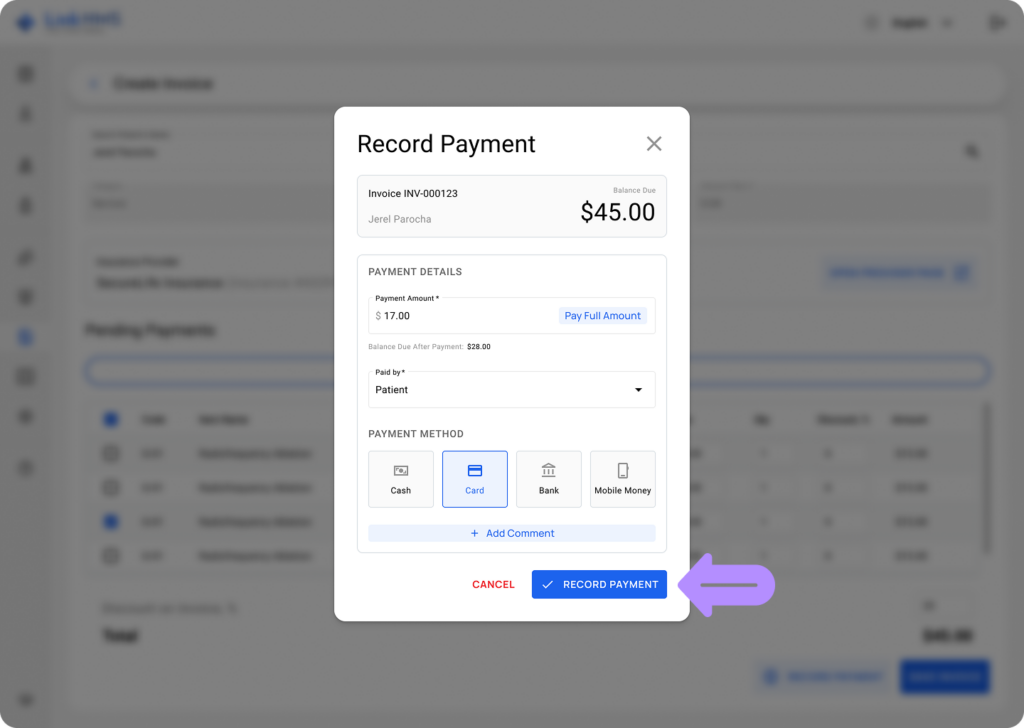
- The system automatically updates the Balance Due to ensure full visibility into payments.
- Use the Payments tab to view the full history of all transactions, including amounts, payment methods, comments, and payment statuses.
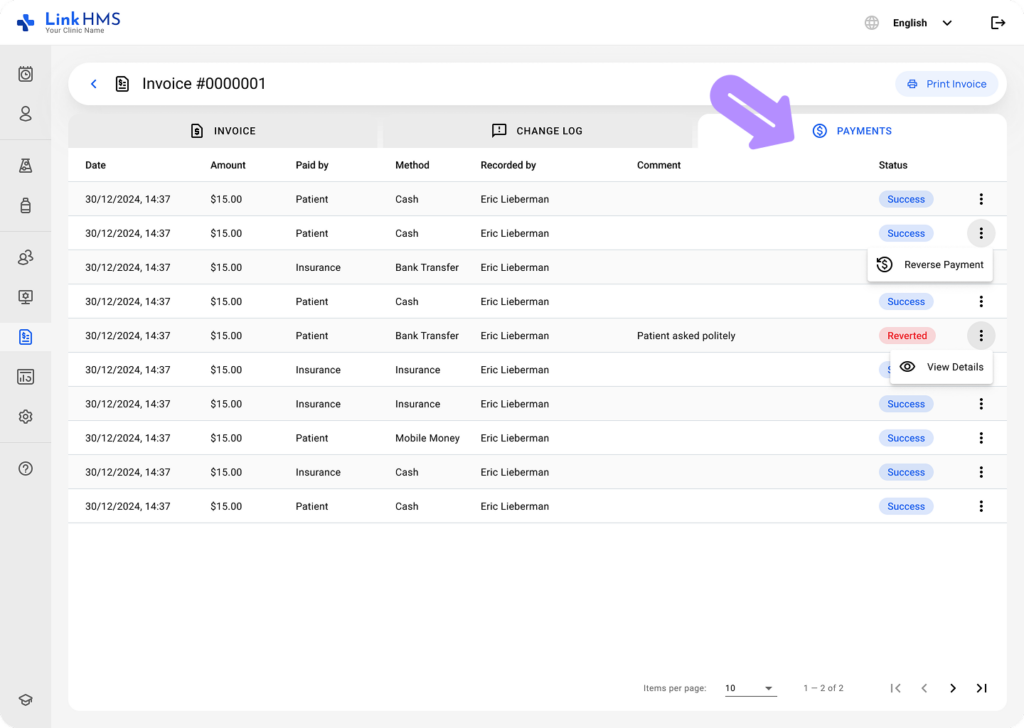
It helps your clinic support clear payment tracking, better financial visibility, and accurate record-keeping across all invoices.