Create Invoices for Doctors’ Prescriptions
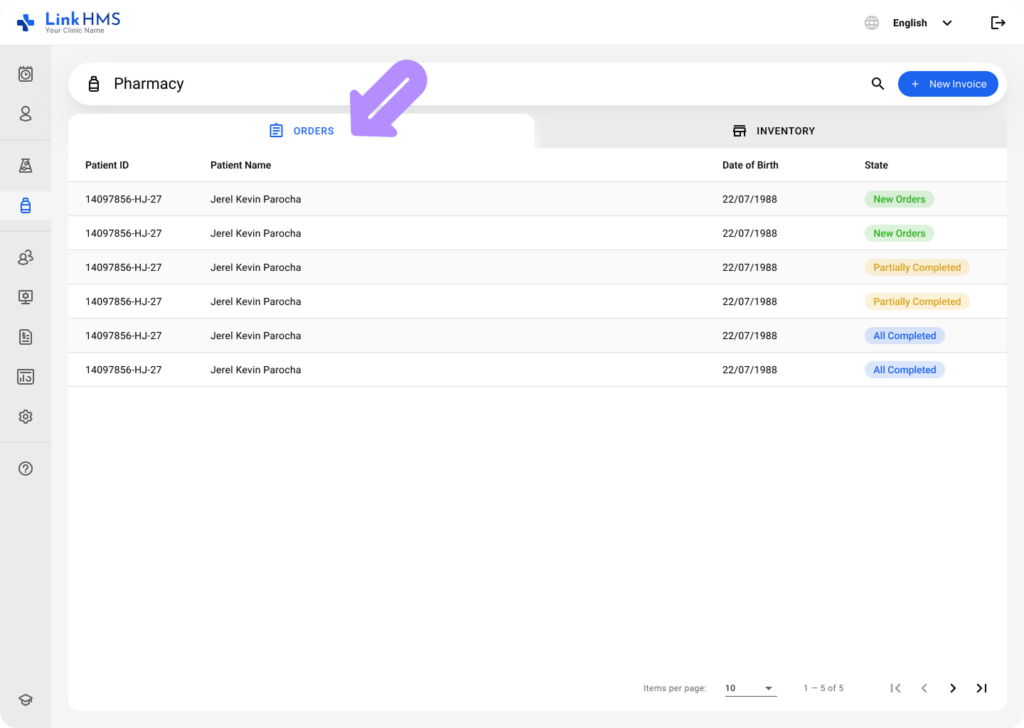
- Choose the Orders tab in the Pharmacy.
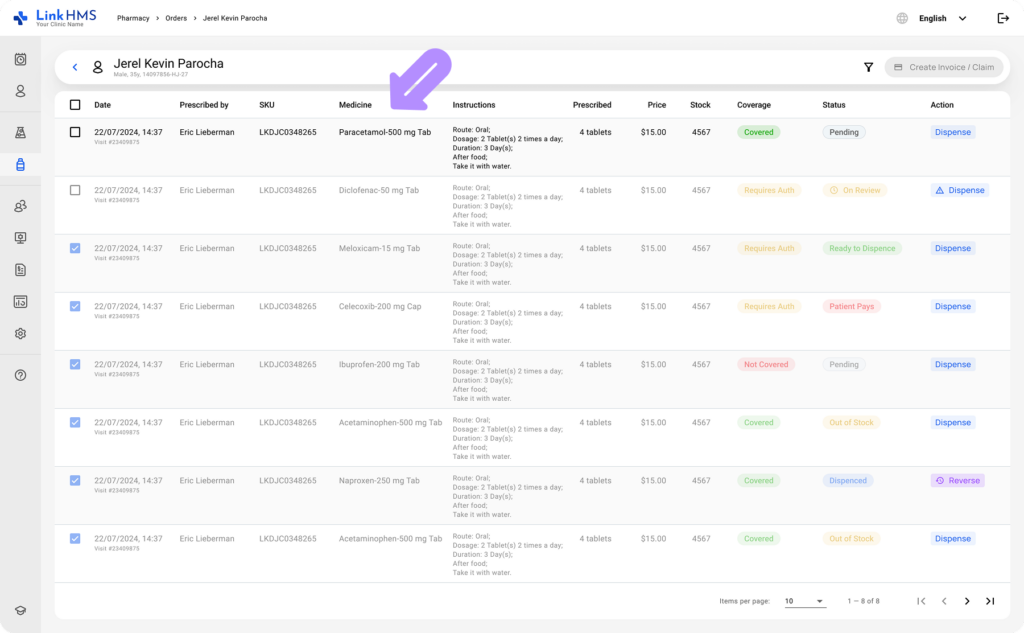
- Open the selected patient to view the detailed list of prescribed medicines.
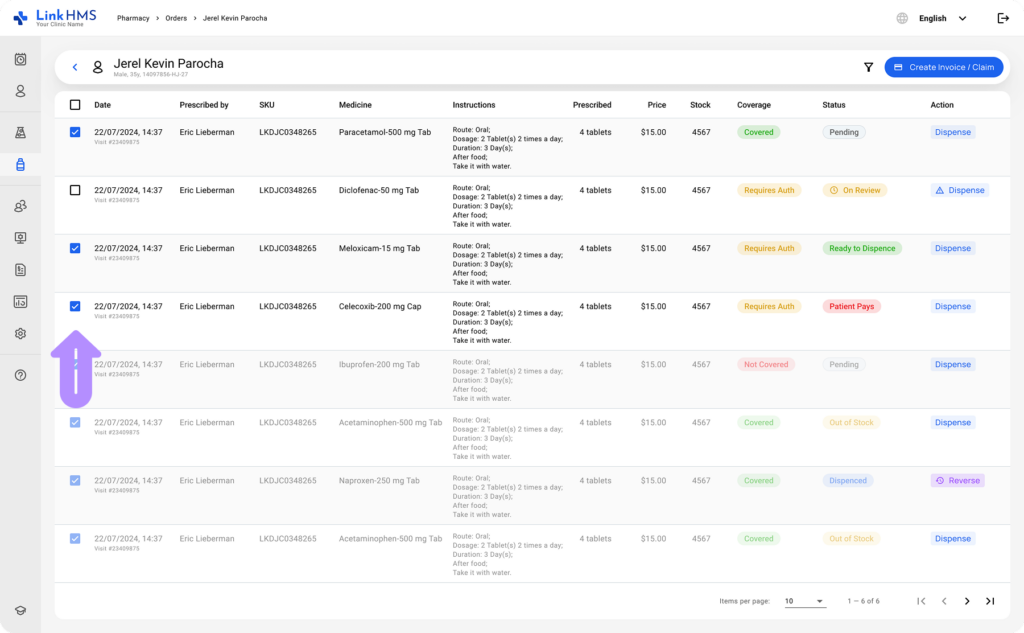
- Use the checkboxes to select specific medicines to be included in the invoice. To select all items at once, click the checkbox at the top.
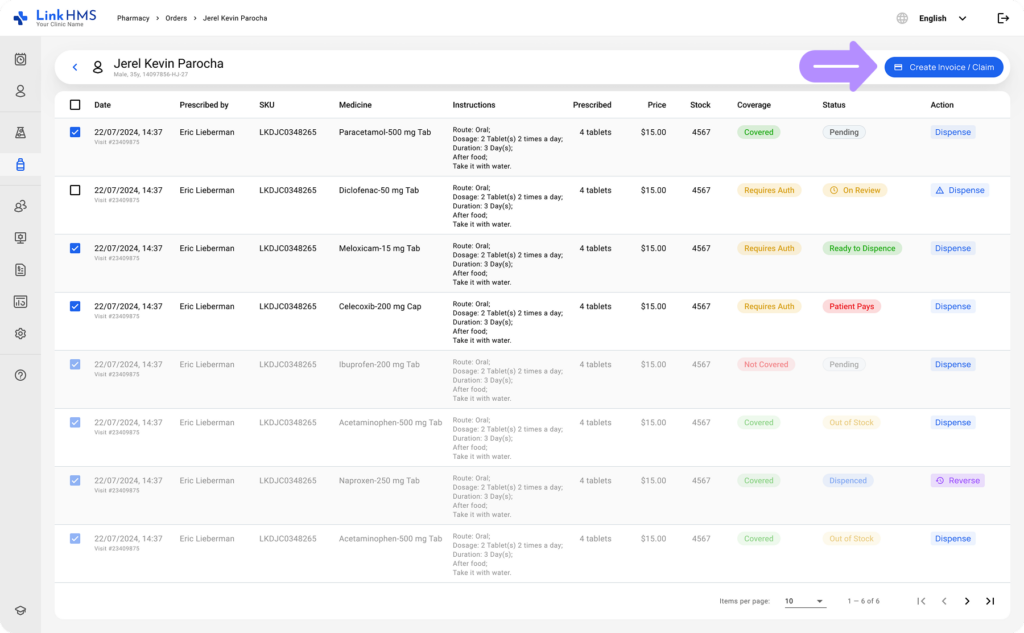
- Click the activated Create Invoice/Claim button to add the chosen medicine to the prescription invoice.
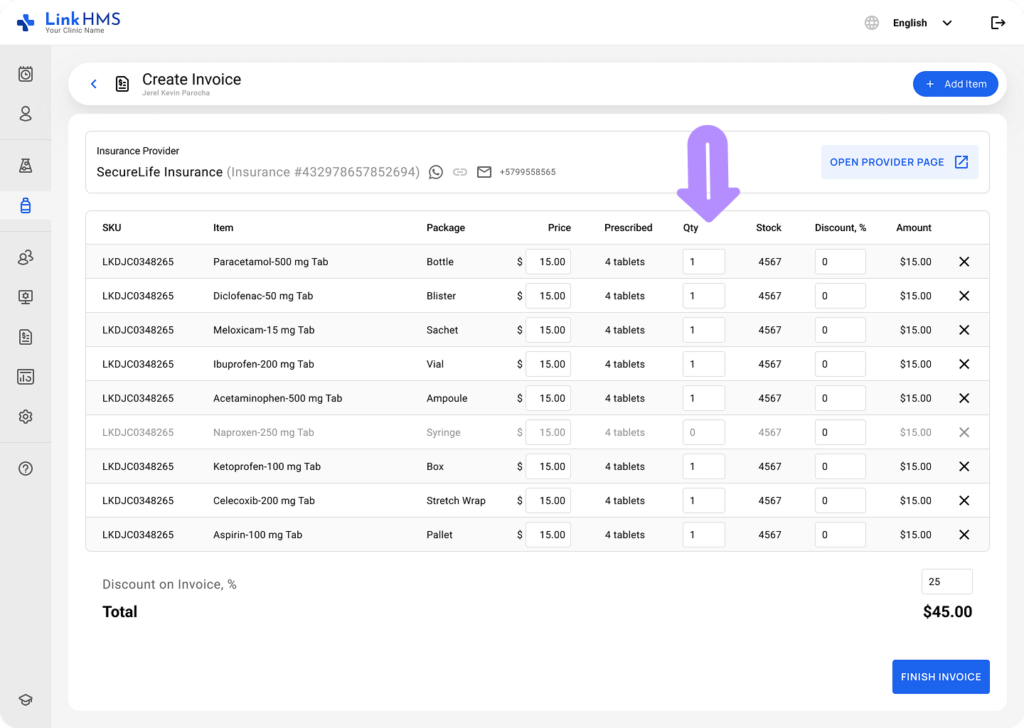
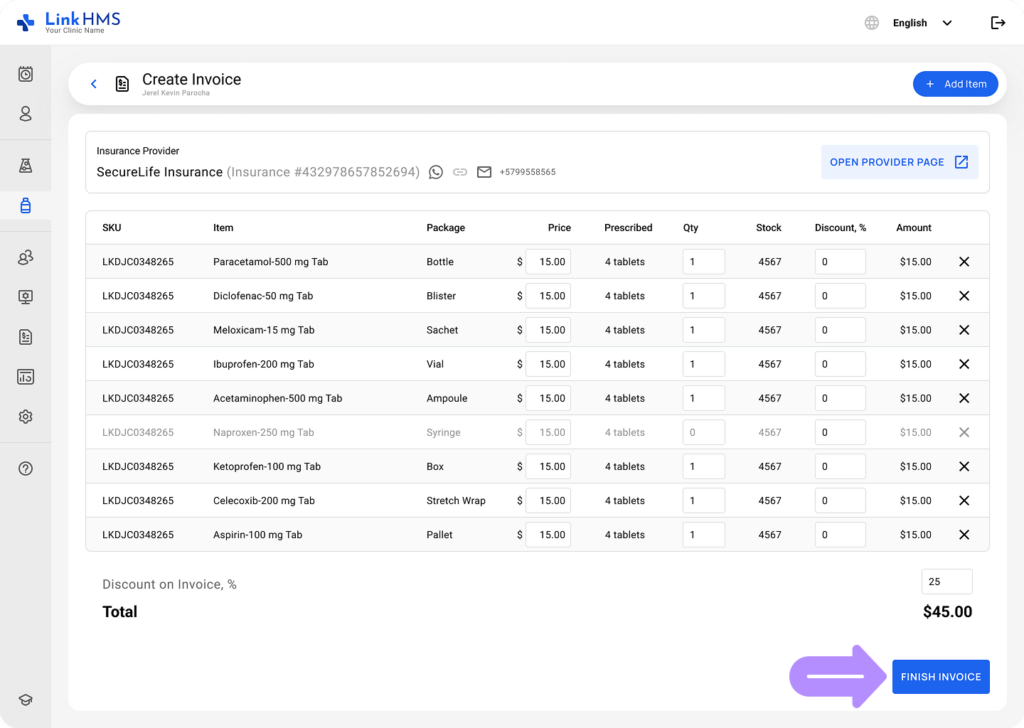
- Review the list of added medicines and select the quantity for each.
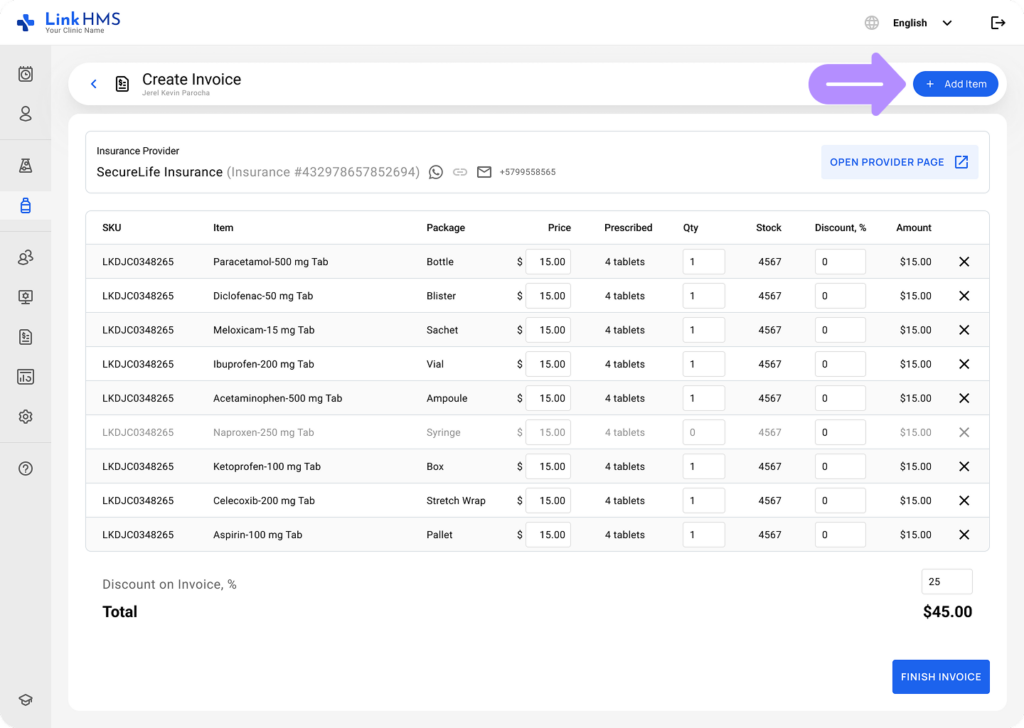
- Click + Add Item to include more if needed.
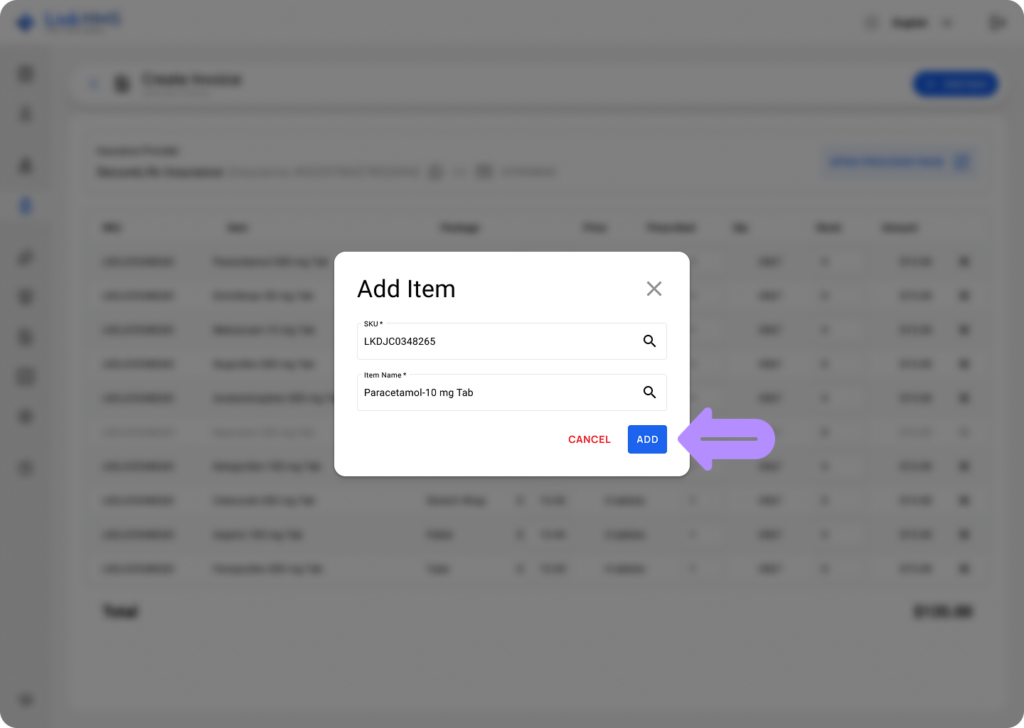
- Specify the SKU and Item Name, then click the Add button to add a new item to the invoice.
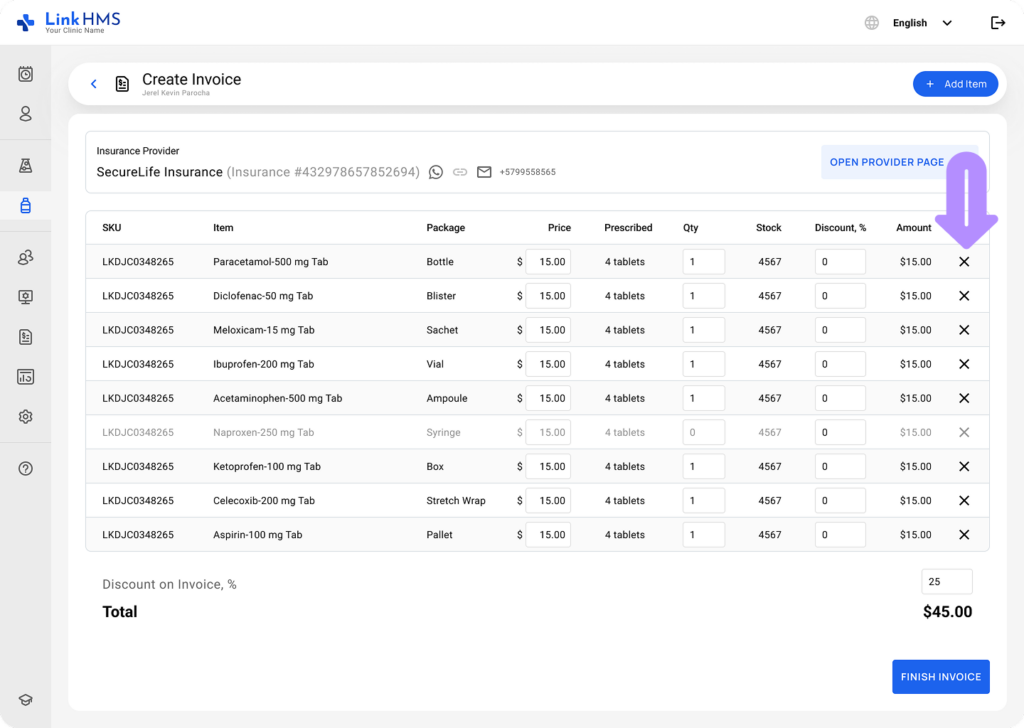
- If required, click X to remove an item.
- Click the Finish Invoice button when the invoice is ready.
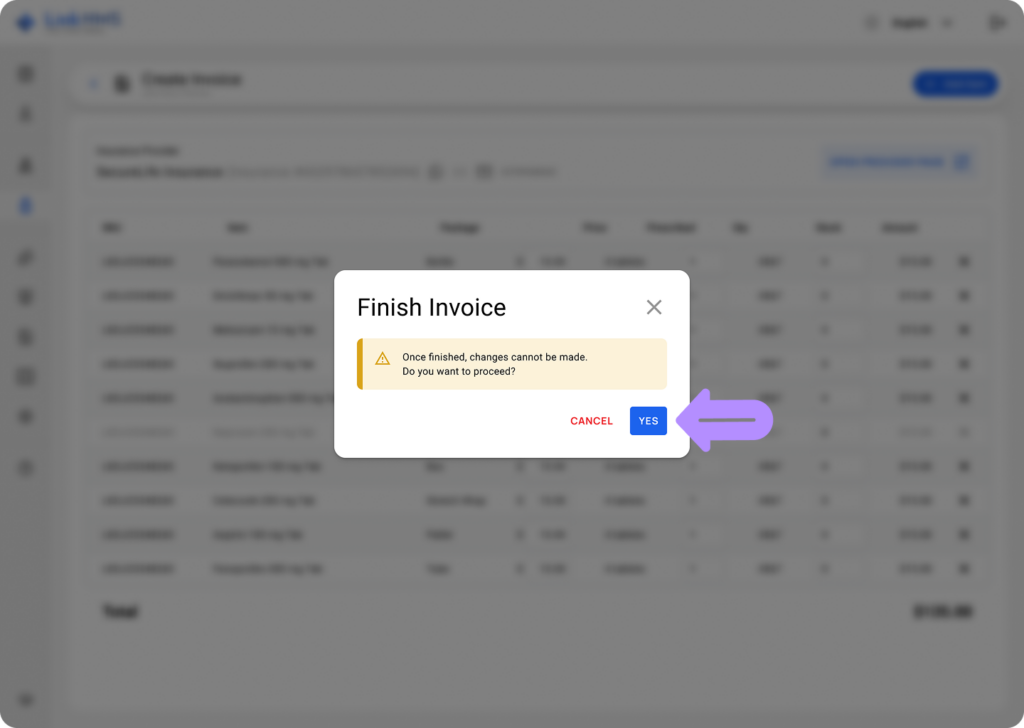
- A pop-up window appears to confirm the finalization of the invoice by clicking the Yes button.
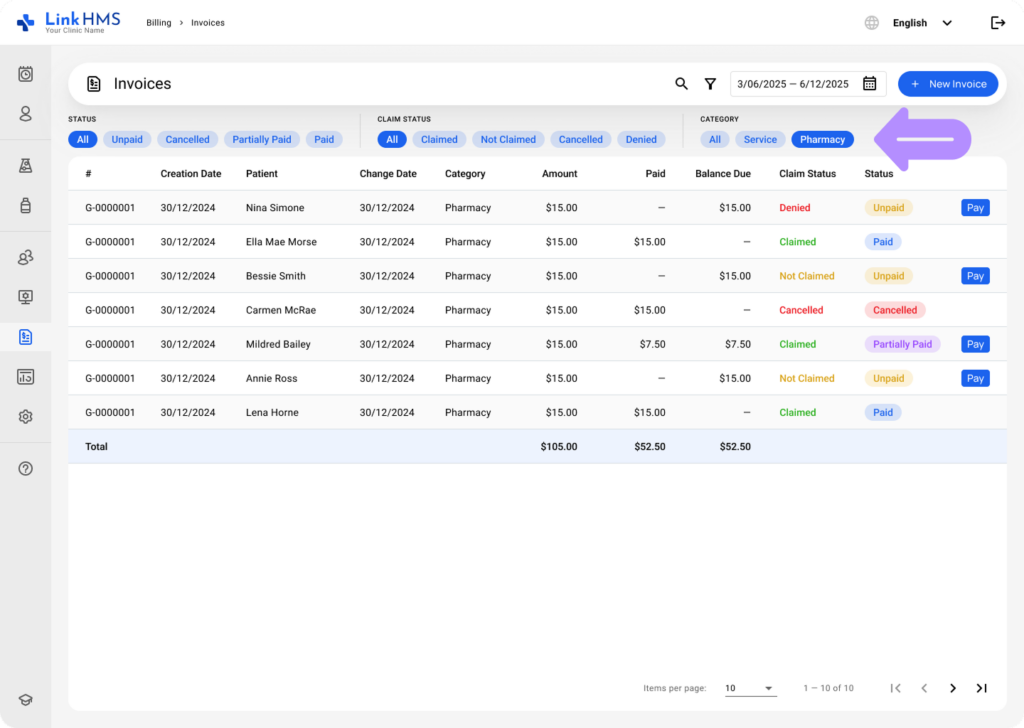
- The new invoice automatically appears in the Billing tab under the Pharmacy category with an Unpaid status.
- Refer to the additional guide on how to manage pharmacy invoices.