Once the Doctor prescribes medicine, the order automatically appears in the Pharmacy module for further processing by Pharmacists.
Manage Patients’ Prescriptions
- Navigate to the Orders tab in the Pharmacy module.
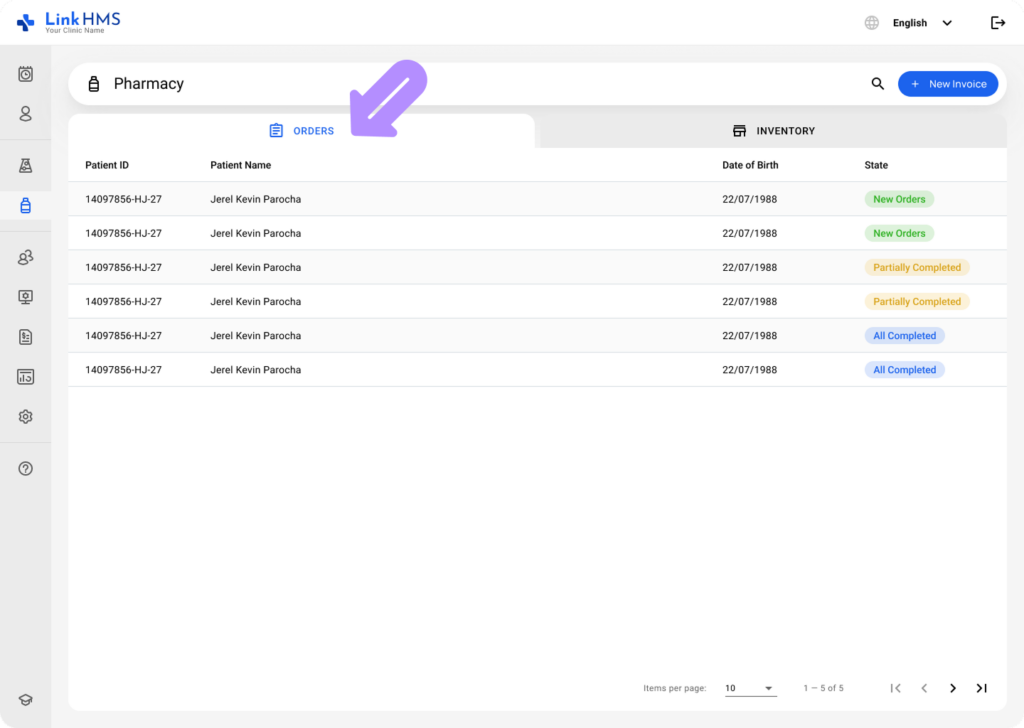
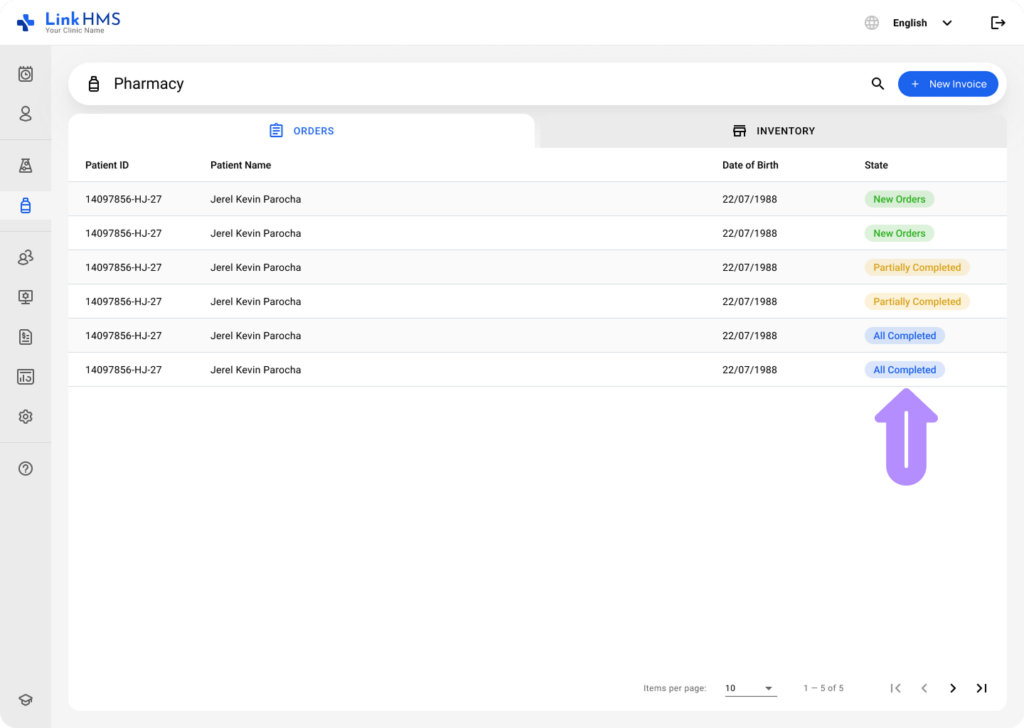
- View the list of patients with real-time state updates (New Orders, All Completed, Pending, Partially Completed) on their medicine orders.
- Open Detail View to see the list of prescribed medicines for a specific patient, sorted by Date.
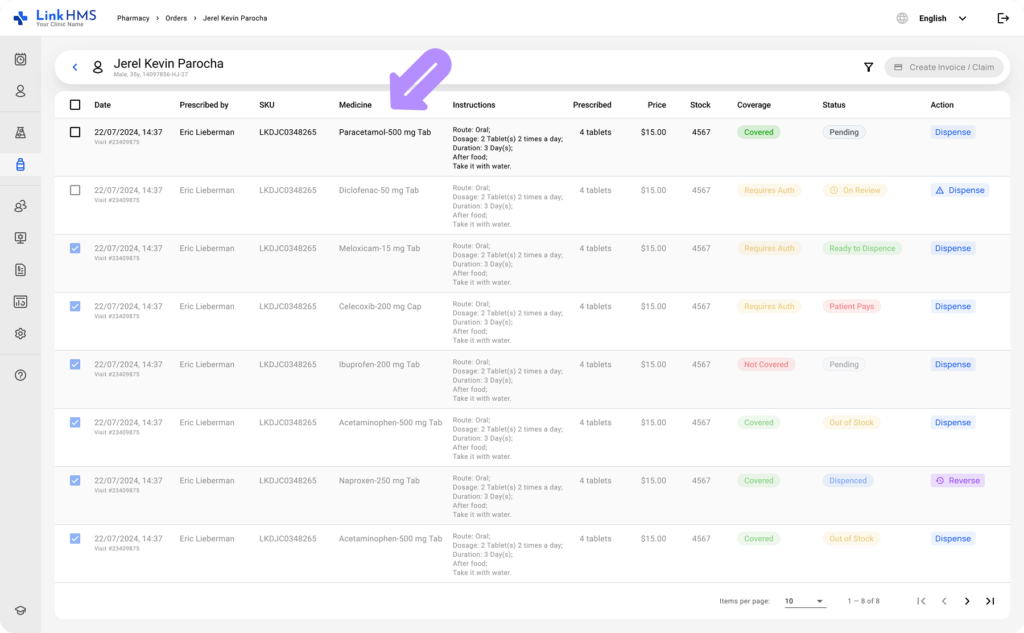
- Use the following columns to view additional details:
- Date: when the order was created.
- Prescribed by: the user who issued the order.
- SKU: the item’s unique identifier.
- Medicine: the name of the prescribed medication.
- Instructions: dosage, route, and usage details.
- Prescribed: quantity prescribed.
- Price: cost per item.
- Stock: current availability in inventory.
- Coverage: insurance coverage (Covered, Not Covered, Requires Authorization)
- Status: medication status (Pending, Out of Stock, On Review, Ready to Dispense, Patient Pays, Dispensed, Excluded).
- Action: dispense the medication or reverse a previously completed dispense action.
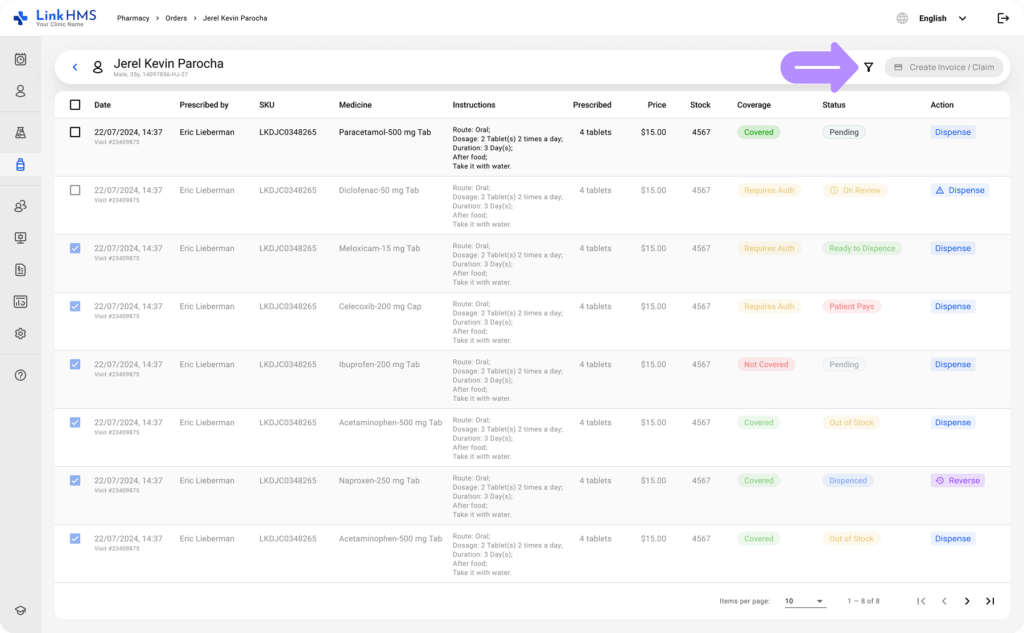
- You can use the Filter icon to narrow down the list and find the necessary medicine order.
- Use the Dispense button to process and issue the medication to the patient, or Reverse to undo a dispense and return the medication to stock. For additional details, refer to the full guide on how to dispense the medication.
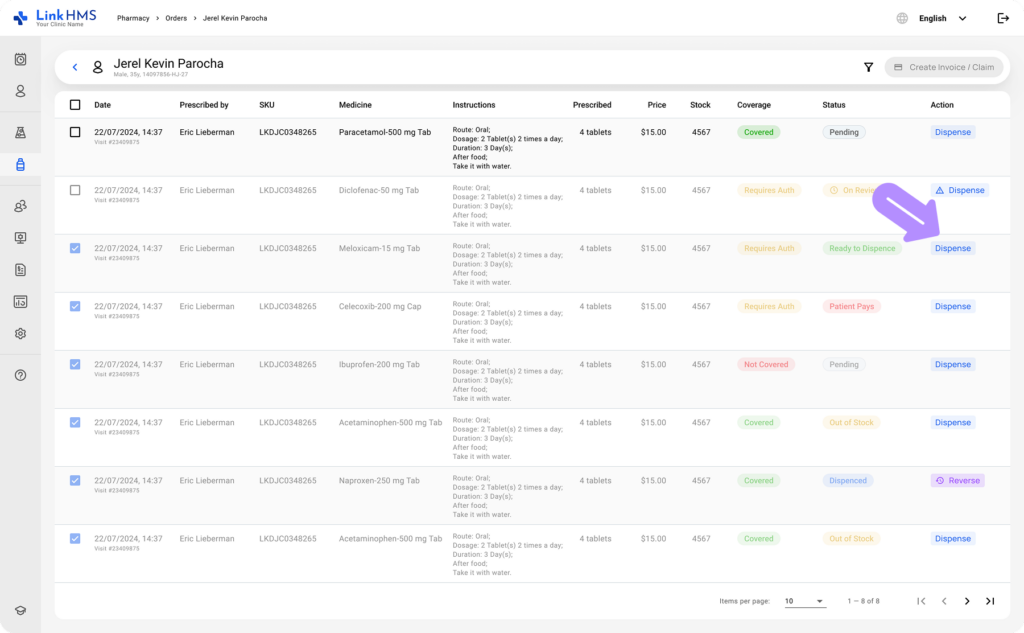
- Once you’re ready to complete a pharmacy order and create the invoice, use the checkboxes to select the medicines to include. To select all items at once, click the top checkbox.
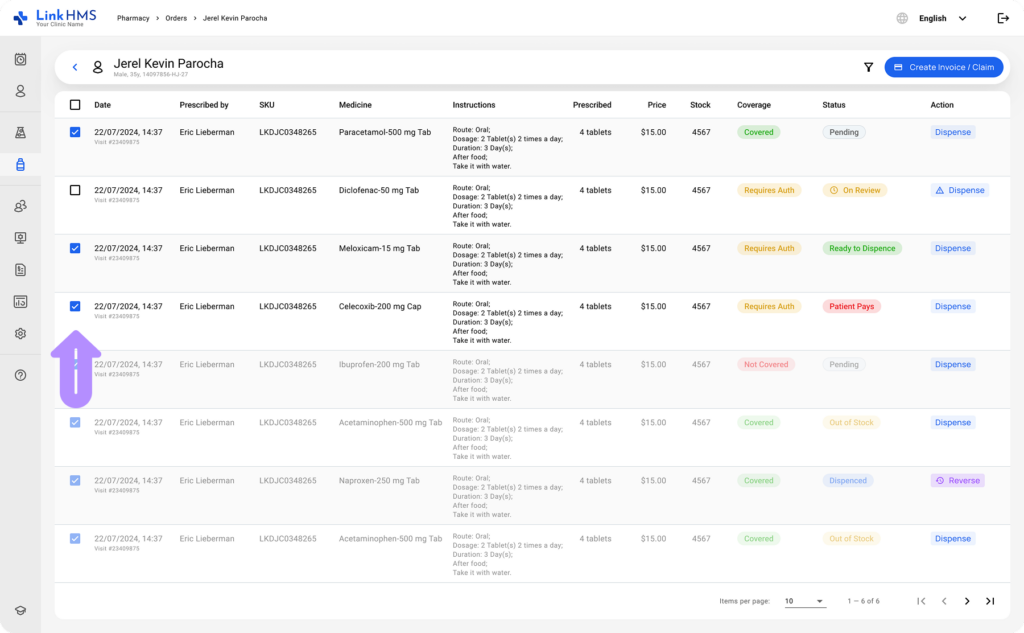
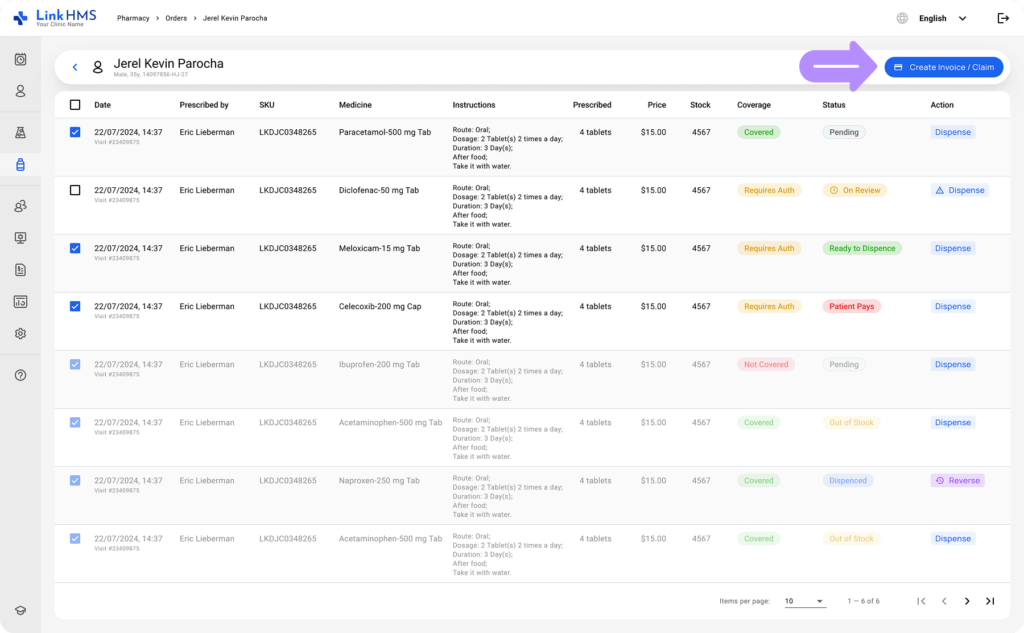
- Click the active Create Invoice/Claim button to add the selected medicines to the invoice. Find the detailed guide on how to manage pharmacy invoices.
💡Notes
The Orders tab collects all your patients’ prescription orders in one place, allowing you to quickly review, manage, and track each request. It helps ensure that every medication is dispensed accurately and in the correct quantity to support efficient pharmacy operations.