💡Notes
In addition to setting the regular service price, specify whether it is covered by the patient’s insurance plan and enter the amount the clinic will claim from the insurer. Throughout the system, each service will be shown with the regular price. To see how the cost is split between insurance and the patient, use the claim detail page.
Adding Insurance Prices for Services
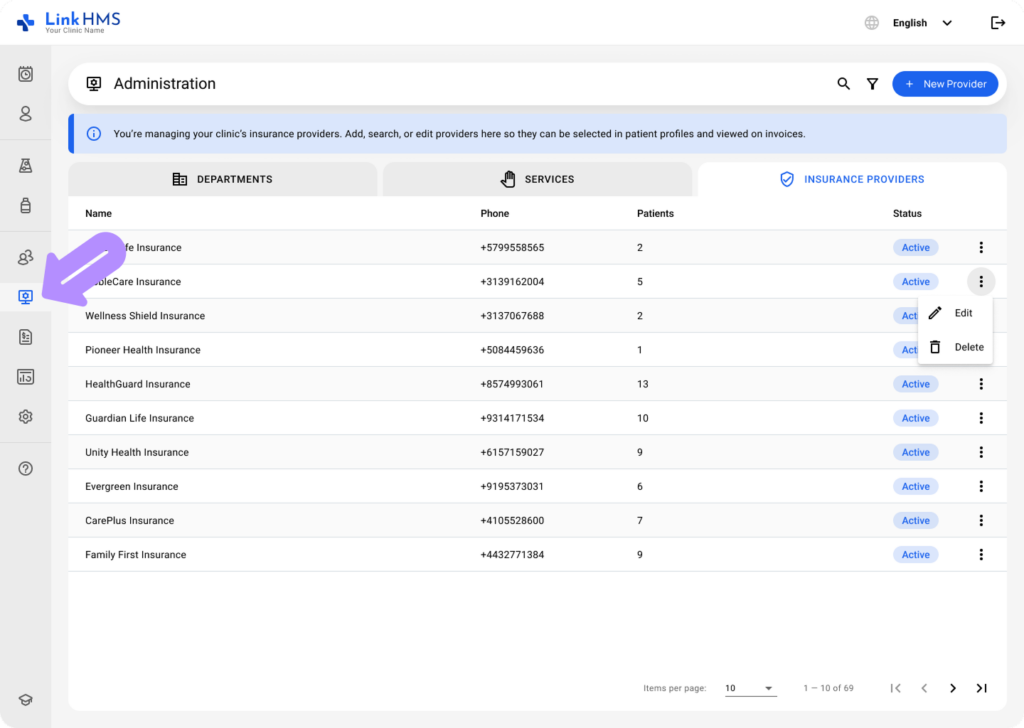
- Open the Administration section from the left-side navigation menu.
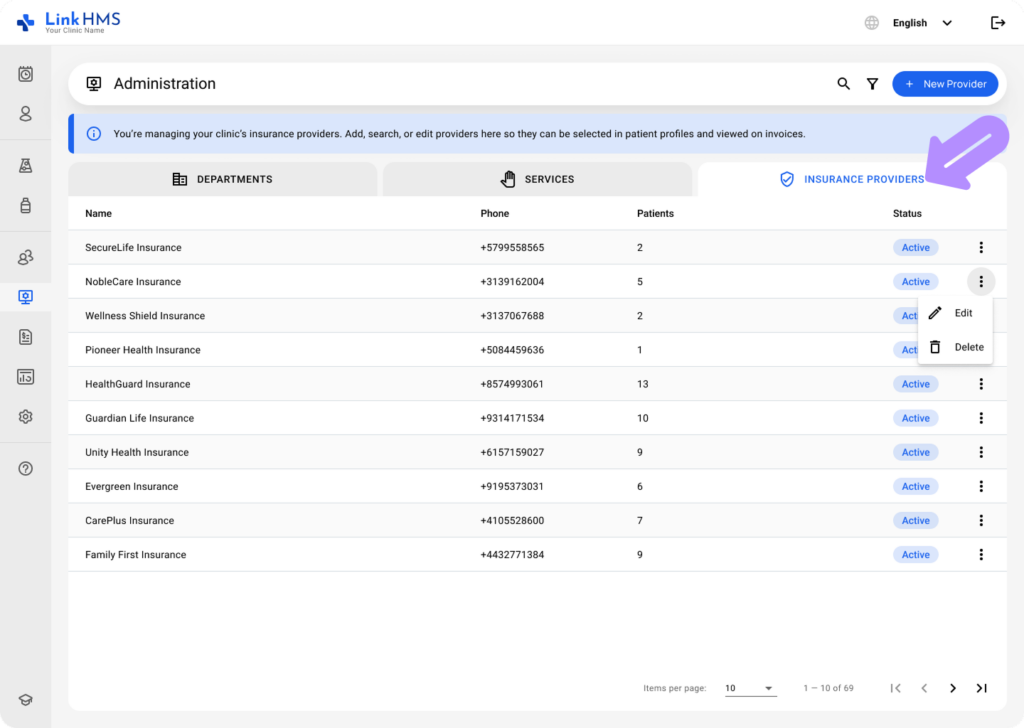
- Select the Insurance Providers tab.
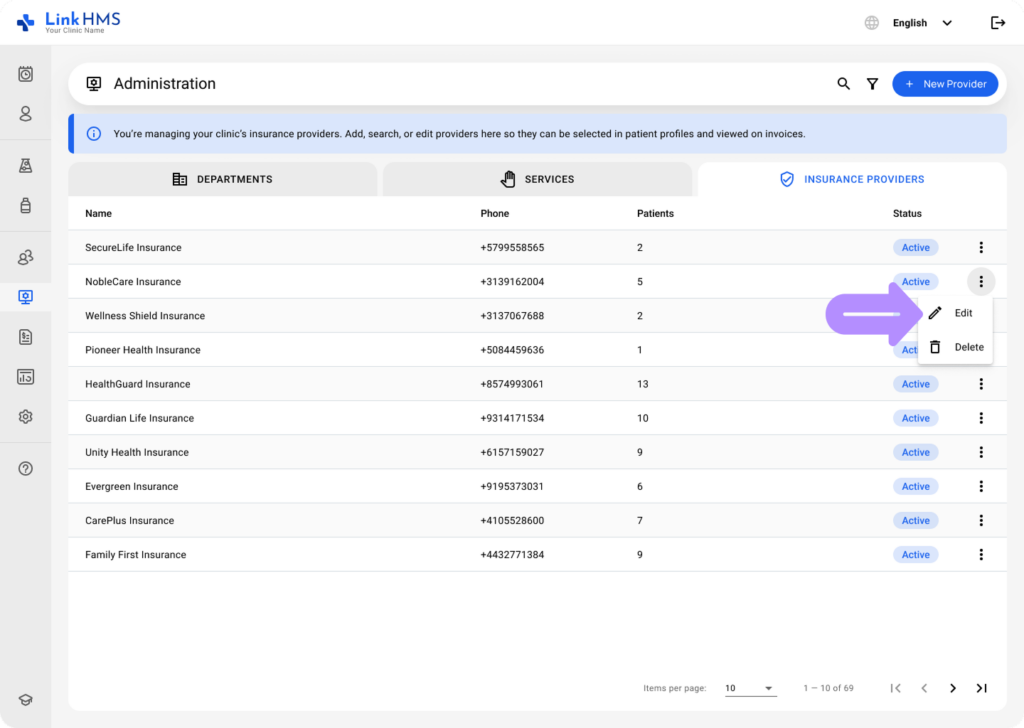
- Click the desired provider, or use the three-dot menu and select Edit.
- Review the insurance provider information and update it if needed. Find the full guide on creating and editing insurance providers in LinkHMS.
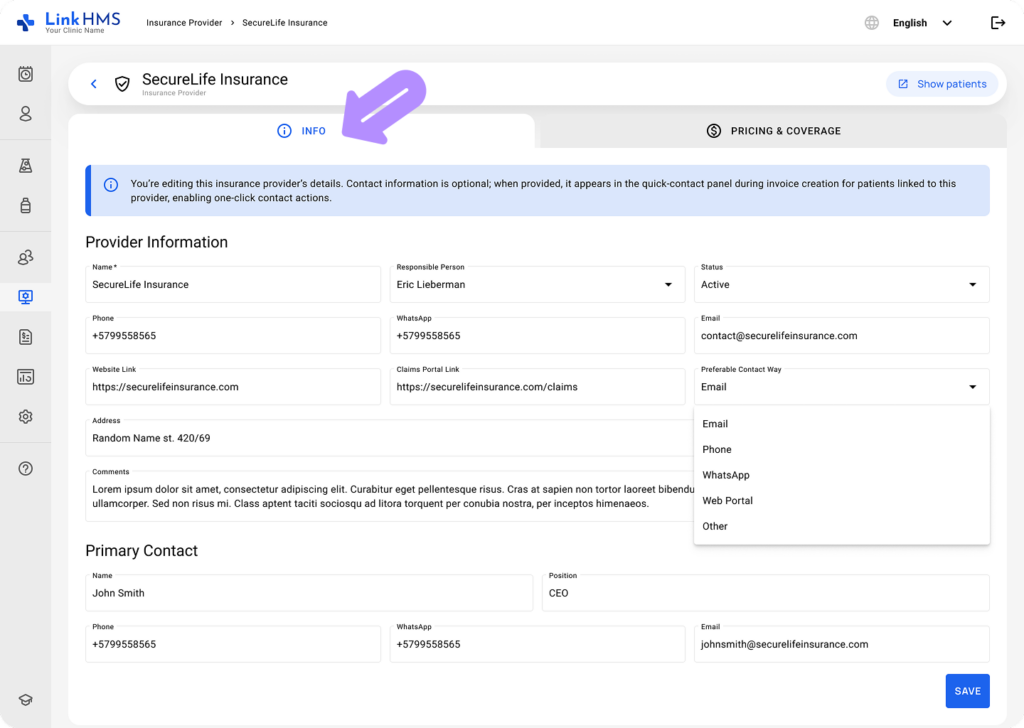
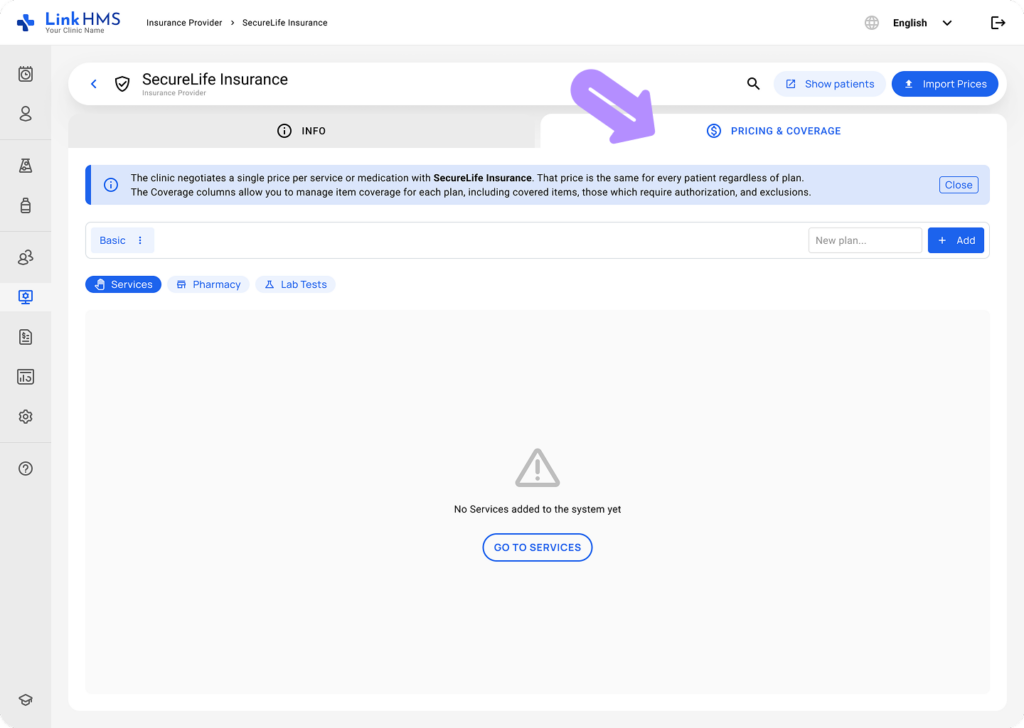
- Navigate to the Pricing & Coverage tab to manage insurance pricing for services, pharmacy, and lab tests.
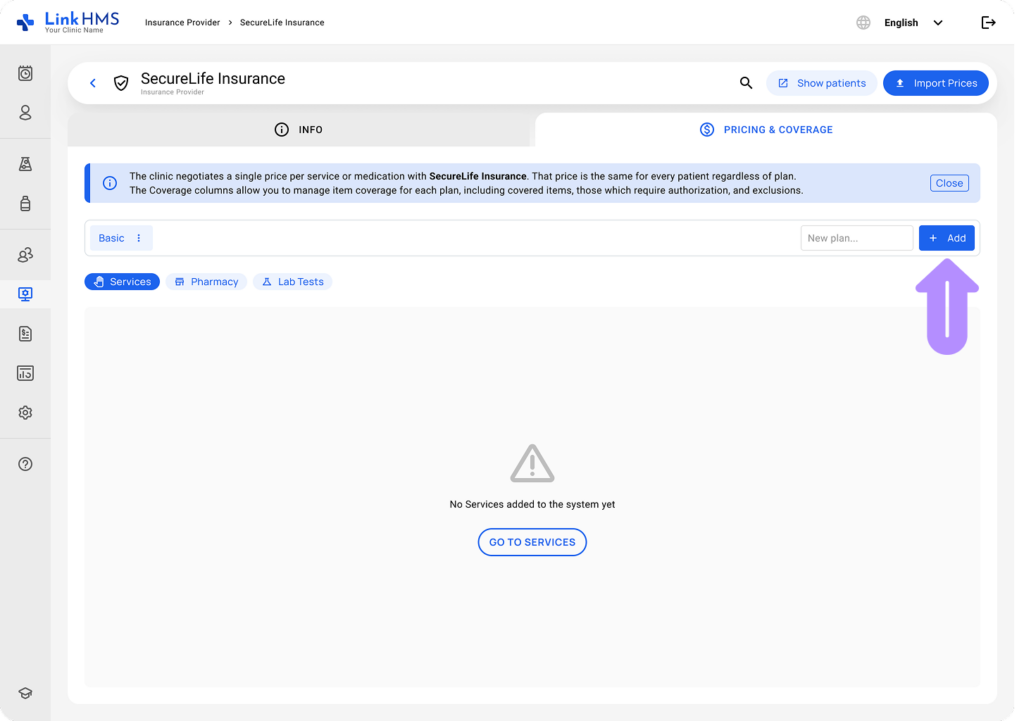
- Enter the new plan name, then click the + Add button to start adding the required plan.
💡Notes
You can manage multiple plans under the same insurance provider, each with separate coverage rules. Different plan coverage allows you to define which items are covered, require authorization, or are excluded for each plan.
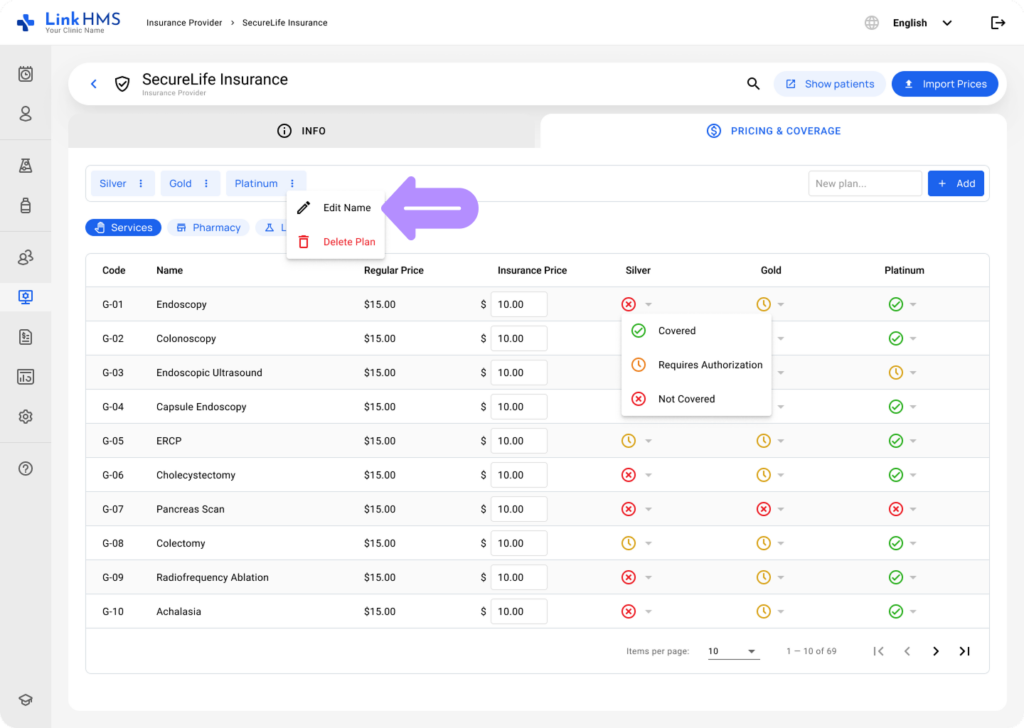
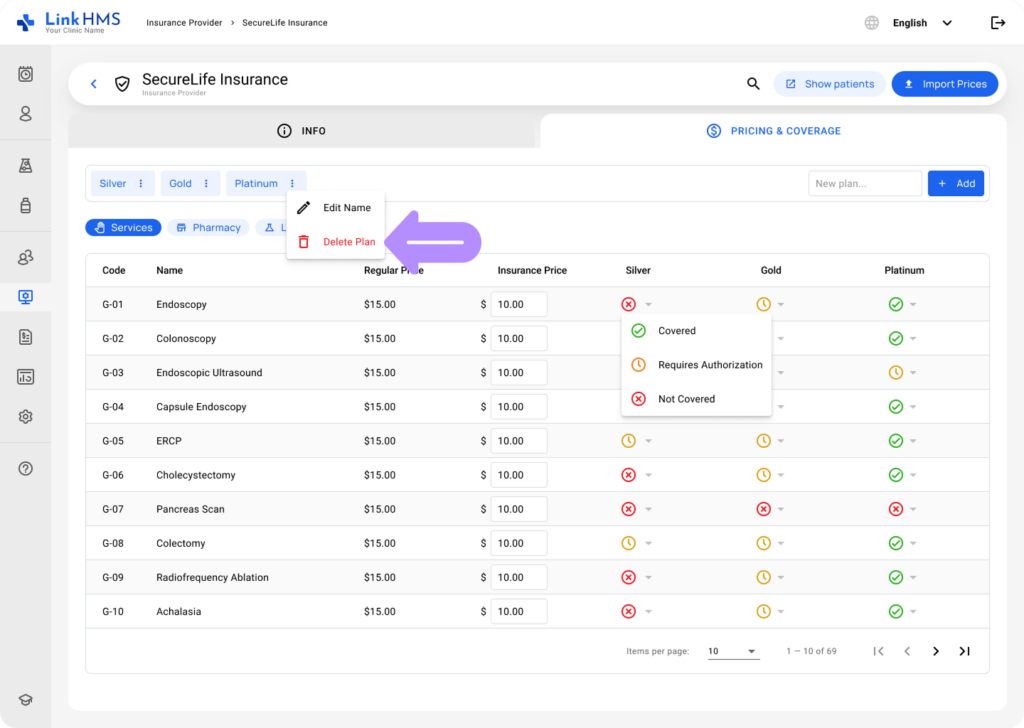
- To rename a plan, click the three-dot menu and select Edit Name.
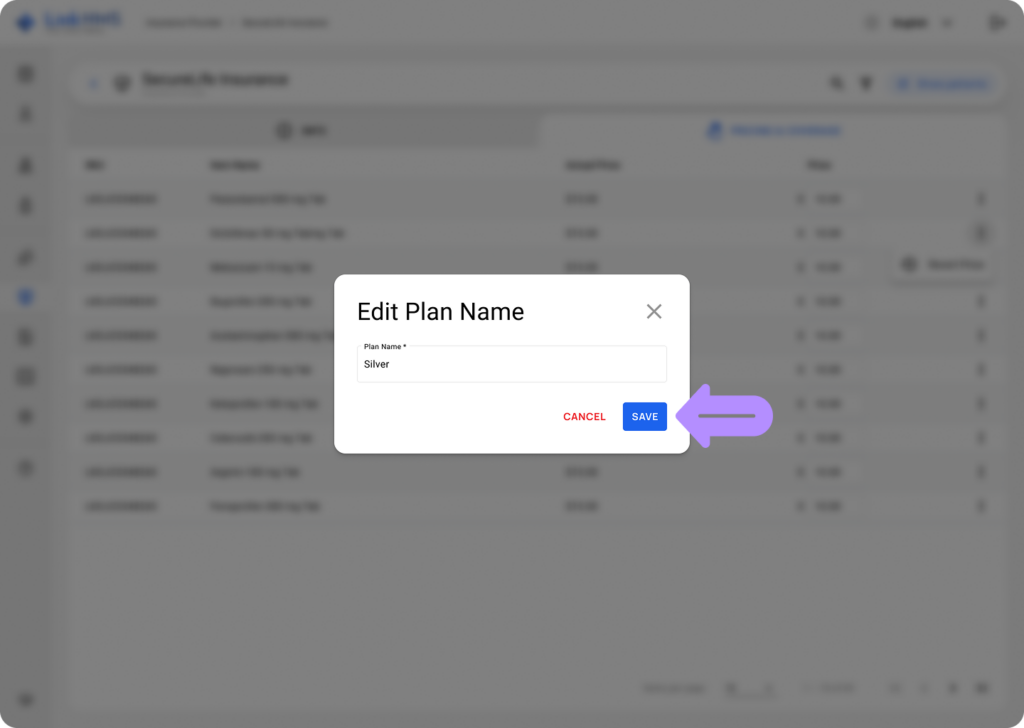
- Click the Save button to apply changes.
- Use the Delete Plan option in the three-dot menu to permanently remove the plan.
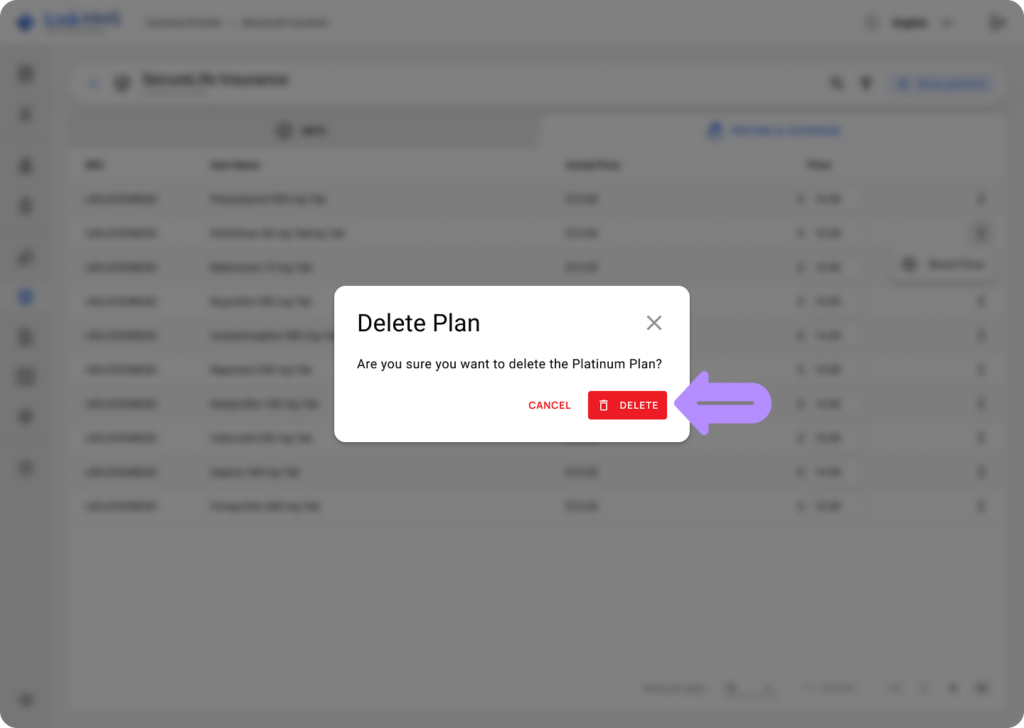
- Click the Delete button to remove the chosen plan.
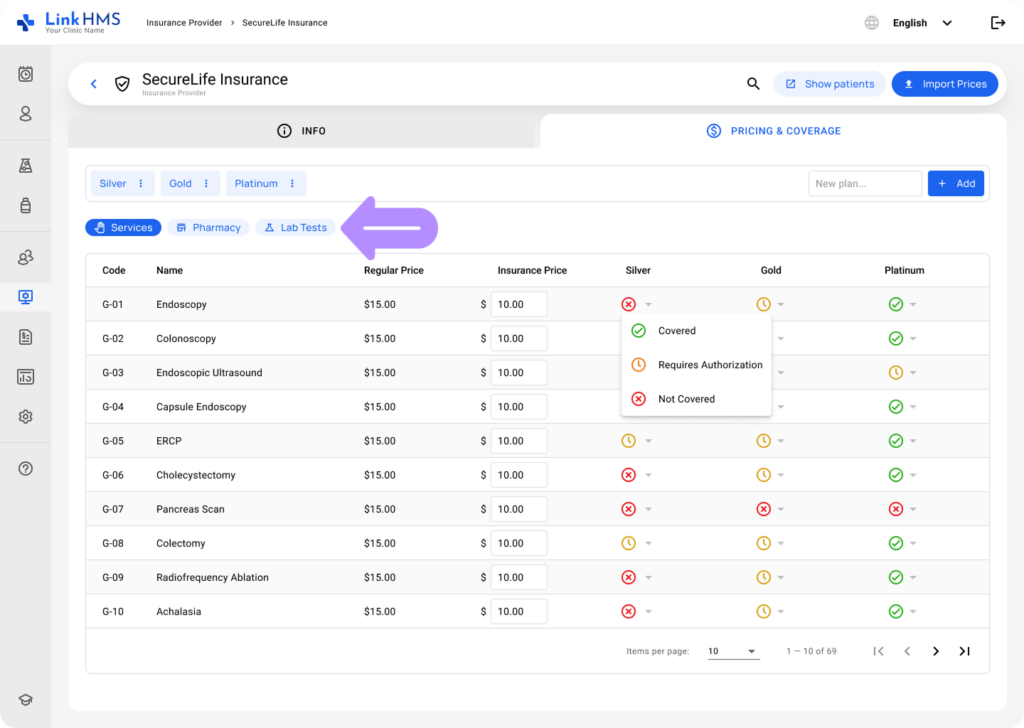
- Switch between Services, Pharmacy, and Lab Tests tabs to continue managing insurance pricing.
- Review the list, including the code, name, regular price, insurance price, and coverage setting for the selected plans.
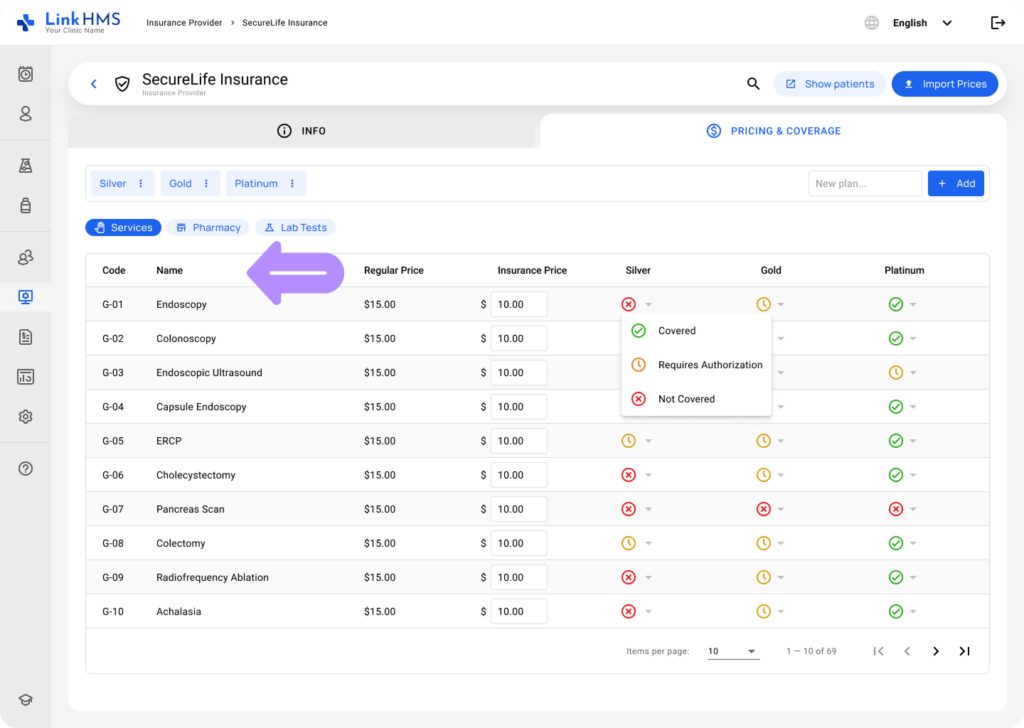
- Specify the insurance price to be charged to the insurer for the service or item.
💡Notes
The clinic negotiates a standard price for each service or medication with the insurance provider. This price applies to all patients, regardless of their insurance plan. Use the Coverage columns to define plan-specific coverage, including covered items, items requiring authorization, and excluded items.
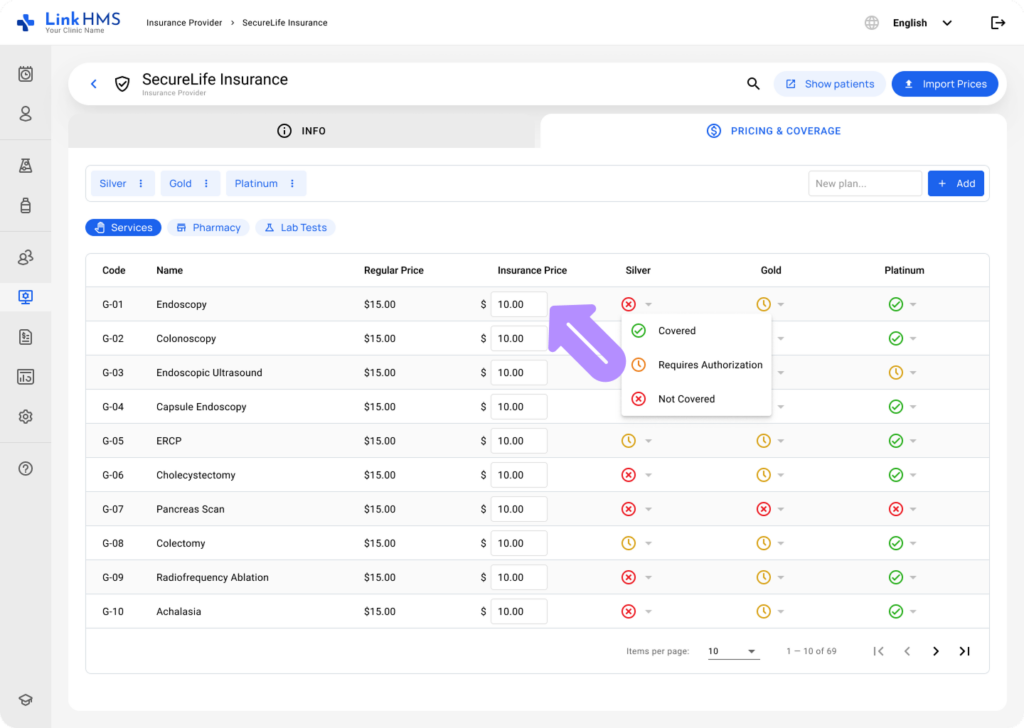
- For each available plan, choose whether the service or item is Covered, Requires Authorization, or Not Covered.
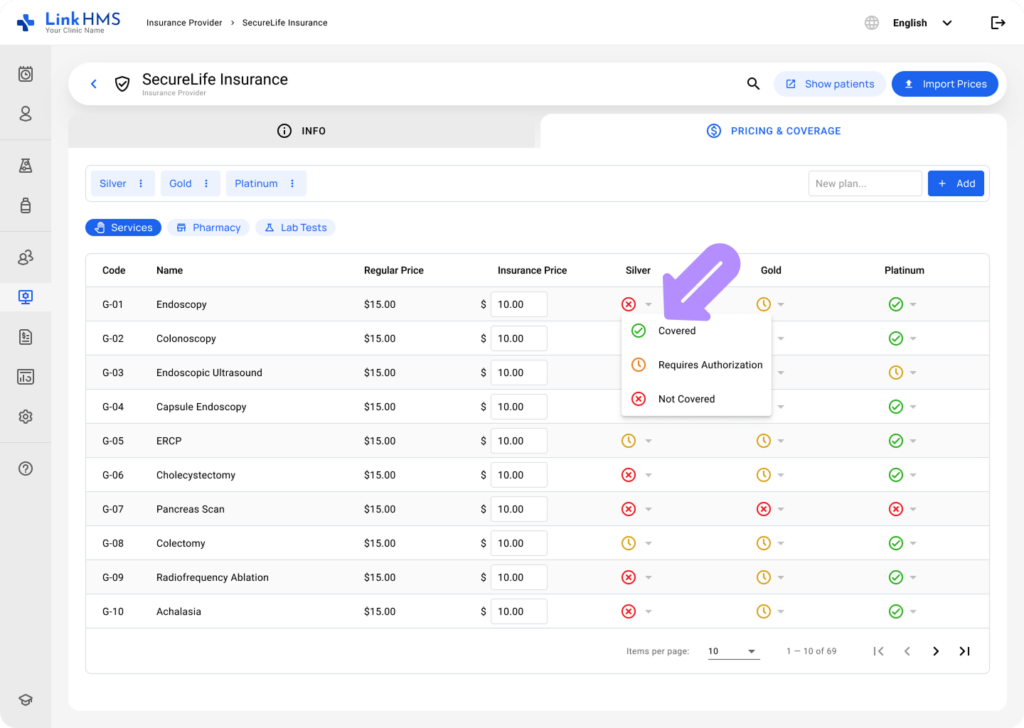
- Repeat these steps for other services, medications, and lab tests to ensure accurate insurance pricing and coverage settings for each plan.
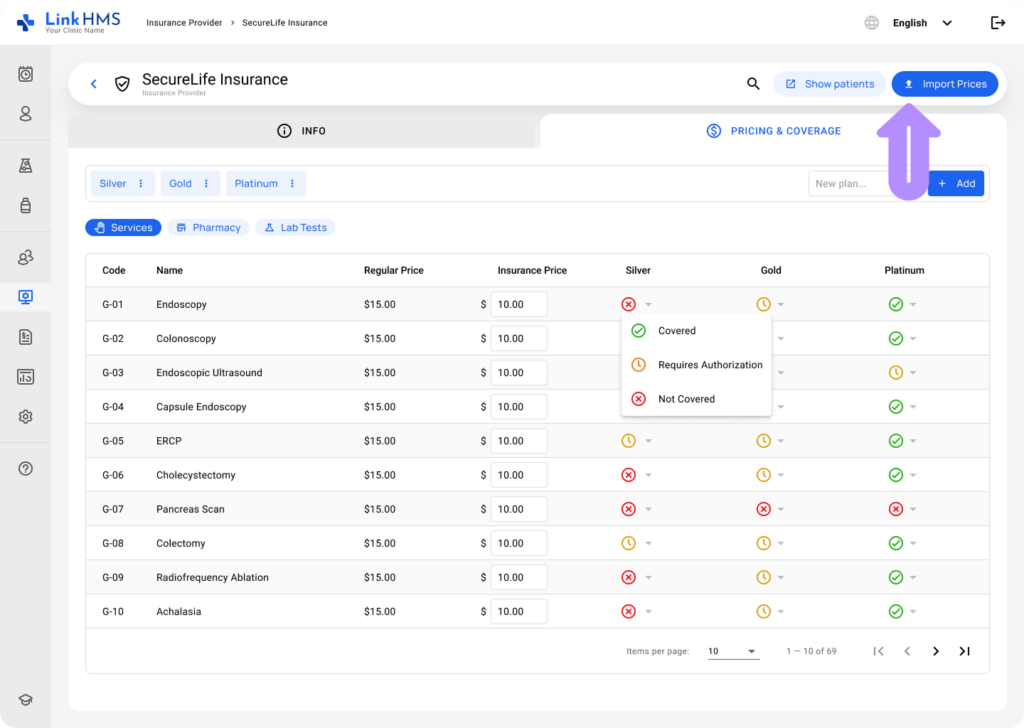
- Also, you can click the Import Prices button to upload pricing data in bulk from a prepared file.
💡Notes
Once all services are configured with their insurance prices and coverage settings, the clinic is ready to process HMO claims. If any pricing or coverage details change, return to the Pricing & Coverage tab to update the relevant plan. Keeping this information current ensures accurate invoicing and smooth claims processing.