The Pregnancy Info subtab allows clinicians to review a patient’s pregnancy profile. It brings together the details entered when the pregnancy was created and keeps them available for updates as the pregnancy progresses.
Accessing the Pregnancy Info Subtab
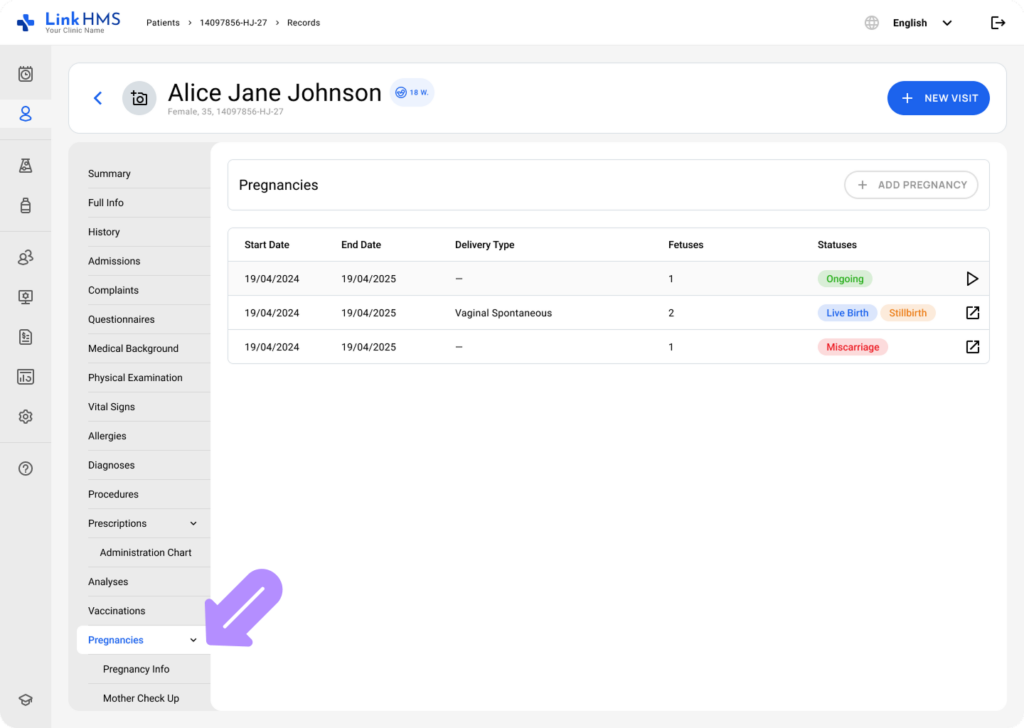
- Navigate to the Pregnancies tab.
💡Notes
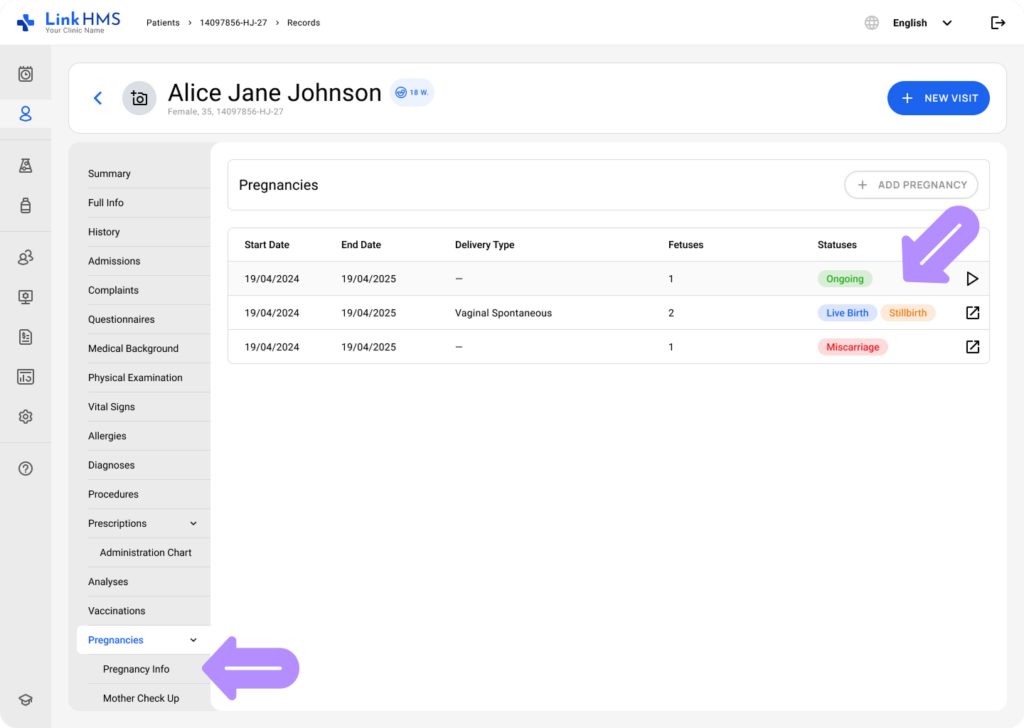
Additional subtabs appear for patients with ongoing pregnancies.
- Choose the Pregnancy Info subtab to review more details.
Reviewing and Updating Pregnancy Details
💡Notes
This subtab provides a single view of all key pregnancy information, so you don’t have to search across multiple visits. Most of the information is automatically populated from the details you entered when creating the pregnancy. However, most fields in Pregnancy Info are still editable during an active pregnancy. This keeps the record accurate as clinical information changes over time.

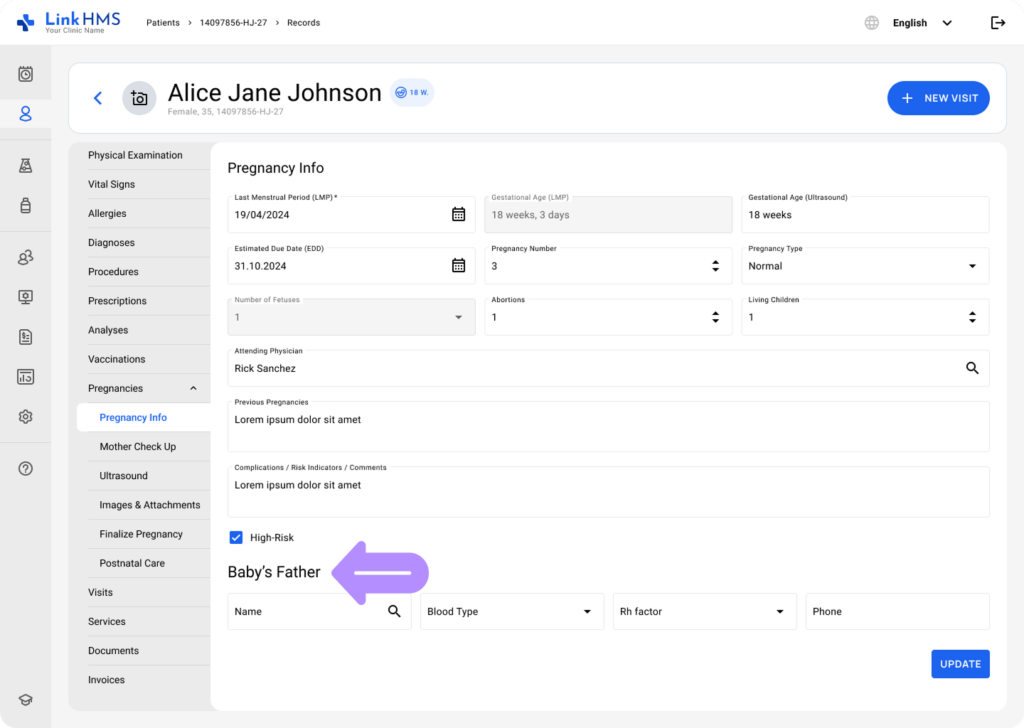
- Pregnancy Info displays the pregnancy record details, including:
- Last Menstrual Period (LMP) – Review or update the last menstrual period date.
💡Notes
If you edit LMP, the system updates the automatically calculated EDD (unless EDD was manually overridden) and the pregnancy indicator showing gestational age.

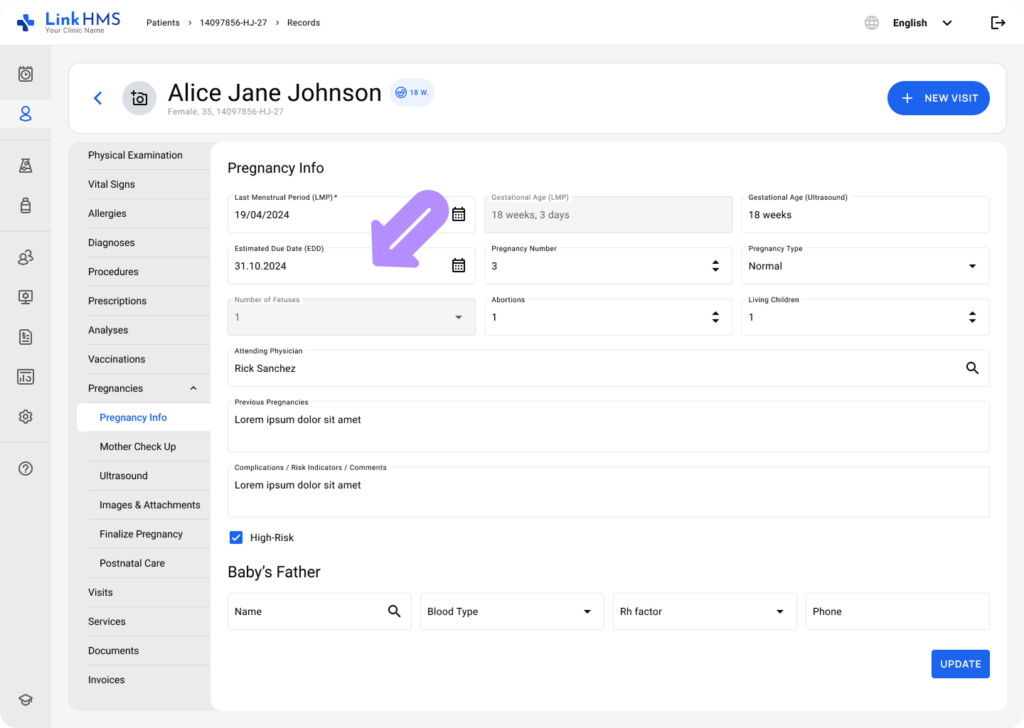
- Estimated Due Date (EDD) – Check the estimated due date. (EDD cannot be earlier than LMP, commonly calculated automatically by the system)
💡Notes
If EDD was manually overridden, the manual value remains unchanged even if LMP is later updated.
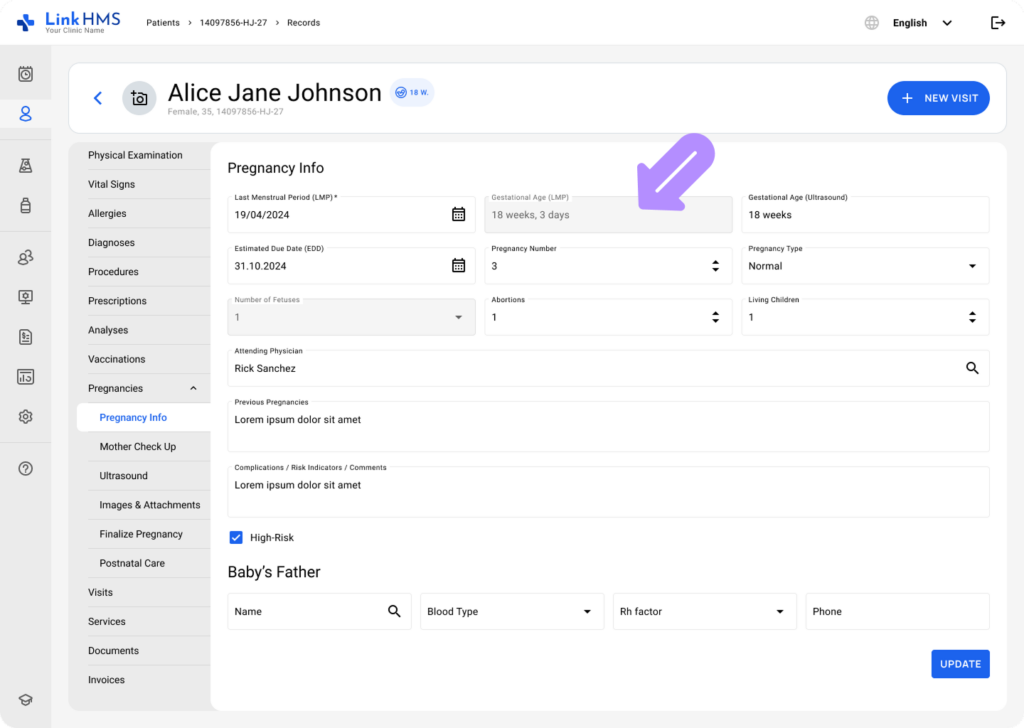
- Gestational Age (LMP) – Review the value, which the system calculates from the entered LMP and cannot be edited.
- Gestational Age (Ultrasound) – Check the gestational age from ultrasound results.
- Pregnancy Number – Update the patient’s pregnancy number if required.
- Pregnancy Type – Use the dropdown to select or update the option that applies.(Natural conception, With fertility medication, IVF / ICSI, Insemination (IUI), Donor egg or sperm, Other / Prefer not to say)
- Number of Fetuses – Review the value, as it is read-only and automatically reflects the active fetus count from the Ultrasound subtab.
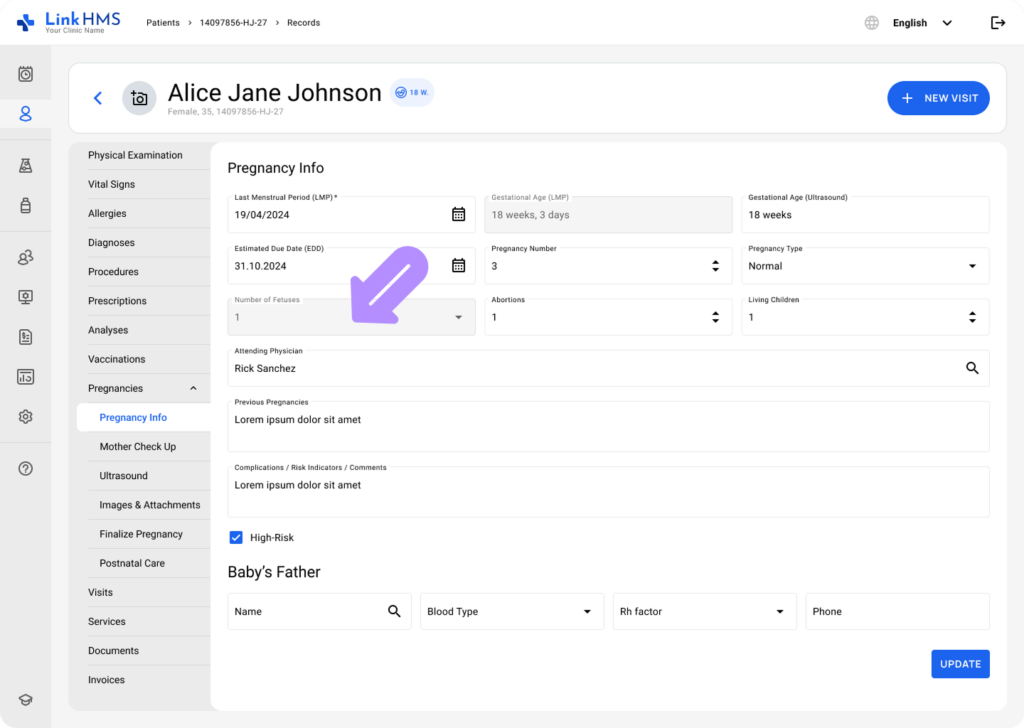
- Abortions – Specify the number that applies.
- Living Children – View or update the count as needed.

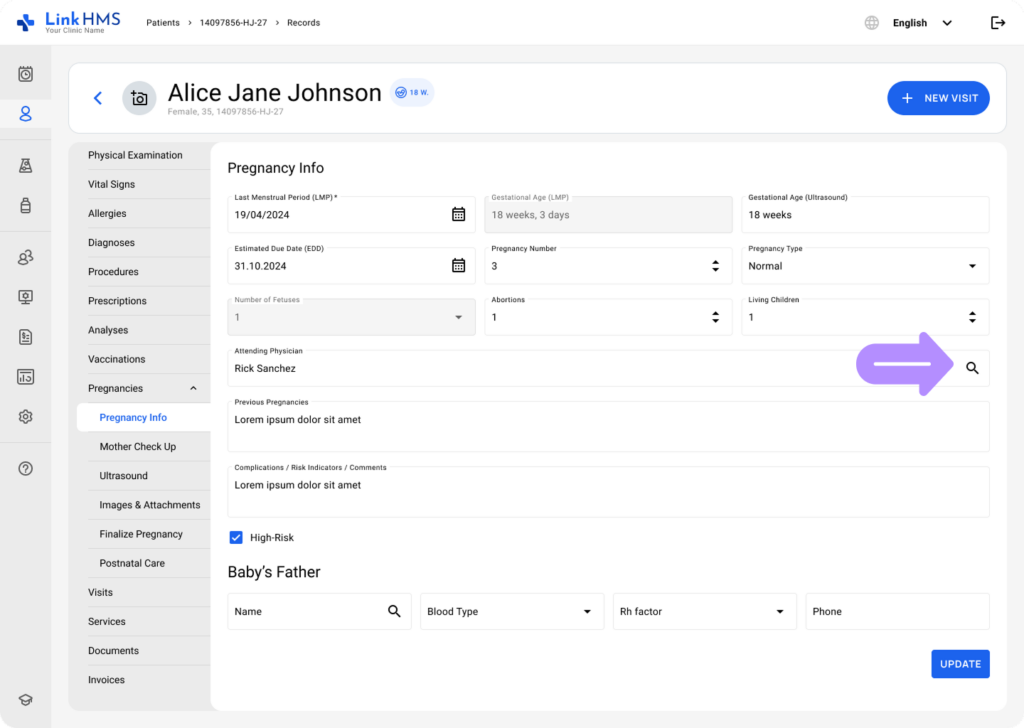
- Attending Physician – Review the selected physician, or choose from system users via a searchable dropdown, or enter free-text manually.
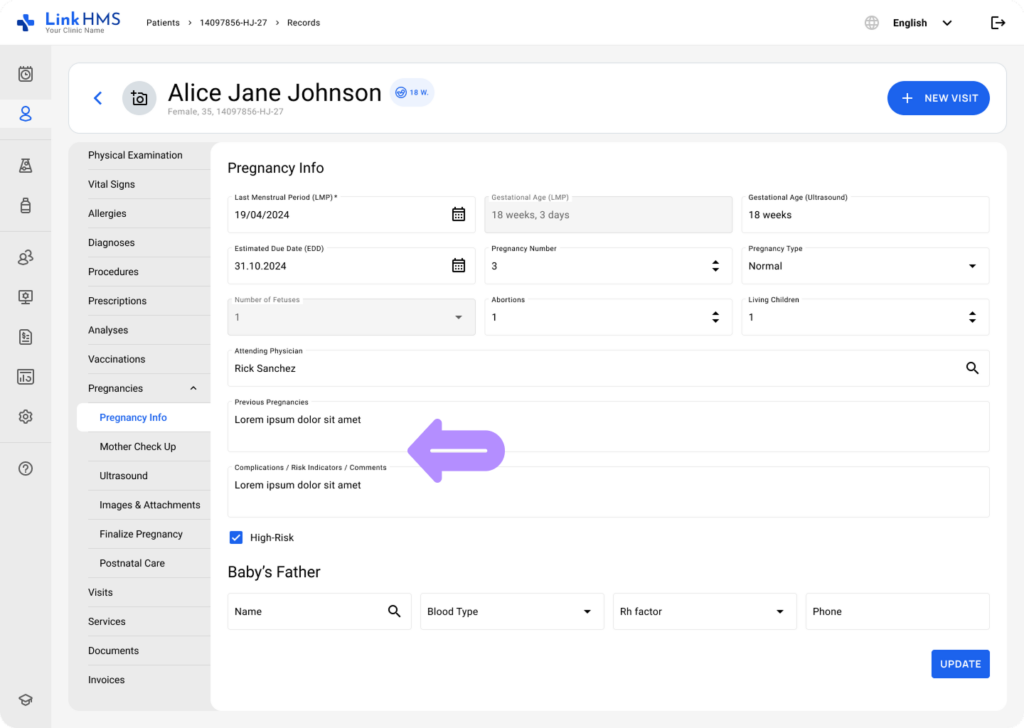
- Previous Pregnancies – Access previous notes and add new ones.
- Complications / Risk Indicators / Comments – Leave any other pregnancy-related notes.
- High-Risk – Check or uncheck the box to flag a high-risk pregnancy.
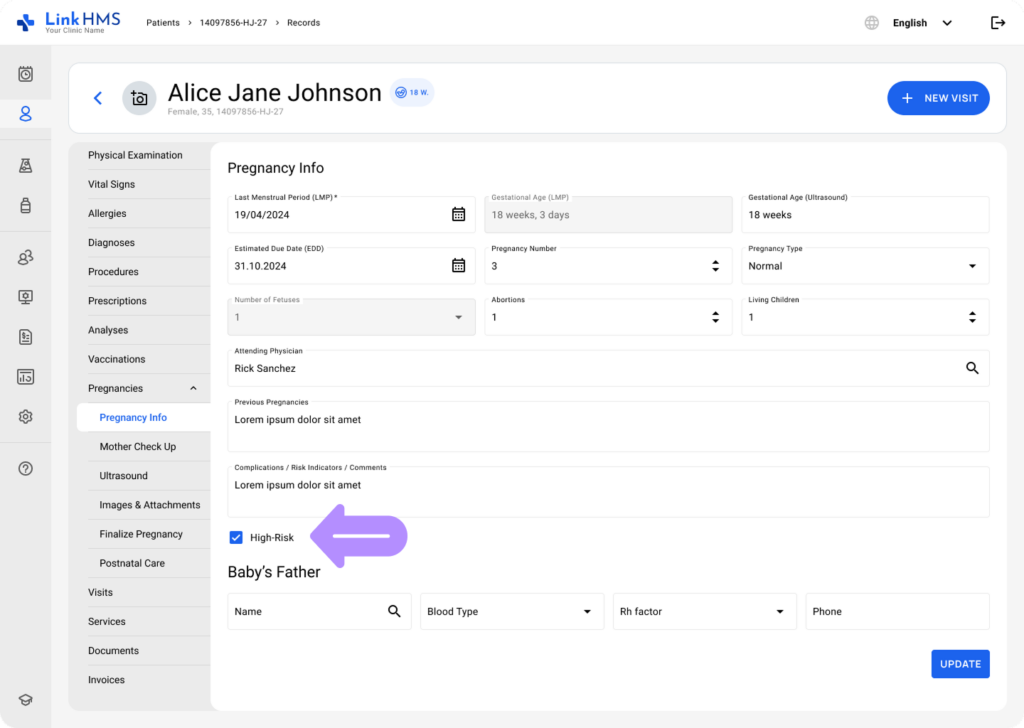
- Baby’s Father – Review the father’s Name, Blood type, Rh Factor, and Phone. If linked to an existing patient, the information is filled automatically; otherwise, enter it manually.
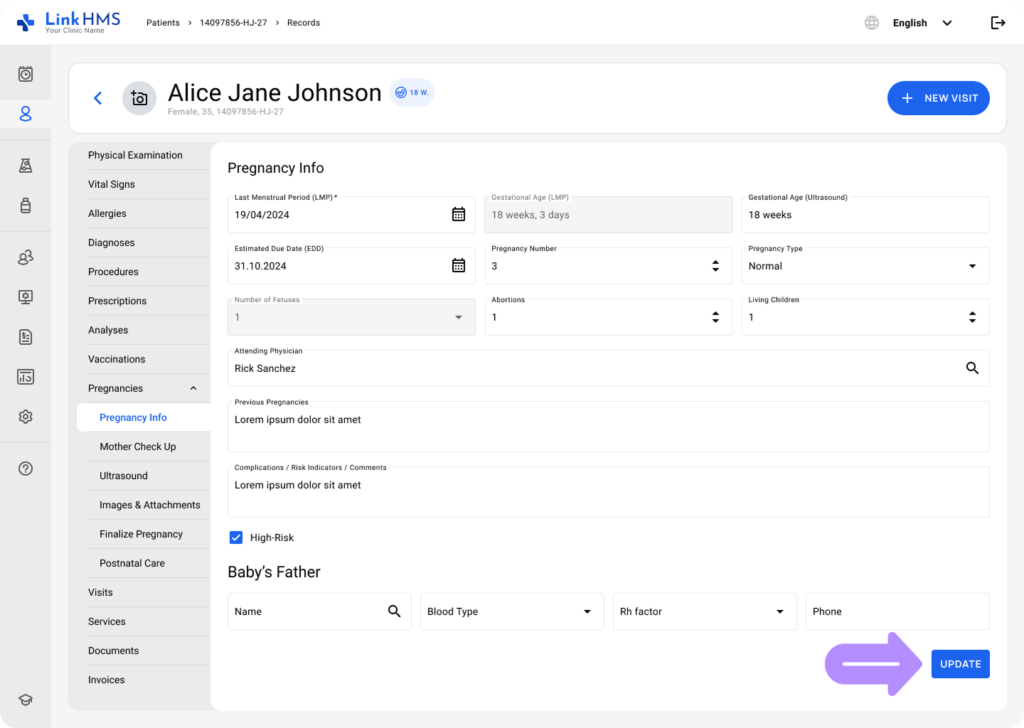
- When you finish entering or updating information, click the Update button to save the changes.
- Updates in this subtab are allowed while the pregnancy is ongoing and are disabled once it is finalized. After finalization, Pregnancy Info remains available for review only, and gestational age calculations stop at the pregnancy end date.
💡Notes
Use the Pregnancies Info subtab to review key pregnancy information and confirm the basics, then continue documentation in relevant subtabs, such as Mother Check-up, Ultrasound, etc.