Pregnancy history is especially useful when managing a new pregnancy, verifying details from past pregnancies, or reviewing the patient’s full obstetric timeline before planning care.
Accessing the Pregnancy History
- Open the Pregnancies tab.
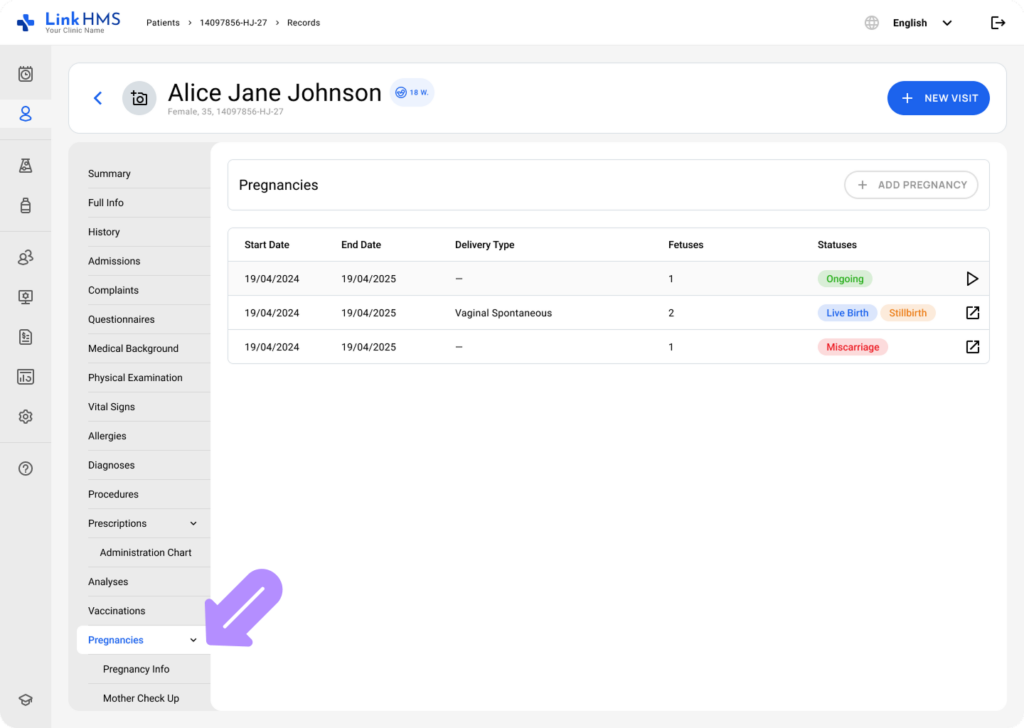
- Pregnancy history is shown when the patient has at least one finalized pregnancy record.

💡Notes
If the patient has an active pregnancy, the Pregnancy tab also opens the pregnancy subtabs.

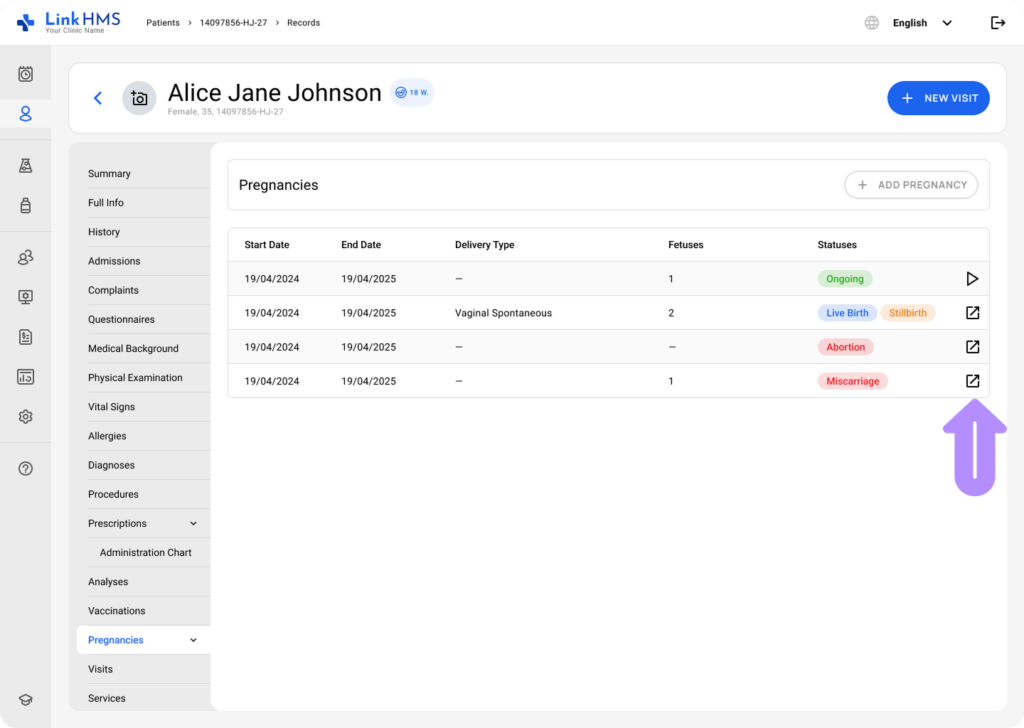
- Each row represents one pregnancy record. The table is designed as a summary view, with the option to open the full pregnancy record when more detail is needed.
- The pregnancy history displays the following columns:
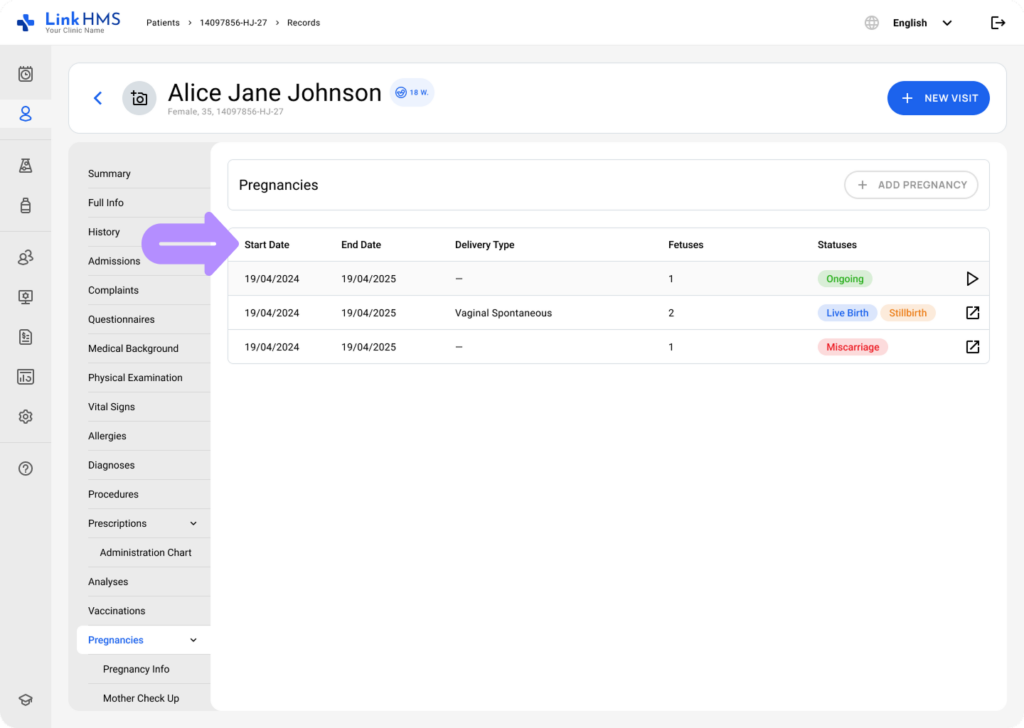
- Start Date – the date the pregnancy started, based on Last Menstrual Period (LMP).
- End Date – the pregnancy completion date. (Shows the pregnancy end date for completed pregnancies and the expected due date for ongoing ones)
- Delivery Type – mode of delivery if applicable (Vaginal Spontaneous, Vaginal Assisted, Emergency C-section, Elective C-section)
- Fetuses – number of children resulting from the pregnancy.
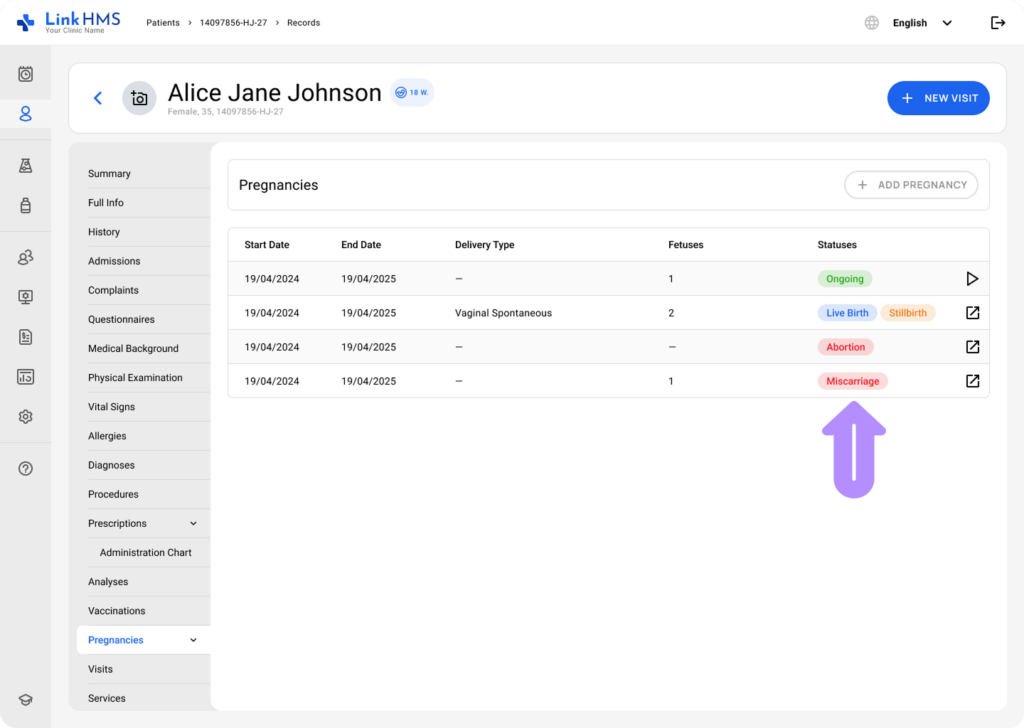
- Status – outcome or current pregnancy state, highlighted with color-coding: Ongoing (green), Live Birth (blue), Stillbirth (orange), Abortion (red), Miscarriage (red).
💡Notes
For multiple pregnancies, different fetal outcomes may occur. LinkHMS reflects this by displaying separate statuses in the Status field.
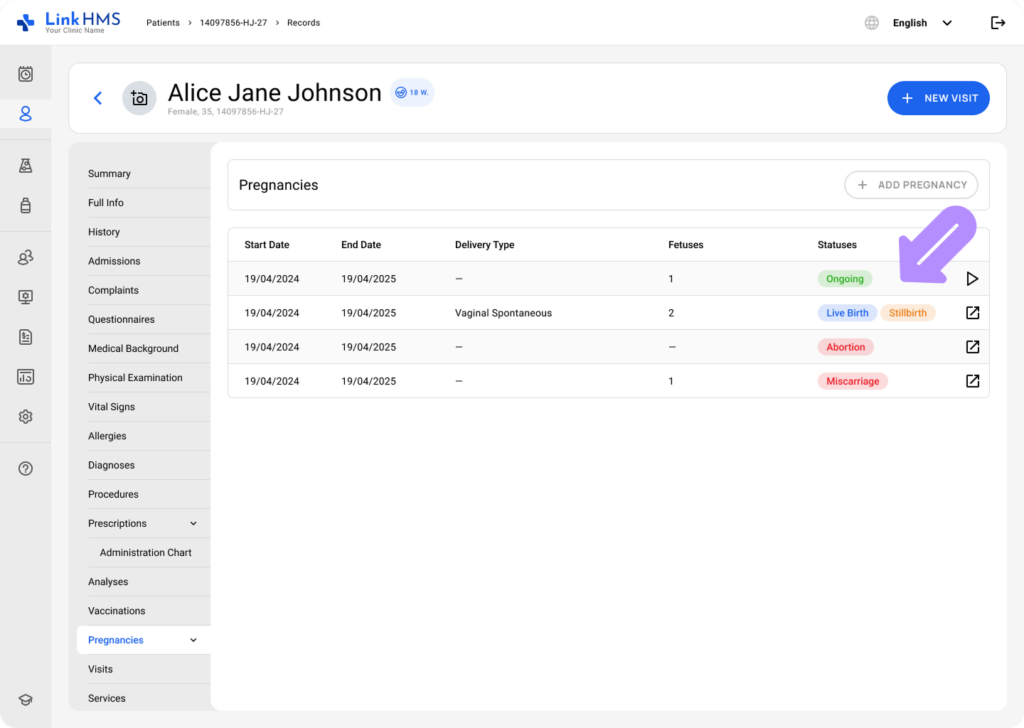
- These columns can provide a quick clinical picture before opening full details.
Opening the Pregnancy Record
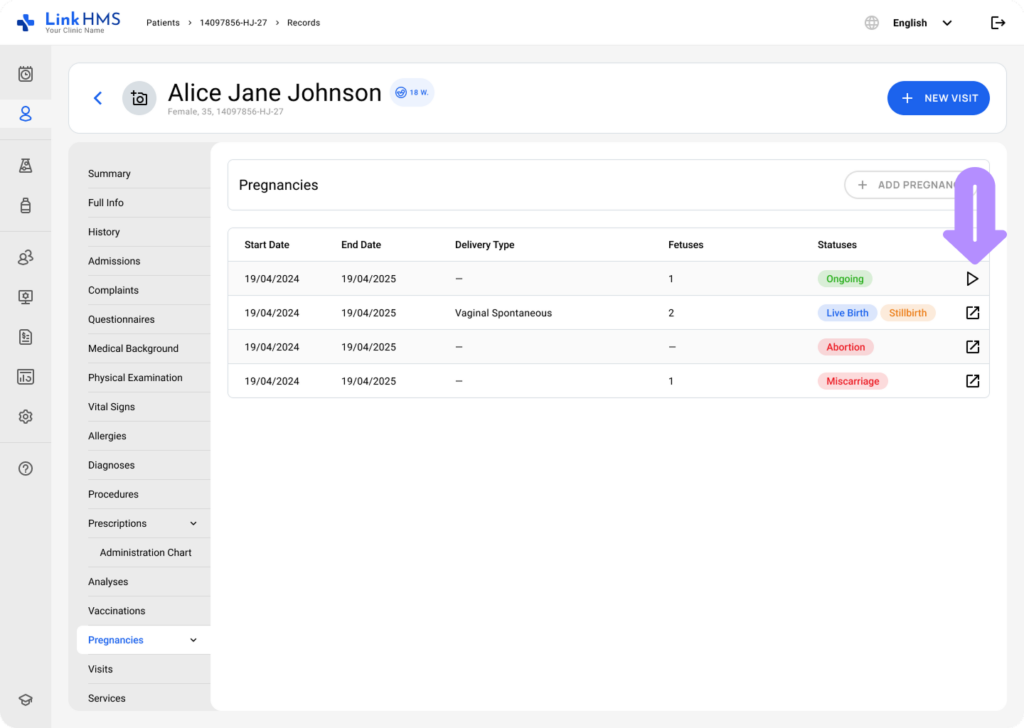
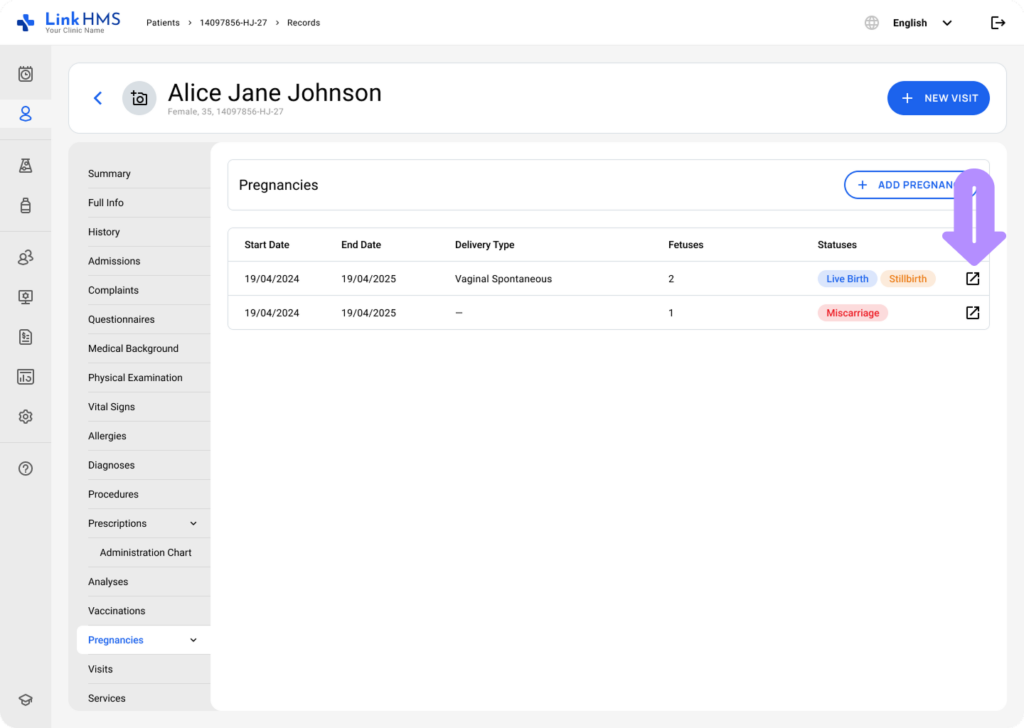
- Each row includes an action icon that opens the detailed pregnancy record.
- Open an ongoing pregnancy to continue adding and managing records. Find other detailed guides for the Antenatal Care Module.
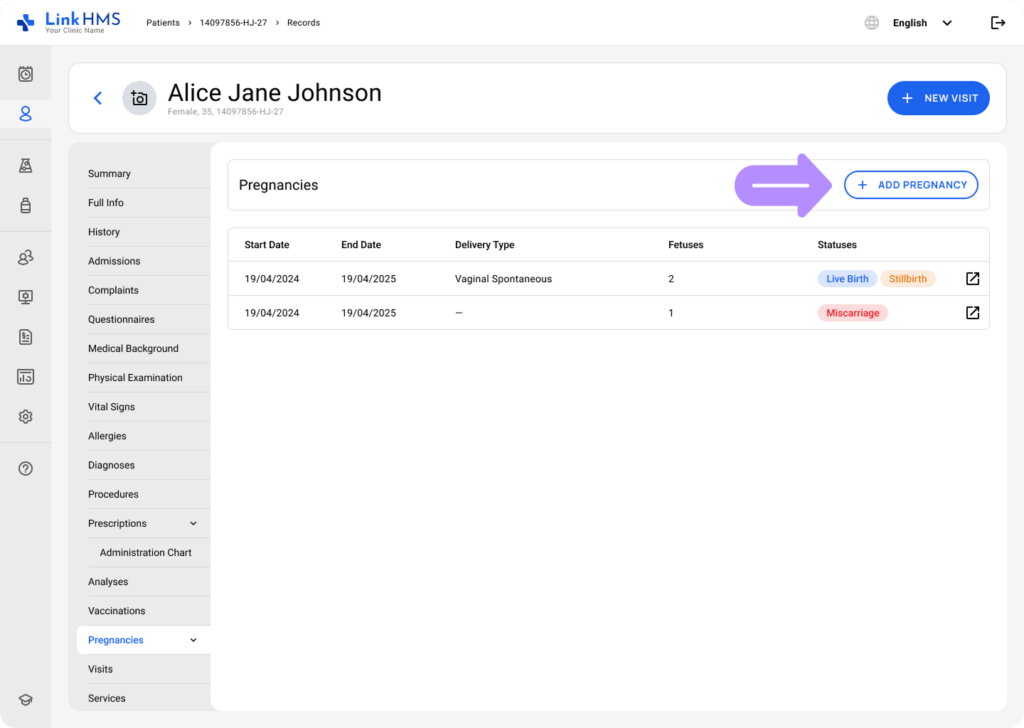
💡Notes
If the patient has no active pregnancy, the Pregnancy tab displays an Add Pregnancy button that lets you add a new pregnancy.
- Select the completed pregnancy to view the available record as a complete timeline.
Reviewing the Complete Pregnancy Record
💡Notes
Use the pregnancy history at the start of pregnancy-related encounters to understand past outcomes, and check per-fetus details for multiple pregnancies with mixed statuses.
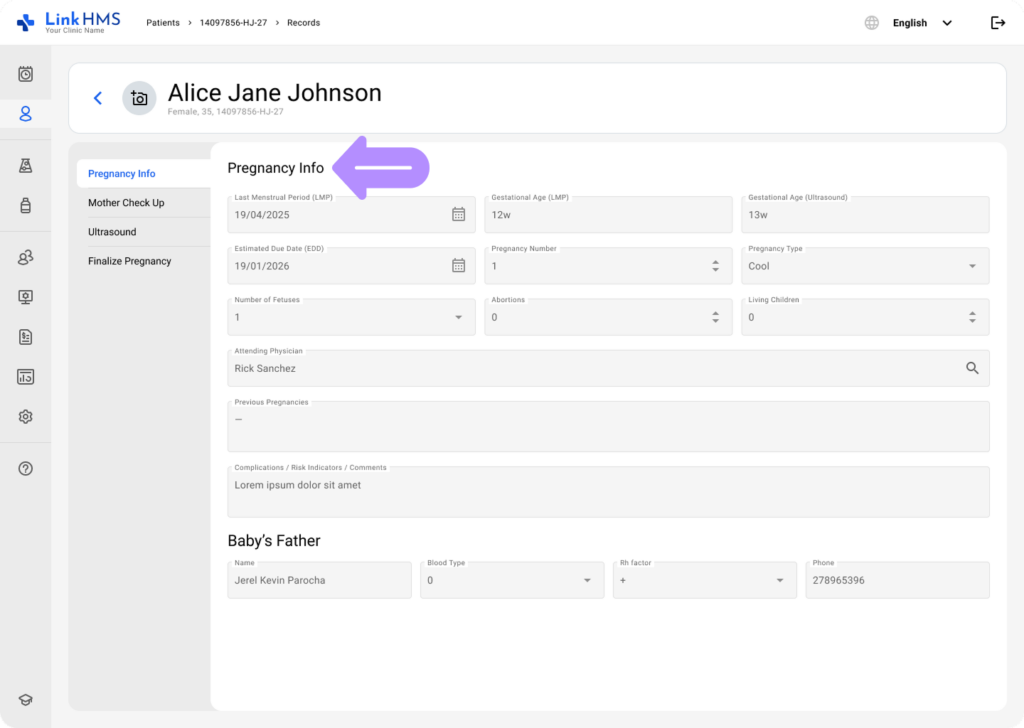
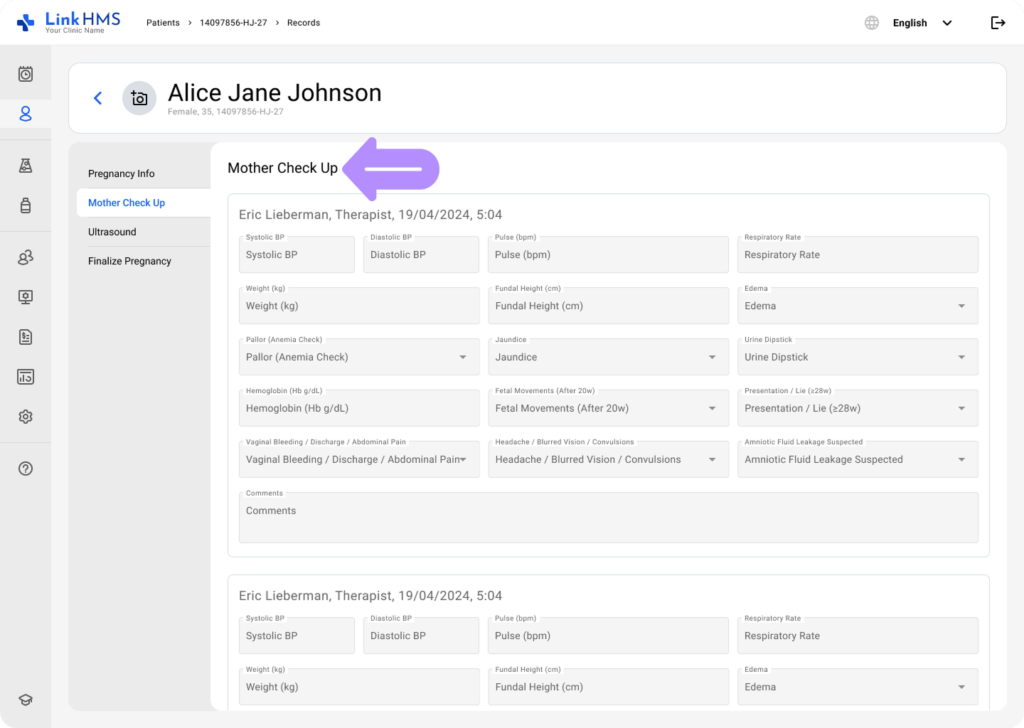
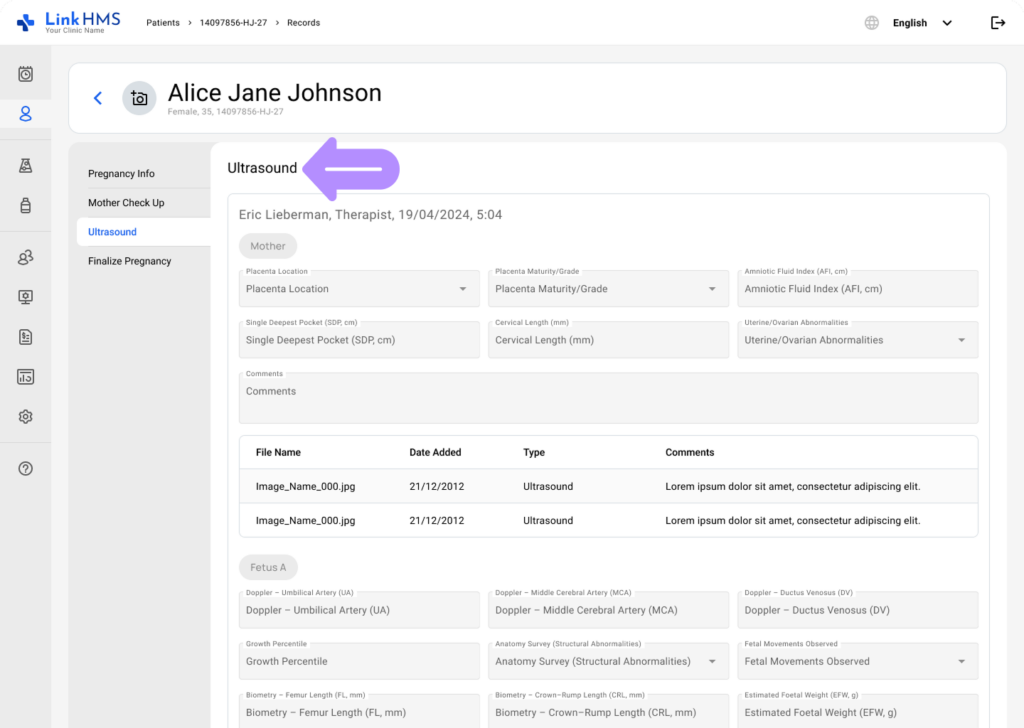
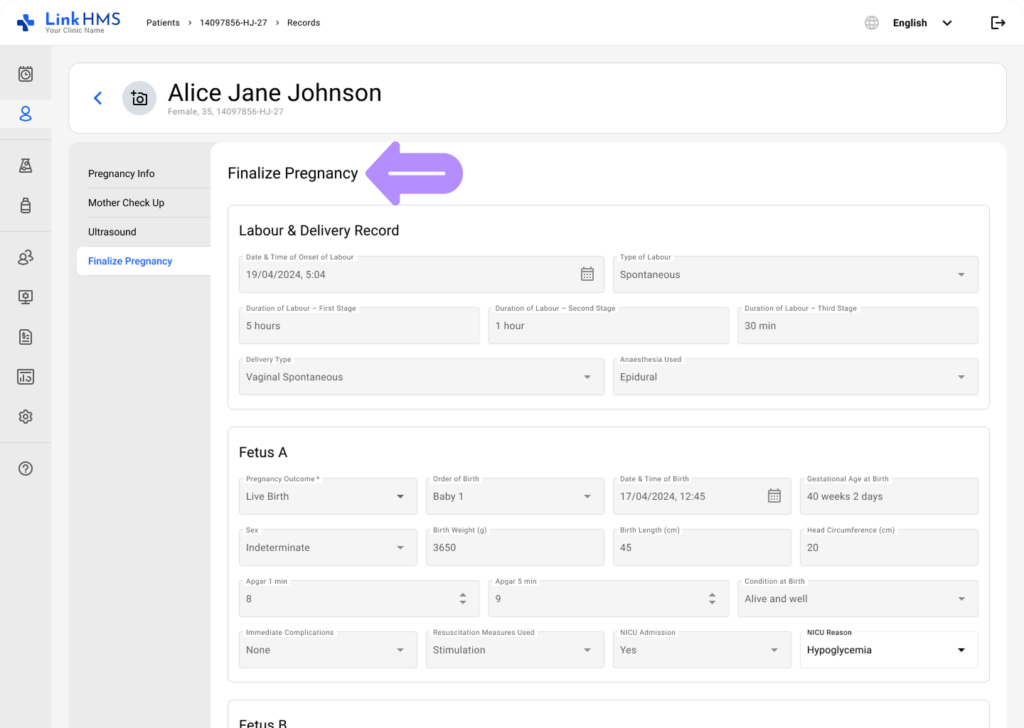
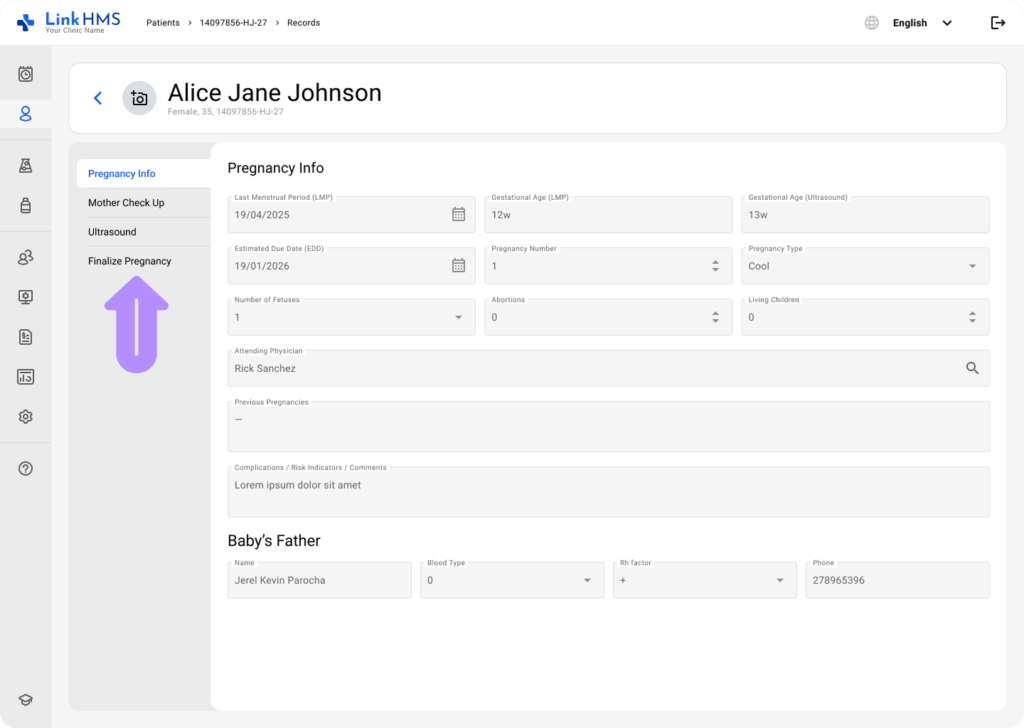
- Open a finalized pregnancy record to review all information recorded during the previous pregnancy.
- Pregnancy Info – Contains key details about the pregnancy.
- Mother Check Up – Includes maternal assessments and vital measurements recorded during visits.
- Ultrasound – Provides ultrasound measurements, observations, and attachments for the mother and fetuses.
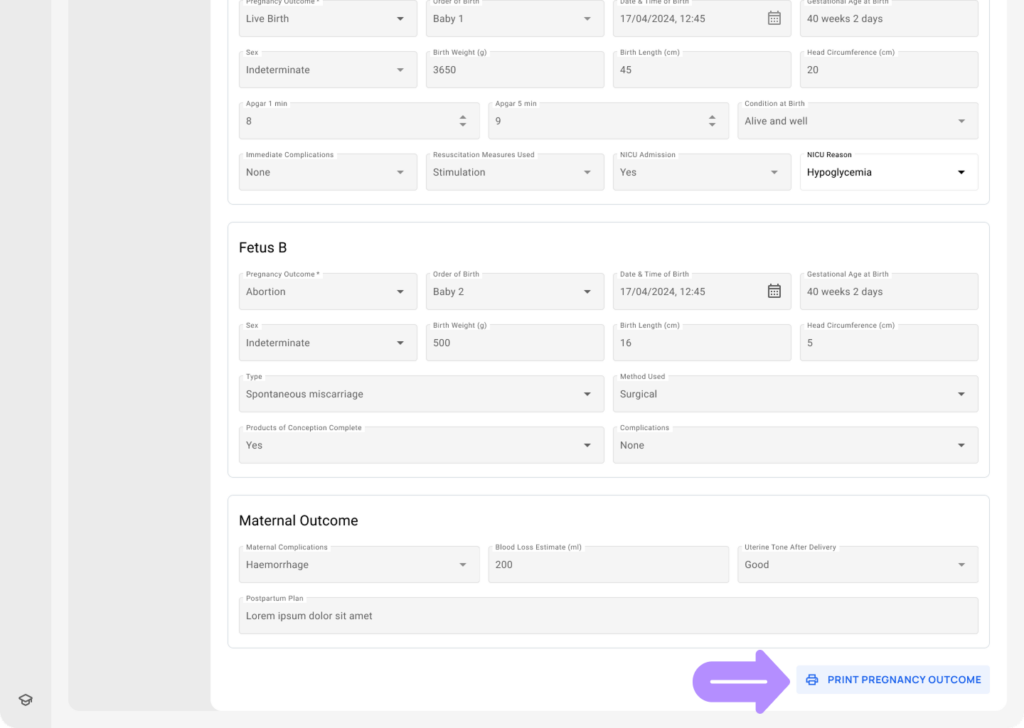
- Finalize Pregnancy – Contains finalized pregnancy outcome records.
- Switch between the subtabs to review the necessary records.
- Use the Print Pregnancy Outcome button in the Finalize Pregnancy subtab to print the full report.
- Pregnancy History helps clinicians review prior pregnancy outcomes, verify important details, and understand the full obstetric timeline when planning care.