💡Notes
LinkHMS has no direct connection to the insurer. Your HMO officers handle all communication, both sending and receiving, through the preferred channel. Once an insurance decision is received, record it manually in the claim.
- Navigate to the Billing section in the left-side menu and select the Claims tab.
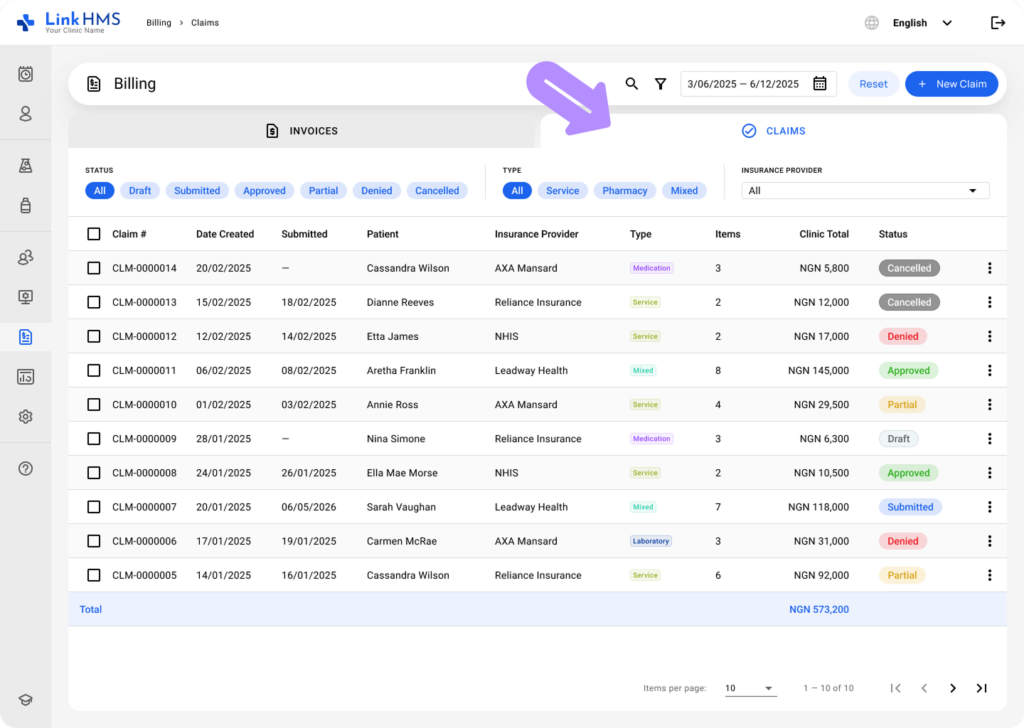
- Use the search bar or filters to open the necessary submitted claim and record the insurance decision.
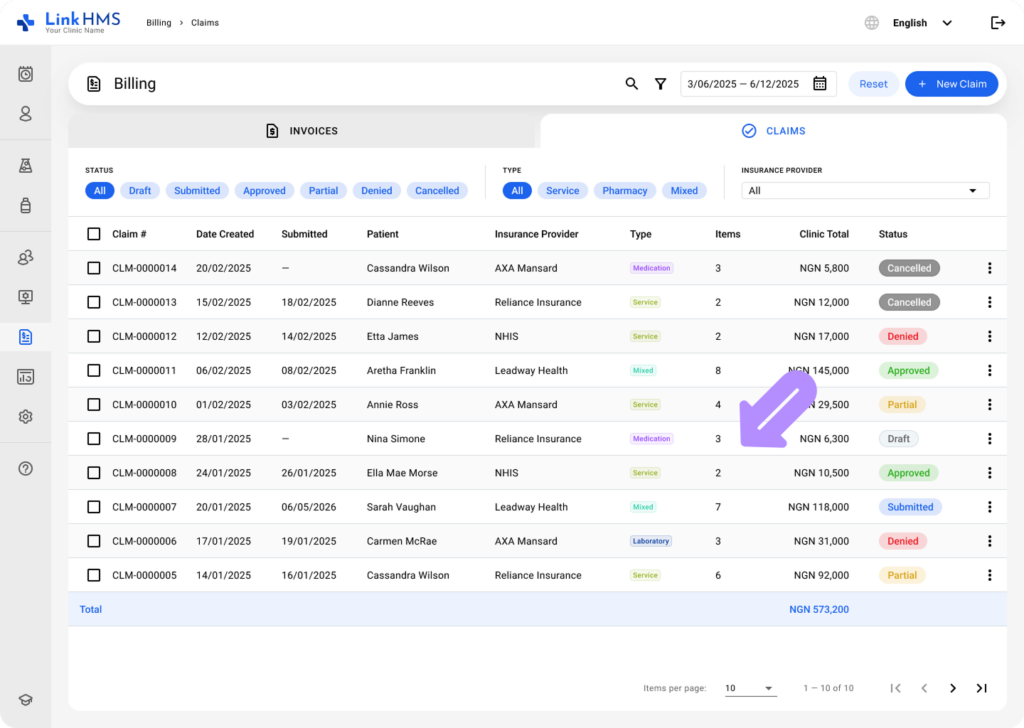
- Each claim displays a status label to track its progress.
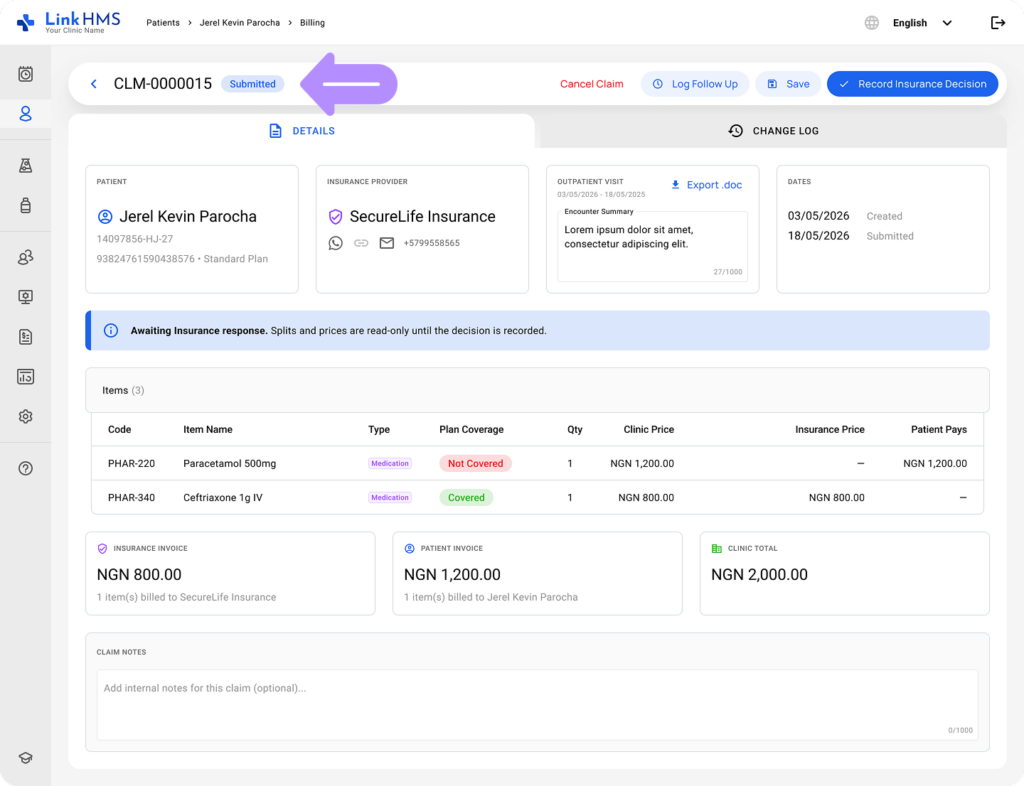
- Use Log Follow Up to add a note about any follow-up communication or action related to this claim.
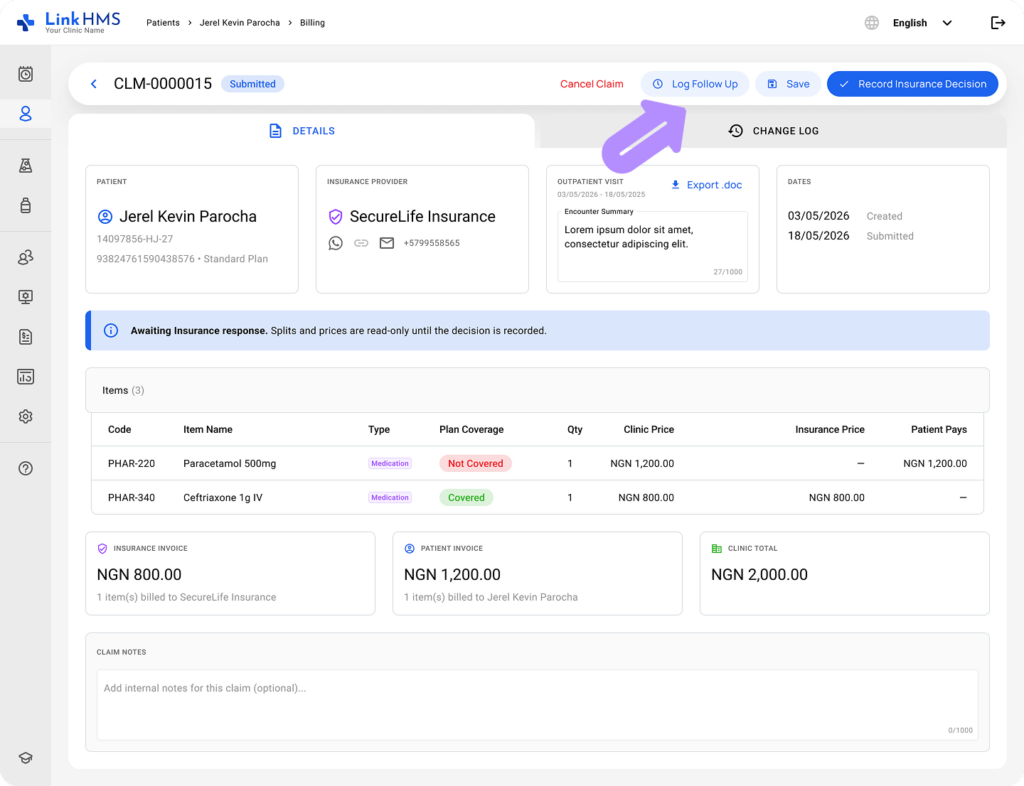
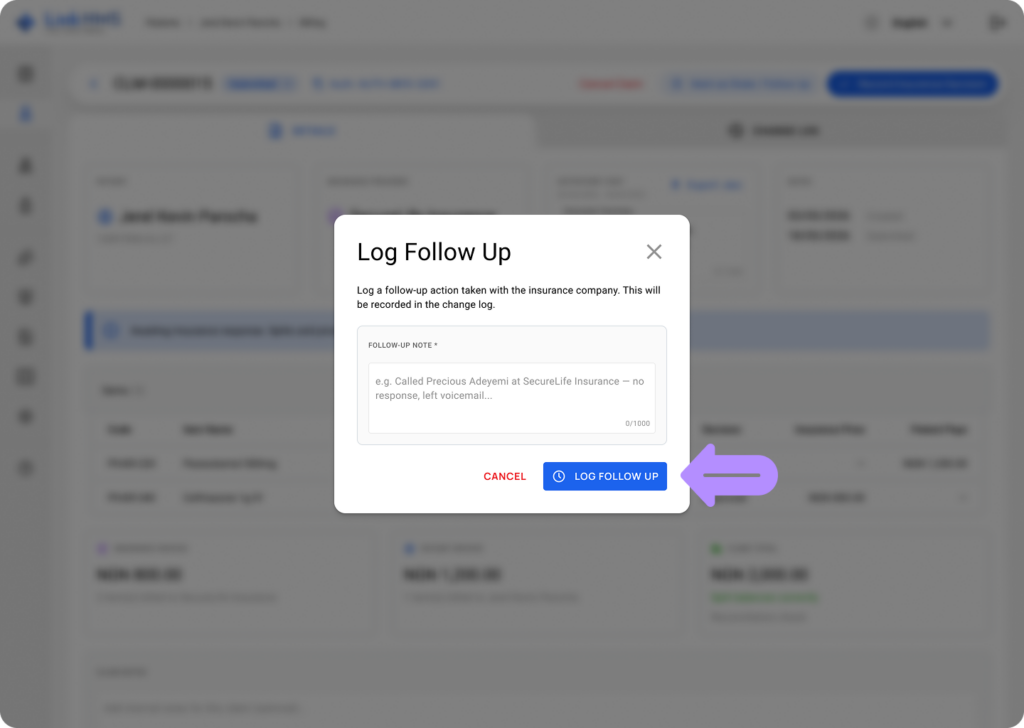
- Click Log Follow Up to record any additional action taken with the insurance company. This will be added to the claim’s change log.
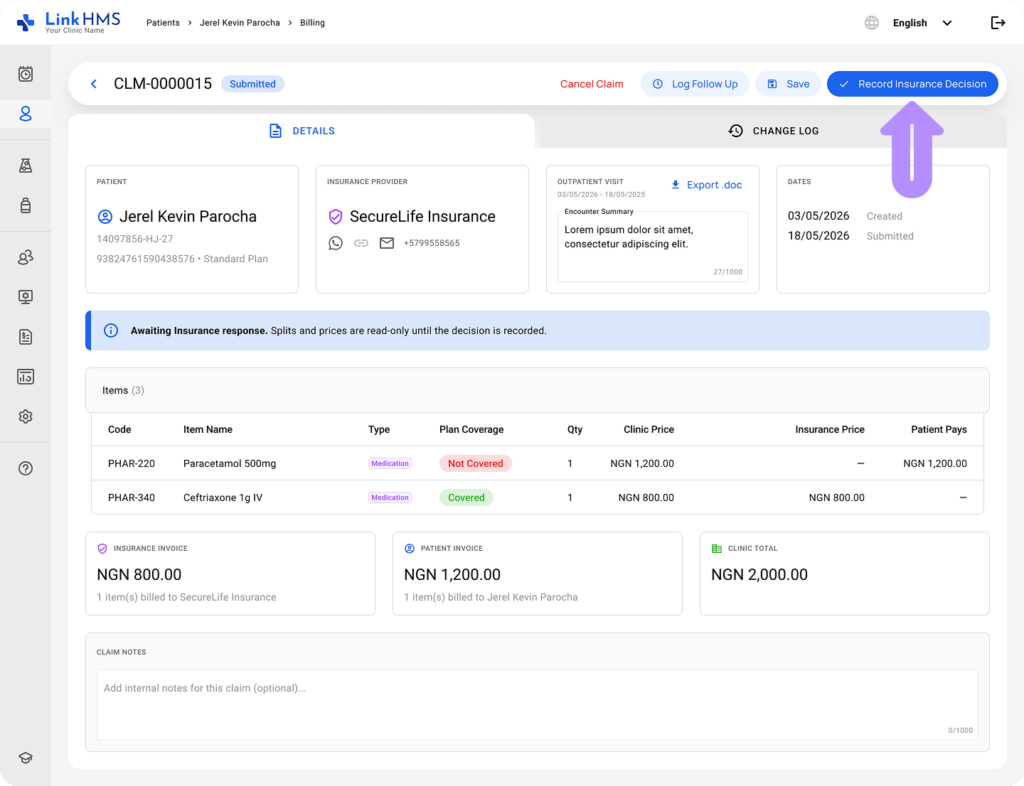
- After receiving the insurer’s decision, click the Record Insurance Decision button.
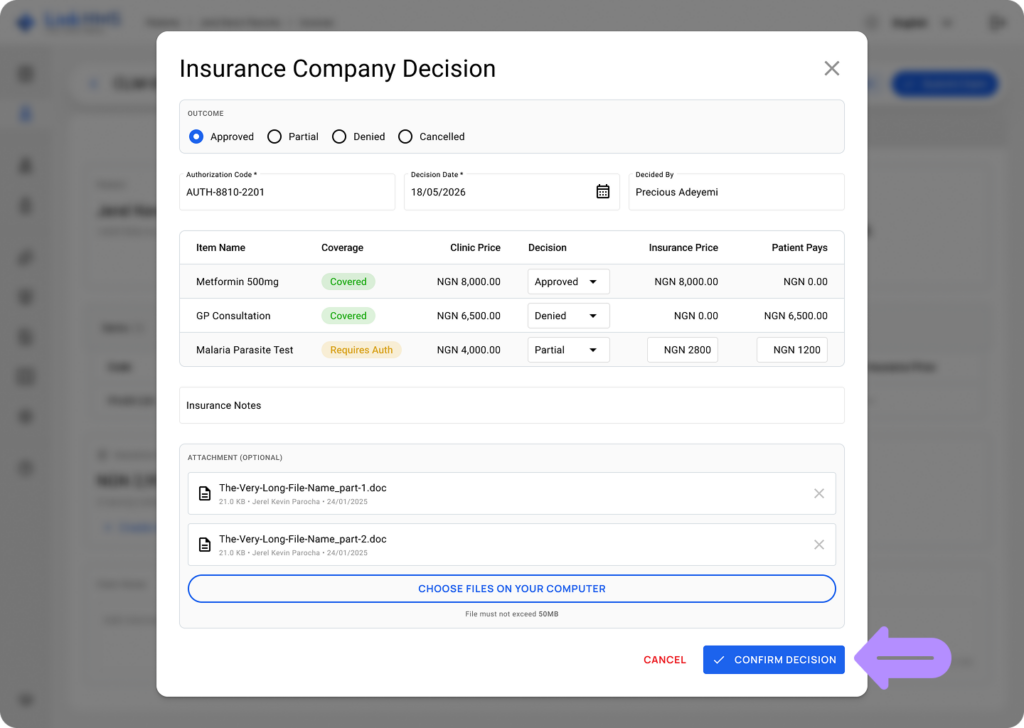
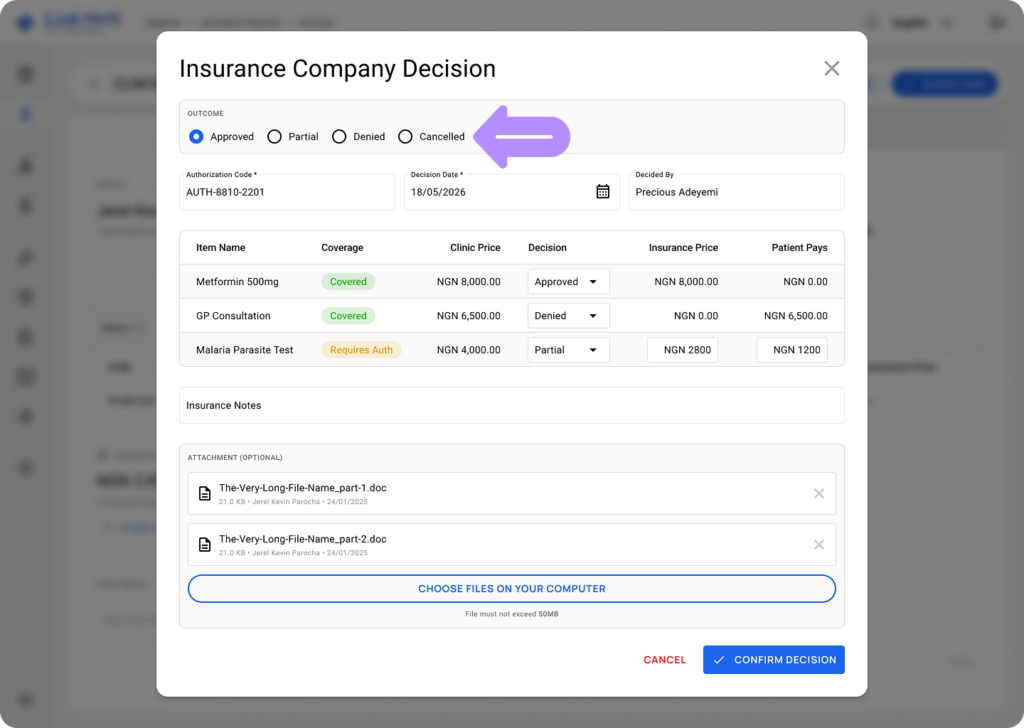
- It opens the Insurance Company Decision pop-up to fill in the necessary details.
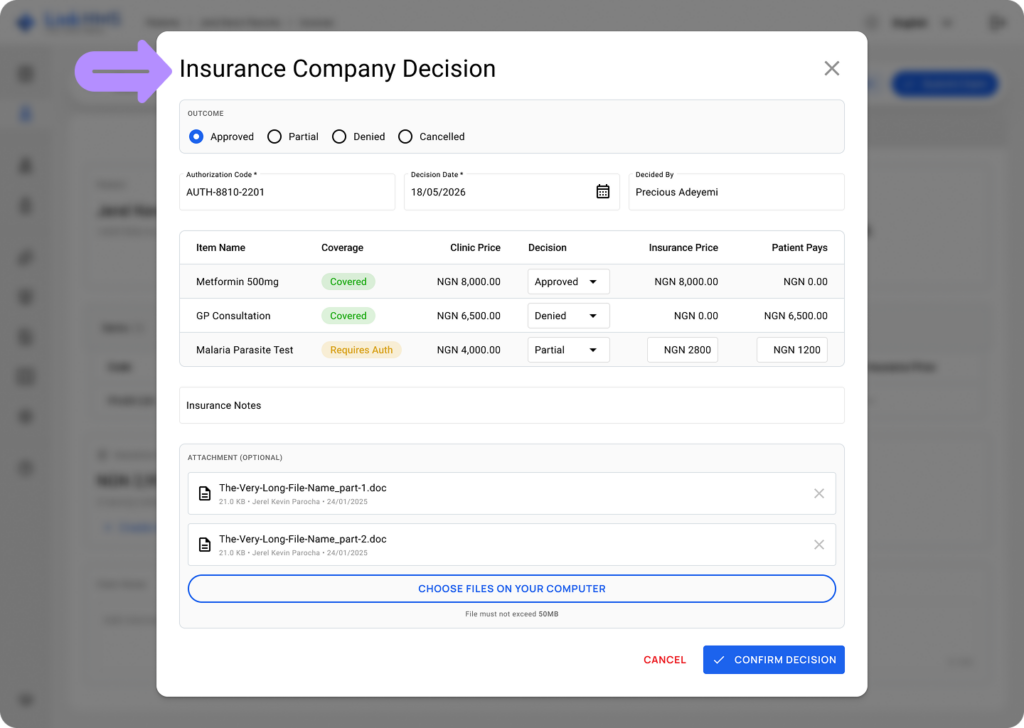
- Select the claim outcome: Approved, Partial, Denied, or Cancelled. This status reflects the overall decision for the claim.
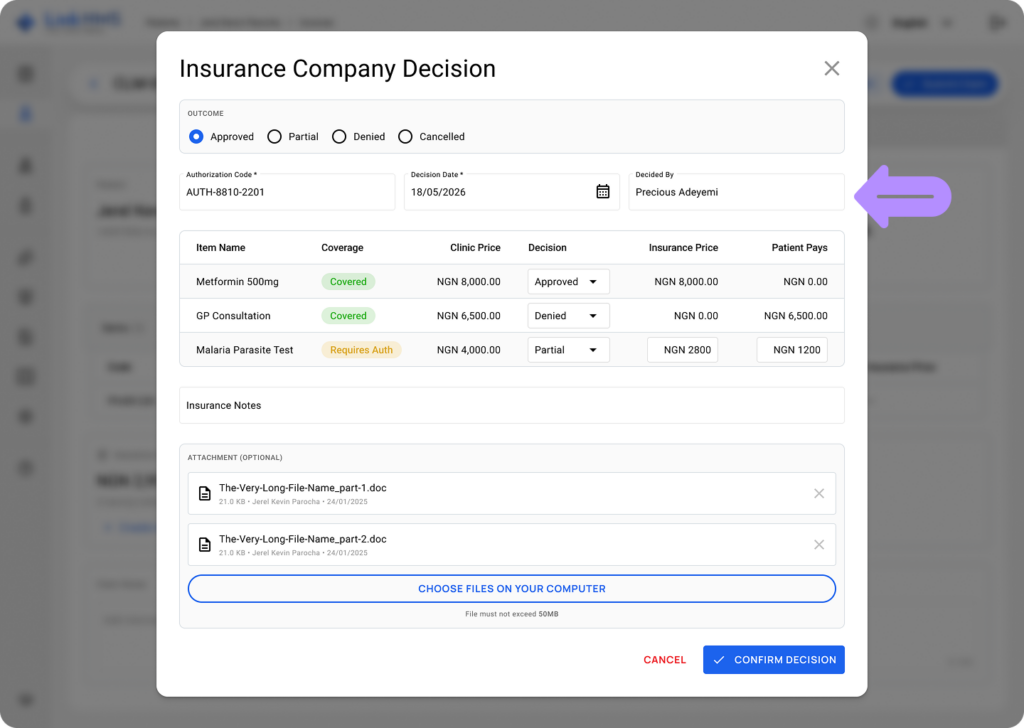
- If needed, update other fields (they are typically pre-filled by the system automatically).
- Authorization Code: the code provided by the insurance company.
- Decision Date: the date the decision is made.
- Decided By: the name of the person who issued the decision.
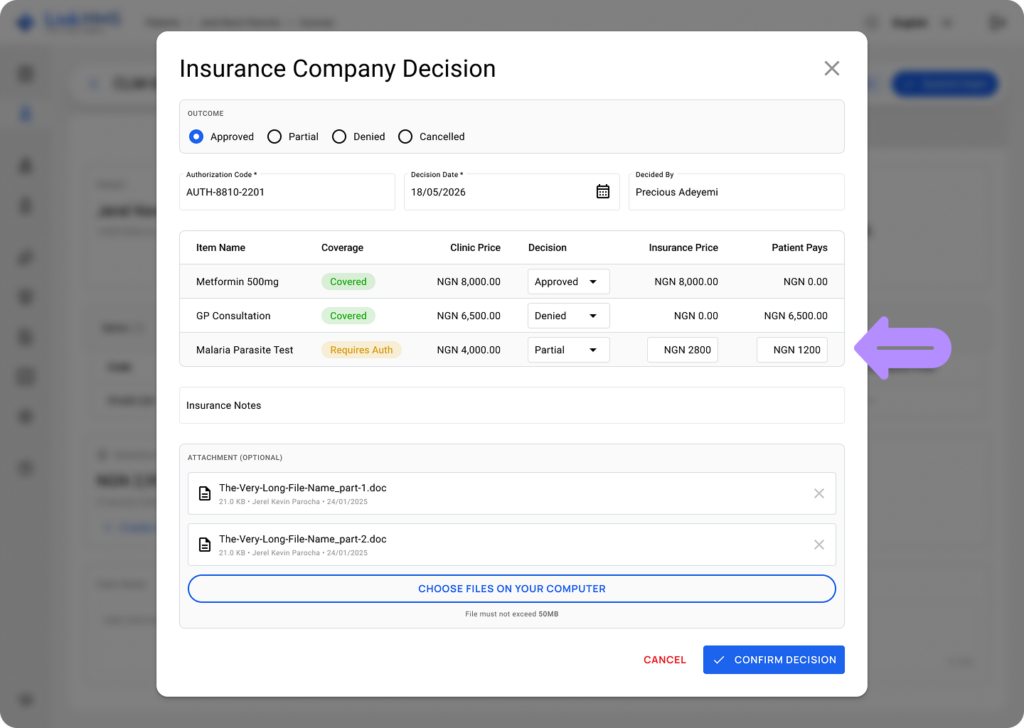
- For each item in the claim, you can also set the individual Decision (Approved, Partial, Denied, or Cancelled).
💡Notes
For partial decisions, the service amount is split between the Insurance Price and the Patient Pays amount. For additional details, refer to the guide on how to adjust cost splits for partial decisions.
- Optionally, add any Insurance Notes and attach a supporting document (max 50MB).
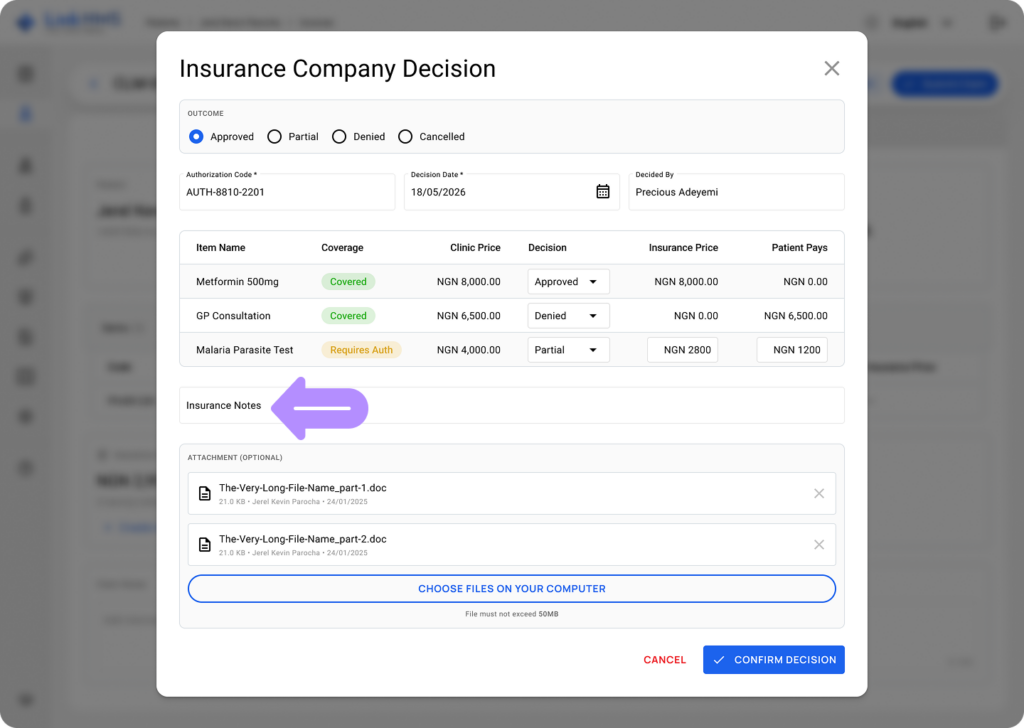
- Click Choose files on your computer to upload the related documents.
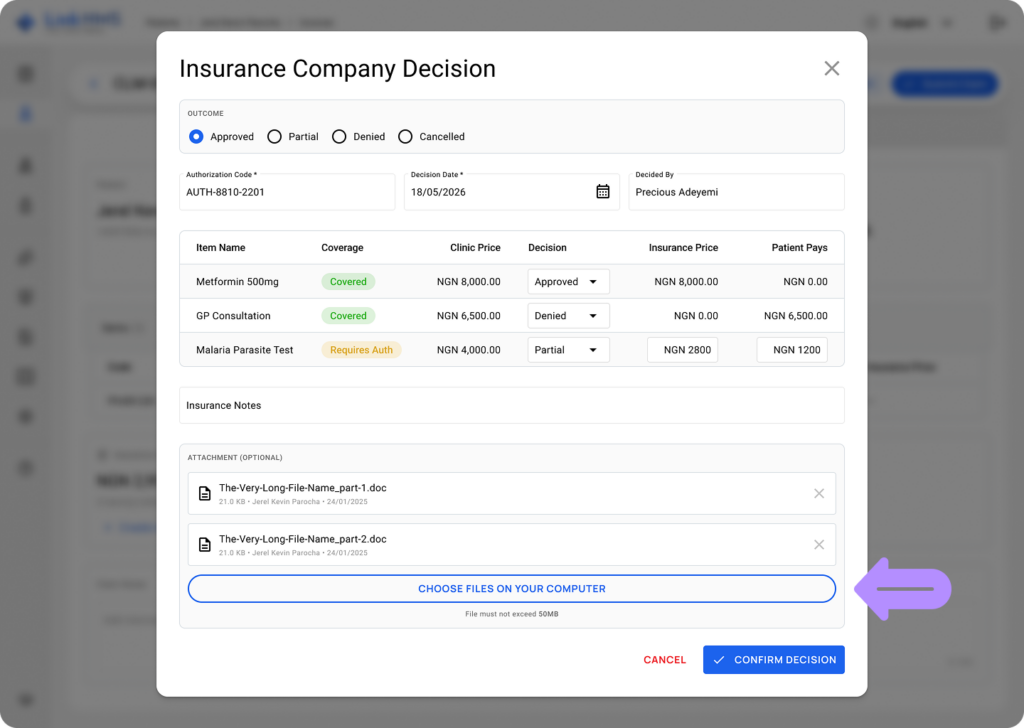
- Click Save Decision to confirm the changes.