Medications can be prescribed and administered within LinkHMS. Use the checkbox to mark the medication for administration and start tracking it.
💡Notes
The “Prescribed for inpatient administration” checkbox controls whether a newly created prescription appears in the administration chart and receives ongoing administration tracking. It ensures that the administration chart shows only medications that require administration tracking.
When making a prescription in LinkHMS, you can select if the medication needs to be shown in the administration chart for dose administration tracking. See the steps below to mark a medication for inpatient administration. For the full prescription workflow, refer to the detailed guide on How to make a prescription here.
Prescribe Medicine for Administration from the Outpatient Visit
💡Notes
Outpatient prescriptions typically are not part of inpatient administration, but some medications may require tracking if they are intended to be given under your clinic staff’s supervision.
- Navigate to the Prescriptions tab and follow the regular prescription steps.

- The checkbox “prescribed for inpatient administration” is unchecked by default in the outpatient visits.
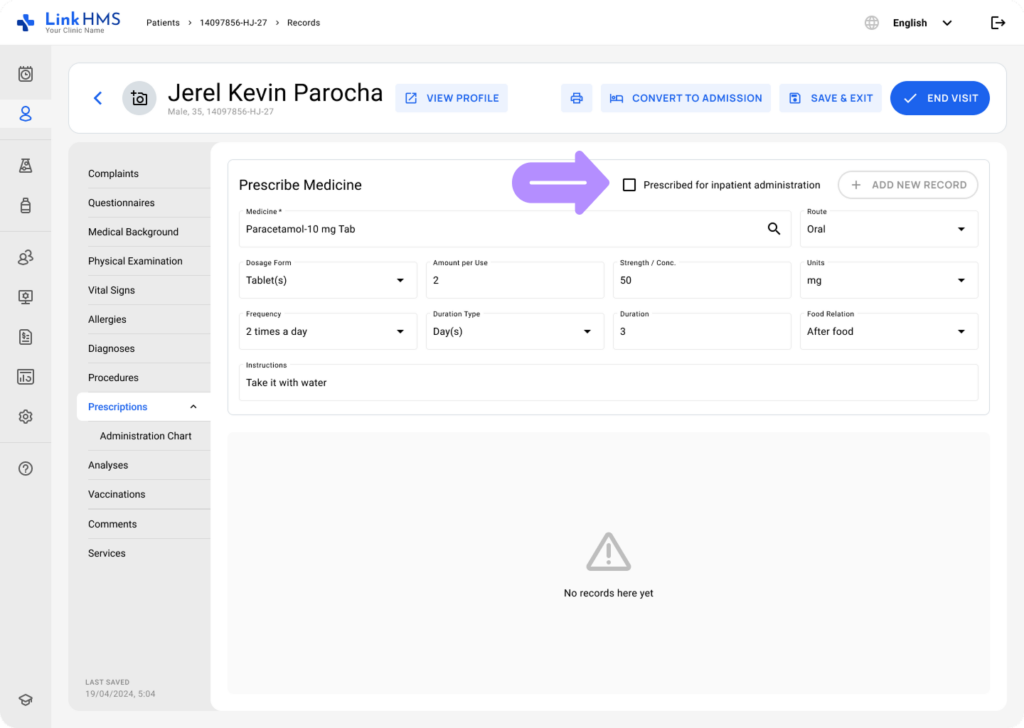
- Check the box to include the chosen medication in inpatient administration and tracking.
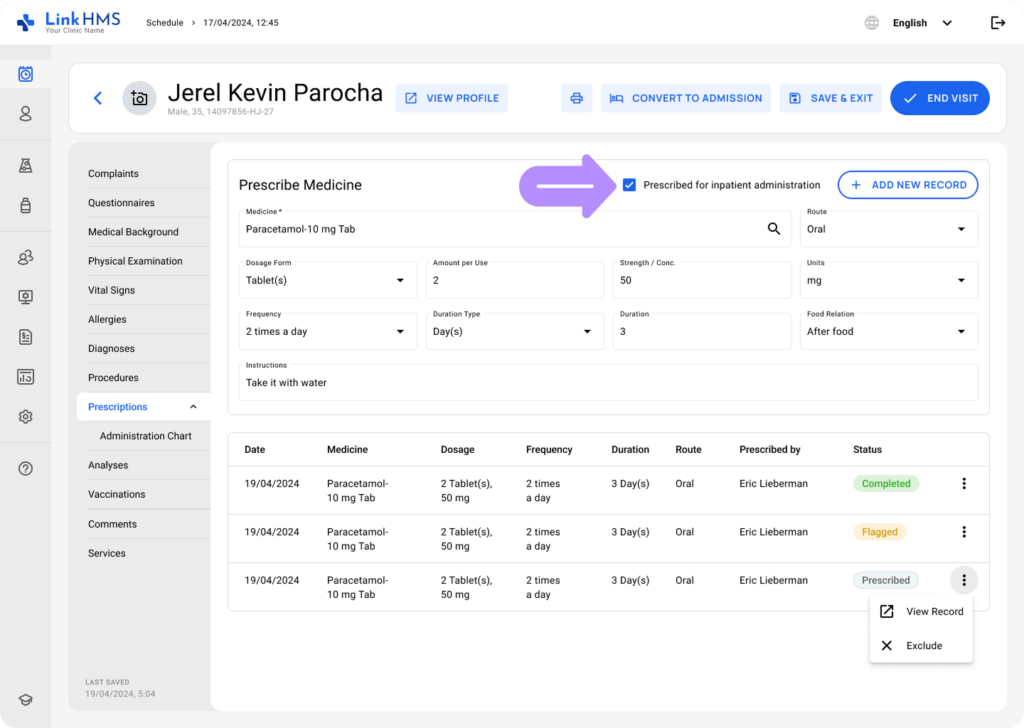
- Fill in the remaining required details and click the Add New Record button.
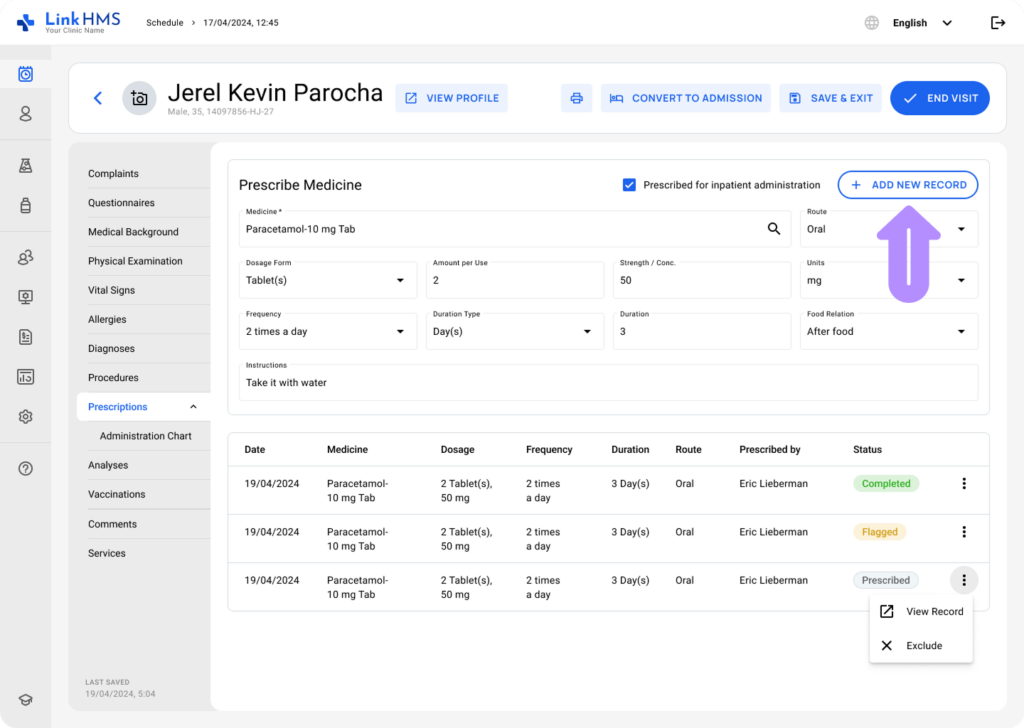
- The prescribed medication is now added to the administration chart and will be tracked as part of the inpatient administration workflow.
Prescribe Medicine for Administration from the Inpatient Admission
💡Notes
Most medications prescribed during an admission are meant to be administered and, therefore, are automatically added to the administration chart.
- Go to the Prescriptions tab and proceed with the standard steps for making a prescription.
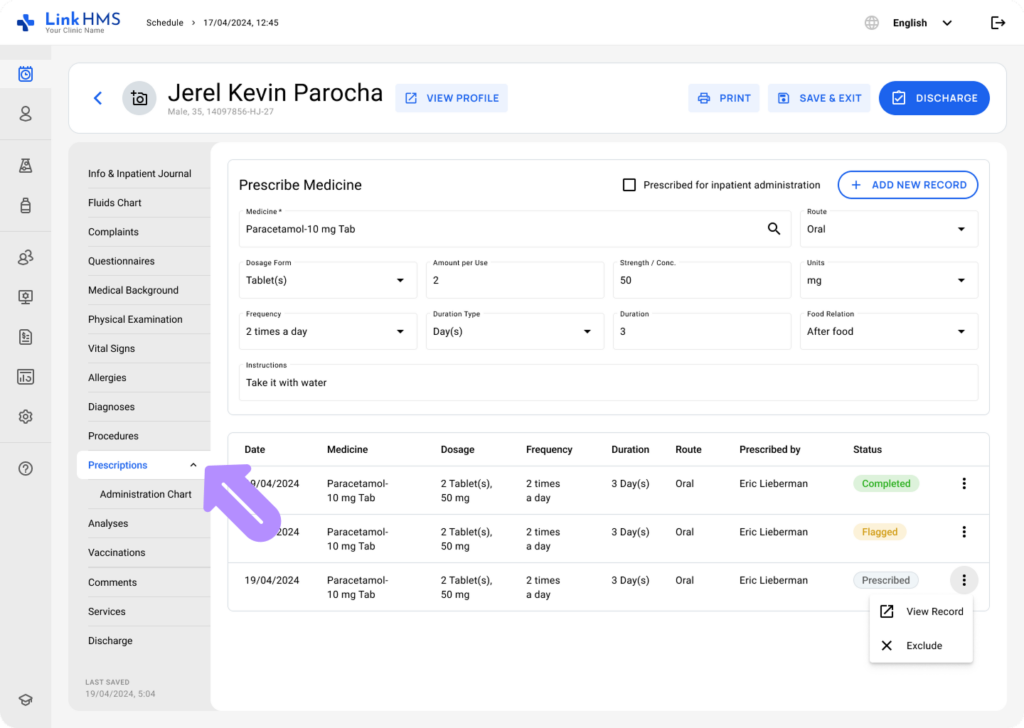
- The “prescribed for inpatient administration” checkbox is selected by default during admissions.
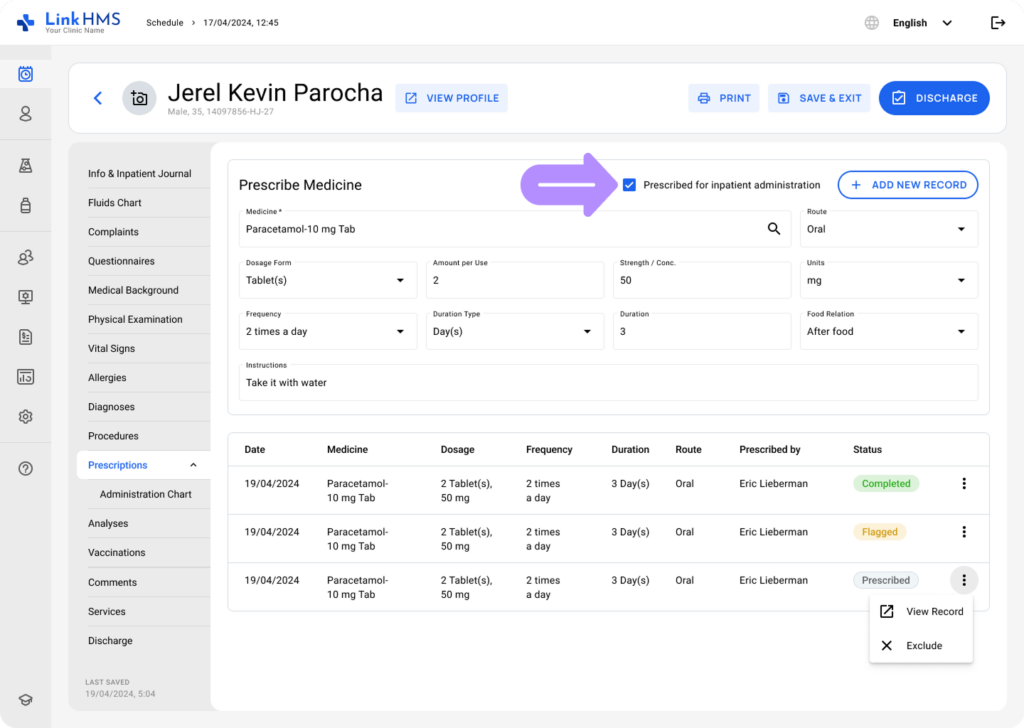
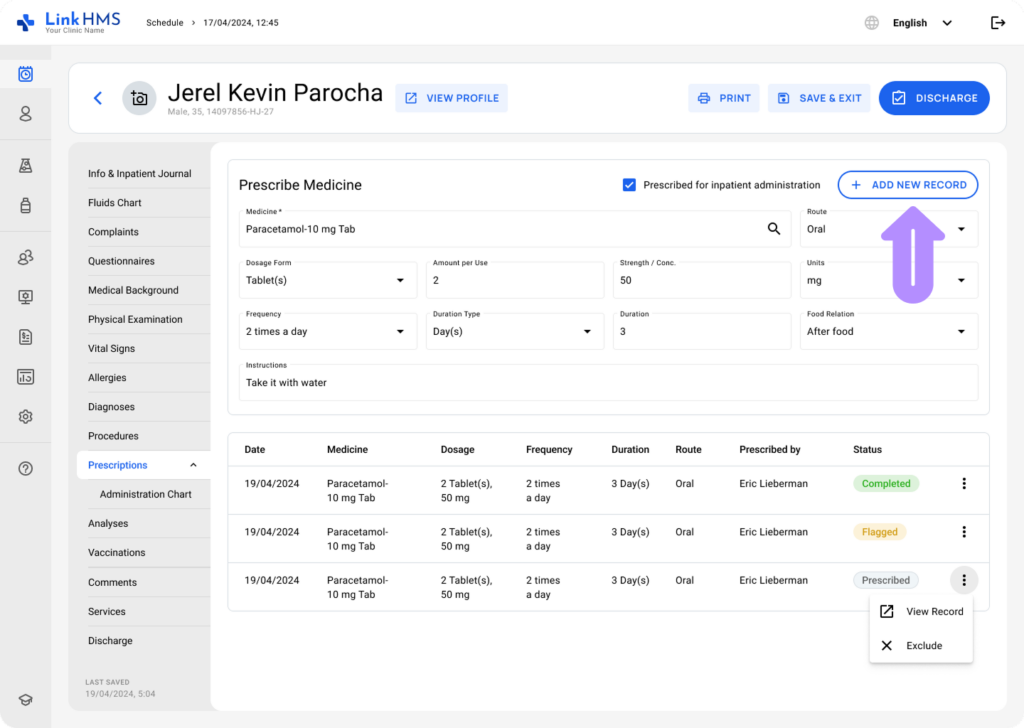
- Leave it checked to include the medication in the administration chart, complete the remaining details, and click the Add New Record button.
💡Notes
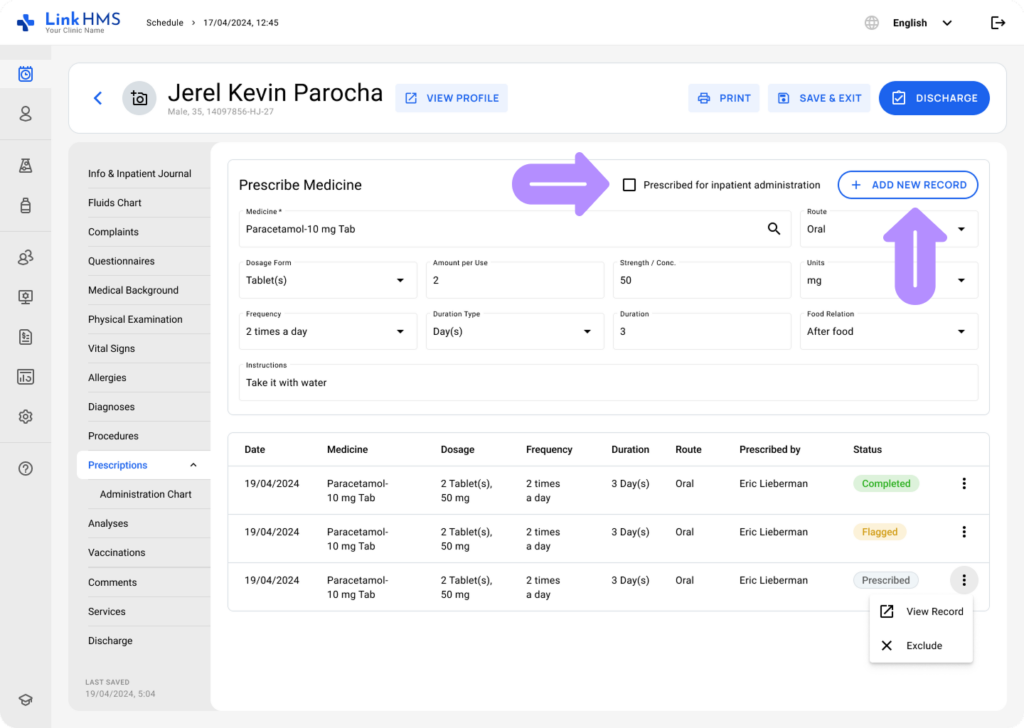
You can uncheck the box if the medication should not be administered. Then click the Add New Record button to make the prescription without adding it to the administration chart.
Prescribe Medicine for Administration from EMR
You can also prescribe medication for inpatient administration directly from the EMR. The medication will be added to the administration chart and included in the inpatient administration workflow.
- Open the Prescriptions tab in the patient’s profile and follow the usual steps to create a prescription.
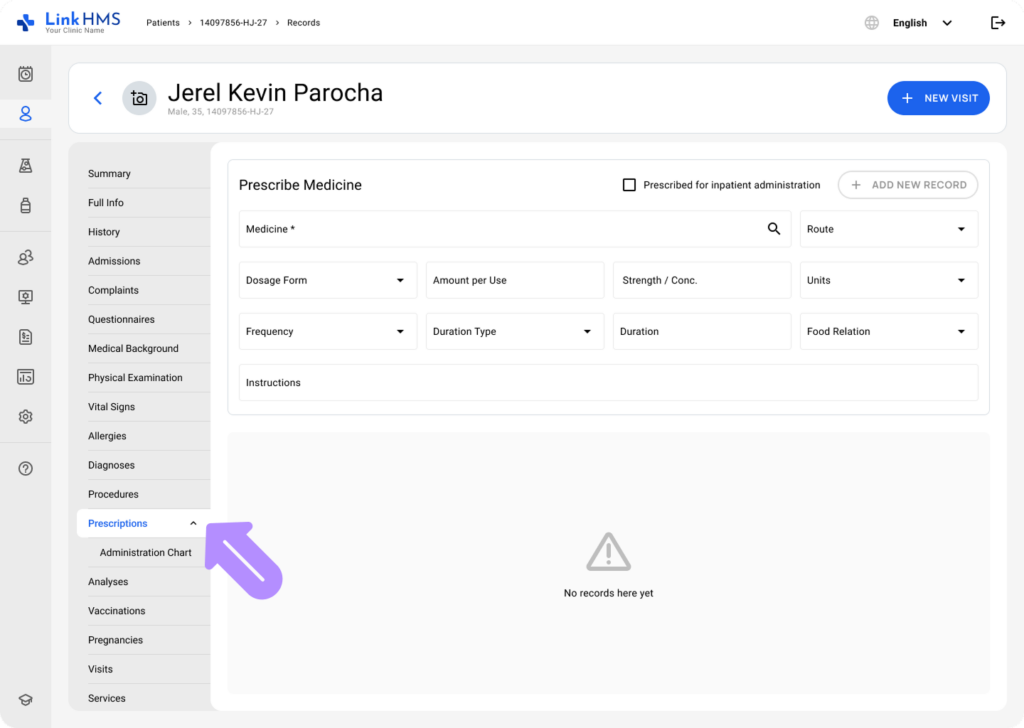
- The “prescribed for inpatient administration” checkbox is left unchecked by default in the EMR.
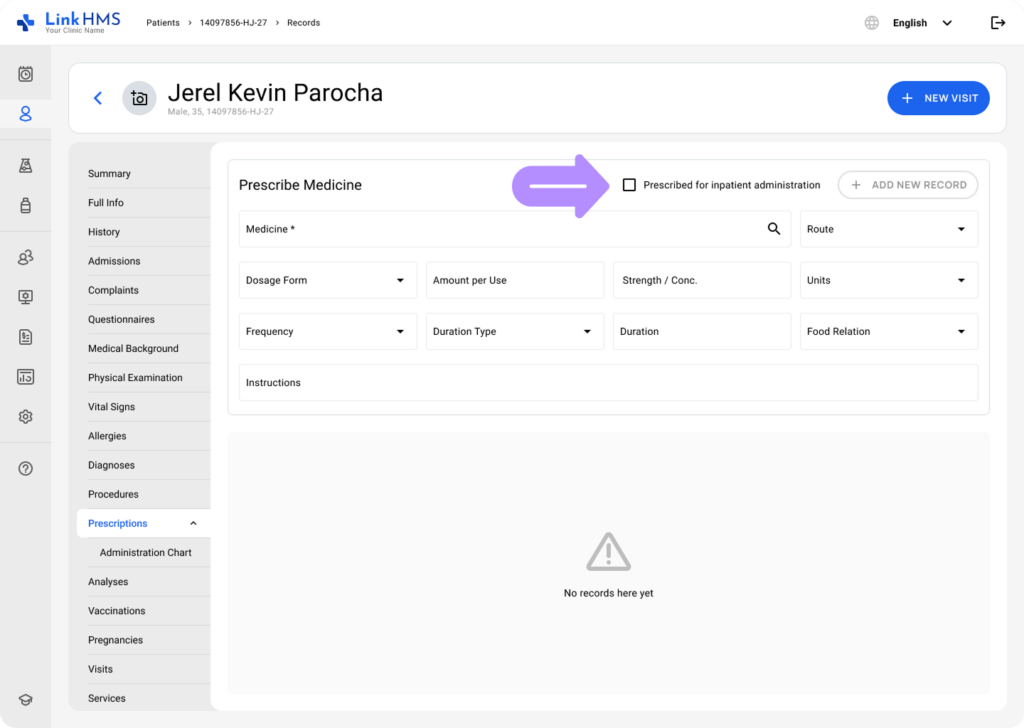
- If the chosen medication needs to be included in inpatient administration and tracking, check the box.
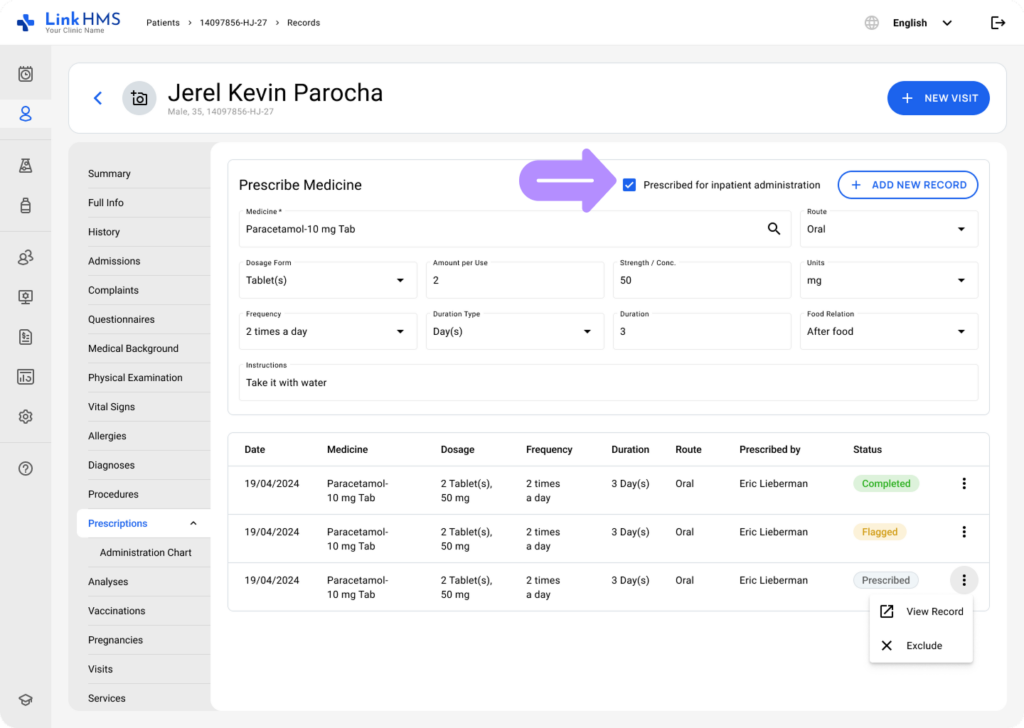
- Complete the remaining fields and click the Add New Record button.
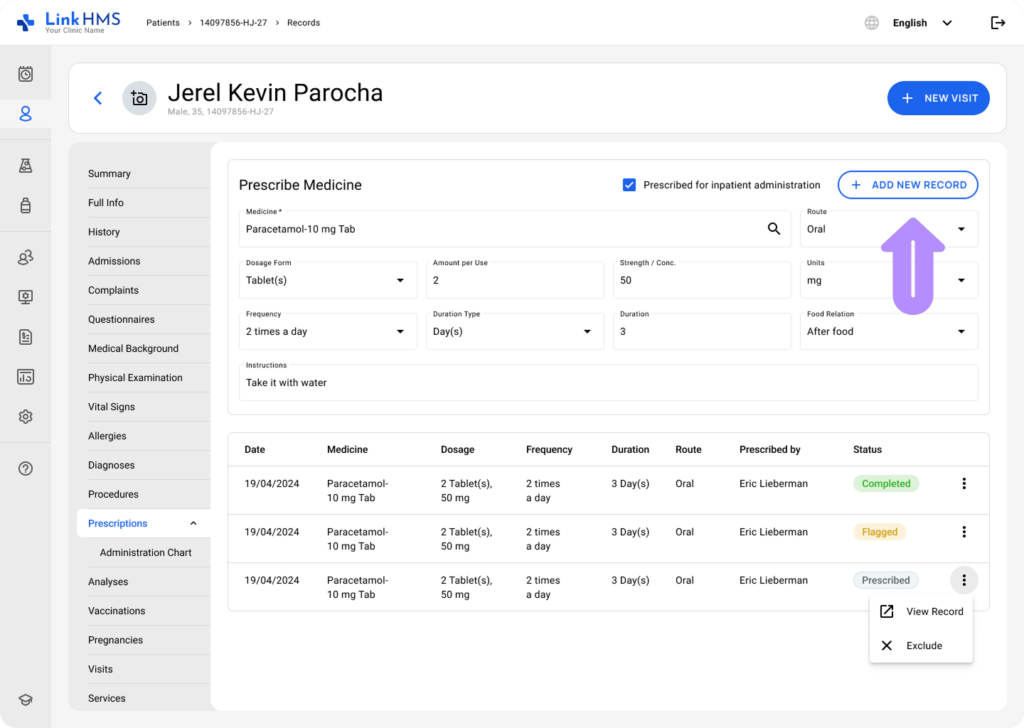
- The medication is automatically added to the administration chart, where clinic staff can continue logging its administration. For detailed steps, refer to the full guide on How to log inpatient medication administration.