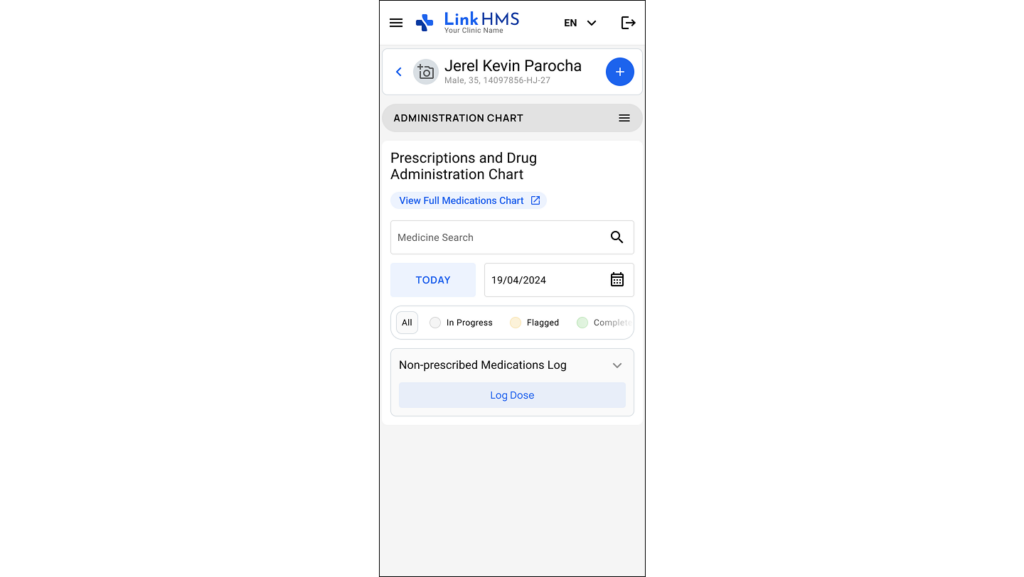
The administration chart includes a non-prescribed medications log card to record medications that can be given without a formal prescription but still require administration. All non-prescribed entries are organized on a single card, making it easy to add and review these records.
Logging the Non-Prescribed Medication Dose
- Navigate to the administration chart through the patient’s profile, or access it directly from the active admission or visit in the prescription tabs.
💡Notes
You may log medication from any convenient tab, and the workflow will follow the same steps regardless of where you initiate it. The administration chart subtab shows administrations for the current day, while the View Full Medications Chart option provides a multi-day calendar view. Refer to the guide to see How to use the full medications chart.
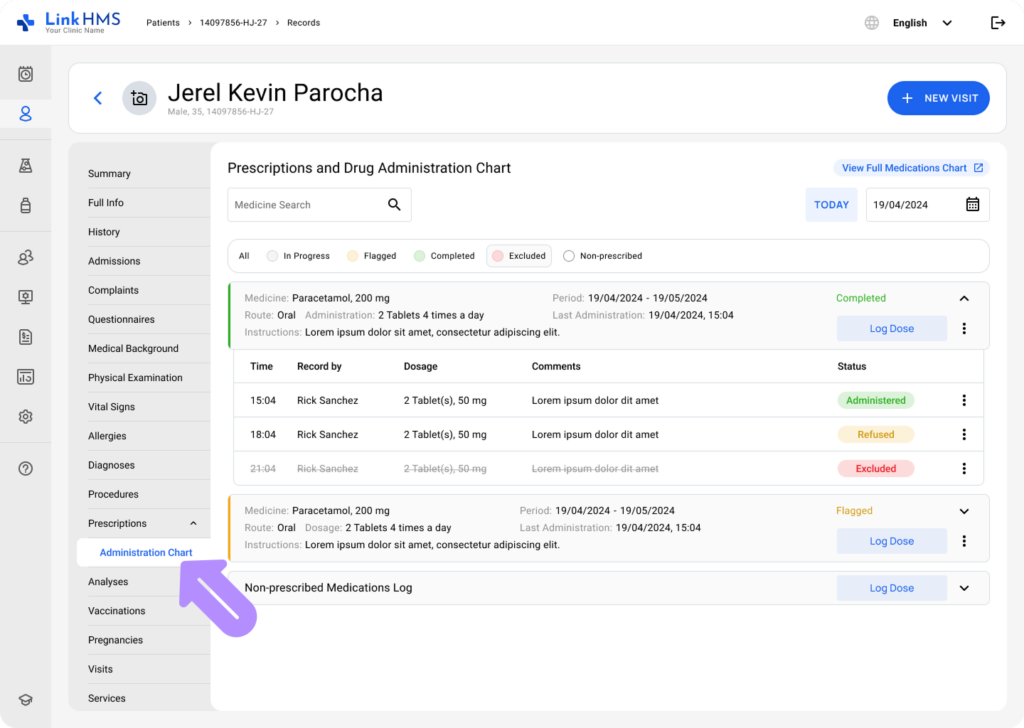
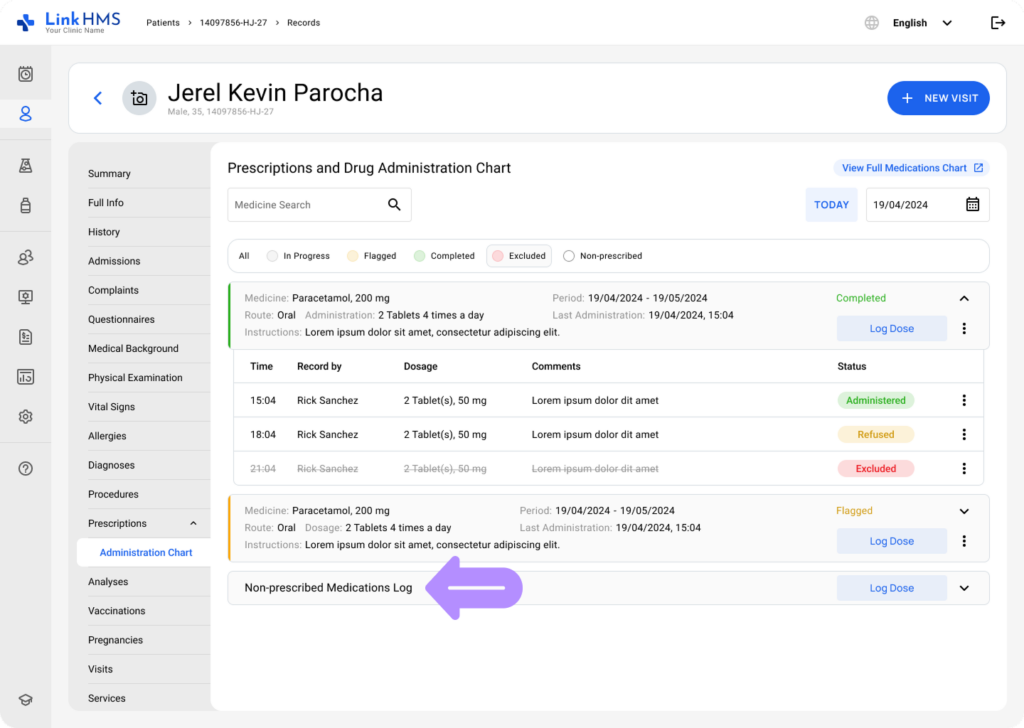
- Locate the non-prescribed medications log card.
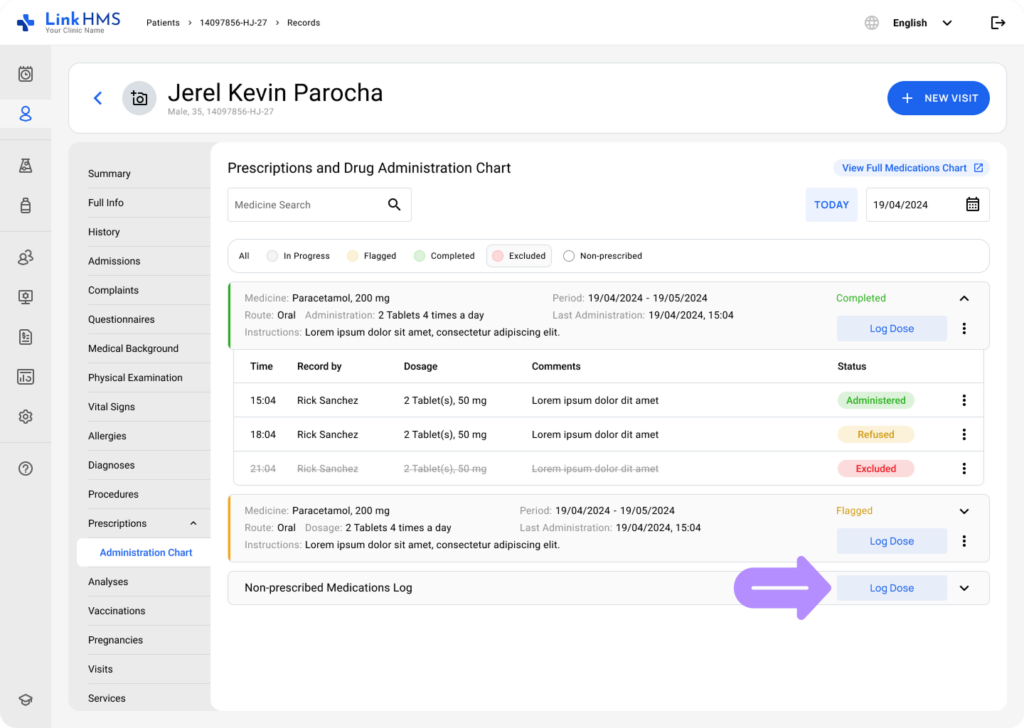
- Click the Log Dose to record the new non-prescribed medication.
- A pop-up window opens to enter details of the non-prescribed medication before logging the dose.
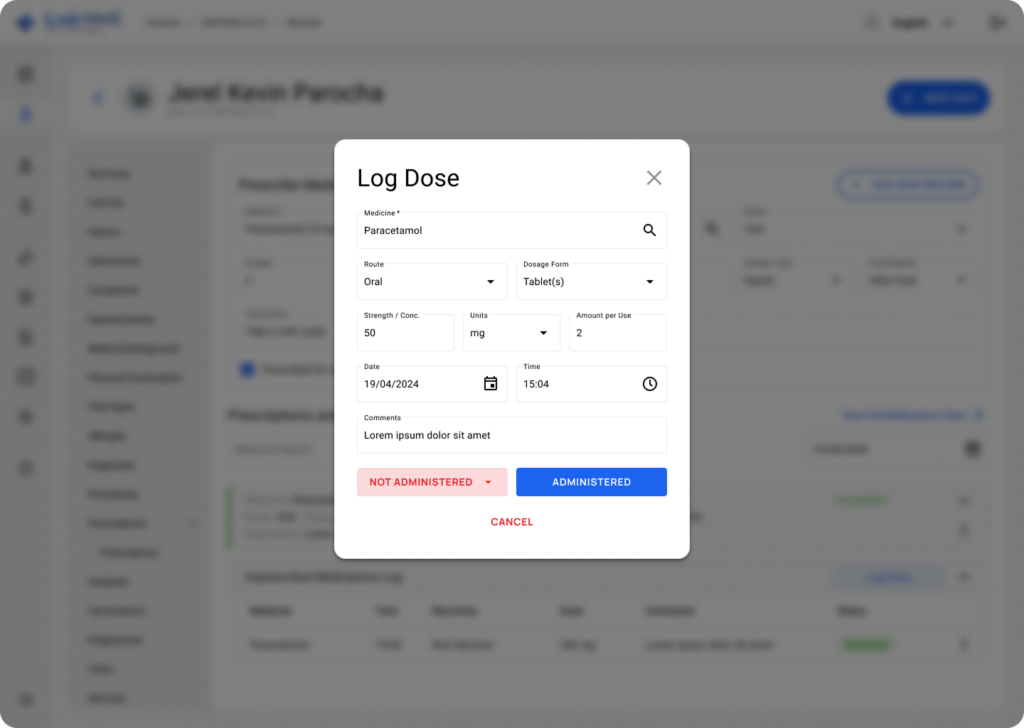
- Complete the listed fields, including Medicine, Route, Dosage Form, Strength / Concentration, Units, Amount per Use, Date, Time, and Comments.
💡Notes
Future dates cannot be selected to ensure doses aren’t recorded in advance.

- Specify the dose status as Administered or Not Administered.
- Click the Administered button to log the non-prescribed medicine dose as given.
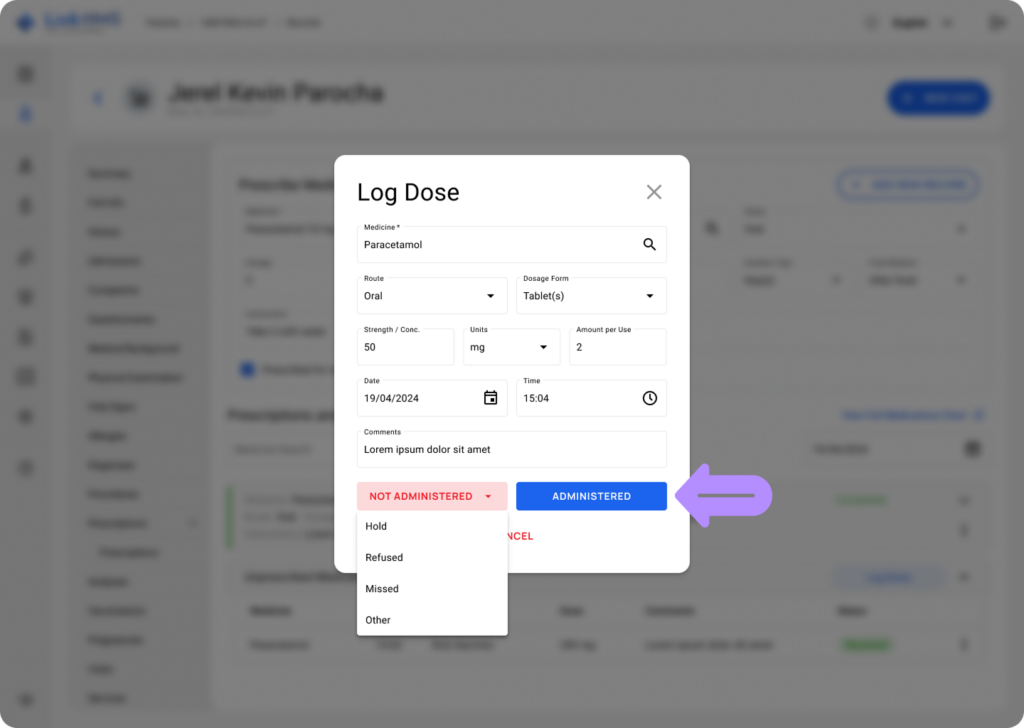
- Use the Not Administered button to record that the dose was not given, and select the appropriate reason from the list (Hold, Refused, Missed, Other).
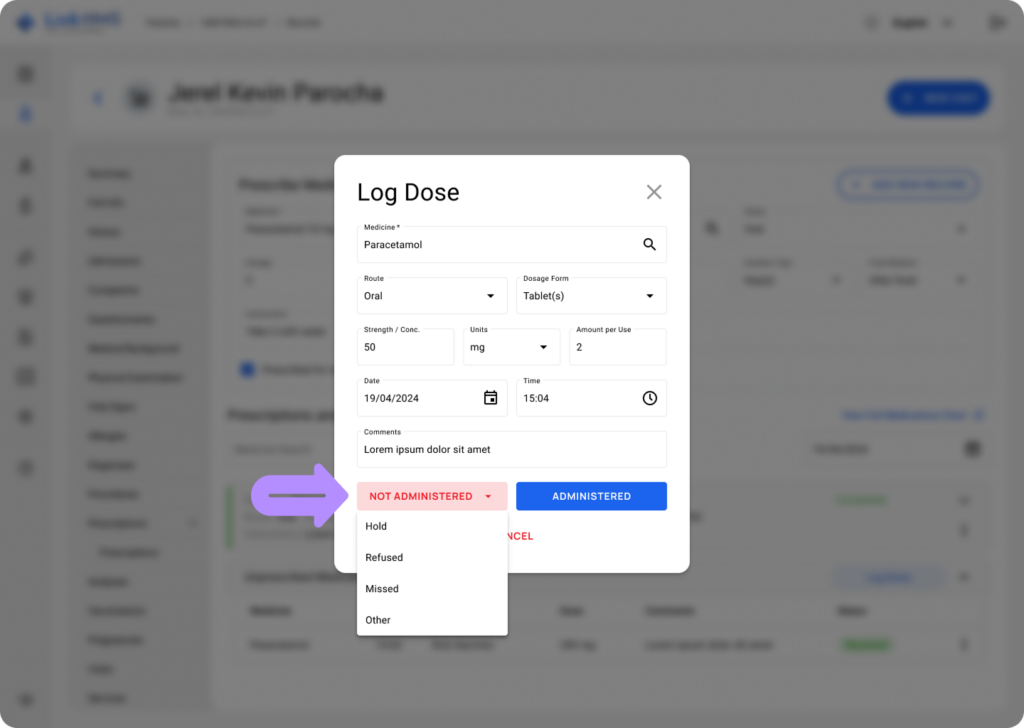
- After logging the non-prescribed medicine dose and its status, you can close the pop-up by clicking Cancel or the × in the corner.

Review the Logged Non-Prescription Medicine Records
The non-prescribed medications log works differently from prescribed medication cards. The header does not display prescription information or status indicators. This card only collects non-prescribed medication administration in a unified card.
- Every logged non-prescribed medicine appears as its own row. It displays Time, Record by, Medicine, Dosage, Comments, and the chosen Status (Administered, Hold, Refused, Missed, Other).
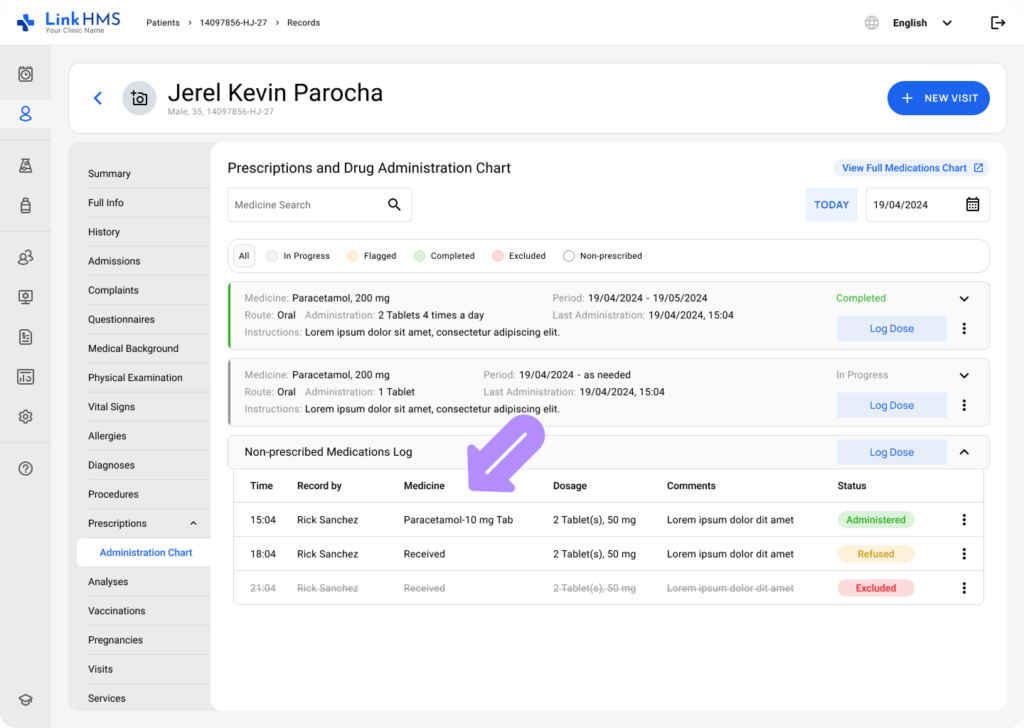
- Find the non-prescribed medication entry in the card, then use the three-dot menu and select View Record to review it.
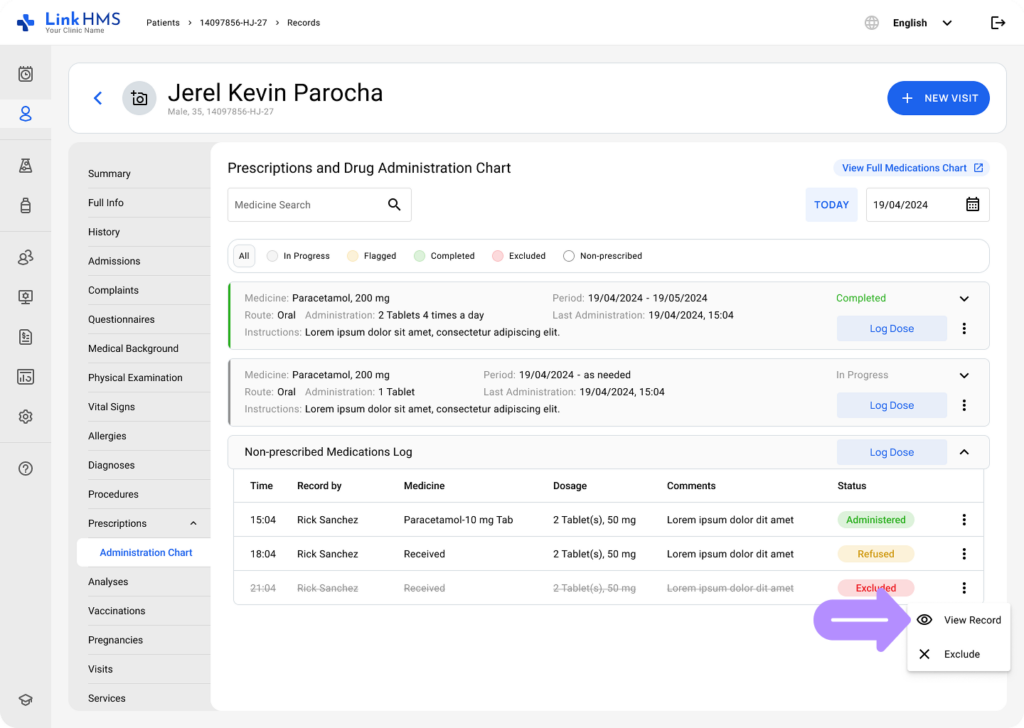
- The pop-up appears to show the complete dose record along with additional details to help you review its history.
- Record by: Specifies the user who created the dose record.
- Date: Shows the exact date and time the dose was logged.
- Excluded by and Date: If applicable, indicates which user excluded the record and when it occurred.
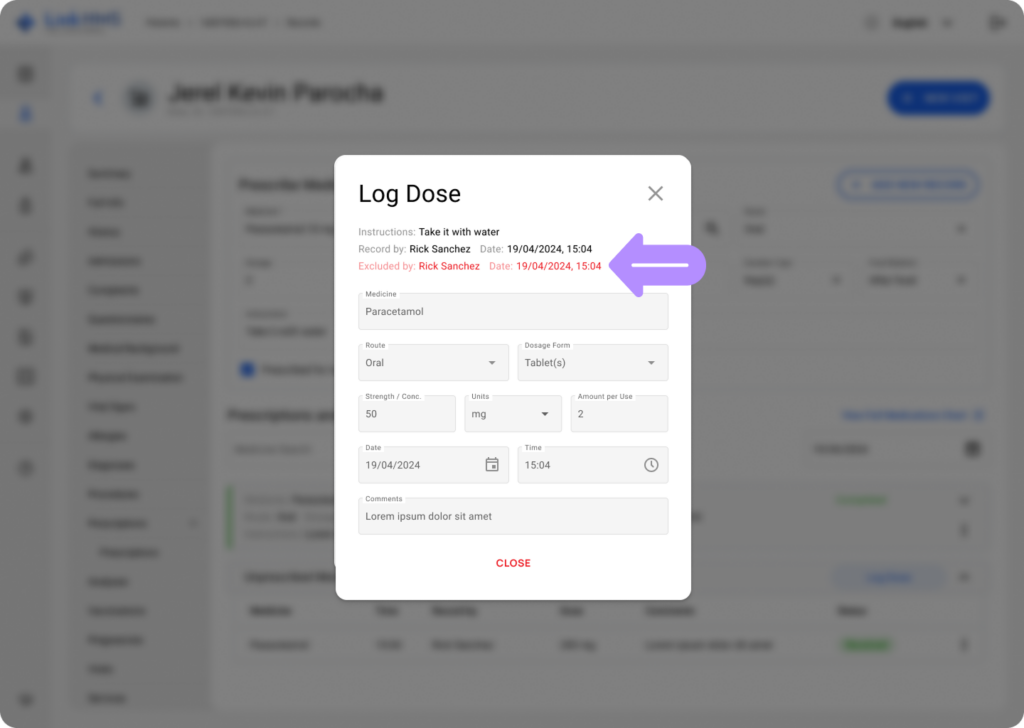
- You can always go back to review who entered the dose, the exact time it was logged, and whether it was excluded afterward.
💡Notes
You can log non-prescribed medication administration directly from your mobile device at the patient’s bedside. Follow the same steps to enter dose details without needing to return to a workstation.