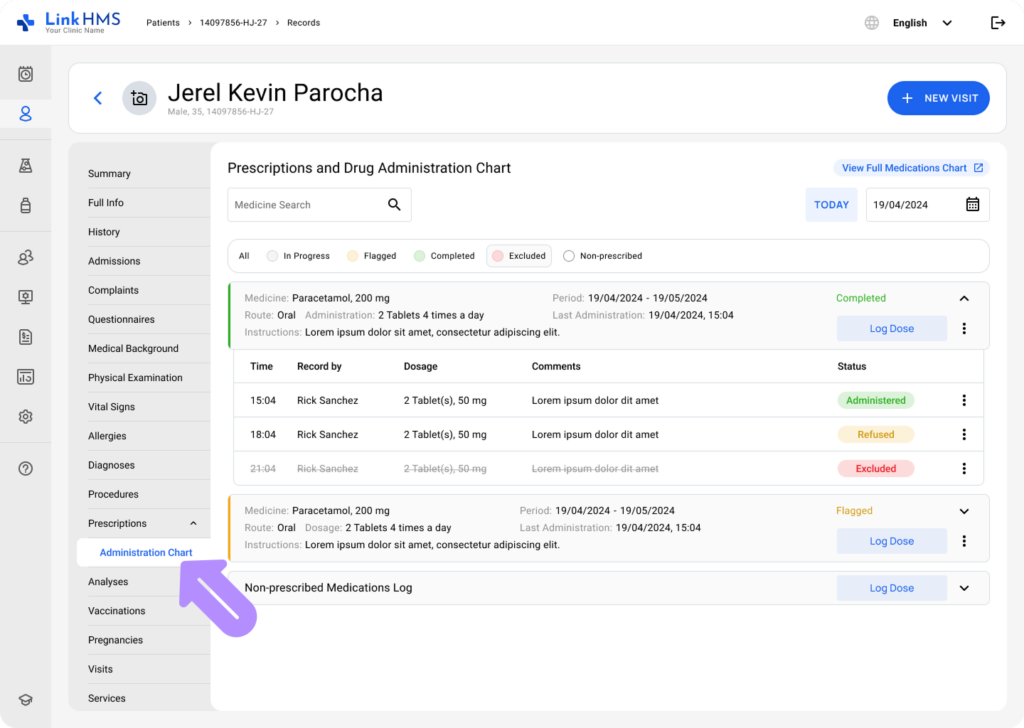
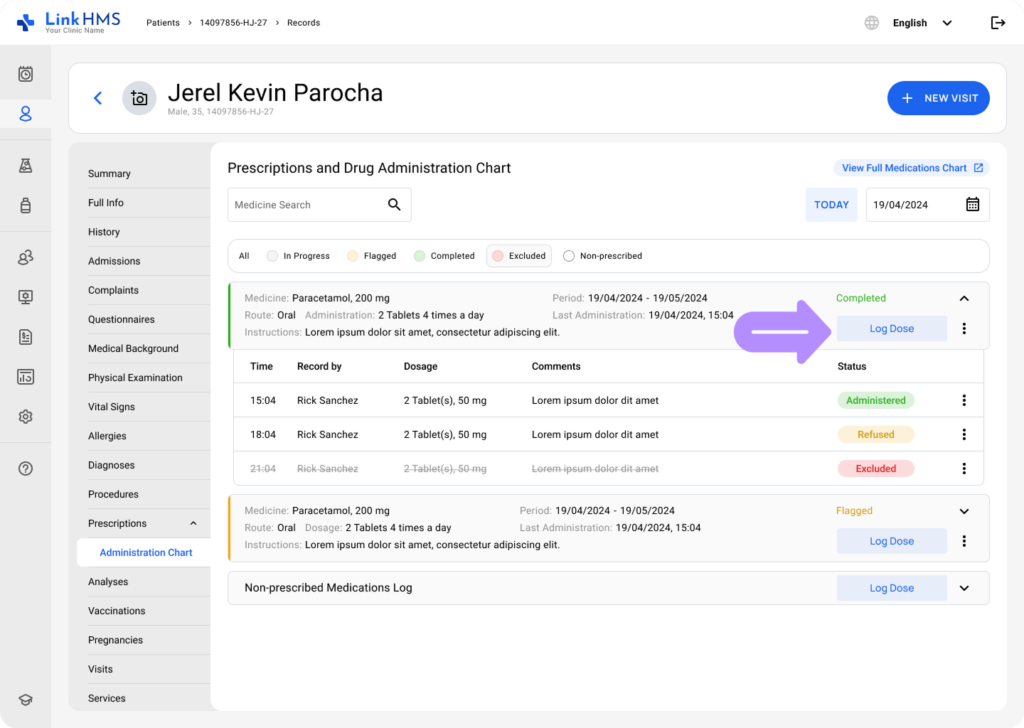
The administration chart displays cards for all medications prescribed with the “prescribed for inpatient administration” option selected. Each card represents a single medication and provides the Log Dose button for clinic staff to record and track its administration.
💡Notes
It also includes a separate non-prescribed medications log card to record medications that were not prescribed, but need to be administered. All non-prescribed medication entries are grouped together within a single card. You can refer to the complete guide on How to log non-prescribed medication administration.
Accessing the Administration Chart
- Navigate to the administration chart from the patient’s profile, or open it directly through the active admission or visit in the Prescription tabs.

- Proceed to the Administration Chart subtab to manage administration records.
💡Notes
You can log the medication from whichever tab is most convenient. The workflow remains the same. The administration chart subtab displays medication administration for a current date, while the View Full Medications Chart option shows a calendar covering multiple dates. Check the guide on How to use the full medications chart.
Searching the Prescribed Medicine
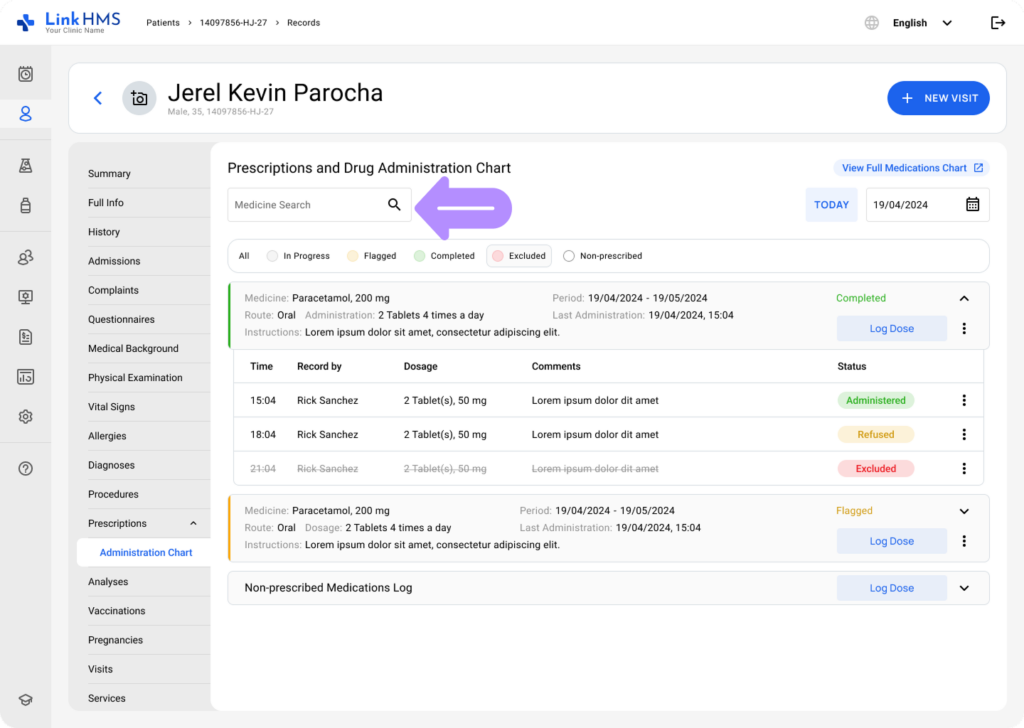
- Use the Medicine Search bar to perform a full-text search across all medications shown in the drug administration chart. The search can match medicine names from medication cards.
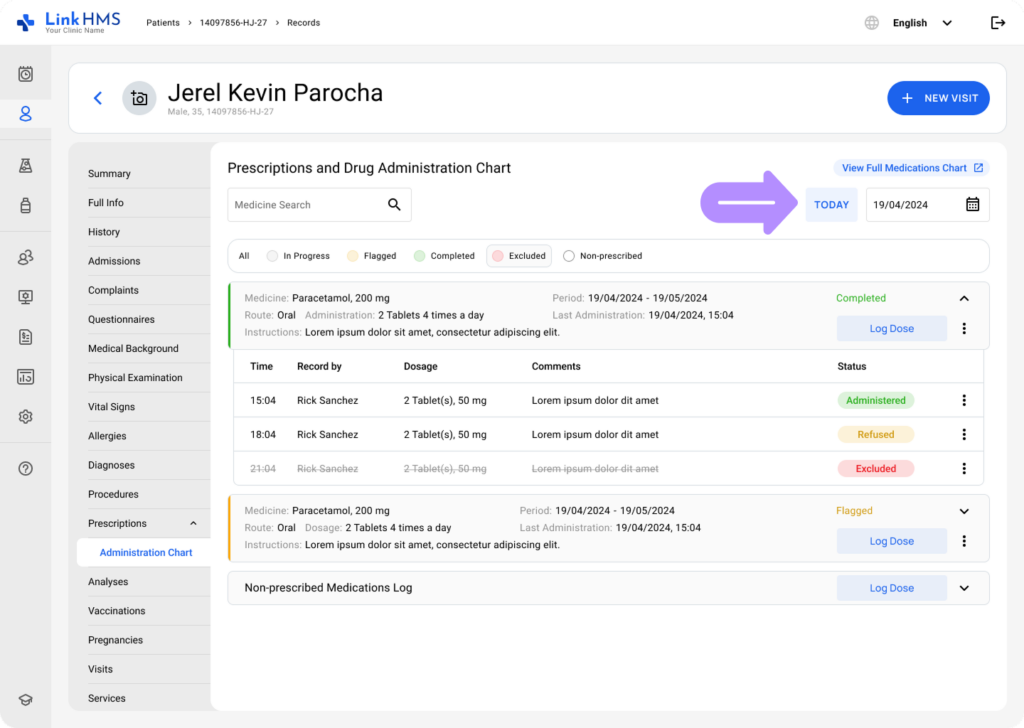
- If required, set a specific date to find medications administered on that day.
- Click a specific status in the legend to filter the list. Medicine cards with that status will be shown to match the selected status.

- These tools help you quickly find the prescribed medication cards needed to log a dose.
Logging the Medicine Dose
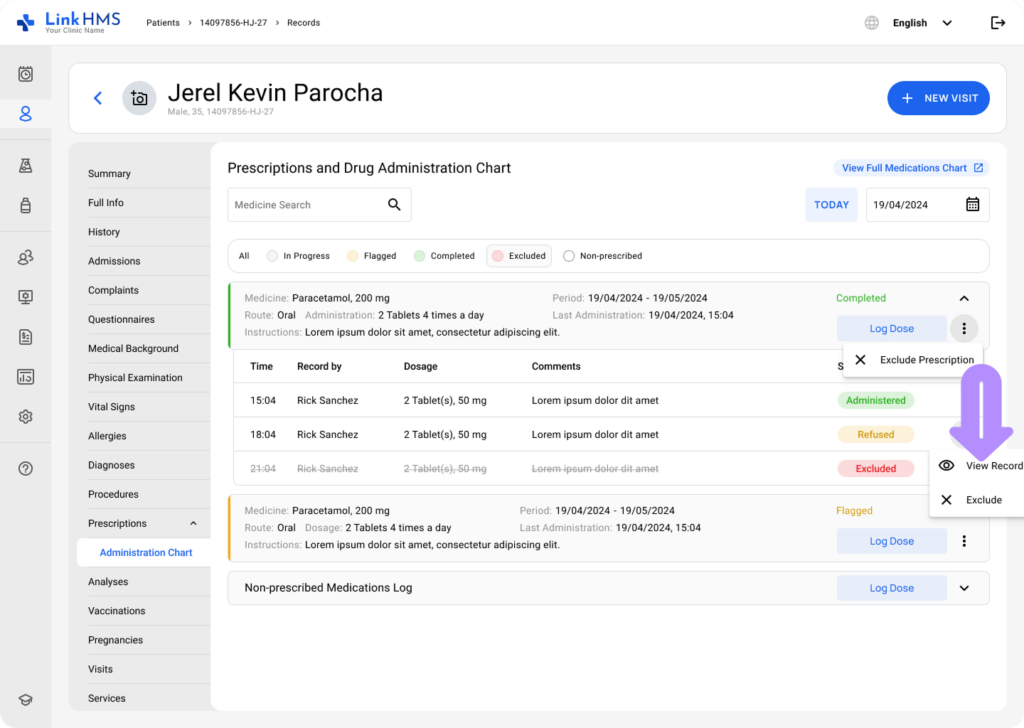
- Locate the required medicine card with detailed information, including Medicine, Period, Route, Last Administration, and Instructions.

💡Notes
Every medication card has a Log Dose button that is always active unless the prescription is marked as Excluded. Find the complete guide on How to exclude the prescription record.
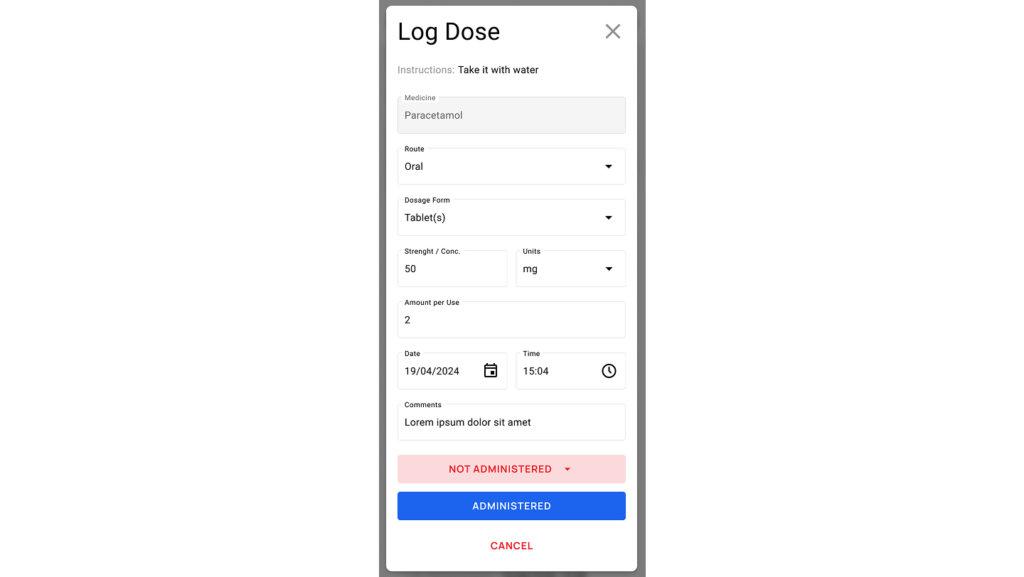
- Click the Log Dose button to record the new medication dose.
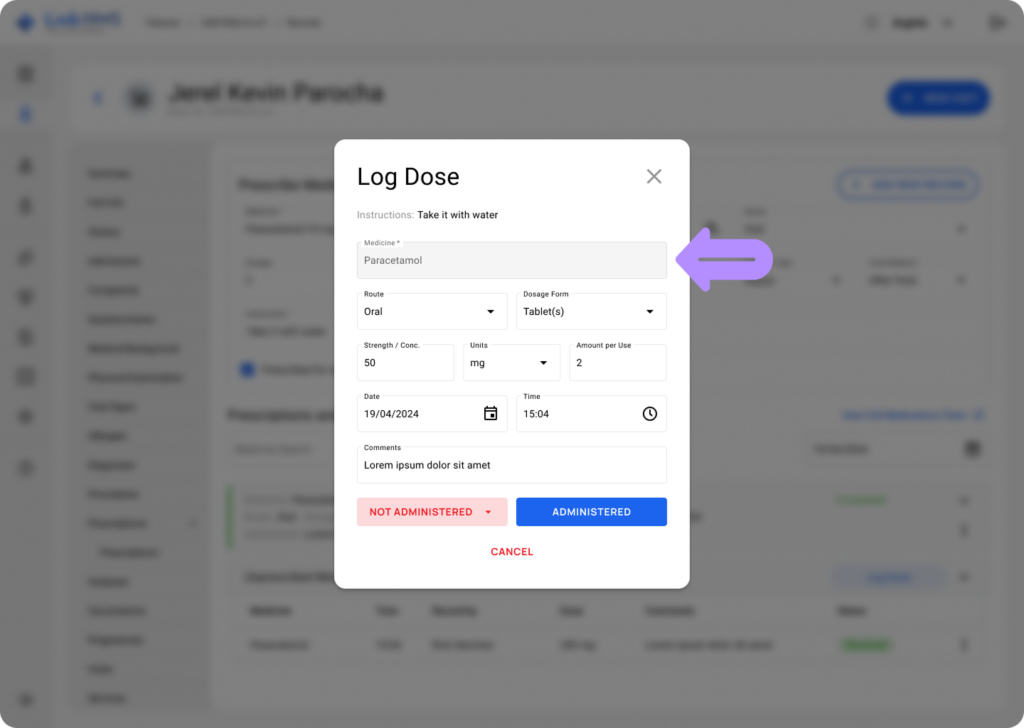
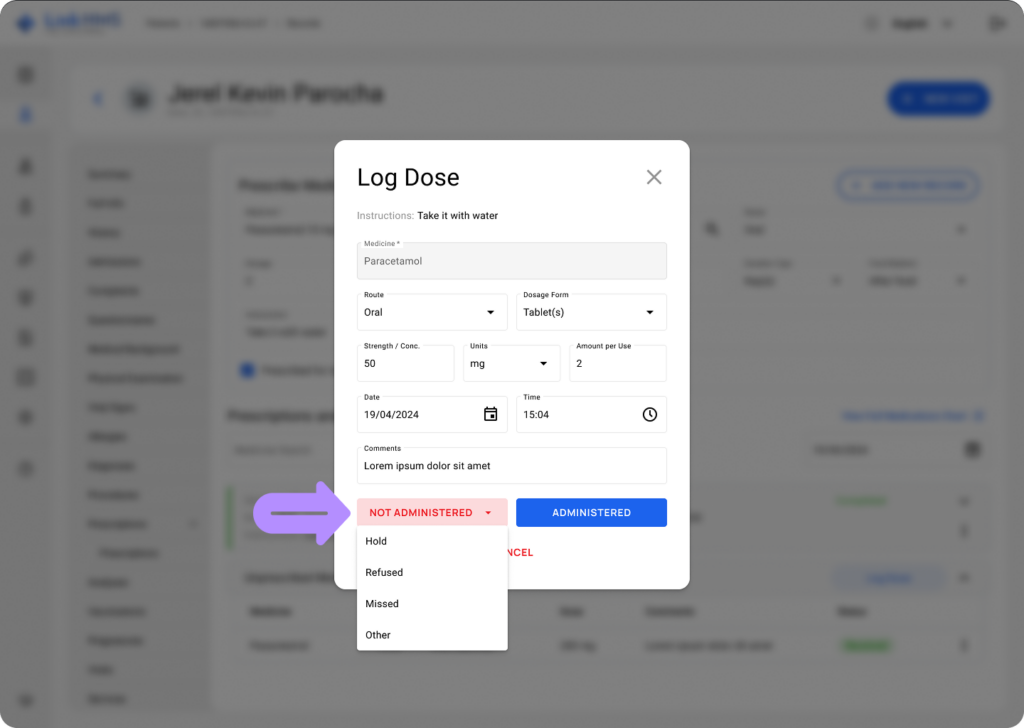
- The pop-up window appears with the prescription’s instructions.
💡Notes
The Medicine field is locked to ensure the dose is logged to the correct prescription, while all other fields are pre-filled with prescription details for your convenience.
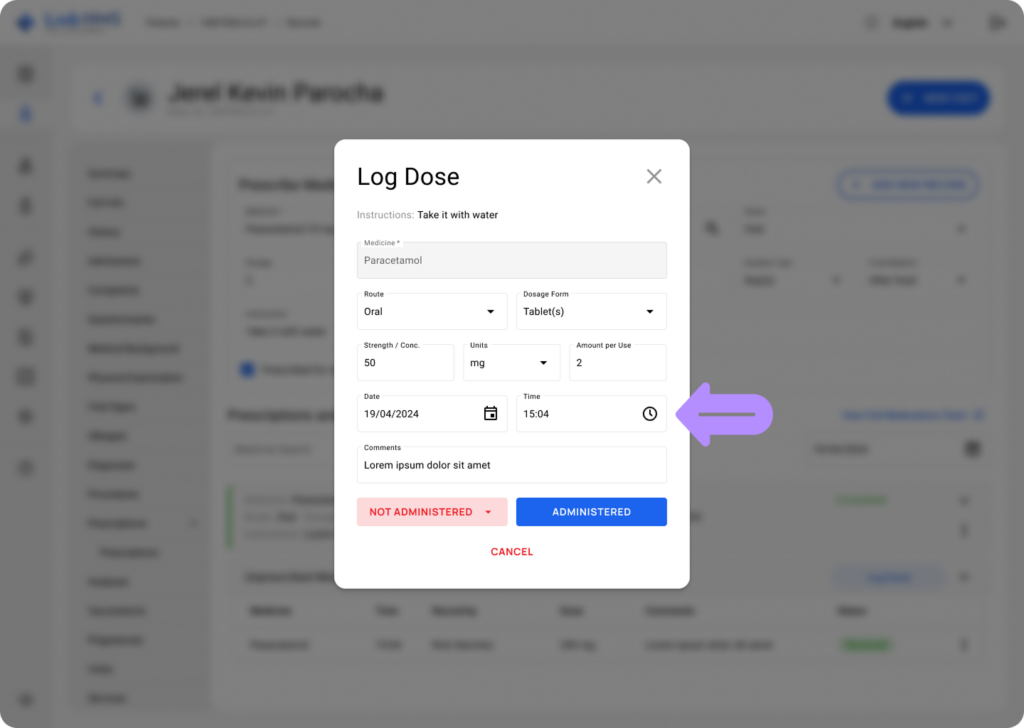
- Edit the pre-filled fields as needed, adjusting any details before saving.
💡Notes
Future dates are disabled to prevent logging doses in advance.
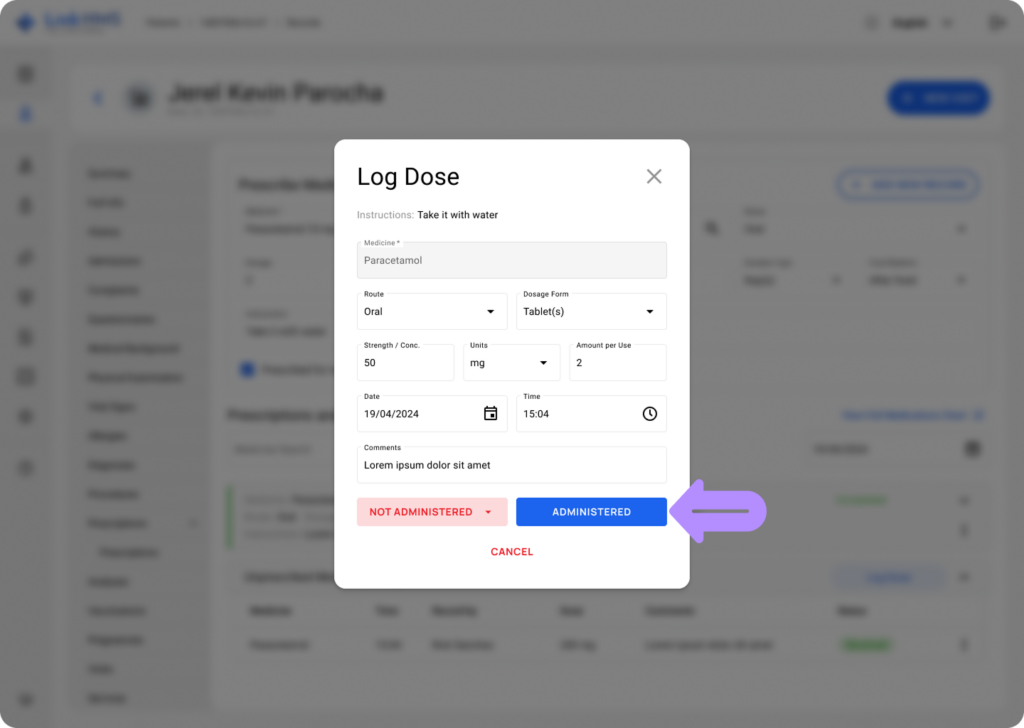
- Specify the dose status, either Administered or Not Administered.
- Click the Administered button to record the dose as completed, add to the administered dose count on the card, and update the card’s status accordingly.
-
- Use the Not Administered button to record that the dose could not be given. Use the reason selector (Hold, Refused, Missed, Other) to create a negative-status record that won’t count toward administered totals but will update the medication card status and display the selected reason in the administration history.
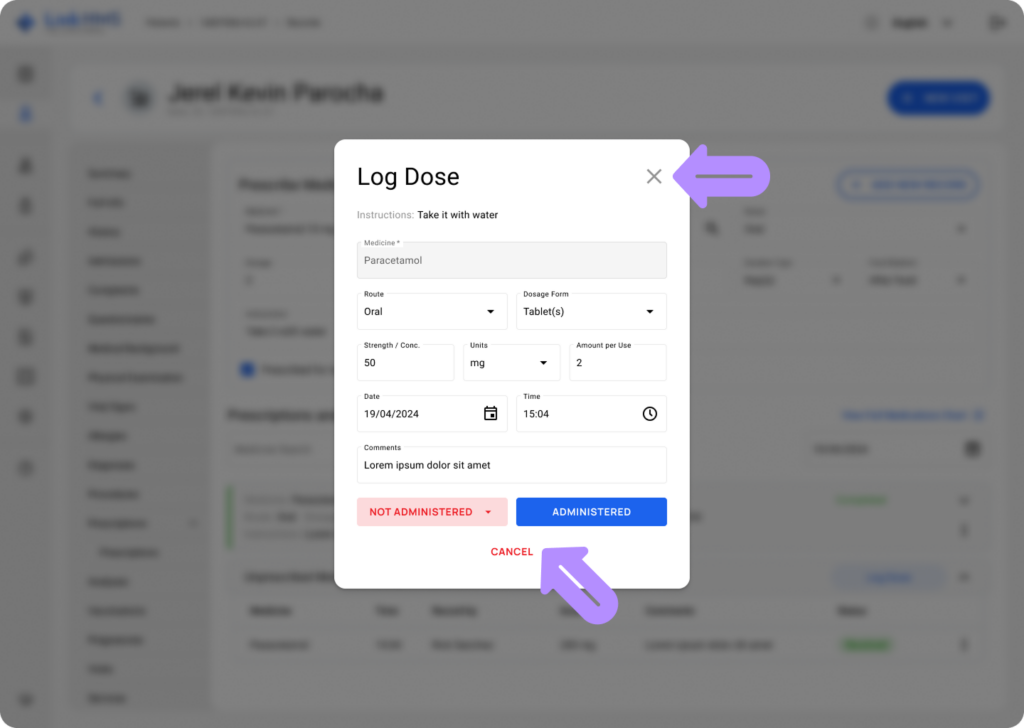
- Once you log the prescribed medicine dose and pick the necessary status, click Cancel or the × in the corner to close the pop-up.
Reviewing the Logged Dose Records
- Open the prescribed medication card to find the necessary entry, then use the three-dot menu and click View Record to check the selected dose record.
- It opens the Log Dose pop-up in read-only mode, preventing any edits to the original record.
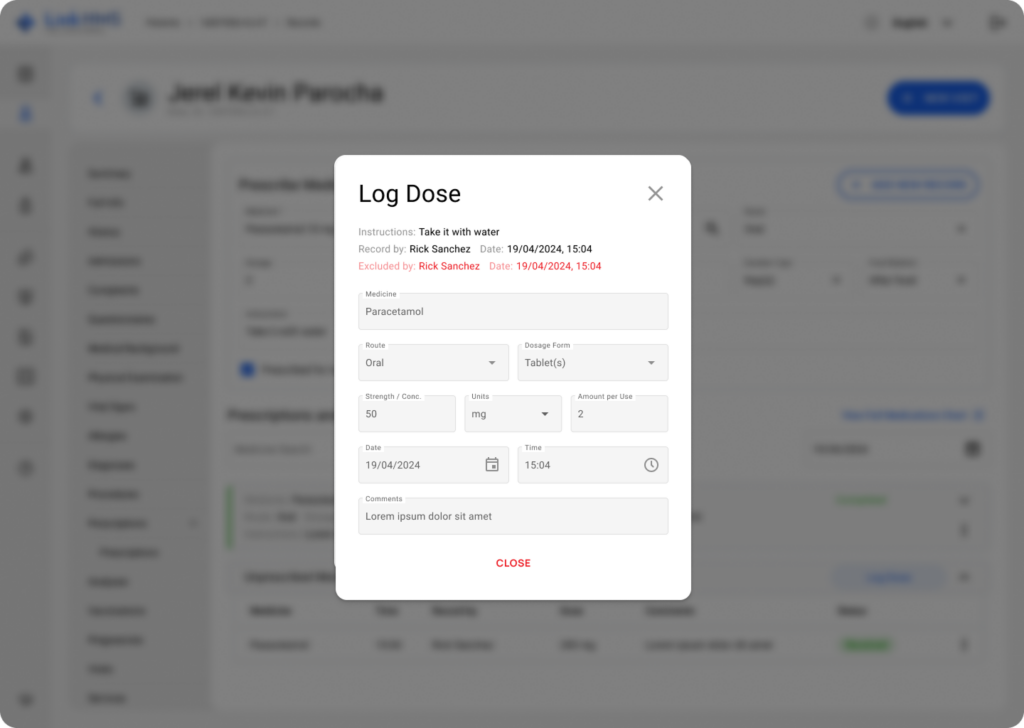
- The pop-up displays the full dose record, including additional details to help you review the chosen record’s history.
- Record by: Shows the name of the user who logged the dose.
- Date: Displays the exact date and time when the dose was recorded.
- Excluded by and Date: If the dose was excluded, this line shows who excluded it and when.
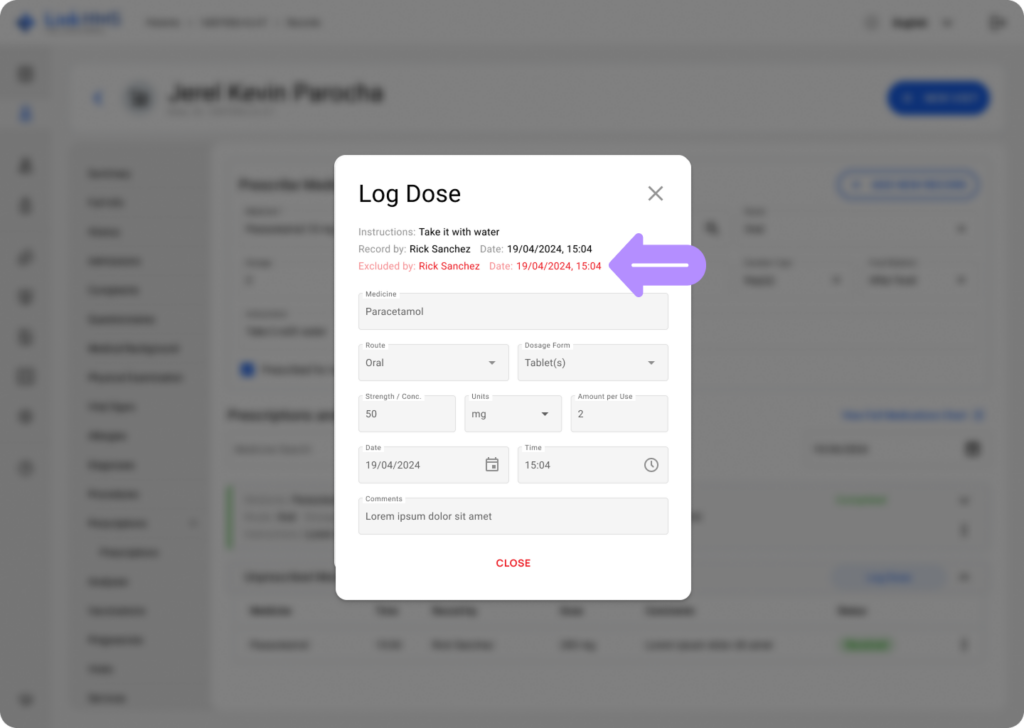
- You can always return to verify who recorded the dose, when it was logged, and whether it was later excluded.
💡Notes
You can log inpatient medication administration on your mobile device right at the patient’s bedside. Follow the same steps as above to log doses without returning to a workstation.