💡Notes
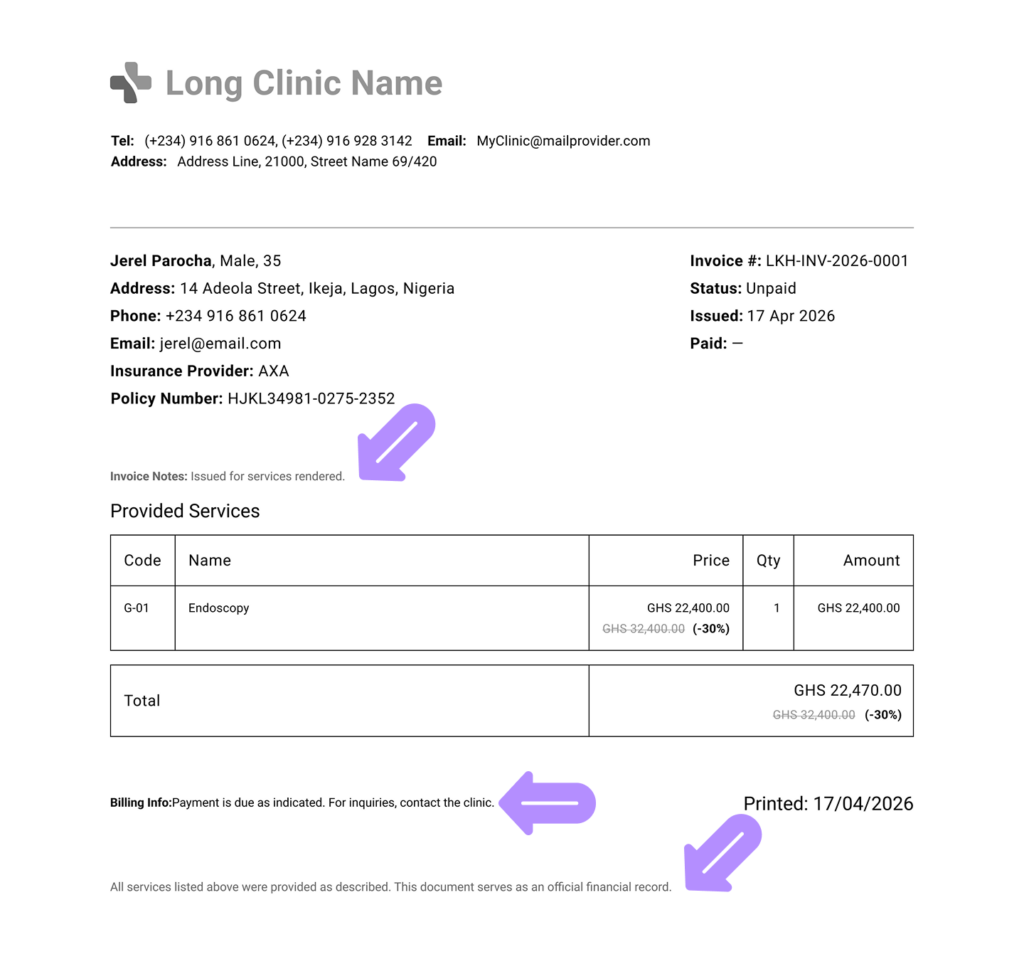
Invoice details are information included in the generated PDF invoices and used for official documentation and printing. Fields are pre-filled from the clinic info set by the clinic administrator in Settings.
- Navigate to Billing from the left side menu and open the Invoices tab.
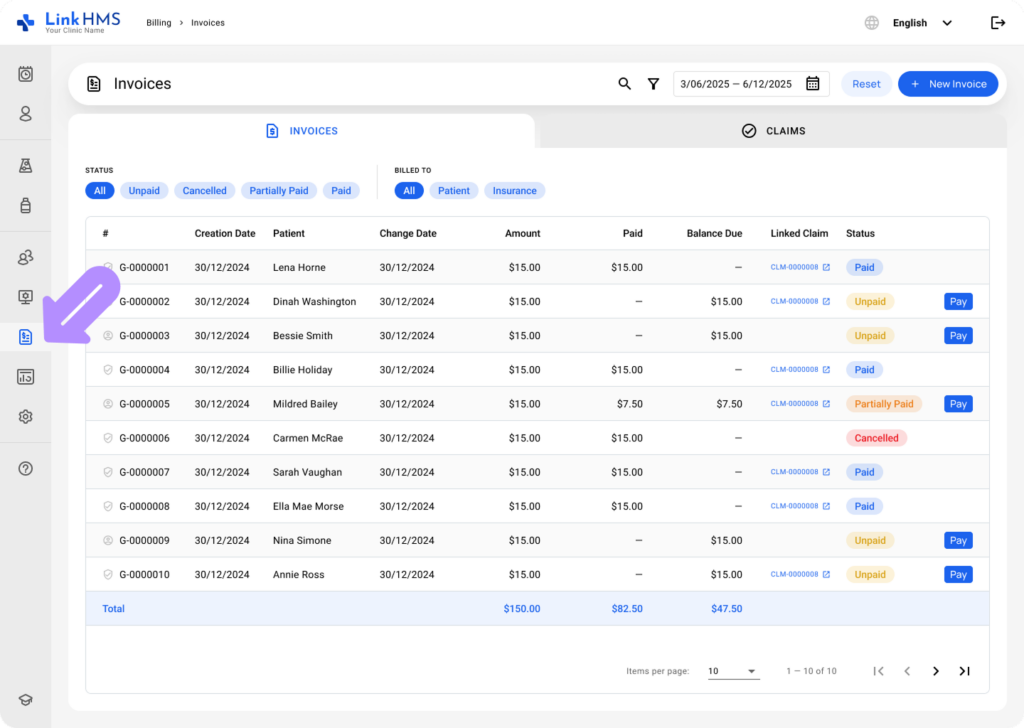
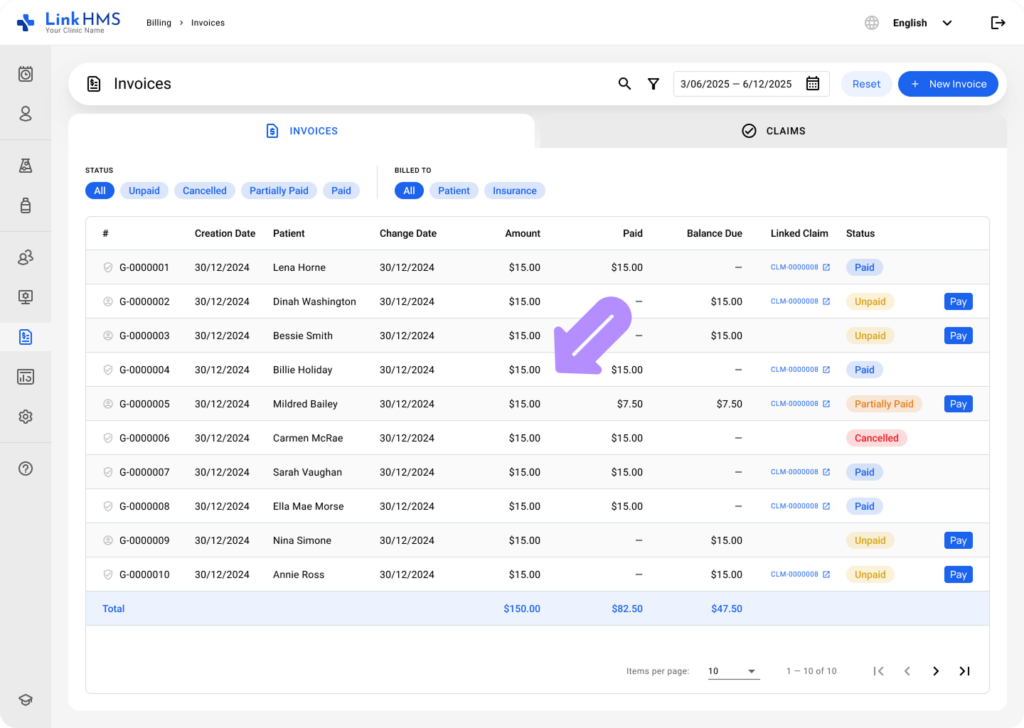
- Locate the necessary invoice and click to open it.
💡Notes
Each invoice has its own editable invoice details fields for updating or removing information as needed. Changes apply only to that specific invoice, so you can customize details individually.
- Open the Invoice Details section below the pending service payments.
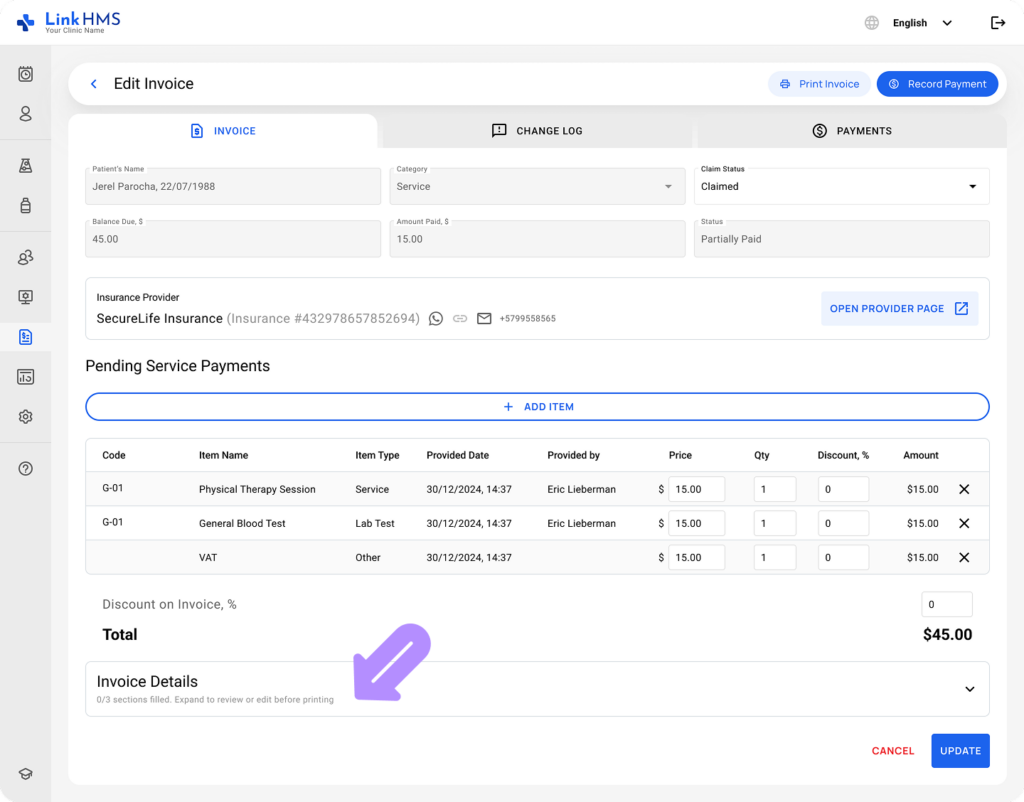
- Fill in the necessary details in each invoice field, and any empty fields will be excluded from the generated PDF.
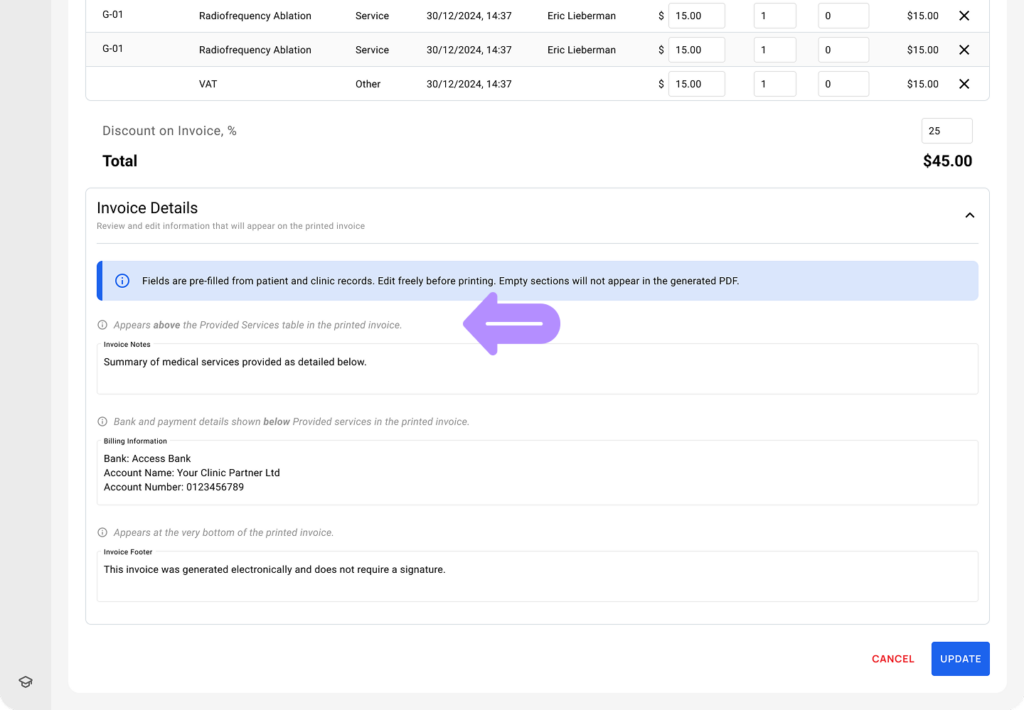
- Invoice Notes (up to 250 characters)
Displayed above the Provided Services section in the printed invoice.
Example: Issued for services rendered.
- Billing Information (up to 250 characters)
Includes bank details, payment instructions, or additional notes shown below the Provided Services section.
Example: Payment is due as indicated. For inquiries, contact the clinic.
- Invoice Footer (up to 250 characters)
Appears at the bottom of the printed invoice.
Example: All services listed above were provided as described. This document serves as an official financial record.
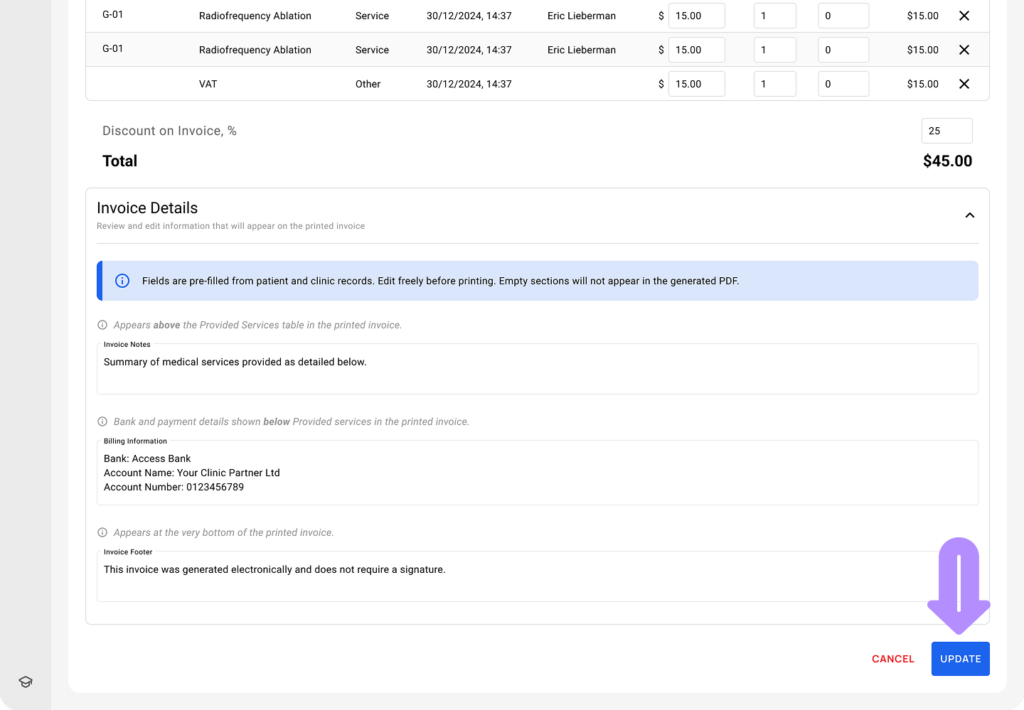
- Review your changes and click Update to save them.
💡Notes
After saving, these details appear only on the invoice they were updated on. It keeps clinic information consistent while allowing changes on specific invoices.