💡Notes
Cost splits are calculated automatically by the system, but can be updated by the HMO officer for individual items when a correction is required, without affecting the overall plan coverage. When an insurer approves only part of a claim, you can additionally allocate the cost between the insurer and the patient.
Where splits can be edited
- While the claim is in Draft. Before you submit a claim, you can set the expected split for each item. This is an estimate of what the insurer will likely cover, based on the configured coverage plan for the patient’s insurance.
- When you record the insurer’s decision. Once the insurer responds, you enter their outcome item by item. For anything marked Partial, you set the exact split yourself, based on the insurer’s decision. This overrides whatever estimate was set back in Draft.
💡Notes
Splits are locked while a claim is Submitted. You cannot change them until the decision comes back and you record it in the system.
Setting a split for a partial item in a draft
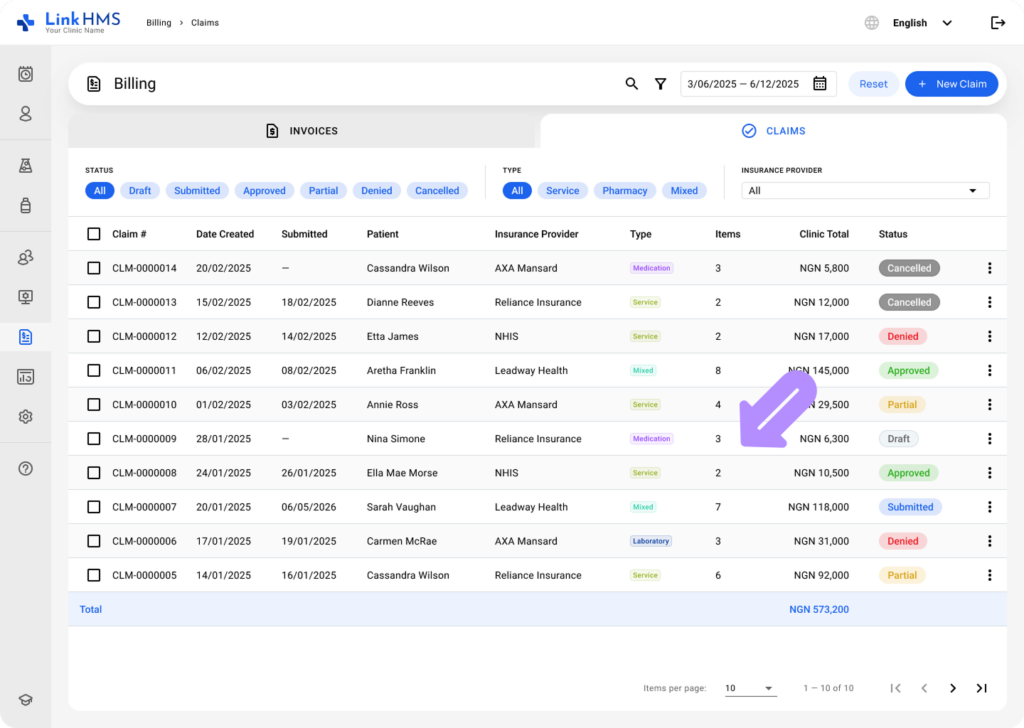
- Open the draft claim to set a split before submission.
💡Notes
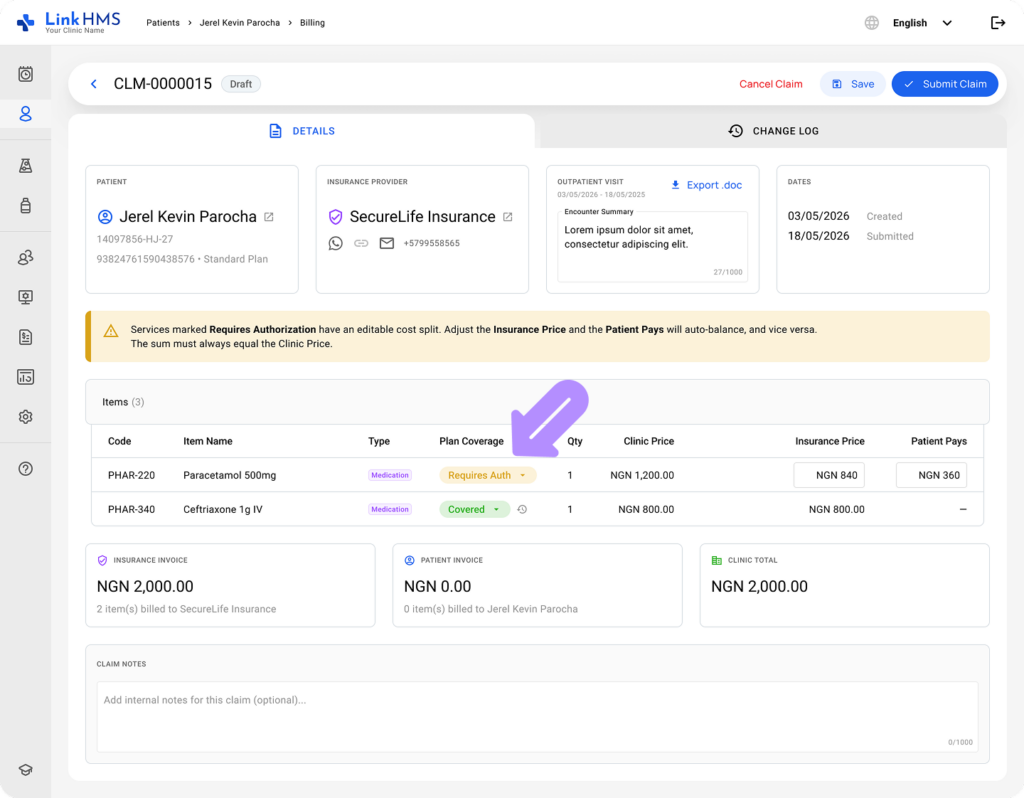
If an item’s usual coverage does not fit this particular claim, you can override it directly on the claim without changing the plan’s coverage settings. This does not affect any other claim or patient; it applies only to the one you are editing. You can reset it back to the plan’s default with one click.
- Find the required item and set its outcome to Requires Authorization.
- Enter the amount to be covered by the insurer.
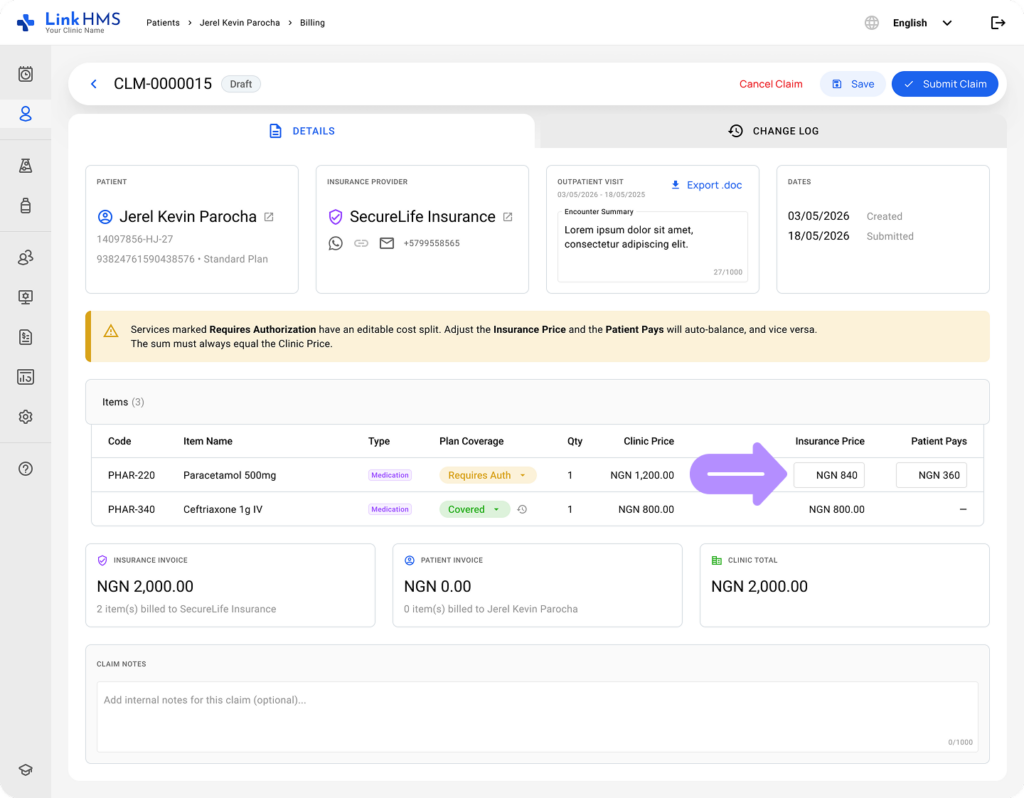
- The remaining balance is automatically assigned to the patient by the system; no manual calculation needed.
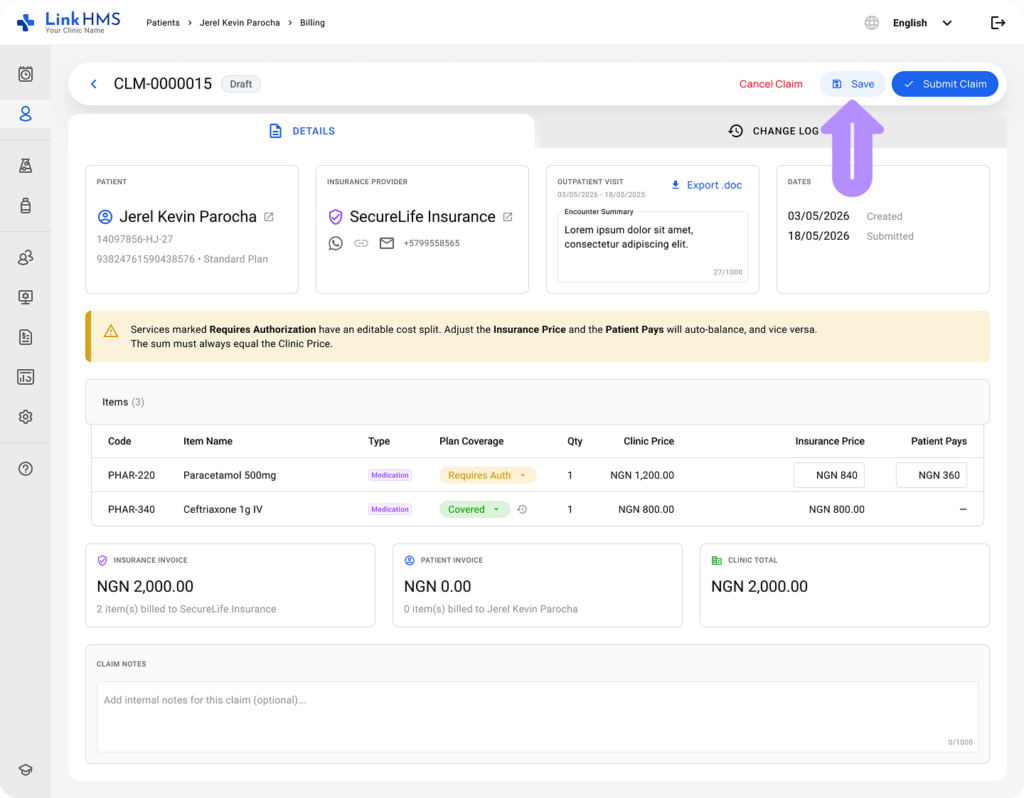
- Click Save to keep the claim as a draft and submit it later, or mark it as Submitted once you have sent it to the insurer. Find the full guide on How to edit the created claim before submission.
Setting a split for a partial item when recording the decision
- Open the claim and click the Record Decision button.
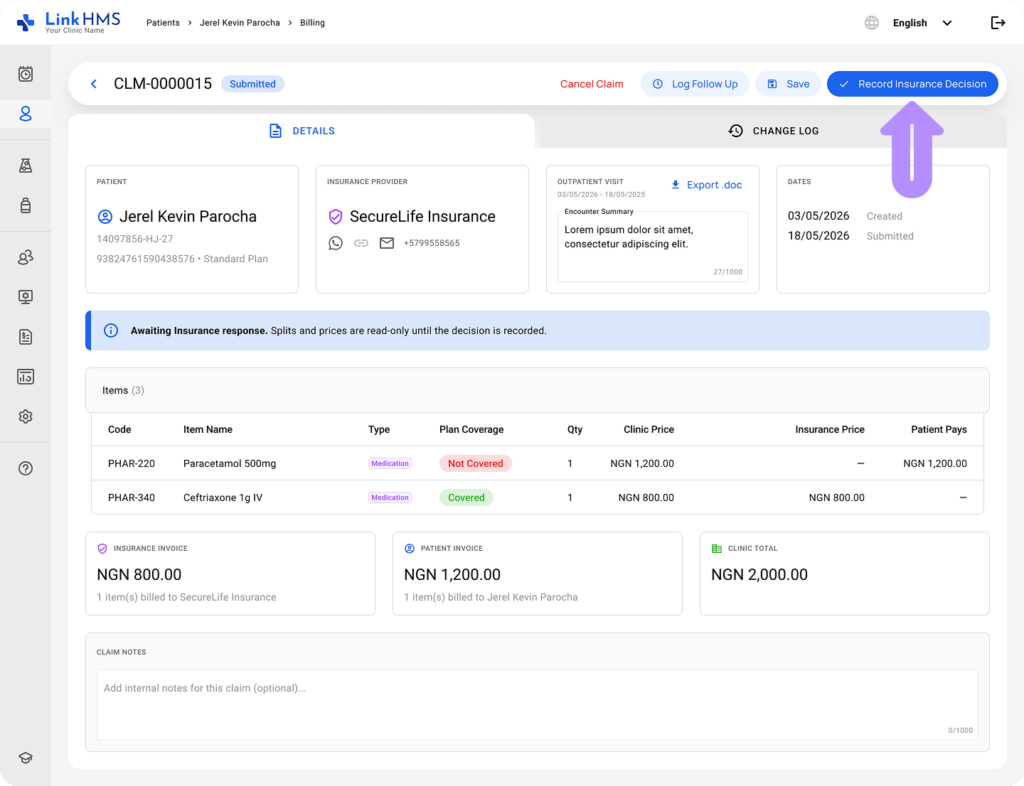
- Find the item and set its outcome to Partial.
- Enter the amount the insurer is covering.
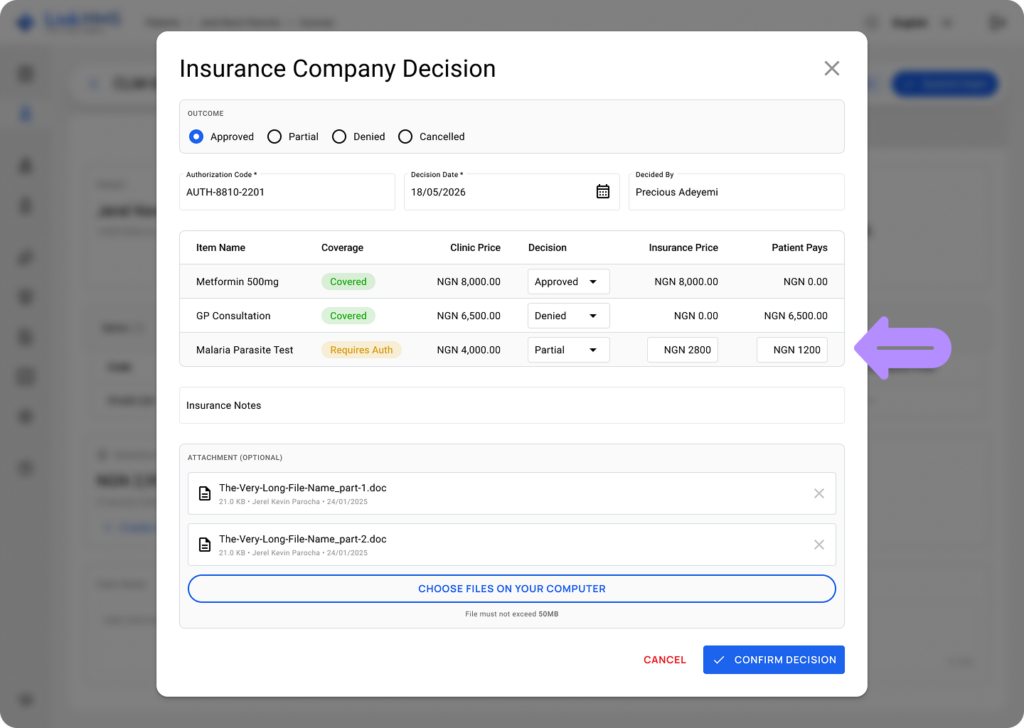
- The remaining amount is automatically assigned to the patient. You do not need to calculate it.
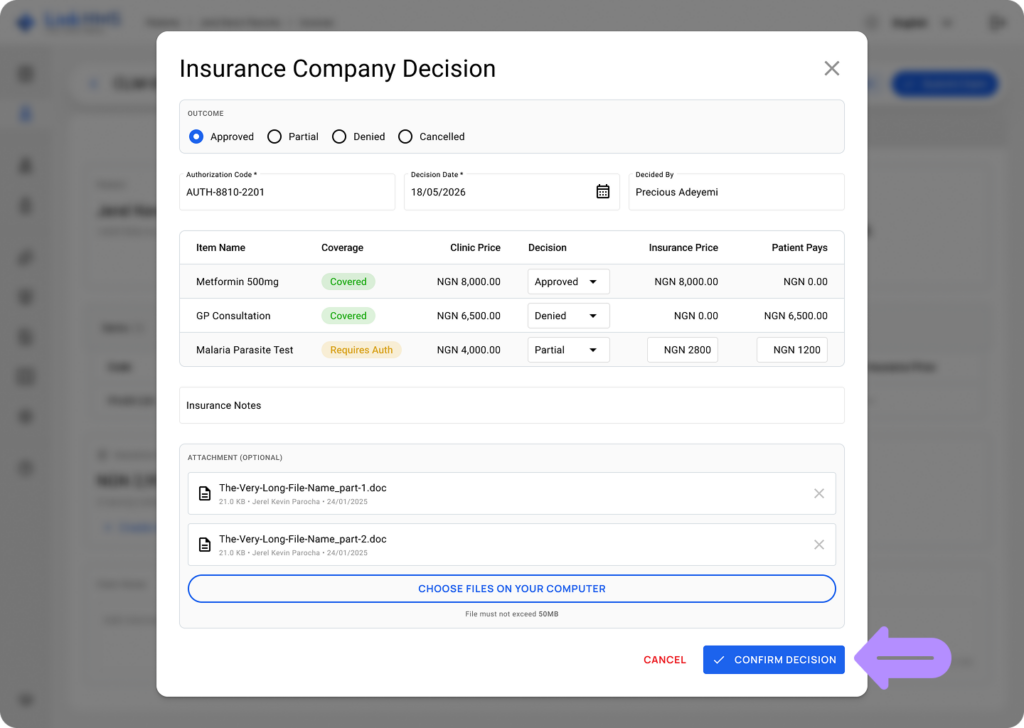
- Once all details are filled in, click Confirm Decision to record the outcome. For additional instructions, refer to the guide How to record insurance decisions for claims.
Where the split shows up
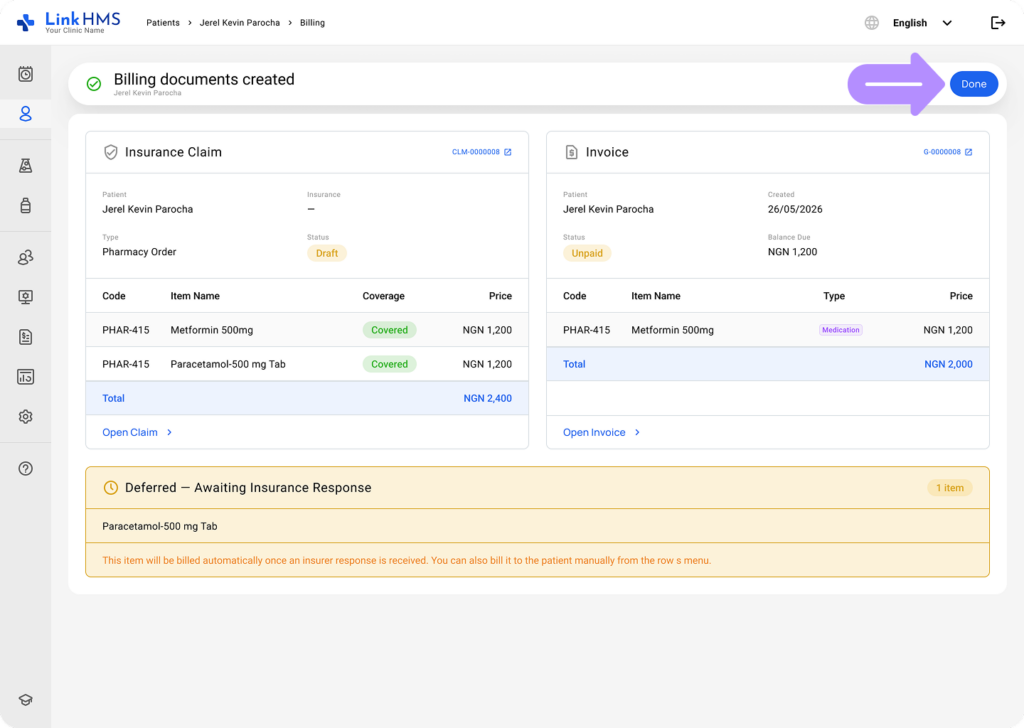
The split is reflected in both the claim record and the generated invoices. Once you save the decision, the split is reflected directly on the two invoices:
- The insurer’s invoice shows their approved share.
- The patient’s invoice shows the remaining balance.
💡Notes
You can review the insurer and patient invoices in the Invoices section before either invoice is finalized for billing.