By adding invoice-specific details in your clinic settings, you can customize how your invoices appear and ensure consistency across all financial documents.
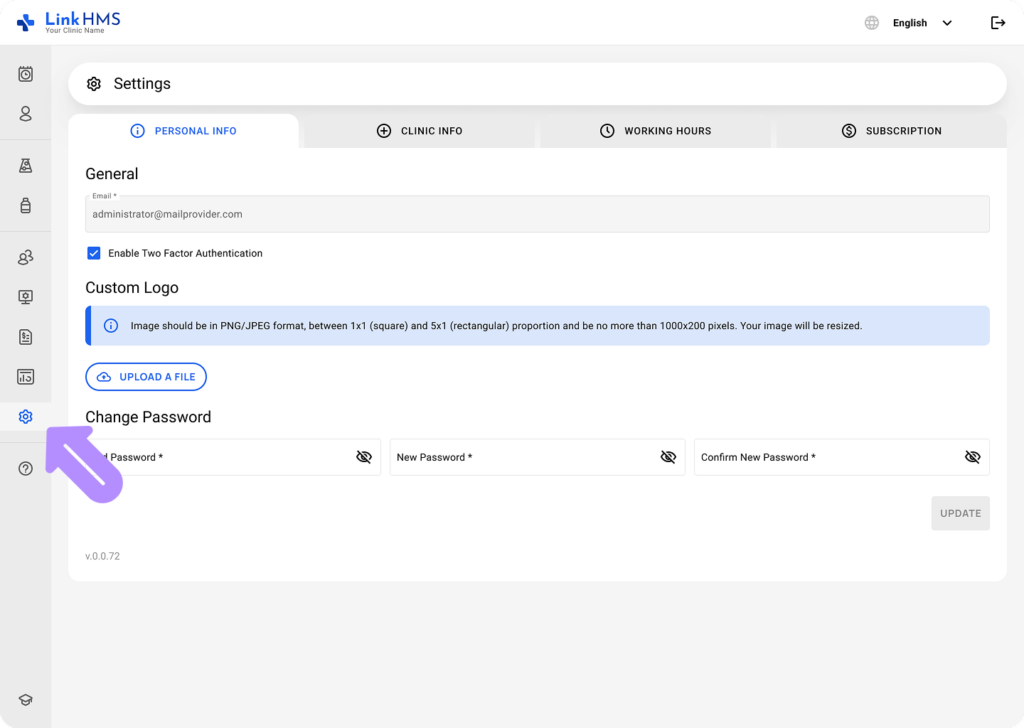
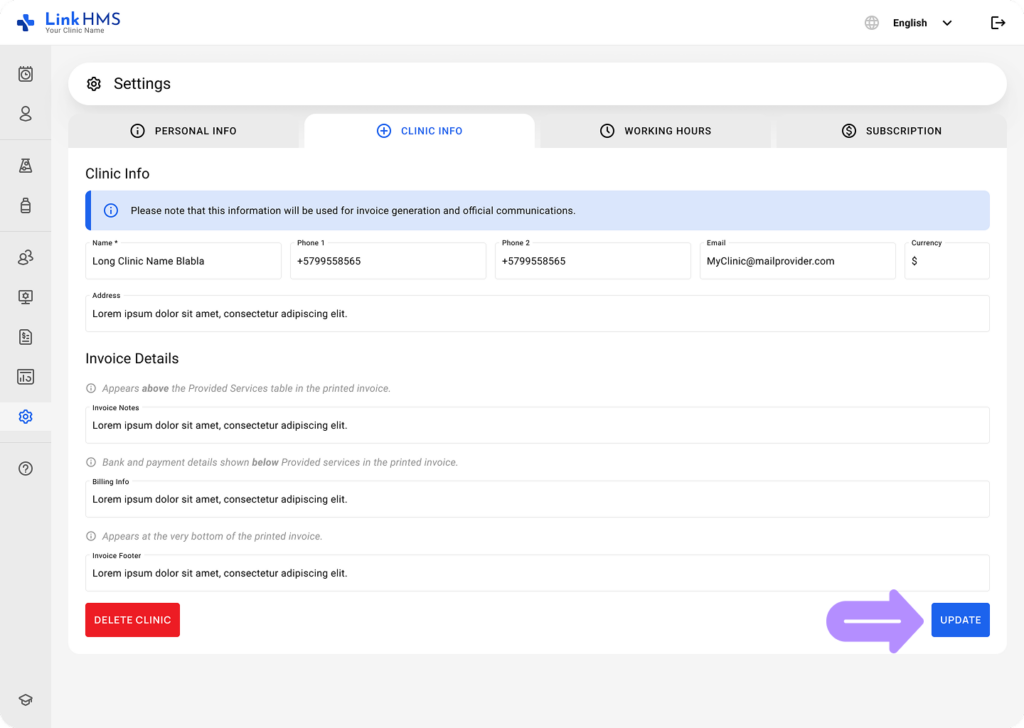
- Open Settings from the side menu.
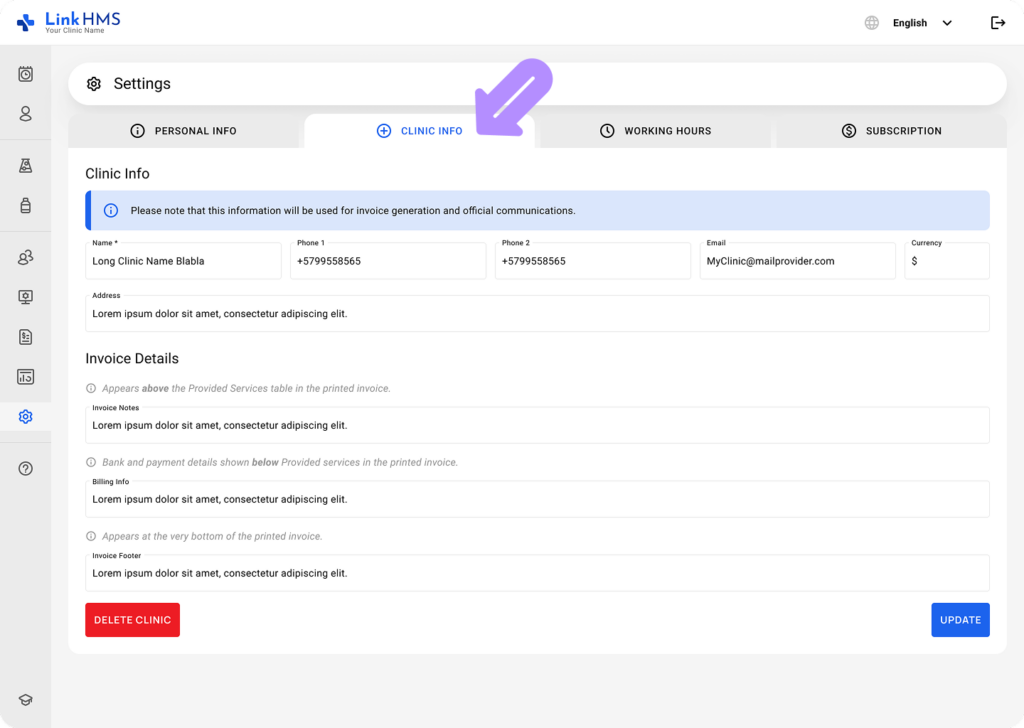
- Select the Clinic Info tab.
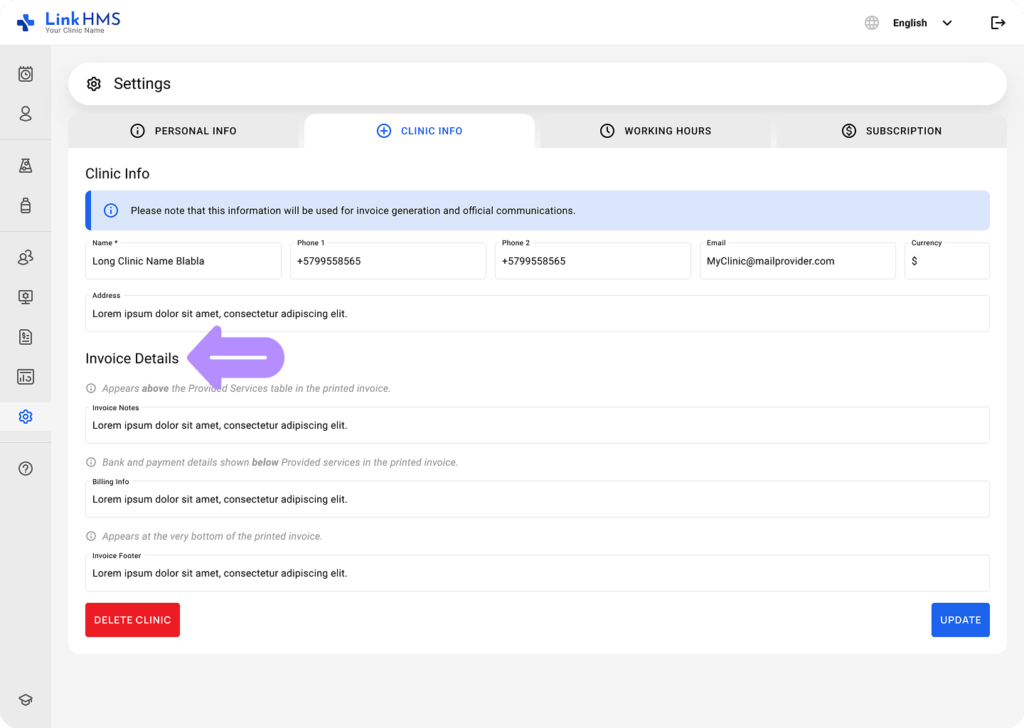
- Locate the Invoice Details section below your general clinic information.
- Enter the relevant information in each invoice field.
💡Notes
Please note that this information will be used for invoice generation and official communications.
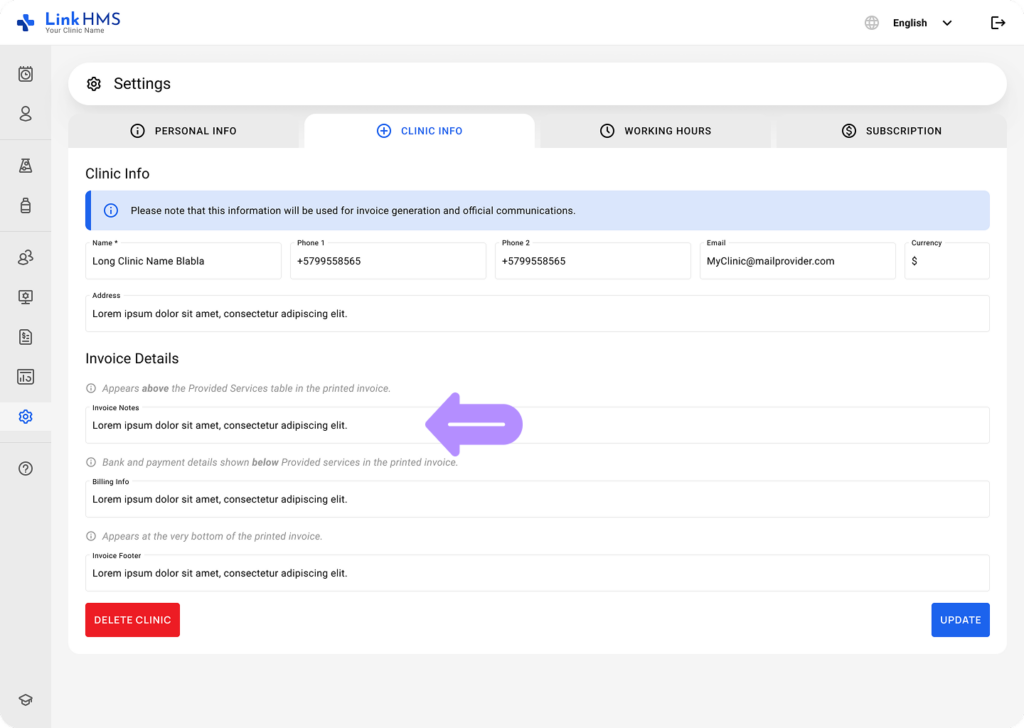
- Invoice Notes (up to 250 characters)
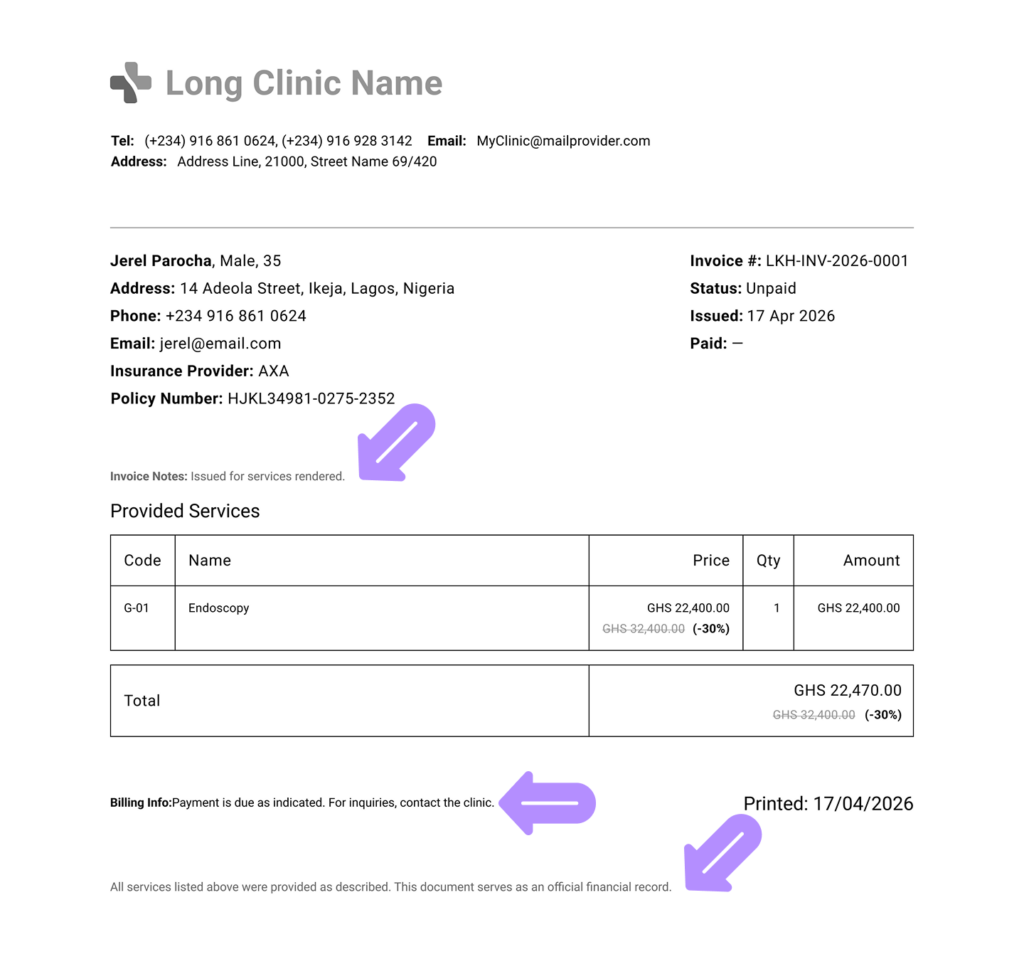
The text will appear above the Provided Services table in the printed invoice.
Example: Issued for services rendered.
- Billing Info (up to 250 characters)
Bank and payment details, or additional clarifications shown below Provided services in the printed invoice.
Example: Payment is due as indicated. For inquiries, contact the clinic.
- Invoice Footer (up to 250 characters)
This text appears at the very bottom of the printed invoice.
Example: All services listed above were provided as described. This document serves as an official financial record.
- Review the added information and click Update to apply your changes.
💡Notes
Once saved, these details will automatically be included in all generated invoices.
This ensures your clinic maintains a professional, consistent, and informative format for every financial document.