Finalizing a pregnancy completes the pregnancy timeline in LinkHMS by recording the outcome and closing the active pregnancy record within the patient’s history.
💡Notes
Before finalizing a pregnancy, review the pregnancy information for accuracy, confirm the fetus count and labels (for multiple pregnancies), and ensure all key ultrasound findings and attachments are recorded. Once finalized, the record remains available for review but can no longer be edited.
Accessing the Finalize Pregnancy Subtab
- Go to the Pregnancies tab.
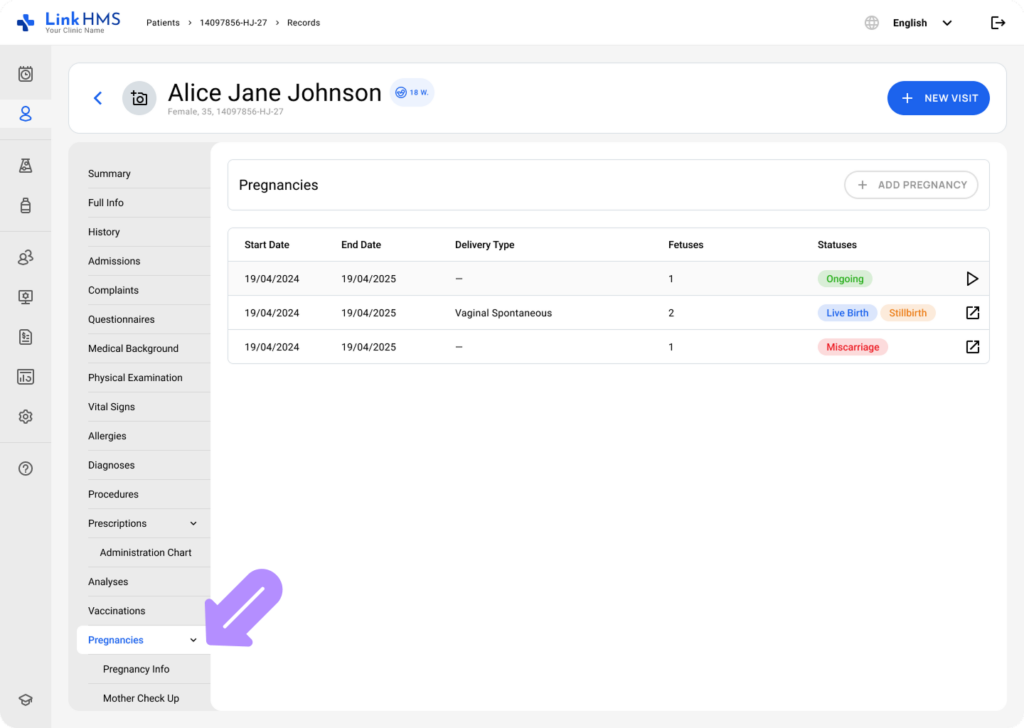
💡Notes
Confirm that the patient has an active pregnancy record to use the required pregnancy subtabs.
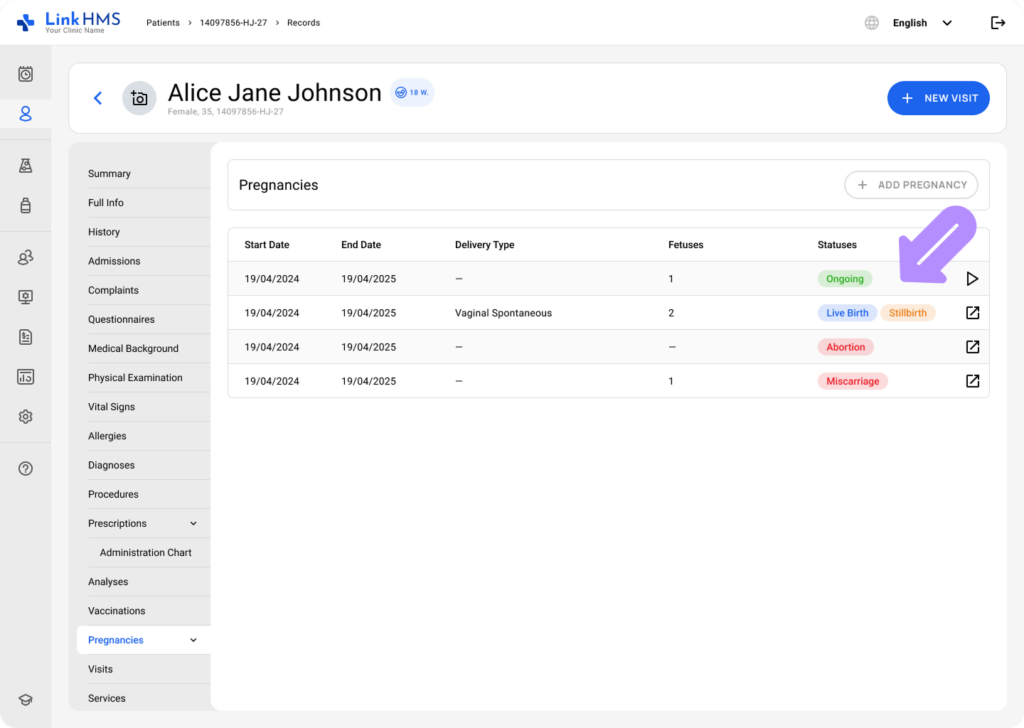
- Open the active pregnancy record.
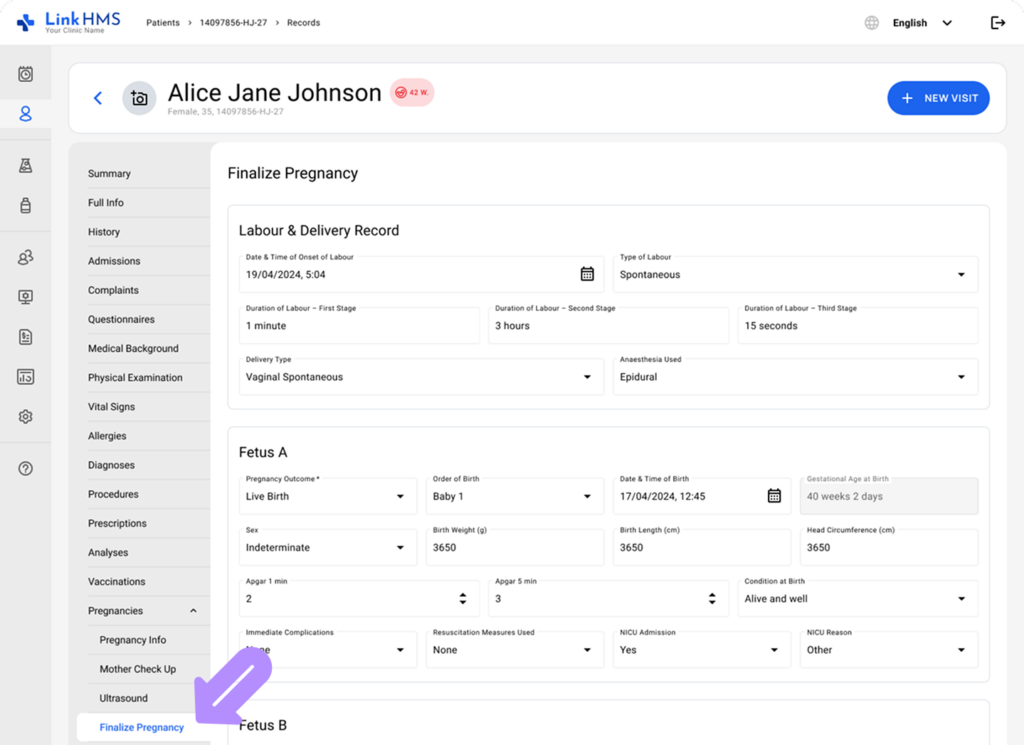
- Select Finalize Pregnancy from the pregnancy subtabs.
Finalizing the Pregnancy
💡Notes
In LinkHMS, pregnancy finalization can follow one of two options: Live Birth / Stillbirth or Miscarriage / Abortion. Your need to select the option that matches the pregnancy outcome, as it determines which fields appear next.
Pregnancy Finalization: Live Birth or Stillbirth
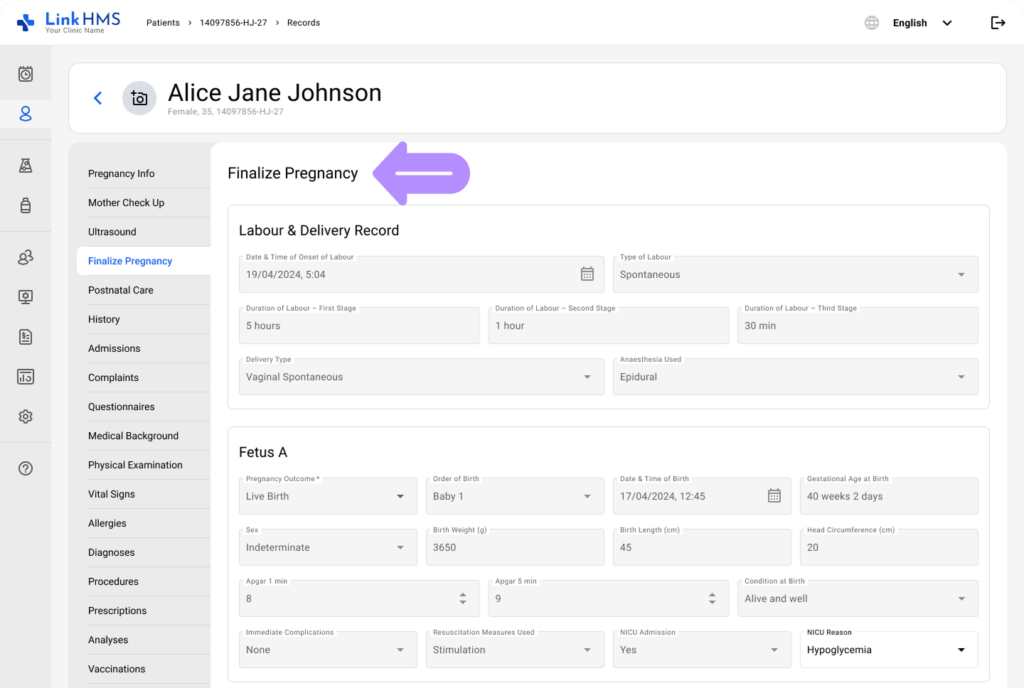
- Enter labour and delivery information first. The following fields are mandatory:
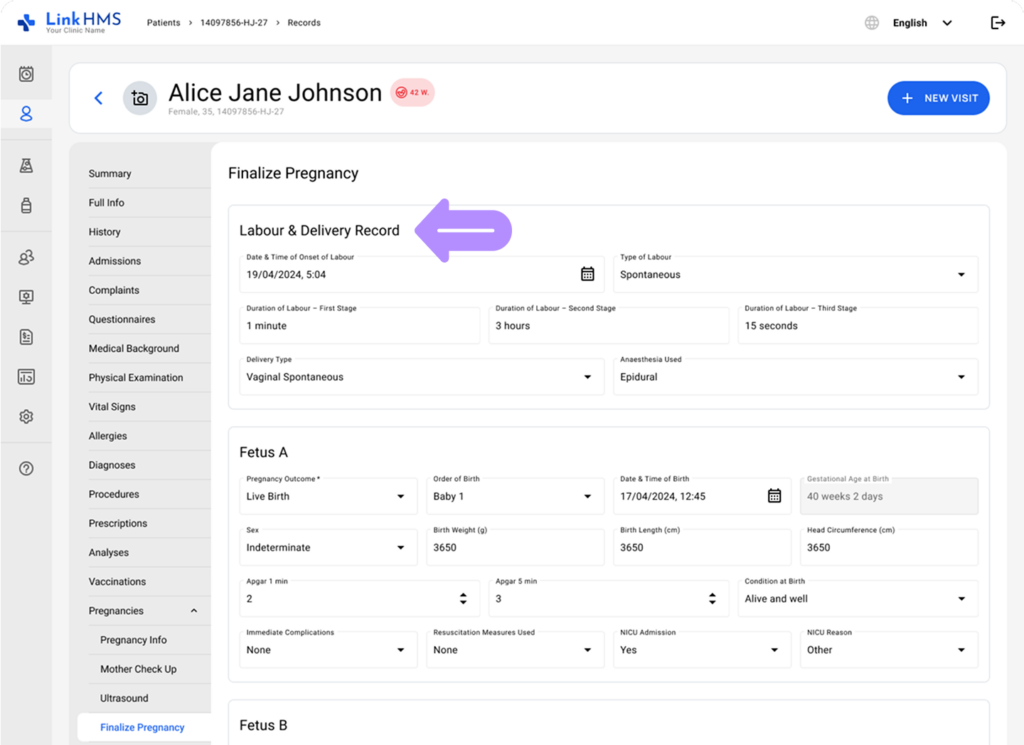
- Date and Time of Onset of Labour – Record the date and time labour started.
- Type of Labour – Select the type of labour (Spontaneous, Induced, Augmented)
- Delivery Type – Choose the delivery type from the dropdown options (Vaginal Spontaneous, Vaginal Assisted, Emergency C-section, Elective C-section)
- Additional fields may be completed if available:
- Duration of Labour (First Stage, Second Stage, Third Stage) – Document the duration of labour by stage.
- Anaesthesia Used – Indicate whether anaesthesia was used and select the applicable type (Epidural, Spinal, General, None)
💡Notes
After entering the labour and delivery details, proceed to the newborn details. Newborn information is recorded per fetus, meaning each fetus in the pregnancy requires a separate outcome and birth record. This is especially important for multiple pregnancies, where outcomes may differ.
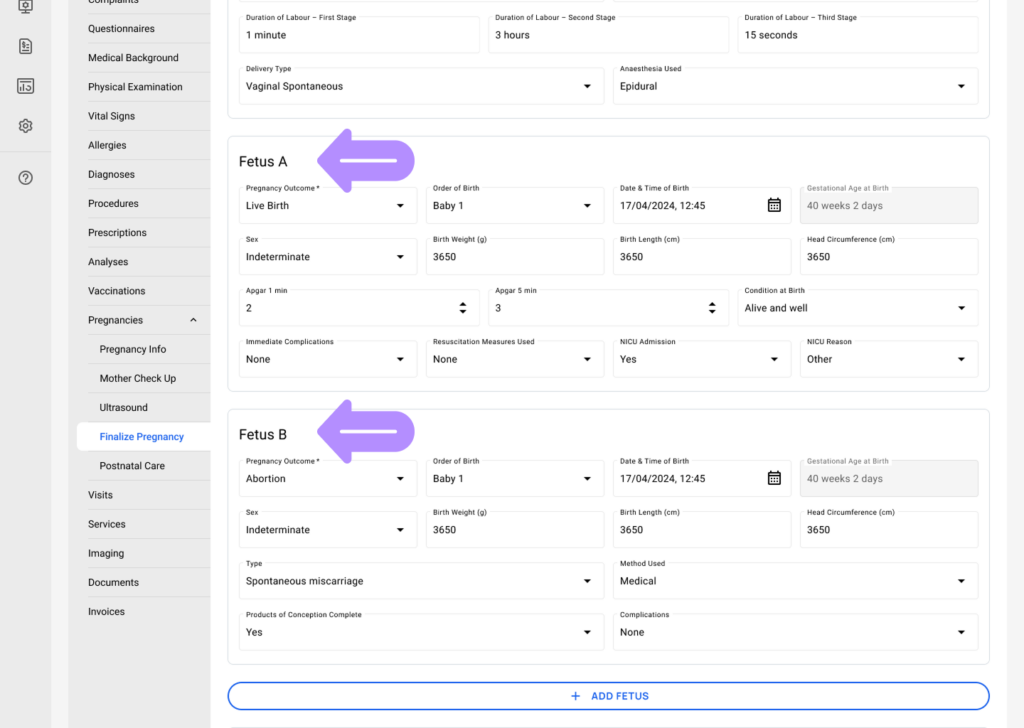
- Mandatory fields per fetus include:
- Pregnancy Outcome – Choose Live Birth or Stillbirth as the outcome. Selecting Miscarriage or Abortion will display termination-specific fields.
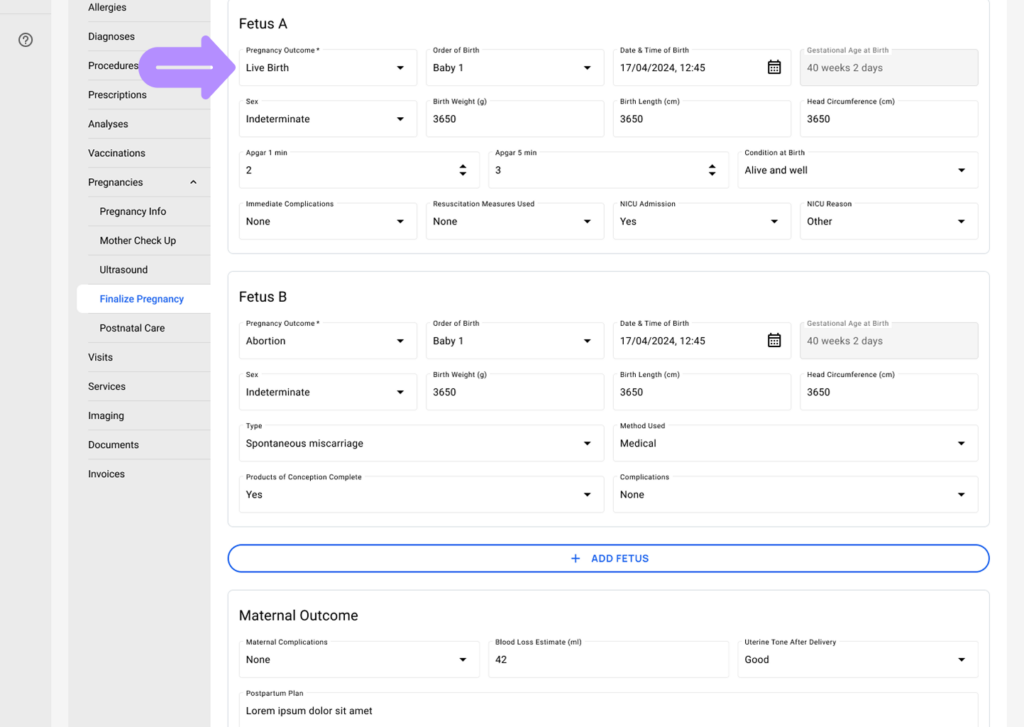
- Order of Birth – Choose the birth order for the newborn (Baby 1, Baby 2, Baby 3+, etc.). If the pregnancy includes only one fetus, the field is disabled and Baby 1 is selected by default.
- Date and Time of Birth – Record the date and time of birth.
- Sex – Select the sex of the newborn (Male, Female, or Indeterminate)
- Birth Weight (g) – Enter the newborn’s birth weight in grams.
- Condition at Birth – Choose the condition at birth (Alive and well, Resuscitation needed, Stillbirth). If Condition at Birth is set to Resuscitation needed, the Resuscitation Measures Used field becomes mandatory.
- Resuscitation Measures Used – Select the resuscitation measures used. (None, Stimulation, Suction, Oxygen, Ppv, Chest Compressions, Other)
- Other fetus fields may be entered where relevant for the newborn:

- Birth Length (cm) – Record the newborn’s birth length in centimeters.
- Head Circumference (cm) – Record the head circumference.
- Gestational Age at Birth – The gestational age at birth is auto-filled based on the pregnancy record.
- Apgar (1 min and 5 min) – Specify the Apgar scores at 1 minute and 5 minutes.
- Immediate Complications – Record any immediate complications observed. (None, Shoulder Dystocia, Cord Prolapse, Meconium Aspiration, Asphyxia, Birth Trauma, Other)
- NICU Admission – Specify whether NICU admission is required. (Yes/No) If NICU admission is set to Yes, the NICU reason field becomes mandatory.
- NICU Reason – Choose the reason for NICU admission. (Respiratory Distress, Sepsis Evaluation, Prematurity, Hypoglycemia, Jaundice Treatment, Other)
💡Notes
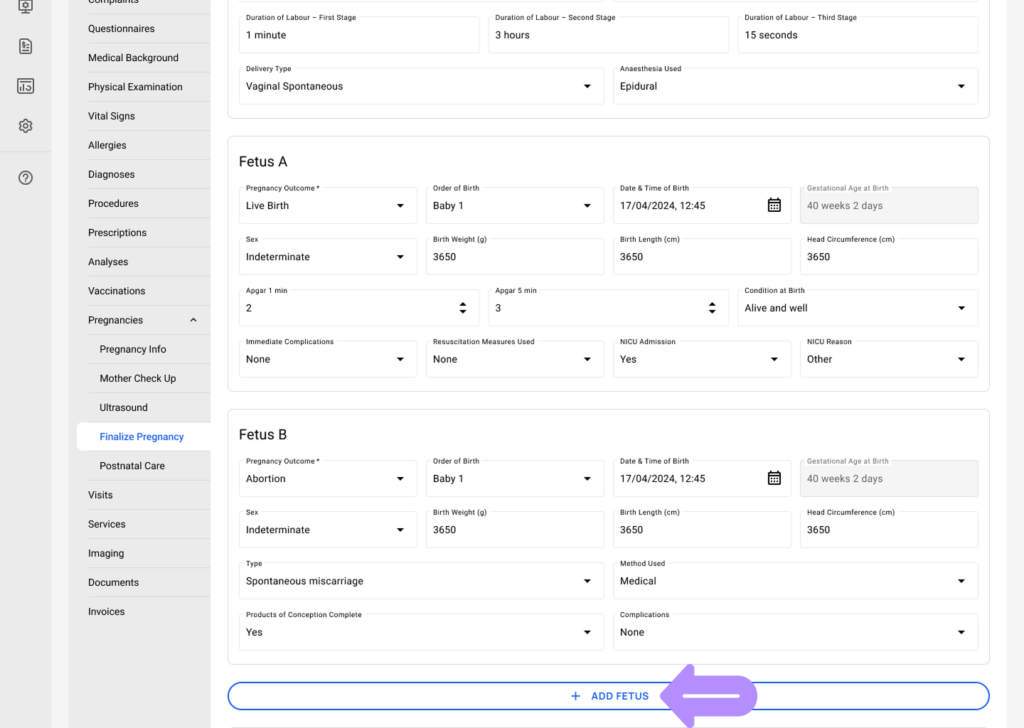
For multiple fetuses, repeat the process to record details for each one. If outcomes differ between fetuses (for example, one live birth and one stillbirth), record each fetus separately in the per-fetus section. If required, click the + Add Fetus button to record the additional fetus.
Pregnancy Finalization: Miscarriage or Abortion
💡Notes
If the pregnancy outcome is Miscarriage or Abortion, LinkHMS switches to the termination record format. This ensures that only relevant termination details are recorded, without requiring unrelated labour or delivery fields for the chosen fetus.
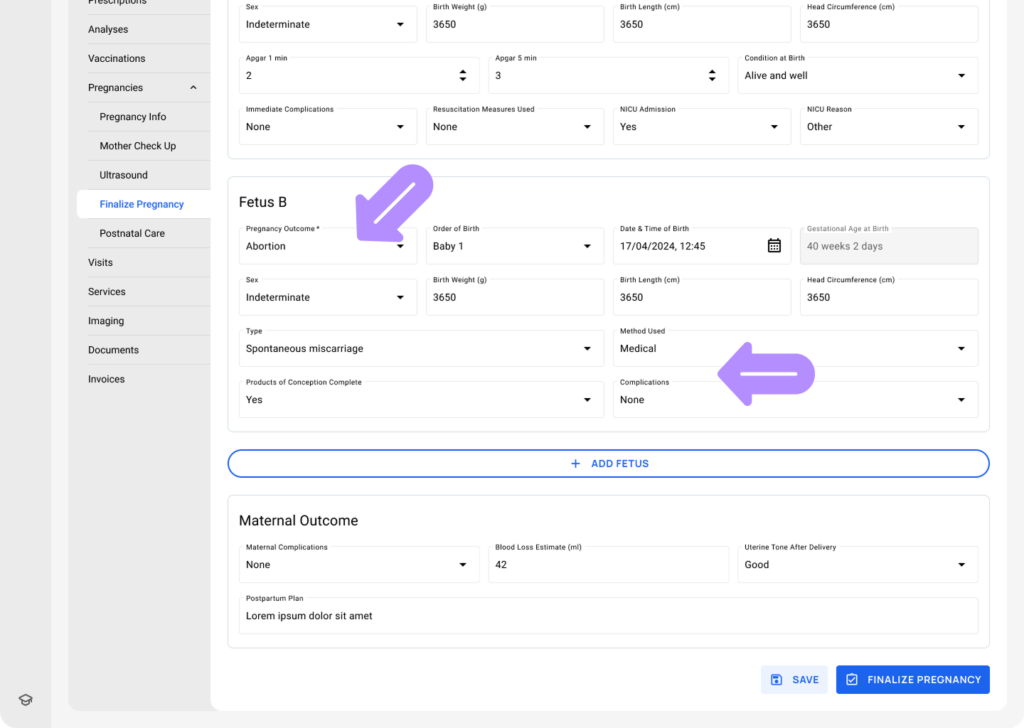
- Common fields include:
- Pregnancy Outcome – Choose Miscarriage or Abortion as the outcome.
- Type – Choose the applicable type (Spontaneous miscarriage, Missed miscarriage, or Induced abortion).
- Method Used – Record the method used (Medical, Surgical, or Expectant management)
- Products of Conception Complete – Document completion of products of conception (Yes/No).
- Complications – Add any complications by choosing the appropriate option (None, Haemorrhage, Infection, or Other).
Recording Maternal Outcome (applies to all pregnancy outcomes)
💡Notes
This section helps ensure the pregnancy record reflects both fetal and maternal outcomes.
- Regardless of which pregnancy outcome is chosen, you need to record maternal outcome information to complete the clinical picture. The fields include:
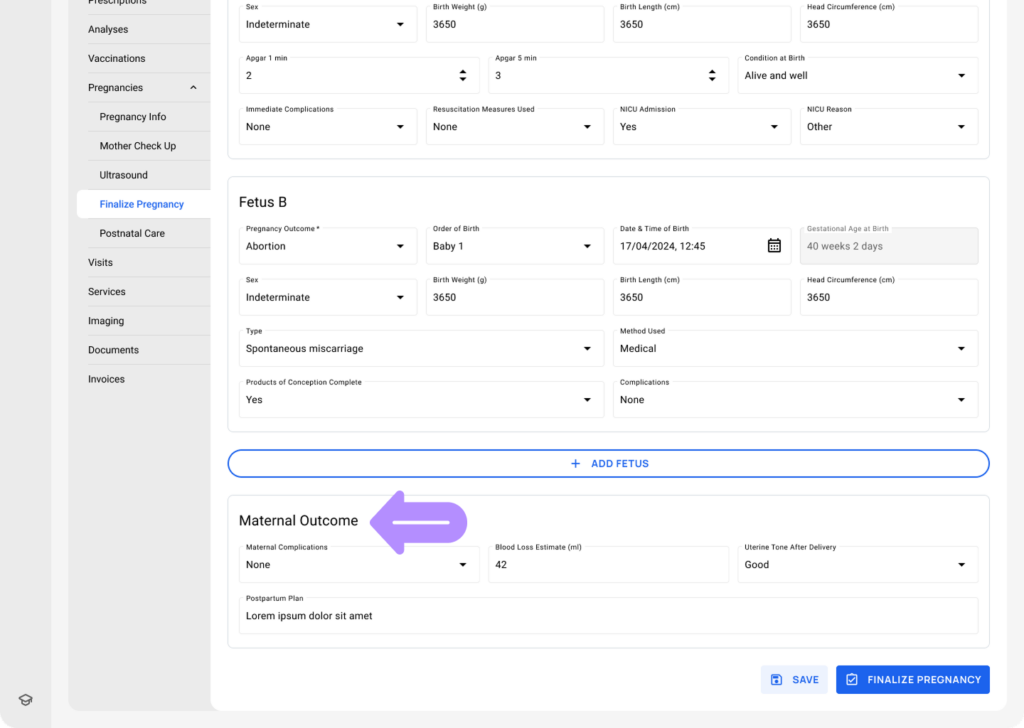
- Maternal Complications – Choose the applicable maternal complication from the dropdown (None, Postpartum, Haemorrhage, Tears/Episiotomy, Infection, or Other)
- Blood Loss Estimate (ml) – Record the blood loss estimate in milliliters.
- Uterine Tone After Delivery – Select the uterine tone after delivery. (Good or Atonic)
- Postpartum Plan – Record the postpartum care plan.
Confirming the Pregnancy Finalization
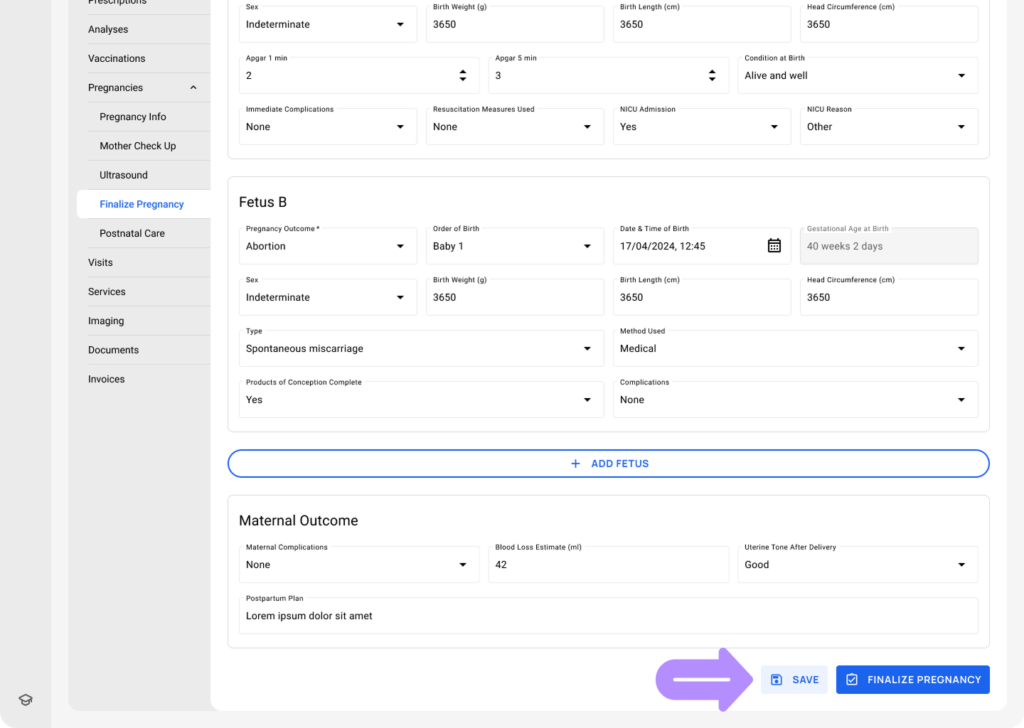
- Finalization should occur once outcomes are known. Use the Save button to record any required updates before finalization.
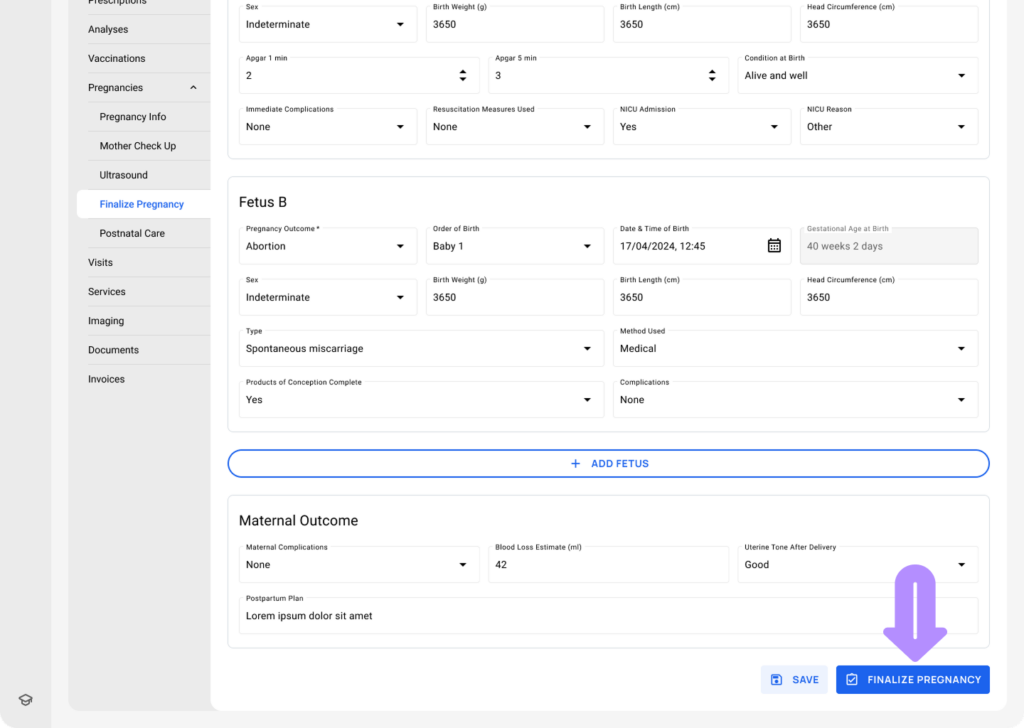
- Once all information is complete, click the Finalize Pregnancy button to finalize the pregnancy.
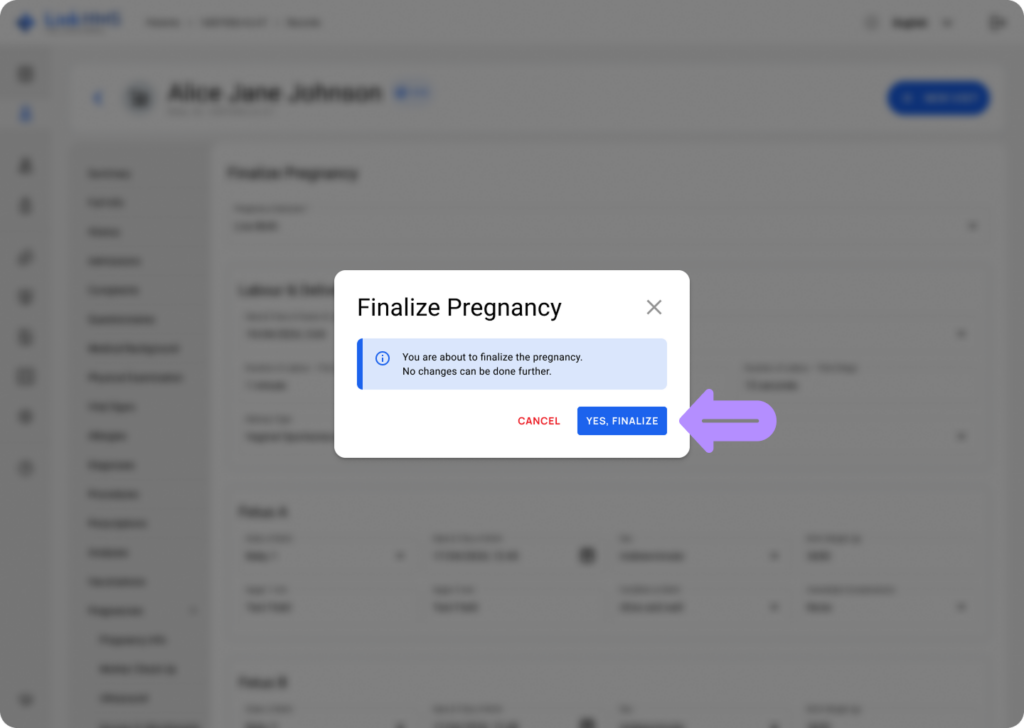
- The Finalize Pregnancy confirmation pop-up appears to indicate that no further changes are allowed.
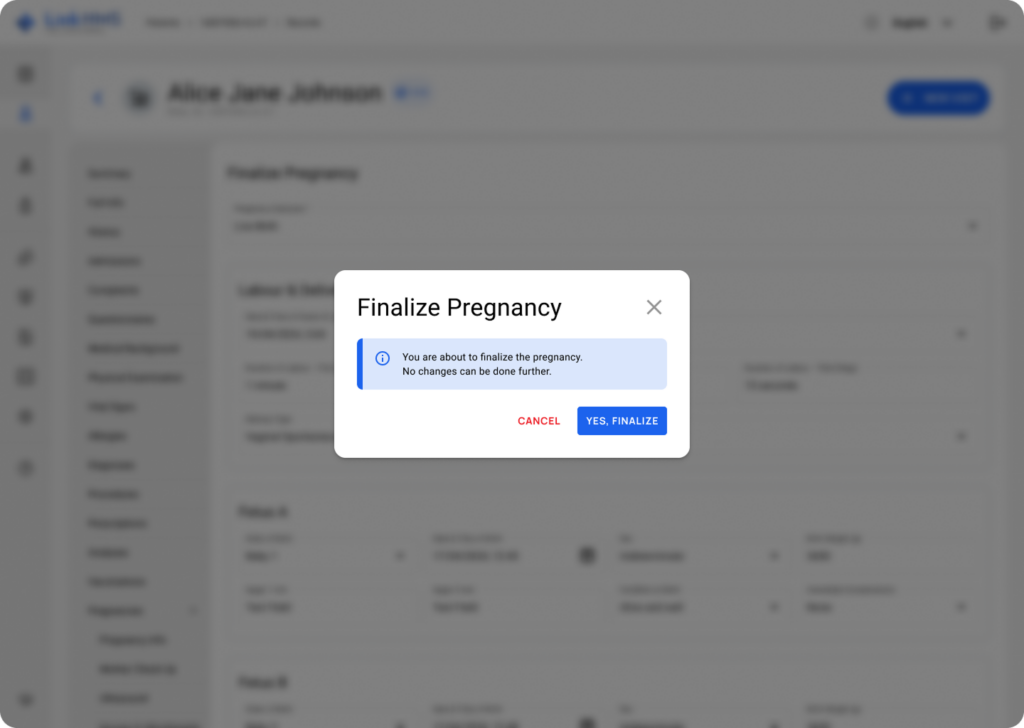
- Select Cancel to return to the subtab without locking the record, or Yes, Finalize to confirm and lock the pregnancy record.
After Confirming the Pregnancy Finalization
Once a pregnancy is finalized:
- The pregnancy record remains available for review.
- The gestational age calculation stops at the pregnancy end date.
- The pregnancy is added to the pregnancy history for future reference.

- The pregnancy record becomes locked and cannot be edited.
Finalize Pregnancy in LinkHMS completes the pregnancy timeline by recording outcomes and locking the chosen record. The workflow supports both delivery and termination options, captures maternal outcome details, and preserves a clear pregnancy history that can be reviewed at any time in future care.