When a patient submits an appointment request through the patient portal, it appears in your clinic’s schedule just like any other appointment, but flagged so your staff knows it needs attention. This guide covers how to spot these requests, confirm or cancel them, and what the patient sees at each step.
Spotting a new online request
Every request lands in your schedule with a status of Unconfirmed Online Appointment. Online-originated requests carry a warning-triangle icon on the appointment block; appointments your staff creates directly don’t have this icon.
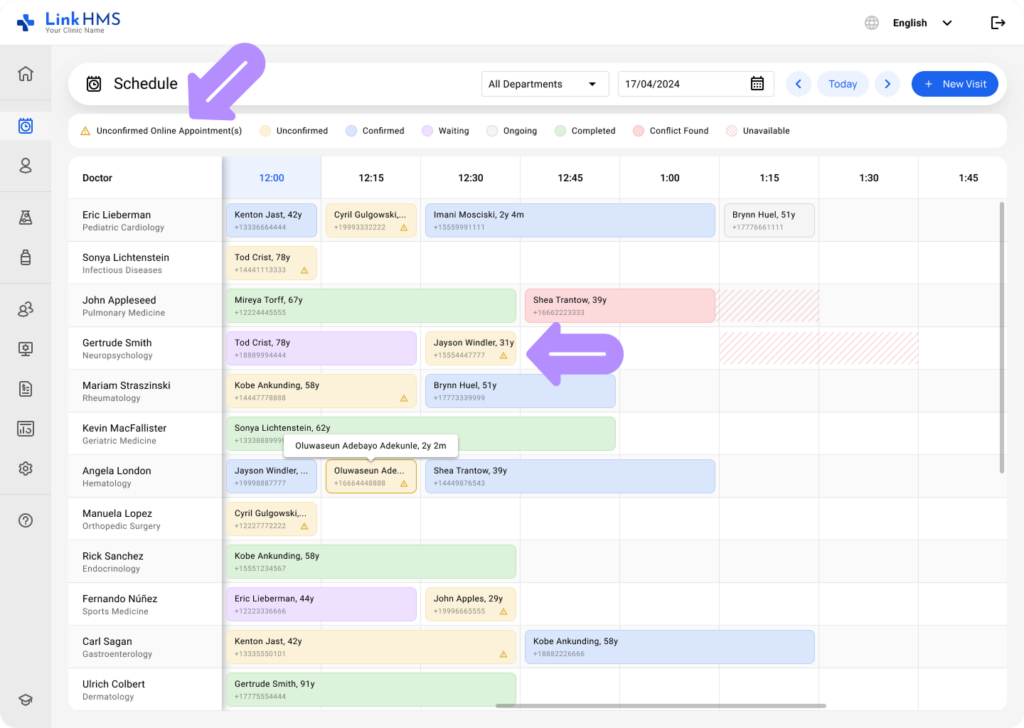
The icon signals that a patient submitted the request and no one has acted on it yet. It clears automatically once you change the status.
Also, you’ll see a live count of unconfirmed online requests. This count reflects your clinic’s total for a 7-day period across all departments and dates, not just what’s currently on screen.
What patients can request
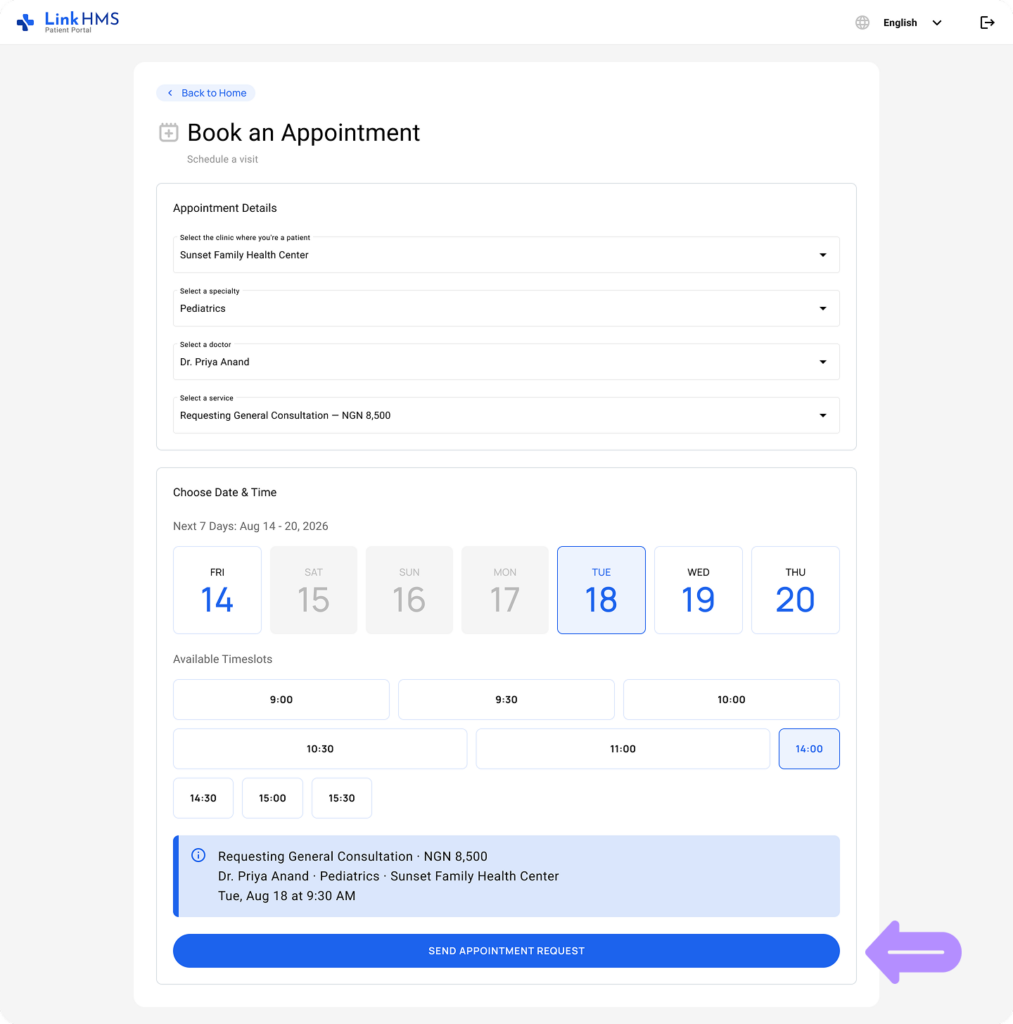
Patients can only request slots within a 7-day rolling window starting today; nothing further out is offered.
There’s also a minimum one-hour lead time: a patient can’t request a slot starting less than an hour after they book, so the very next slot on today’s schedule may not appear as an option.
Days with no available slots show as greyed out and aren’t clickable, whether that’s because the doctor doesn’t work that day, the day is already full, or (for today specifically) everything left falls inside the one-hour cutoff. If a doctor has no availability across the whole window, all seven days appear greyed out.
Open request limits
A patient can hold a maximum of 3 open requests per clinic at once. It refers only to appointments that are still in requested status. Confirmed, completed, or cancelled appointments do not count toward this limit.
If a patient already has 3 open requests at your clinic and tries to submit a new one, they’ll see an error before they can proceed, and the rest of the booking form stays inactive until they either resolve an existing request or choose a different clinic.
How appointment statuses appear in the patient portal
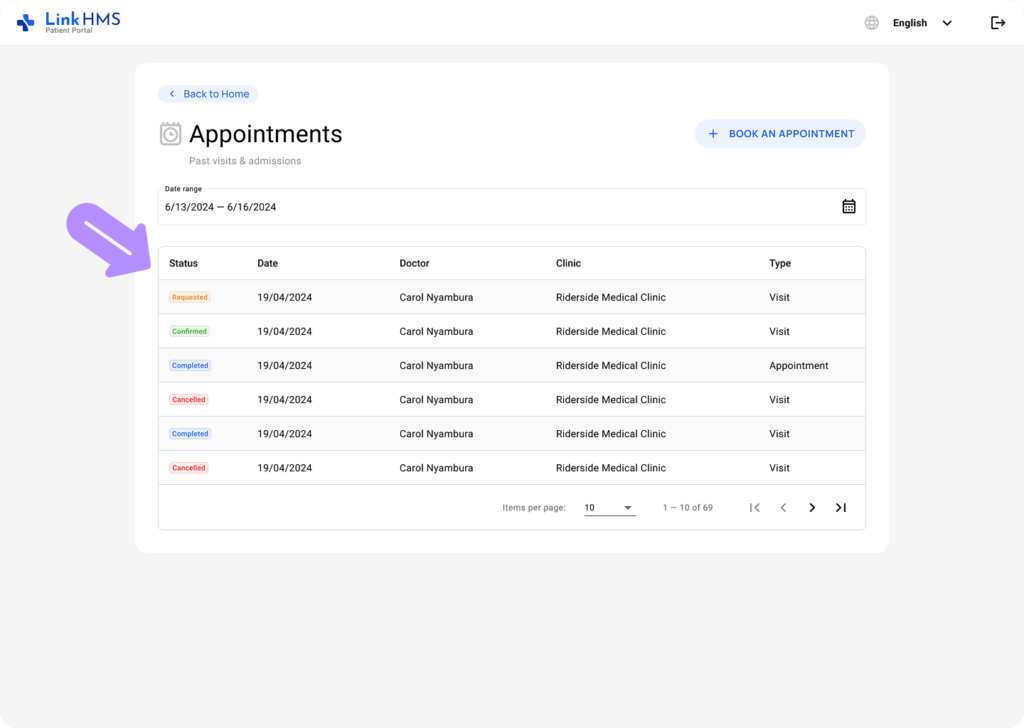
The status shown in the patient portal may differ slightly from the status your team sees in the LinkHMS system.
| Patient portal | The LinkHMS platform |
| Requested | Unconfirmed |
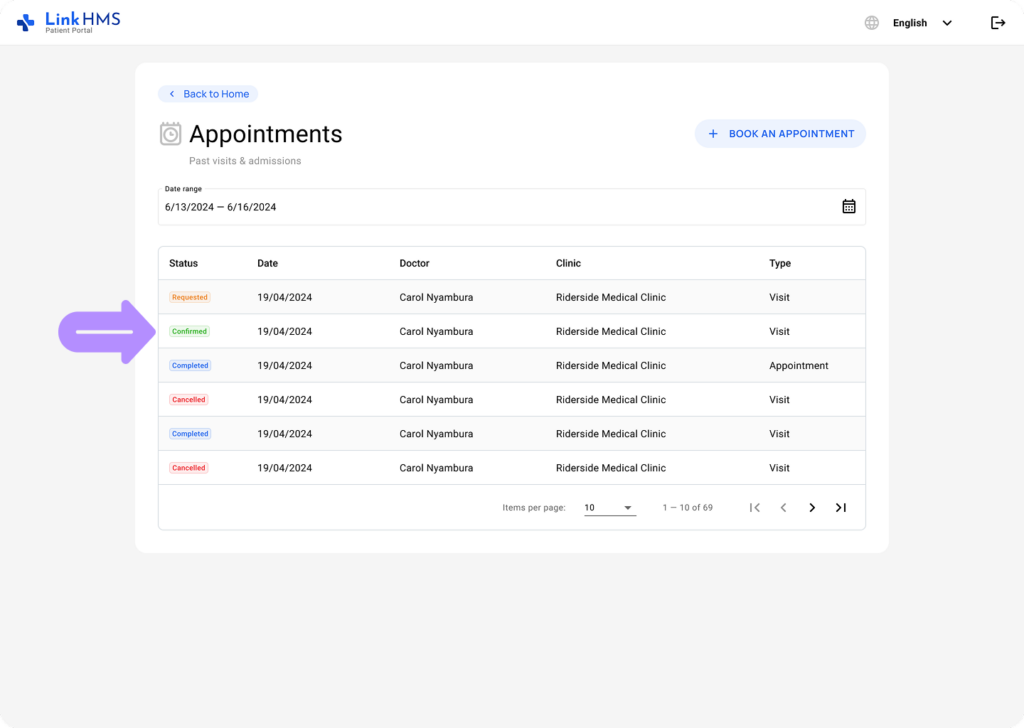
| Confirmed | Confirmed, Waiting, Ongoing |
| Completed | Completed |
| Cancelled | Cancelled |
The additional statuses in LinkHMS help your team manage the appointment internally, while the patient only needs to know that their appointment is confirmed. Patients cannot cancel an appointment request themselves or change its status. Once a request is submitted, your clinic manages its status by either confirming or cancelling the appointment.
Confirming a request
Handle appointment requests submitted through the patient portal the same way you handle any other appointment in LinkHMS. Review the details, make any necessary updates, and confirm the appointment when everything is ready.
- Open the unconfirmed online appointment request in the Schedule module.
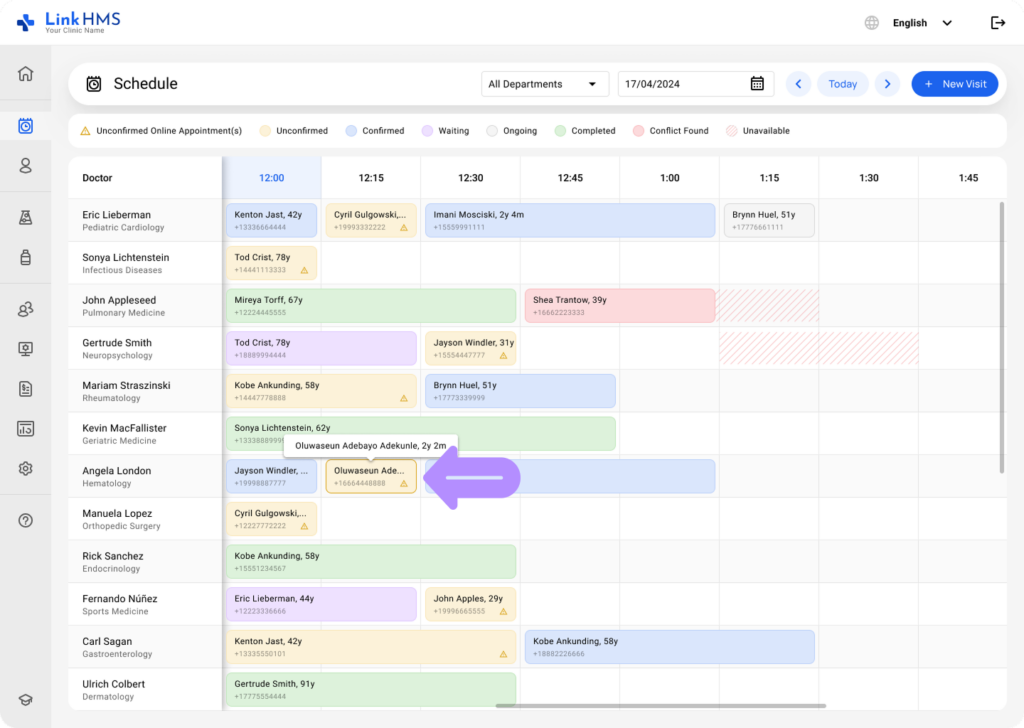
- Optional: Contact the patient if needed (a phone call, a message, whatever your clinic normally does).
- Change the status to Confirmed, Waiting, or Ongoing, as appropriate.
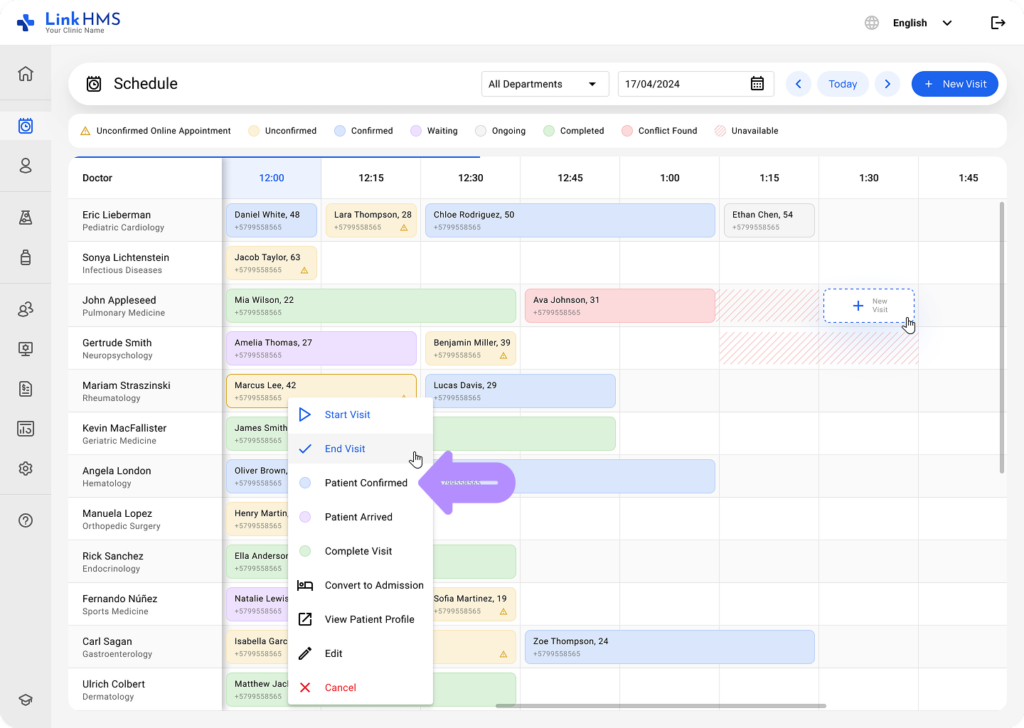
- The patient sees this as Confirmed in their portal. They also receive an automatic confirmation email; so no separate step is required on your end.
Cancelling a request
If the request doesn’t work out, you can change the appointment’s status to Cancelled.
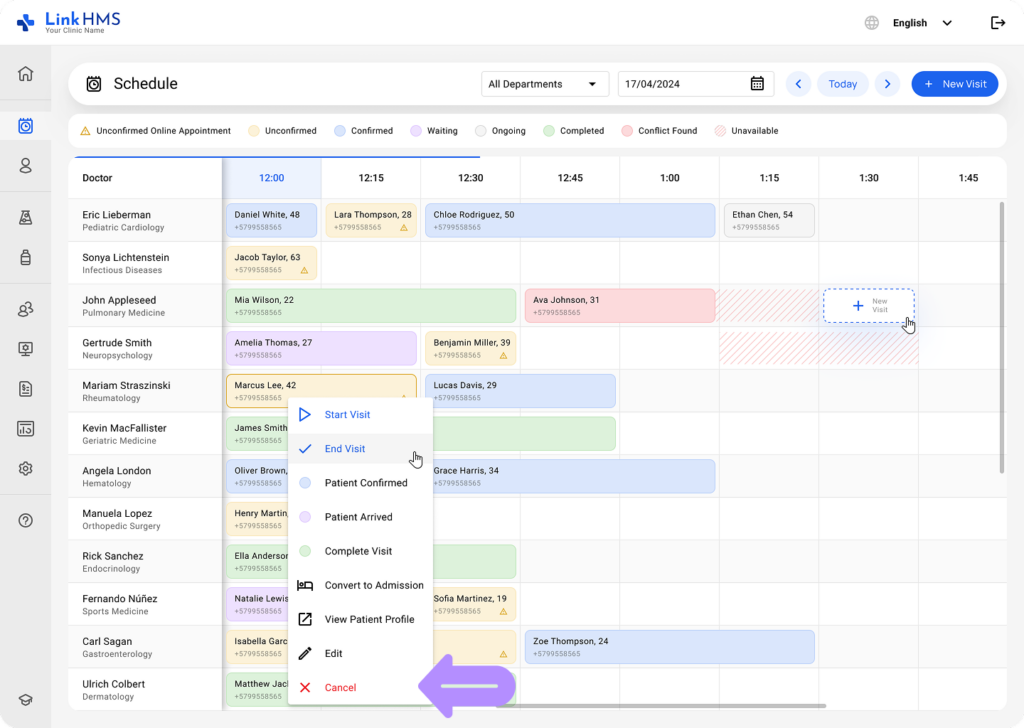
It does two things automatically:
- The patient’s portal shows the appointment as Cancelled.
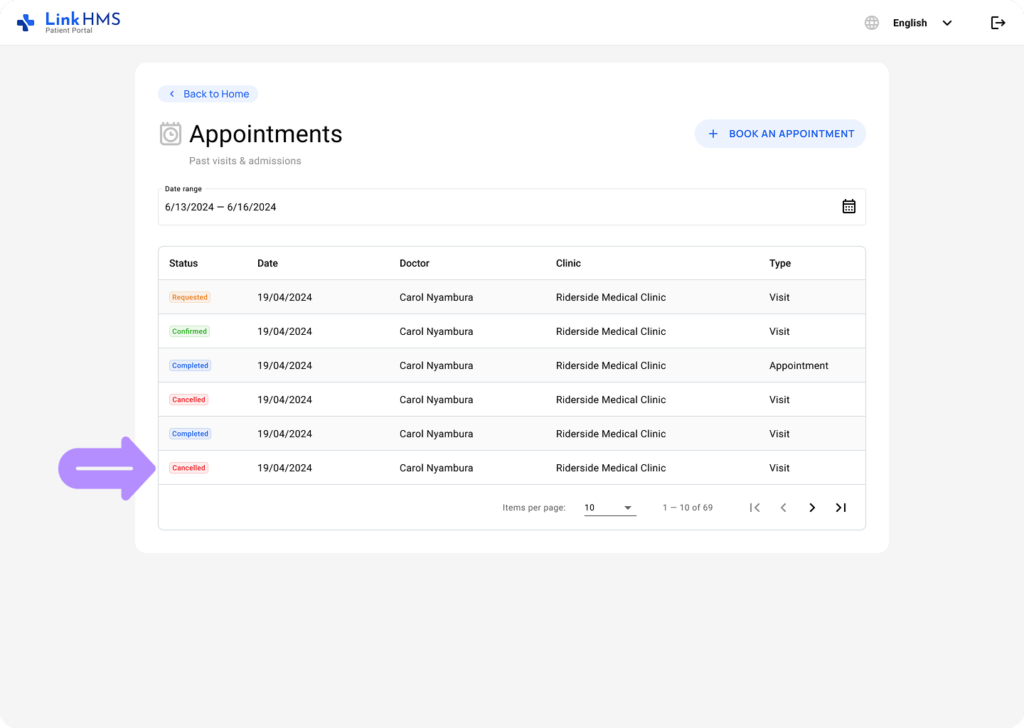
- The patient receives an automatic cancellation email.
💡Notes
Patients can’t cancel their own request once it’s submitted. Only your clinic can change its status. This is intentional, so a request doesn’t disappear from your schedule without your team knowing.
If a request remains Unconfirmed by clinic staff after its scheduled date and time have passed, the LinkHMS system automatically cancels it. This keeps past, unconfirmed requests from remaining active in your schedule.