LinkHMS shows insurance status as chips wherever billing matters, on Services, Prescriptions, Lab orders, and Claims. This guide explains what each status means at every stage, so you always know exactly where an item or claim stands.
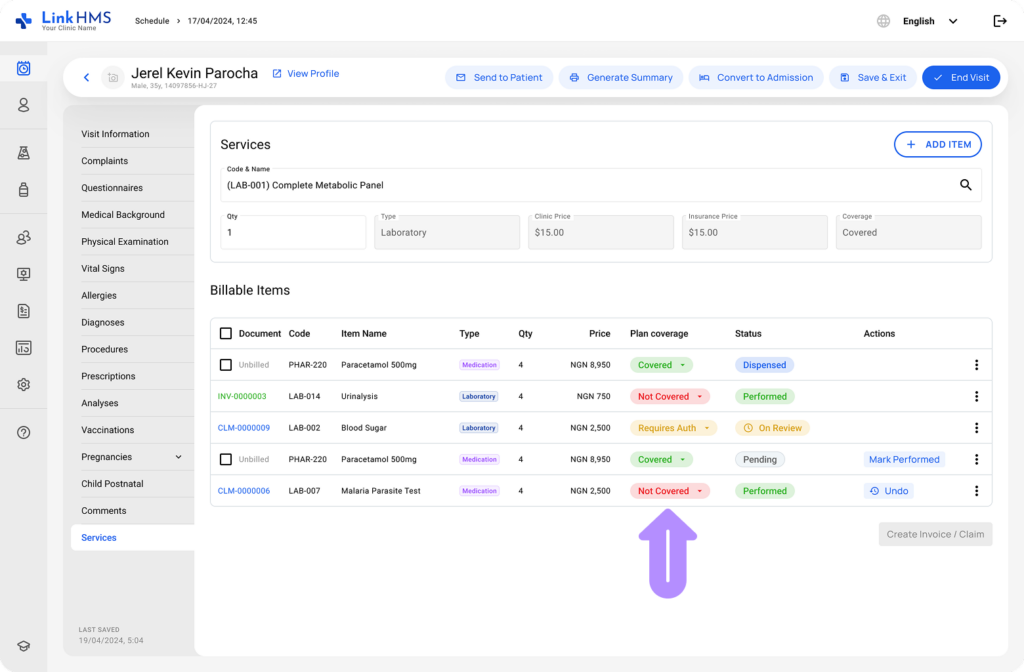
Coverage (set per plan)
These show up on individual services, medications, and lab tests:
- Covered. No authorization needed, insurer pays.
- Requires Authorization. Needs insurer approval before it can be billed to them.
- Not Covered. Always billed to the patient.
💡Notes
Coverage comes from the patient’s insurance plan. The admin team sets it up in the Administration module, so they reflect a decision that has already been made based on the patient’s assigned plan.
Per-item insurer decisions
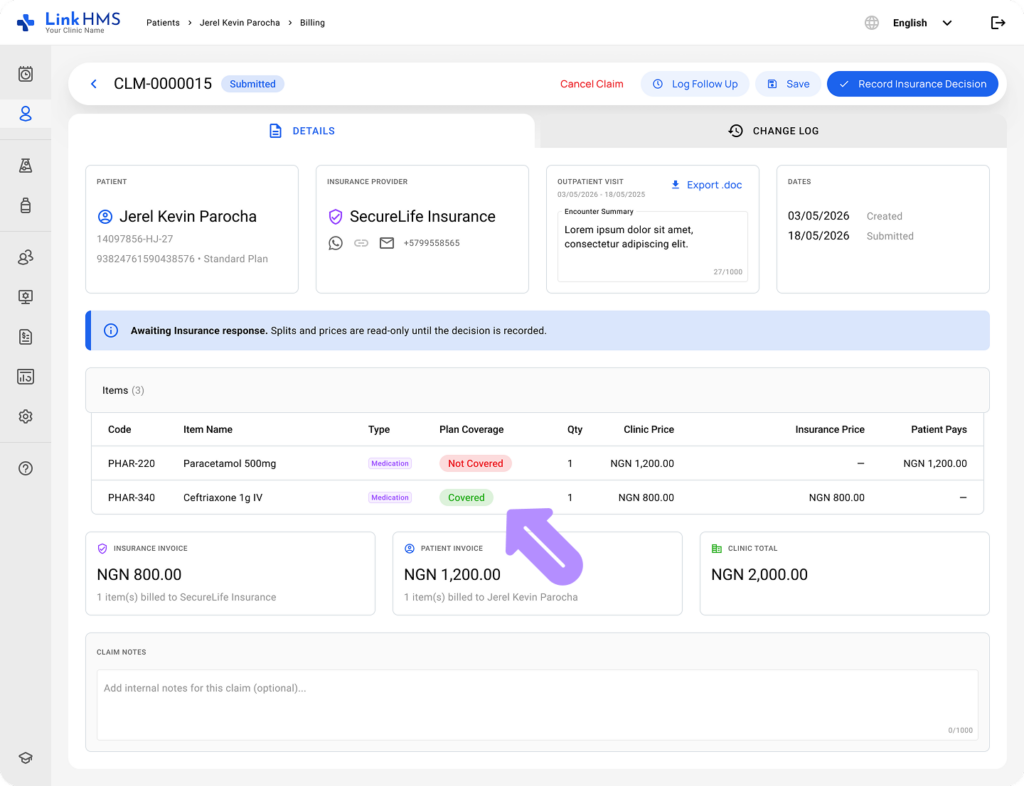
Within a claim, each individual item also carries its own decision:
- Covered. The insurer covers this item.
- Partial. The insurer covers part of it.
- Denied. The insurer denies it. It routes automatically to the patient’s invoice.
Claim statuses
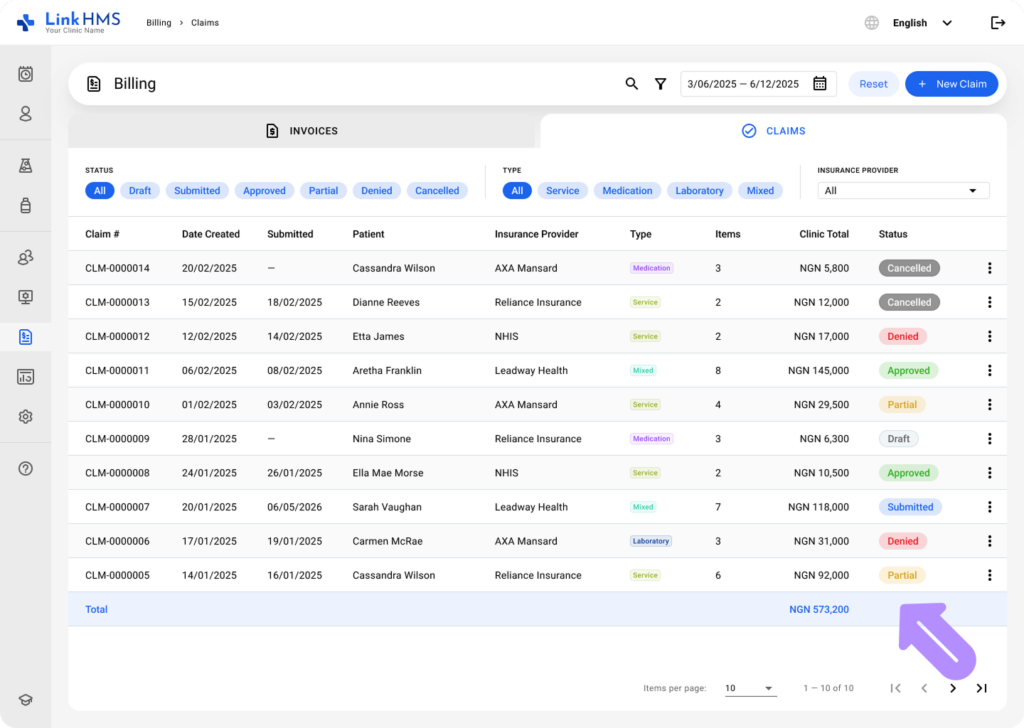
These show up on the Claims list and on individual claim pages.
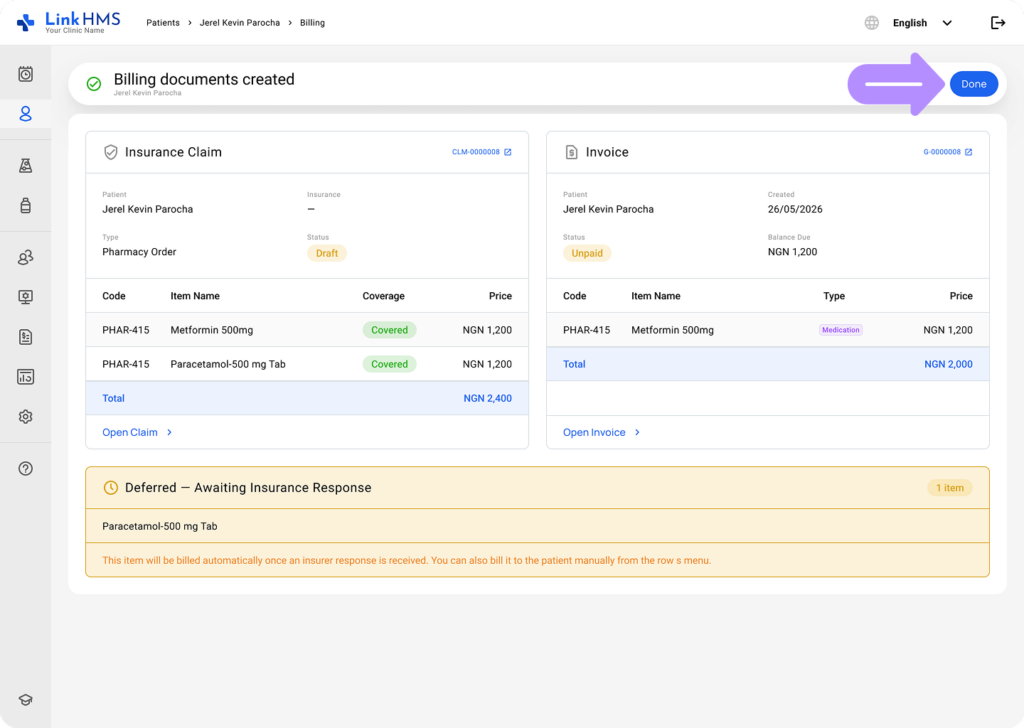
- Draft. The claim is being created. Splits between insurer and patient can still be edited.
- Submitted. The claim is marked as submitted to the insurance company, awaiting a decision.
- Approved. The insurer accepted the claim. Invoices generated for the insurer at the negotiated price.
- Partial. Some items were accepted, others denied. The system splits the invoice per item.
- Denied. The insurer rejected the claim. The full amount moves to the patient’s invoice.
- Cancelled. The claim was withdrawn. It can be reopened to draft if needed.
After recording the insurance decision
Once a claim moves to Approved, Partially Approved, or Denied, the system creates an insurance invoice for the insurer’s share at negotiated prices and a patient invoice for any remaining balance at retail prices. Both invoices link directly back to the claim and its items, so your billing team always has the full picture in one place. You do not need to calculate splits by hand.
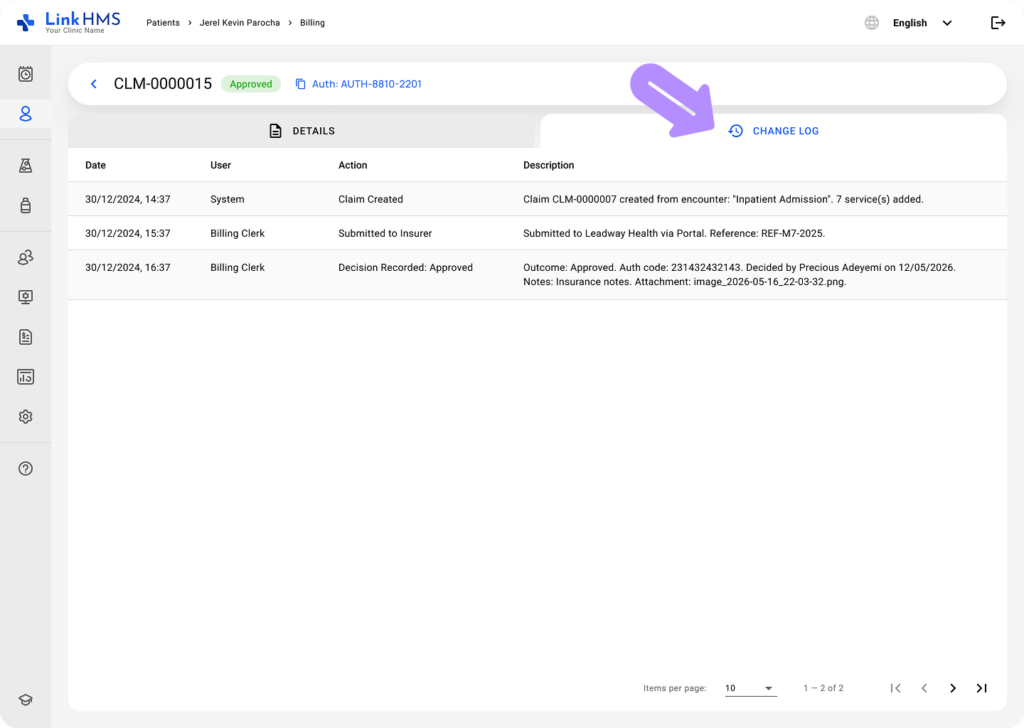
Where to check a claim’s full history
Every claim keeps a changelog of every change, from creation through decision. Open the claim and check the Change Log section to see who did what, and when.