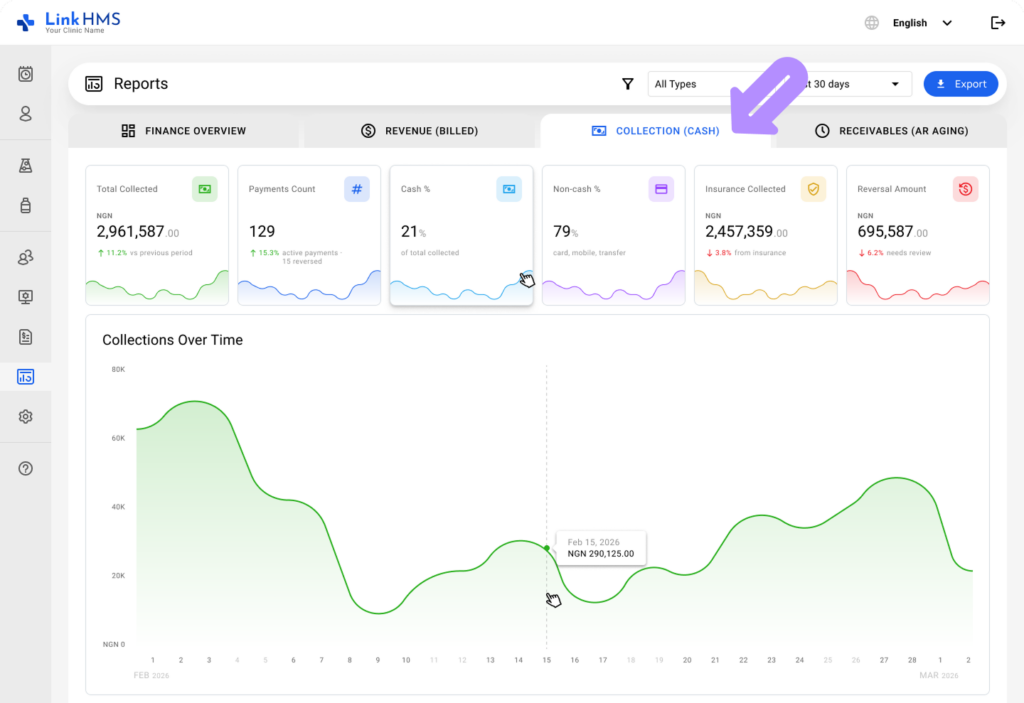
The Collection (Cash) tab provides a centralized view of all payments collected within the clinic. It helps track transactions, review payment details, monitor daily collections, and maintain accurate financial records for reporting.
Review Reports on Collection (Cash)
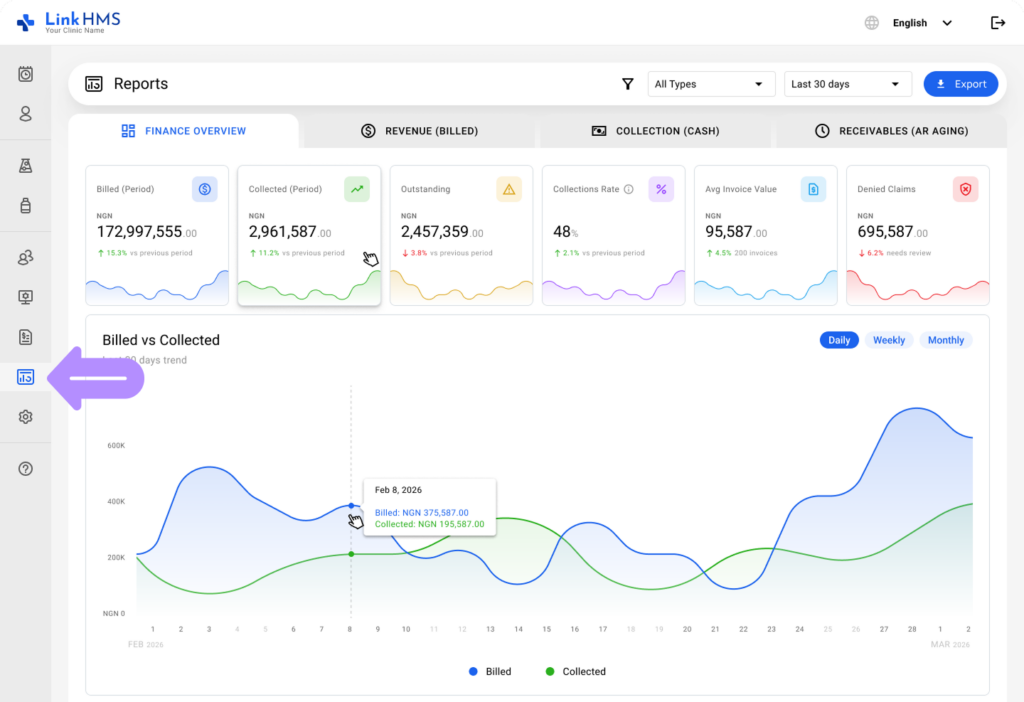
- From the left-side menu, go to the Reports section and select Finance Reports.
- Open the Collection (Cash) tab.
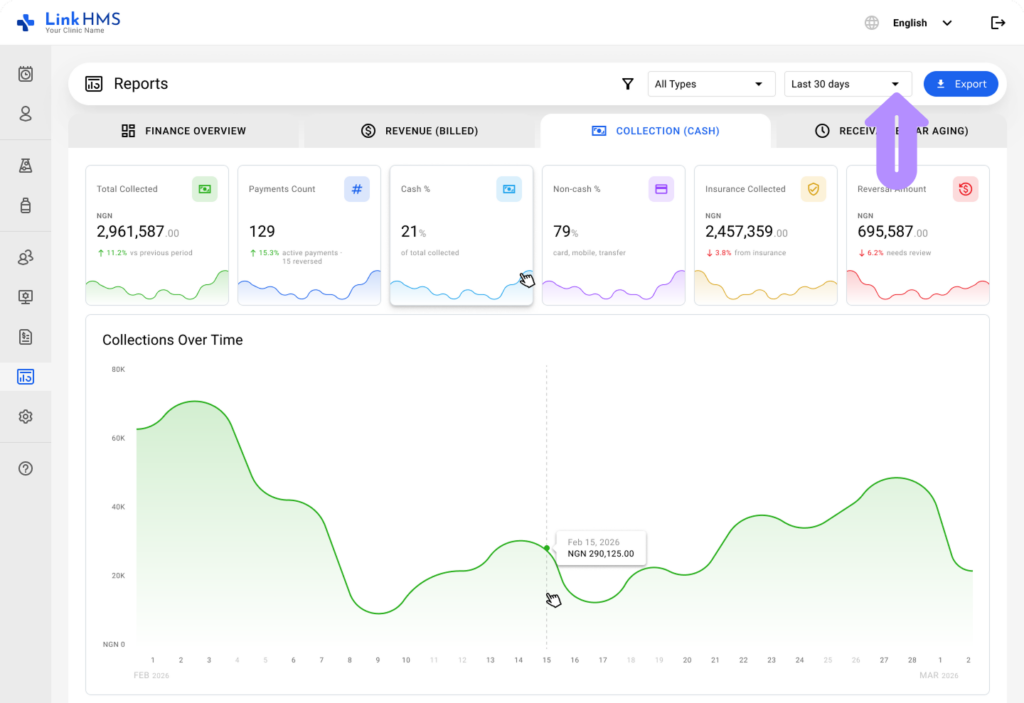
- Filter the data by a selected time period, or use All Time to show the full report.
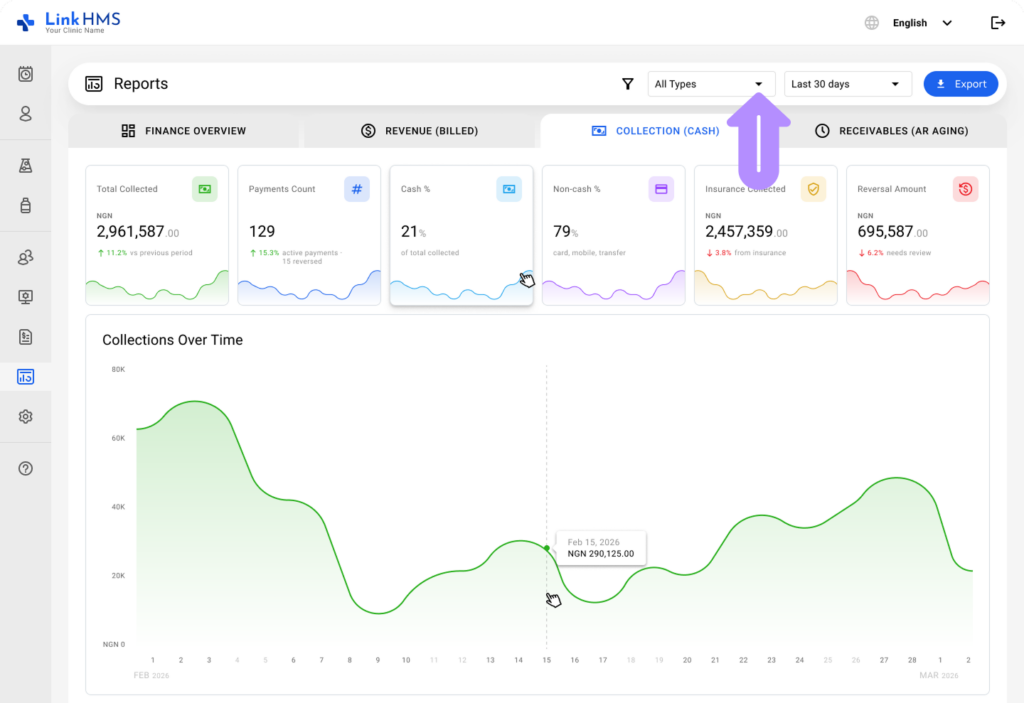
- Use the type filter to display data for All Types, Service, or Pharmacy.
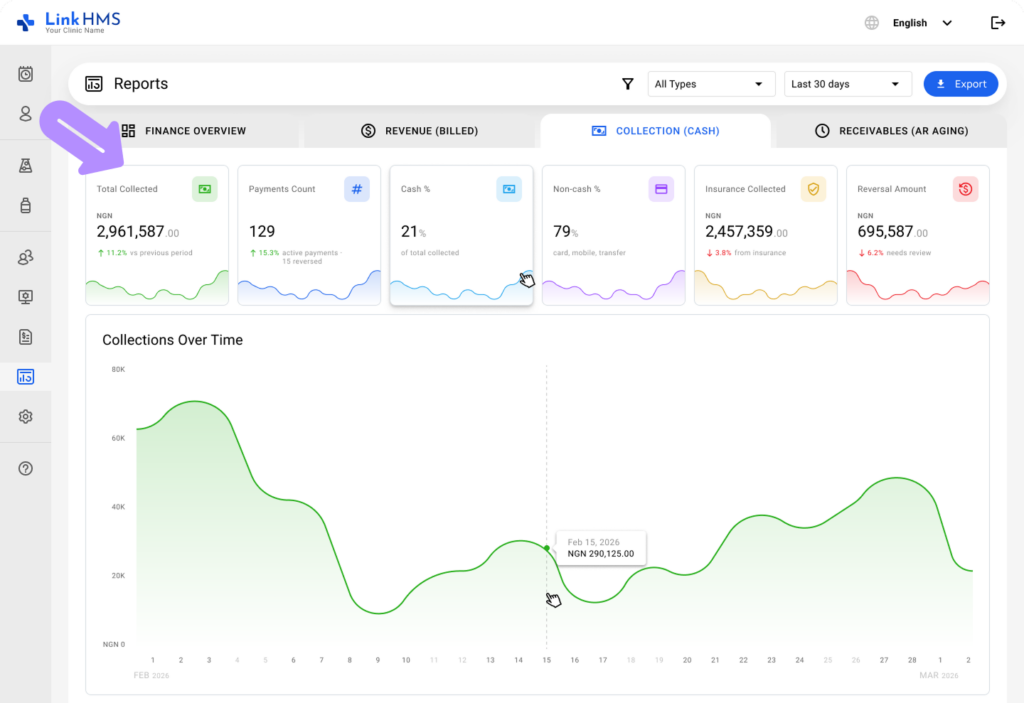
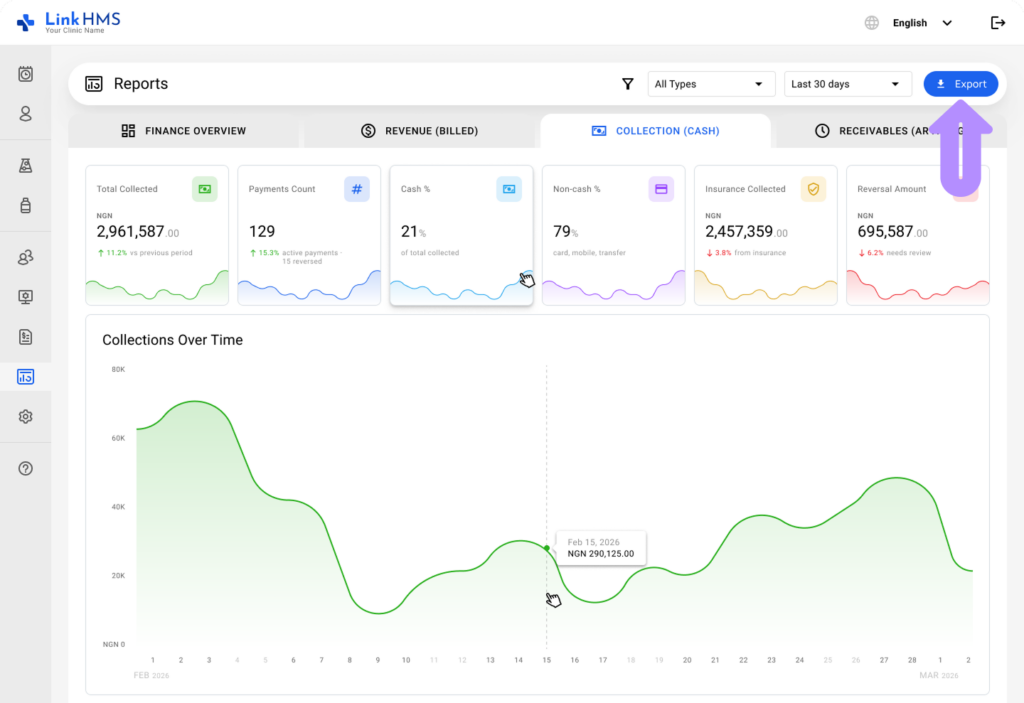
- Explore an overview of the main collection figures, including
- Total Collected
- Payments Count
- Cash %
- Non-cash % (Coming soon)
- Insurance Collected (Coming soon)
- Reversal Amount (Coming soon)
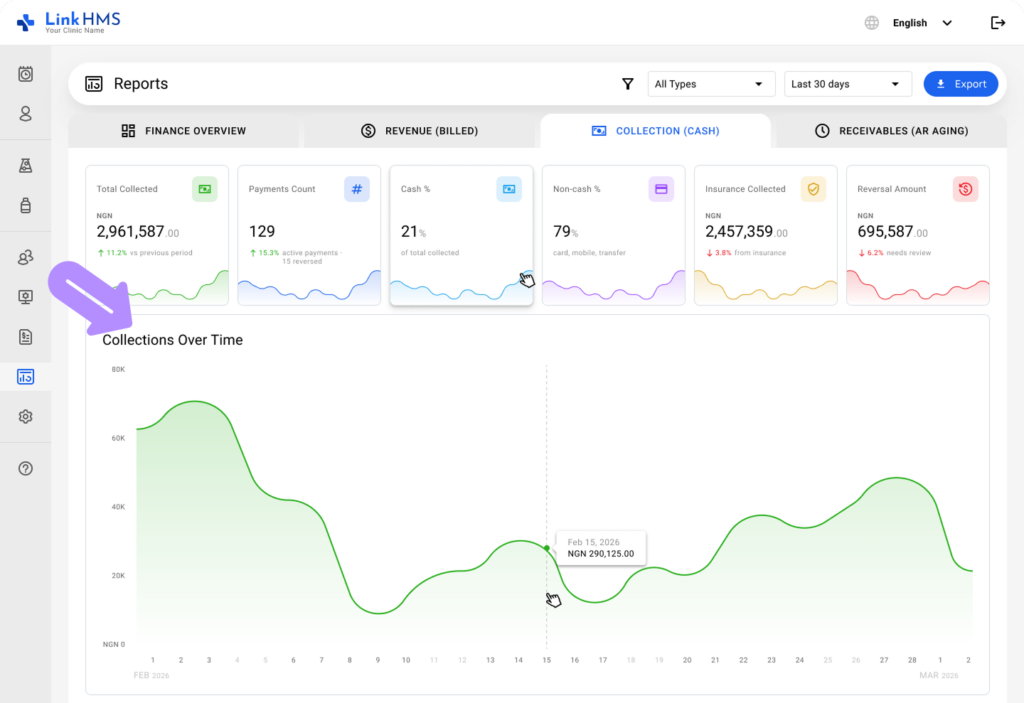
- View the graph to track collections over time with daily totals.
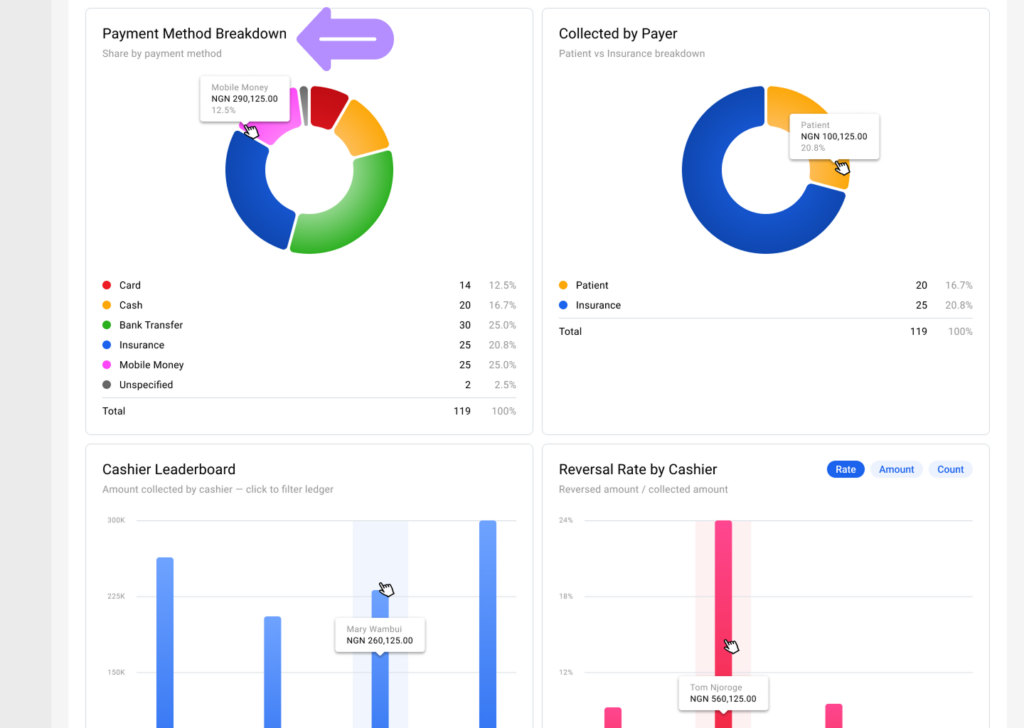
- Use the payment method breakdown chart to see the percentage of payments by method, including Card, Cash, Bank Transfer, Insurance, Mobile Money, and Unspecified.
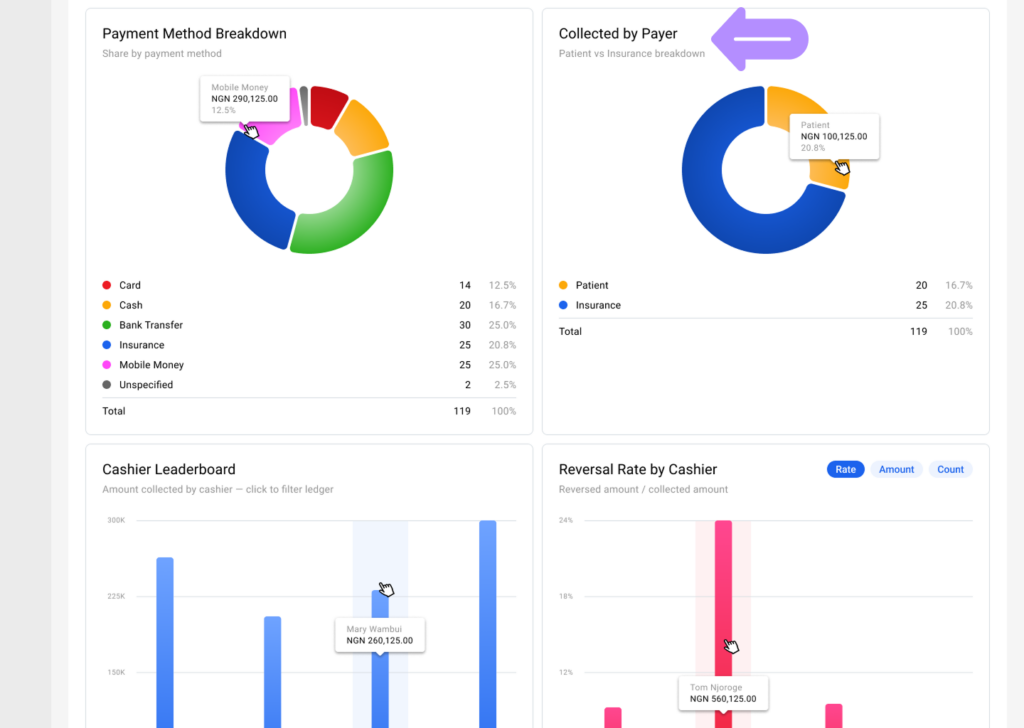
- Check the collected-by-payer chart to see the percentage of collections paid by patients versus insurance providers. (Coming soon)
- View the cashier leaderboard to see amounts collected by each cashier. (Coming soon)
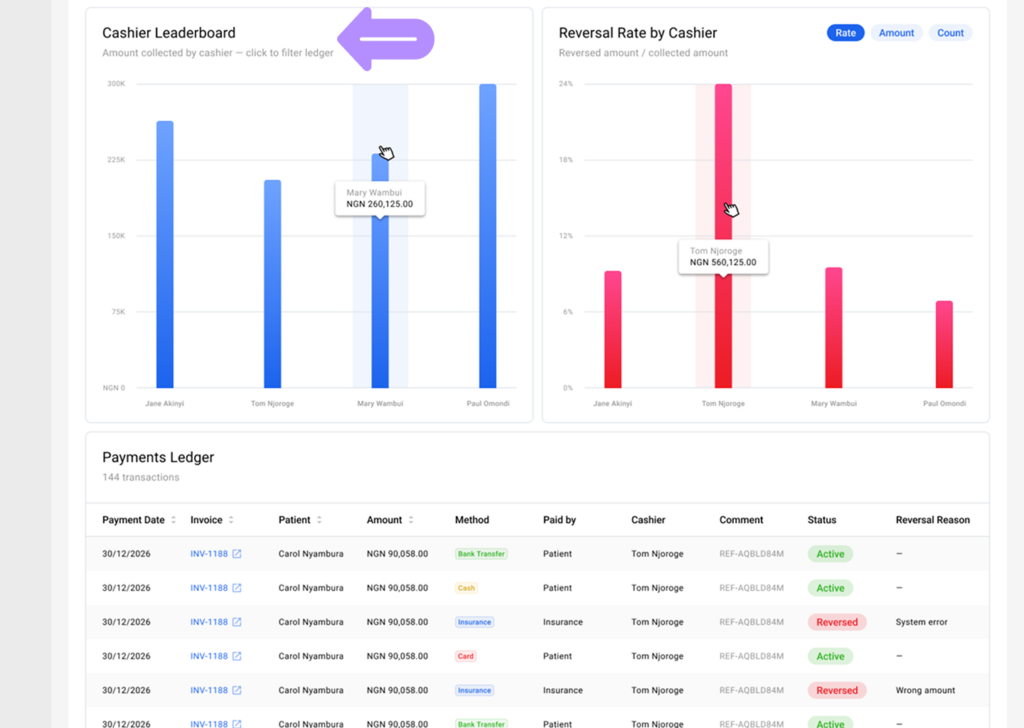
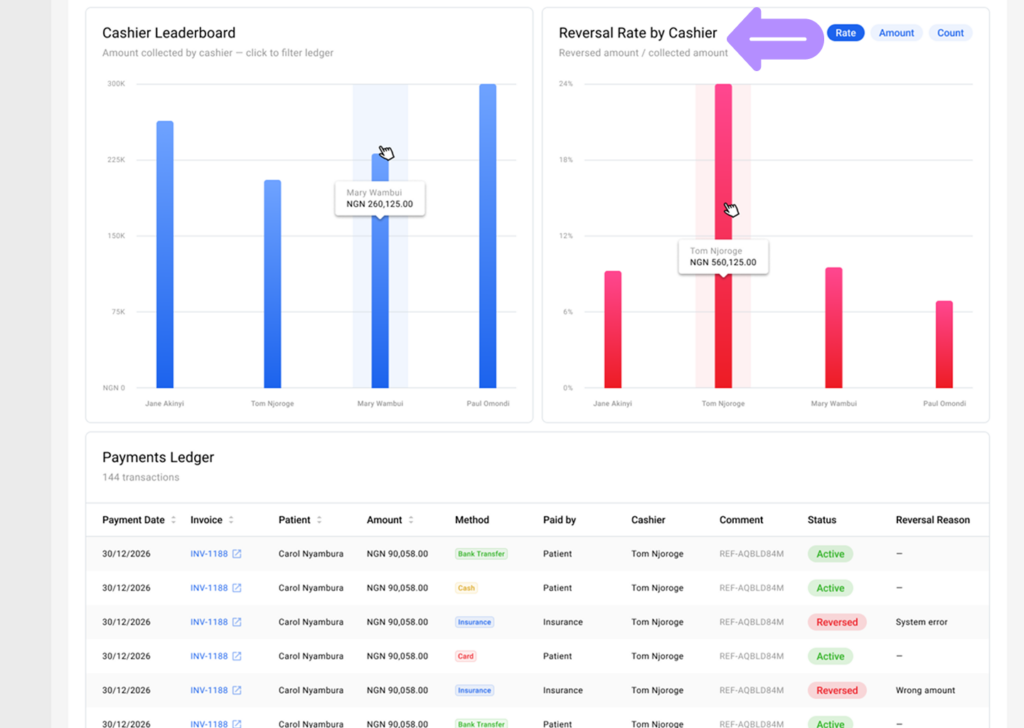
- Use the cashier reversal rate graph to analyze reversals relative to collections by cashier. Switch between rate, amount, or count views for different insights. (Coming soon)
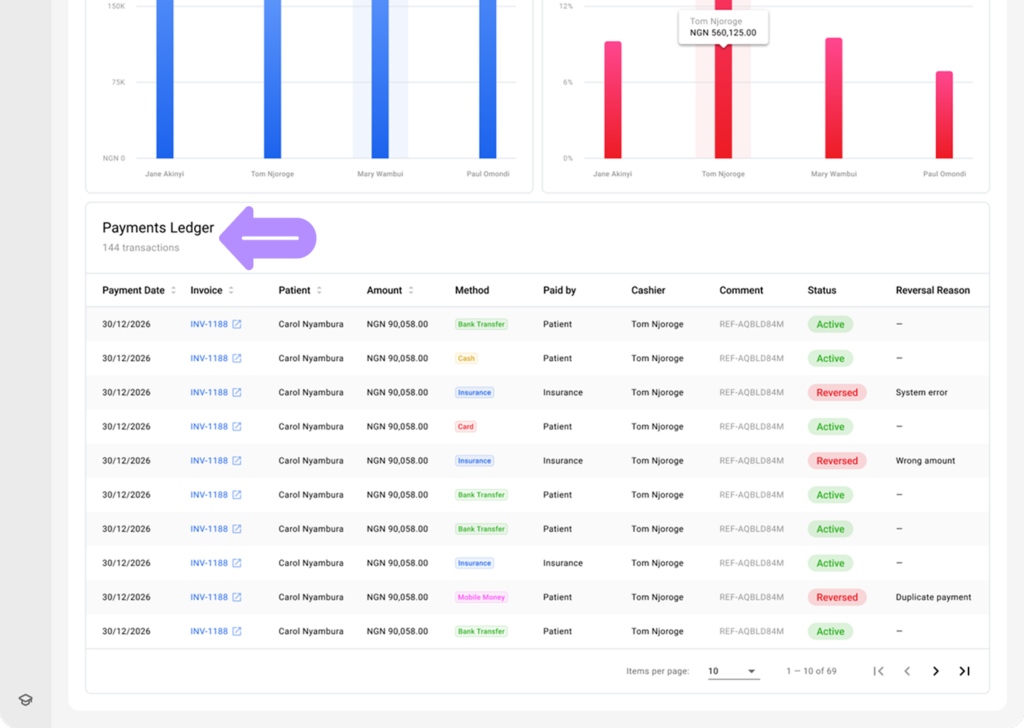
- Review transactions in the payment ledger, which includes detailed columns (Payment Date, Invoice, Patient, Amount, Method, Paid by, Cashier, Comment, Status, and Reversal Reason). You can open the required invoice by clicking on it.
- Click the Export button in the top-right corner to export the report data. (Coming soon)
The Collection (Cash) report helps users monitor cash transactions, track collection trends, review cashier performance, and access the payment ledger for efficient financial management.