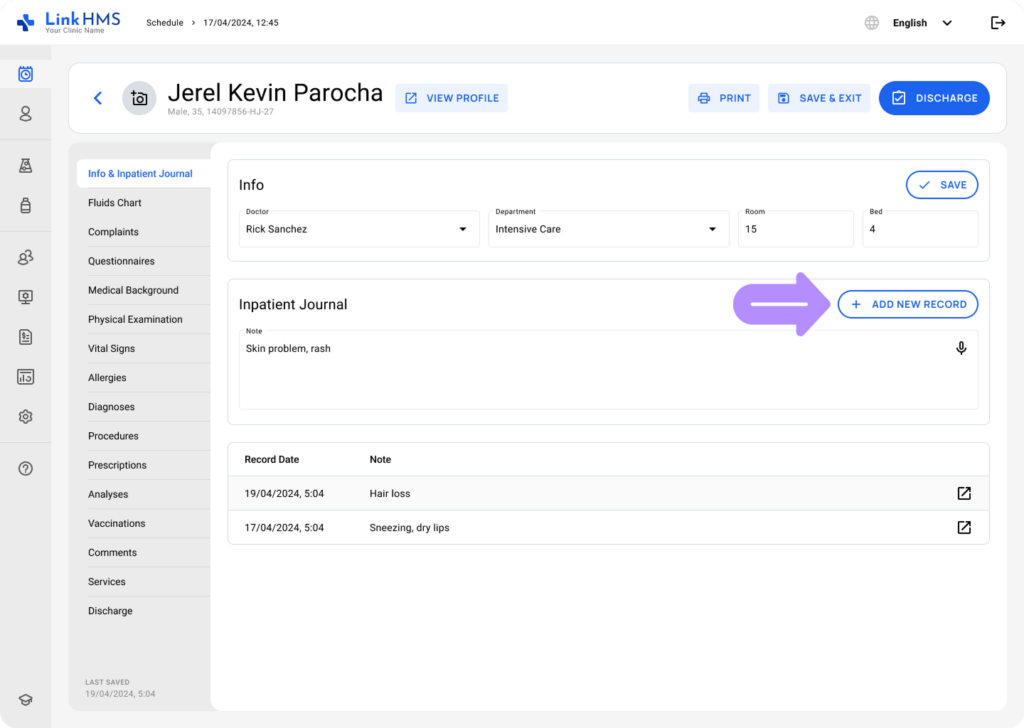
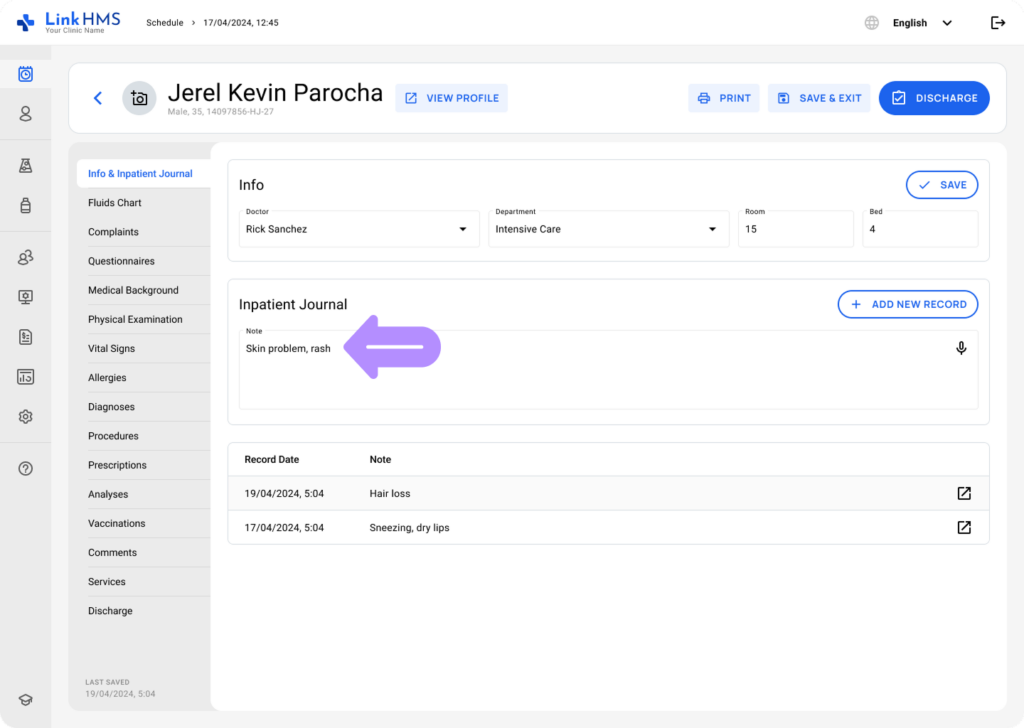
Speech-to-text dictation can help you reduce manual typing, capture notes in real time, and make your clinical documentation faster. This functionality is integrated across multiple tabs of the LinkHMS system, primarily to simplify note-taking during visits and admissions. Refer to the detailed guides How to Manage the Outpatient Visits in LinkHMS and How to Manage the Inpatient Admission for step-by-step instructions and the available tabs for adding text records.
💡Notes
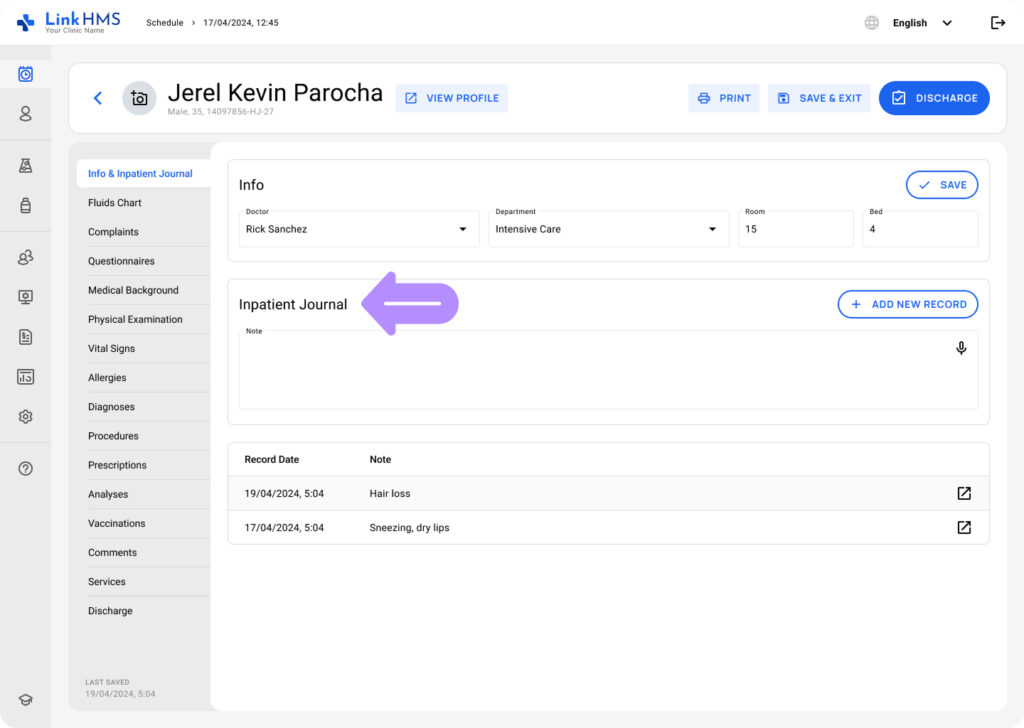
You can activate the speech-to-text functionality by selecting the microphone icon in the relevant block or field.
- Locate the necessary block to be filled. If it contains the microphone icon, you can use speech-to-text dictation.
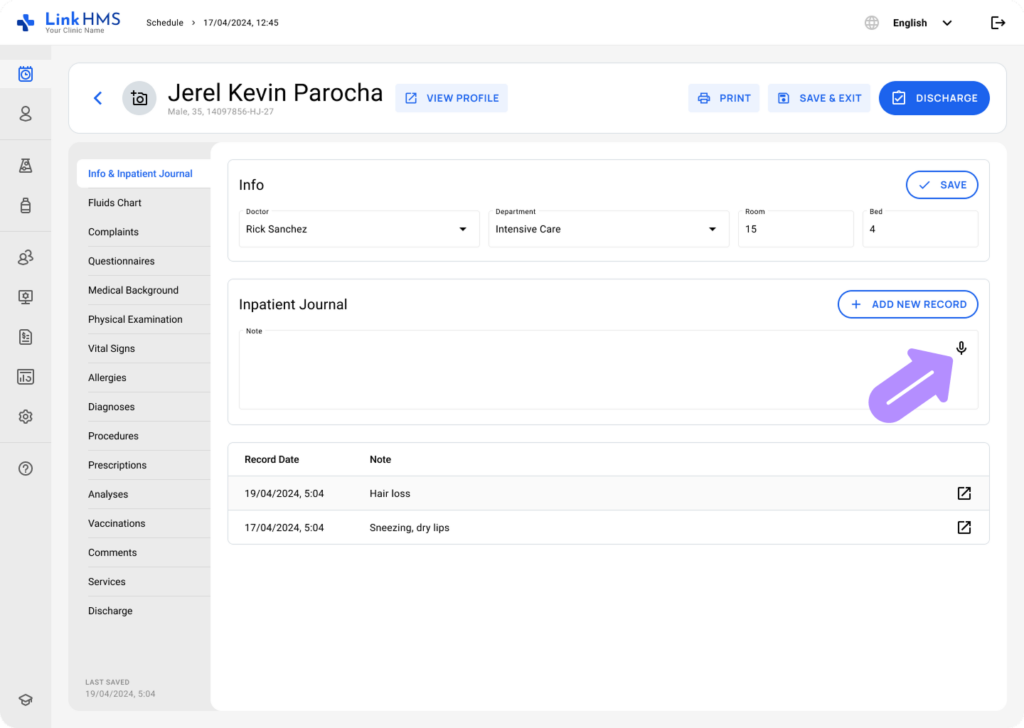
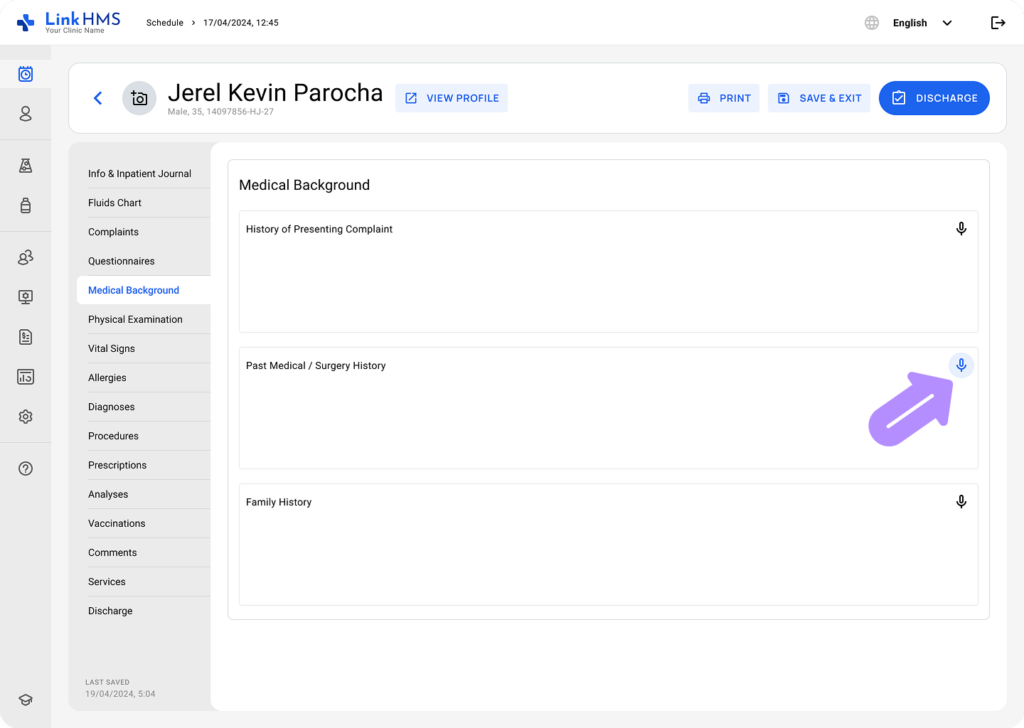
- Activate the voice input feature by selecting the microphone icon.
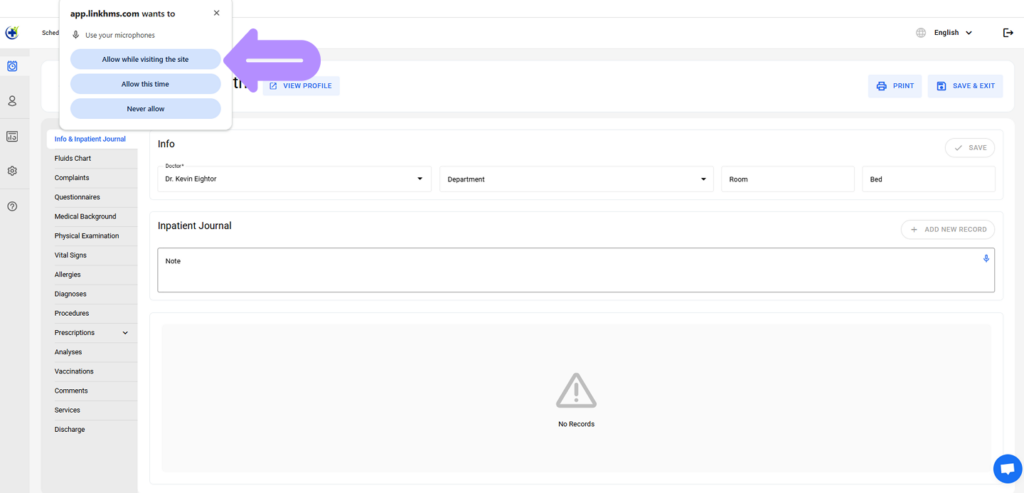
- Click Allow while visiting the site in the pop-up near your browser’s address bar to grant microphone access.
💡Notes
In most cases, this permission only needs to be given once while using the system, so you won’t see the pop-up every time.
- To fill in the required field, click the microphone icon to dictate your notes. The system automatically converts your voice into text, which appears in the field.
💡Notes
When recording is active, the microphone icon will be highlighted to indicate that speech-to-text is in progress.
- Review the generated text to make sure everything is correct.
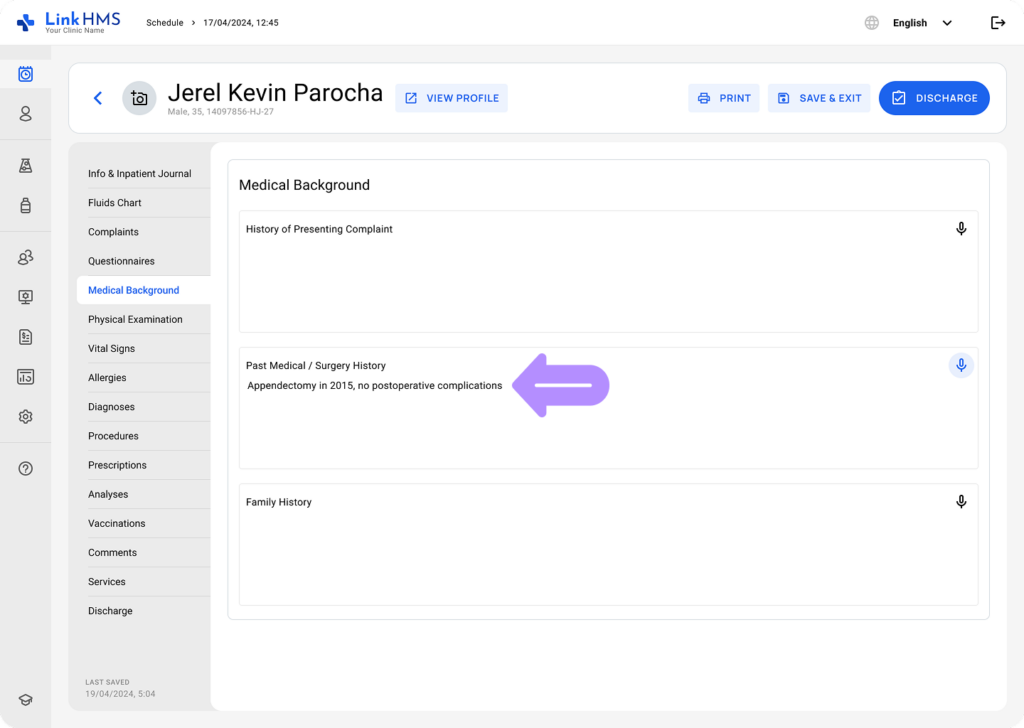
- If needed, make quick edits, then click the Add New Record button to save the information to the patient’s record.