💡Notes
The full medications chart provides detailed records throughout the prescription period, giving staff a complete overview of medication activity from start to finish. It compiles all entries submitted through the log dose feature and makes it easy to track what was given, what was missed, and why certain doses were excluded.
Accessing the Full Medications Chart
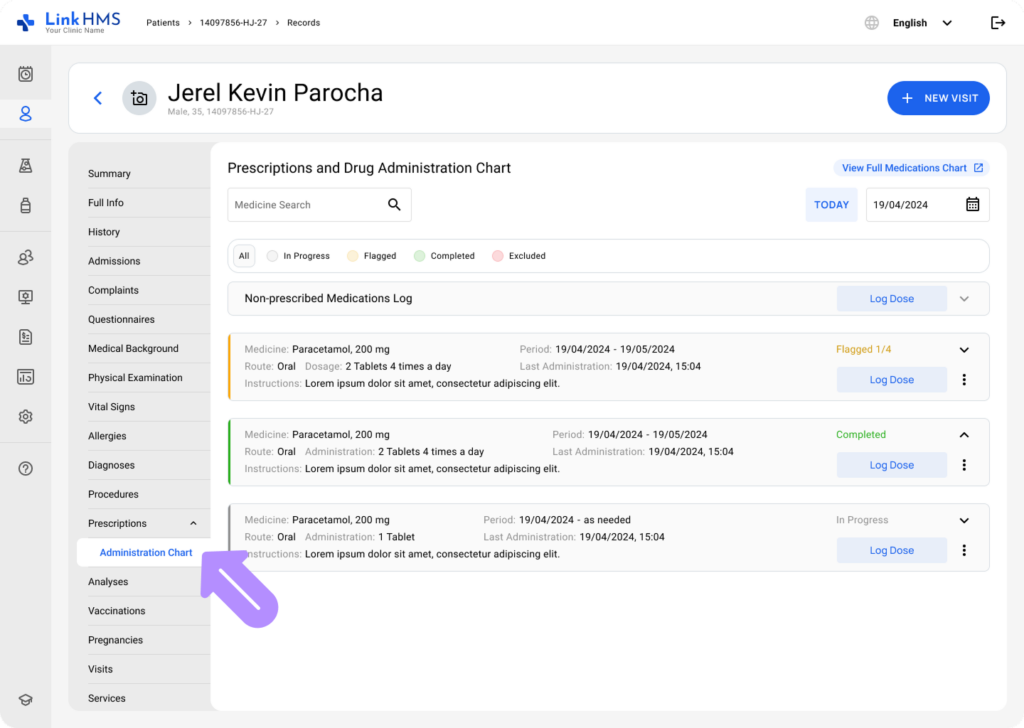
- Open the administration chart from the patient’s profile or from the prescription tabs within any active admission or visit. You can access it from whichever tab is most convenient.
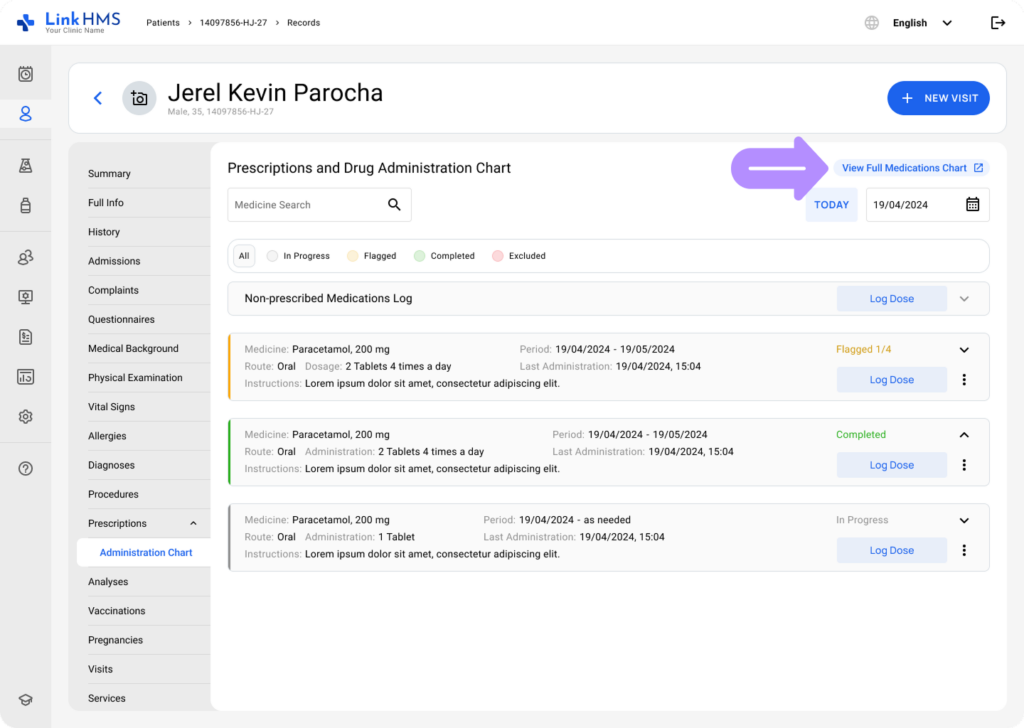
- In the top-right area of the administration chart, click the View Full Medications Chart button.
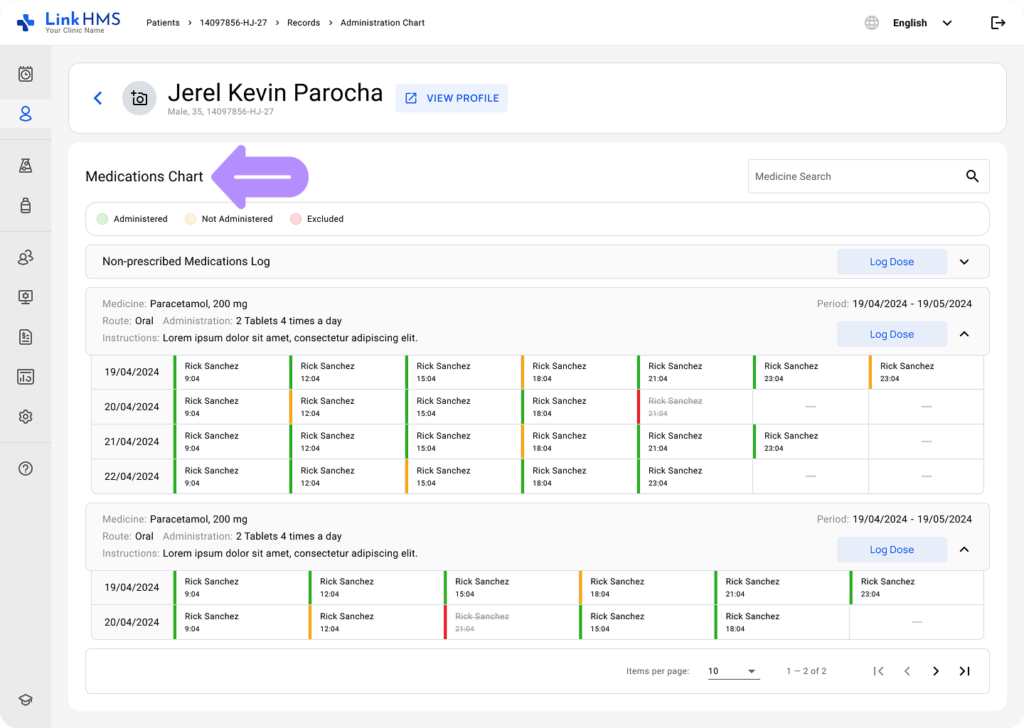
- It opens the Medications Chart that presents a detailed overview of all medication activity, compiled from every dose recorded during the prescription period.
Using the Medications Chart
💡Notes
The medications chart is an alternative to the drug administration chart, displaying the administration calendar across multiple dates. It offers a multi-date view of medication administration, unlike the main chart’s single-day focus.
Viewing and Logging the Prescribed Medications Doses
- Use the search bar to match medication names and easily find the medicine card for a detailed overview.
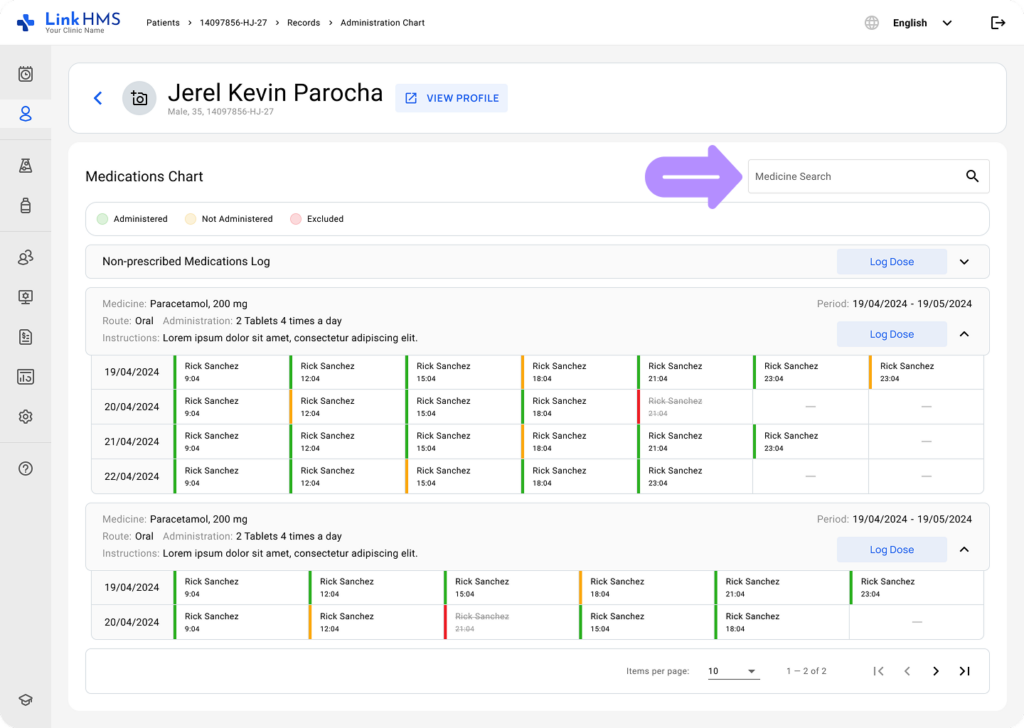
- Locate the required prescribed medicine card, which also includes prescription details and administration instructions. Open the full view to review the multi-date administration calendar for a chosen prescribed drug.
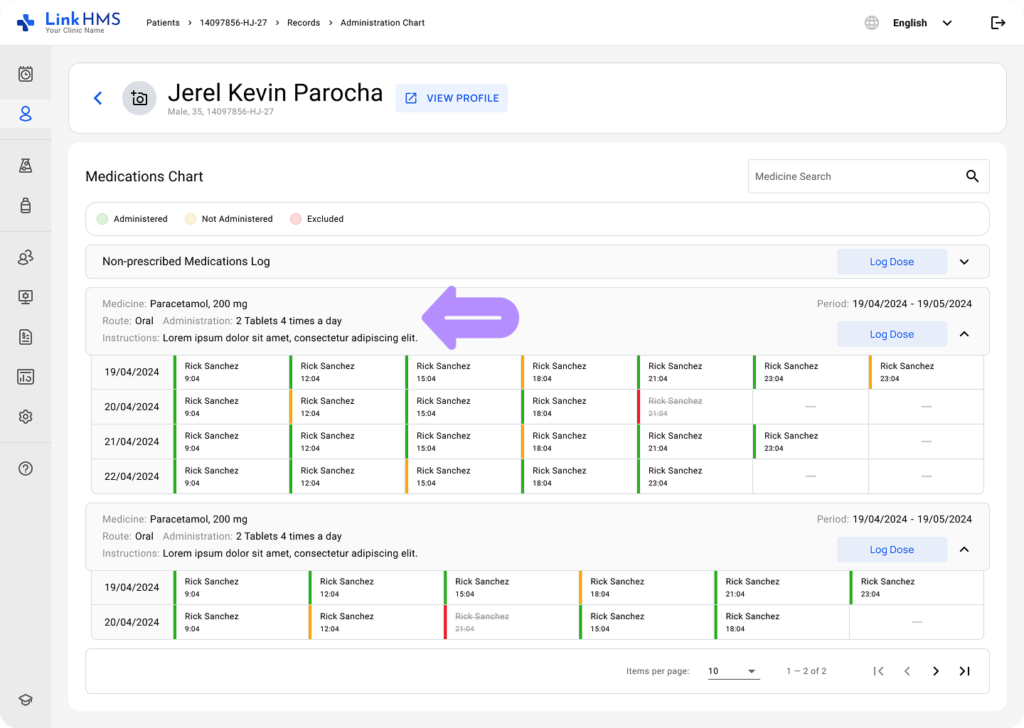
- Each prescription has its own table, with cells for each date sorted chronologically from right to left. The cell also lists the user who logged the dose and the administration time.
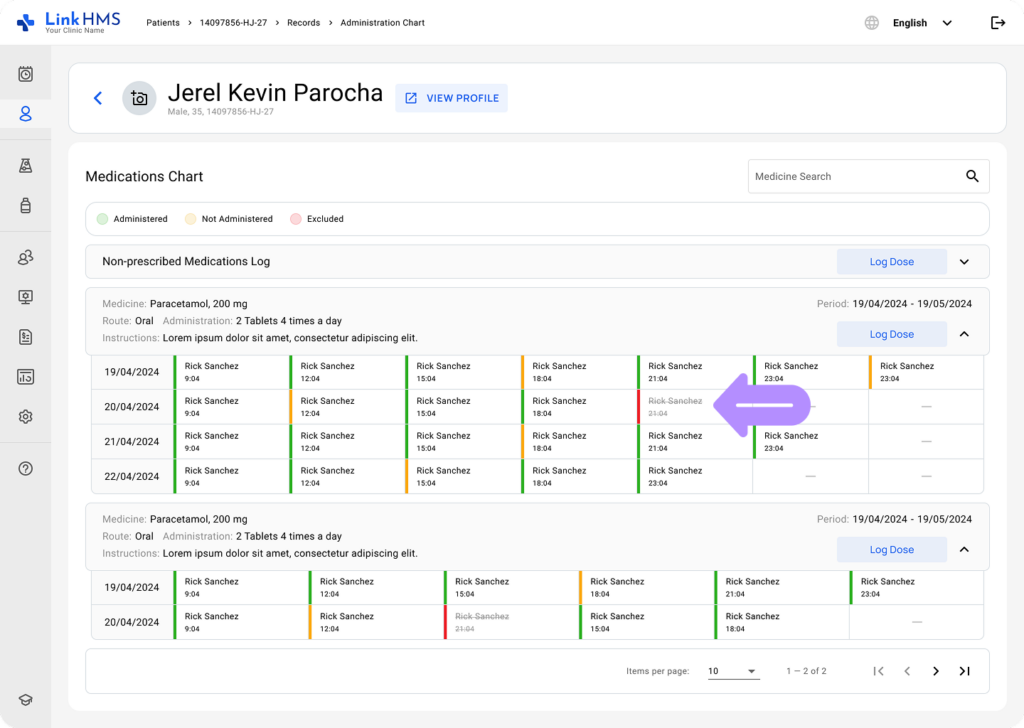
- You can click a cell to open a Log Dose popup that displays the dose record details in a read-only format.
💡Notes
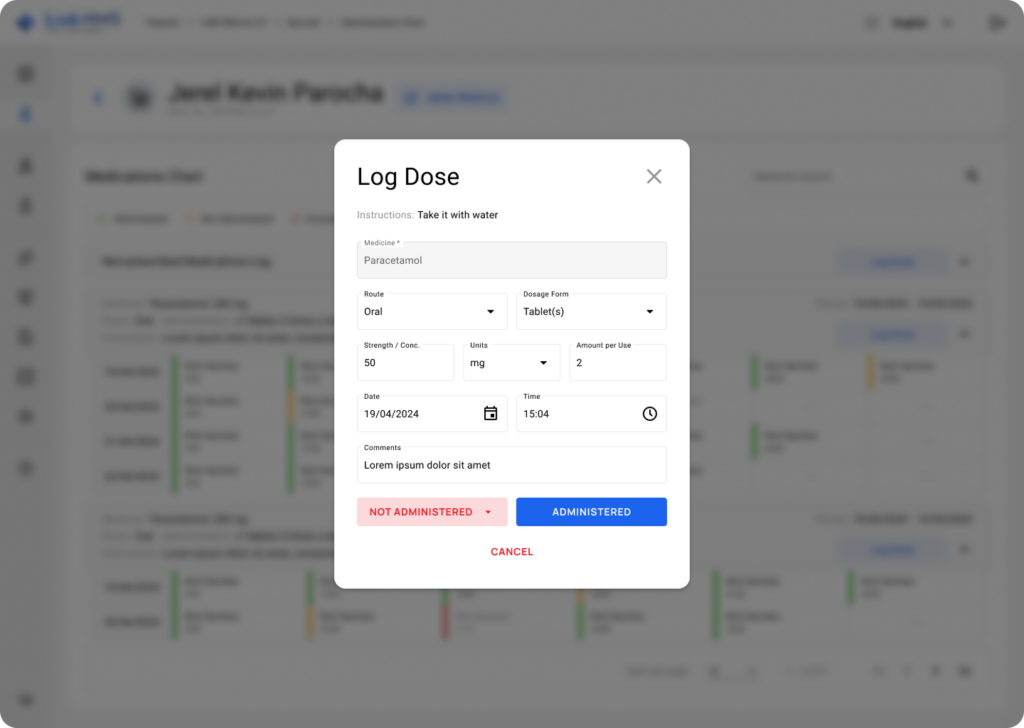
The table cells are not editable. The only way to edit the table is by logging a new dose via the Log Dose button. Every medication card features an active Log Dose button unless the prescription is set to Excluded.
- Use the Log Dose button to add the new dose of the prescribed medication.
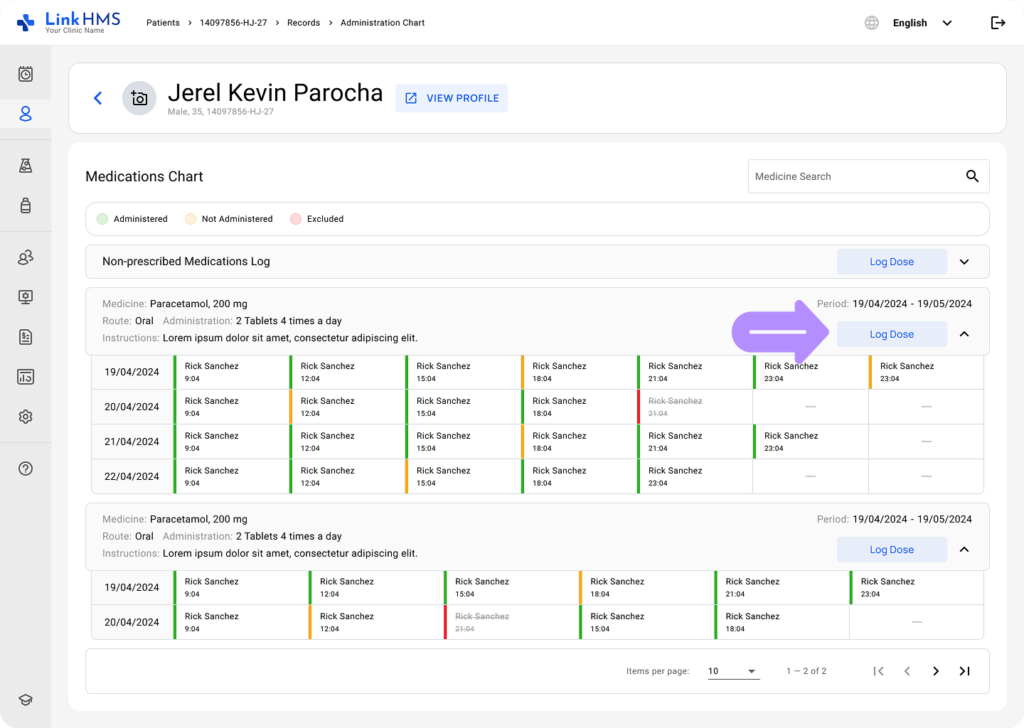
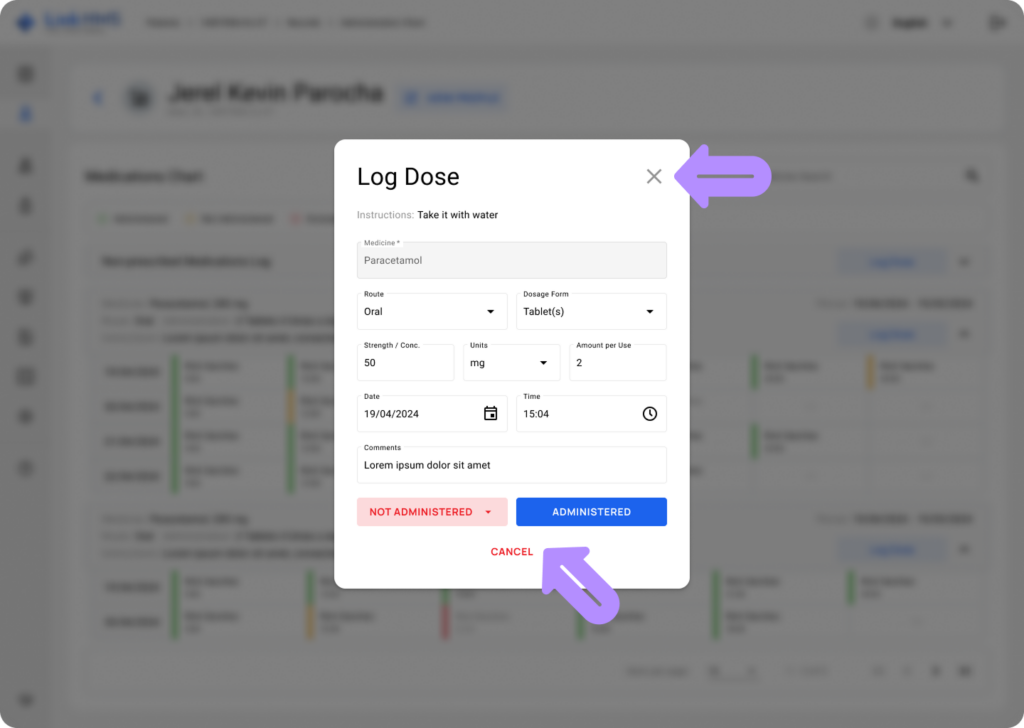
- A pop-up opens showing the drug administration details.
💡Notes
The Medicine field is locked to ensure accurate dose logging. The other fields are pre-filled with the relevant prescription information to save your time.
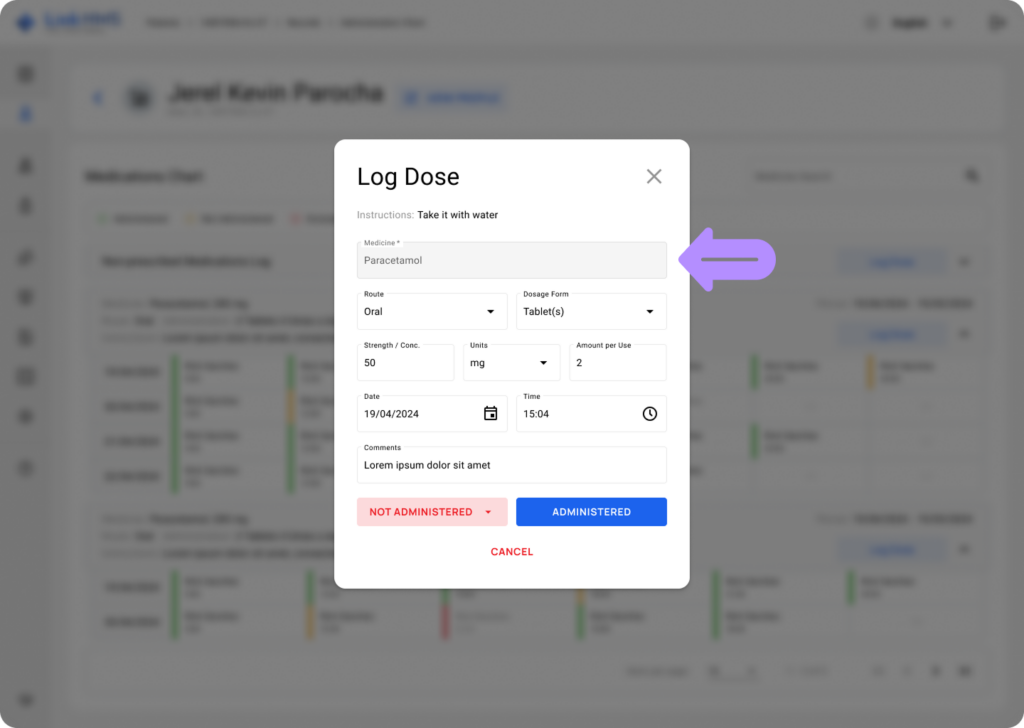
- Modify the pre-filled fields as necessary, updating any details before saving.
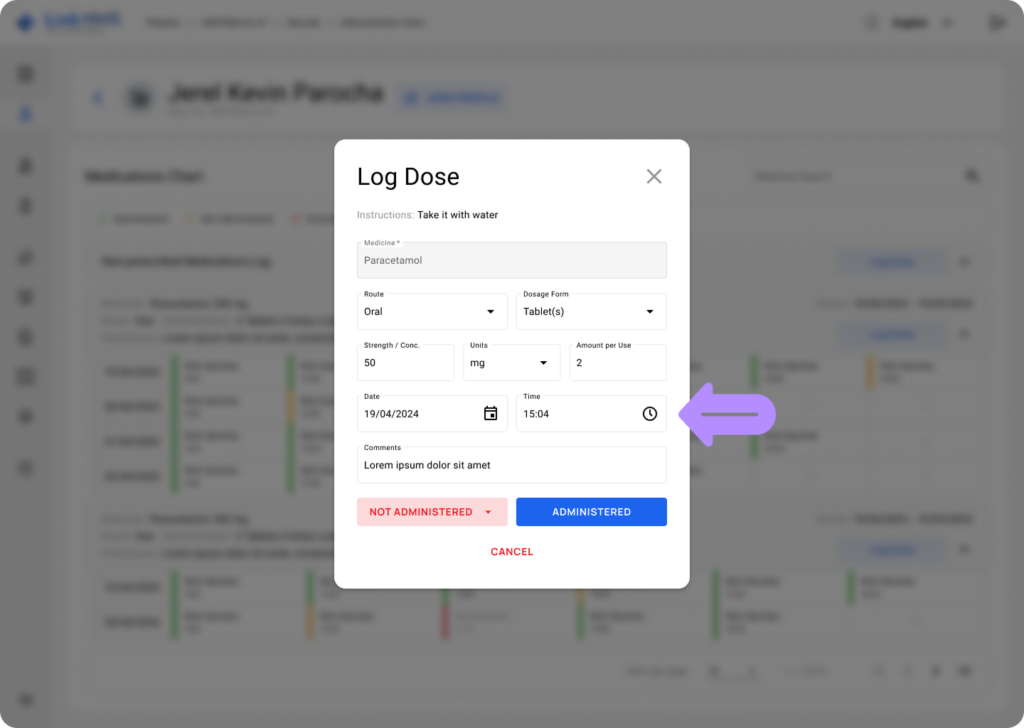
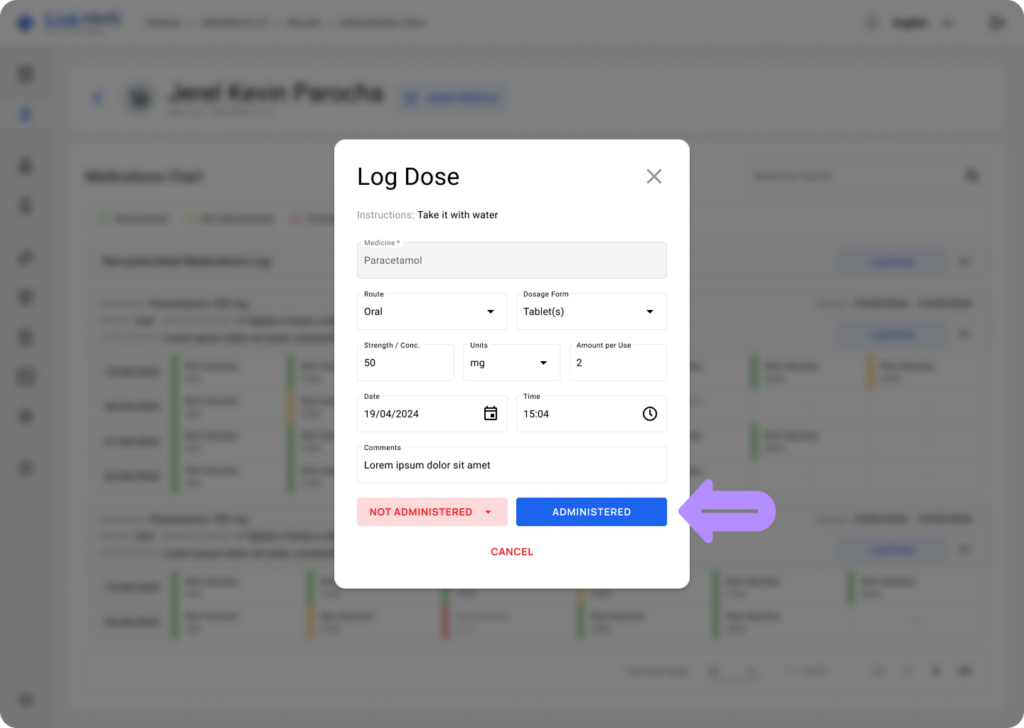
- Specify whether the dose was Administered or Not Administered.
- Click the Administered button to mark the dose as completed, add it to the medicine calendar, and adjust the card’s status accordingly.
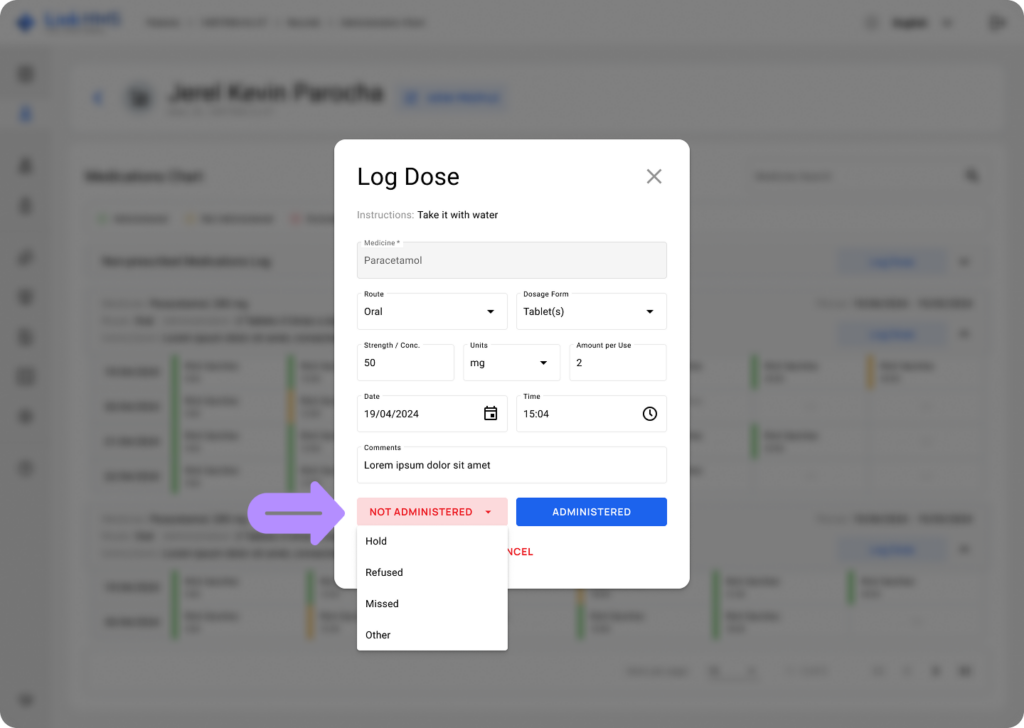
- Click Not Administered and choose a reason to record an ungiven dose. This updates the card status with a non-administered record and appears in the administration calendar.
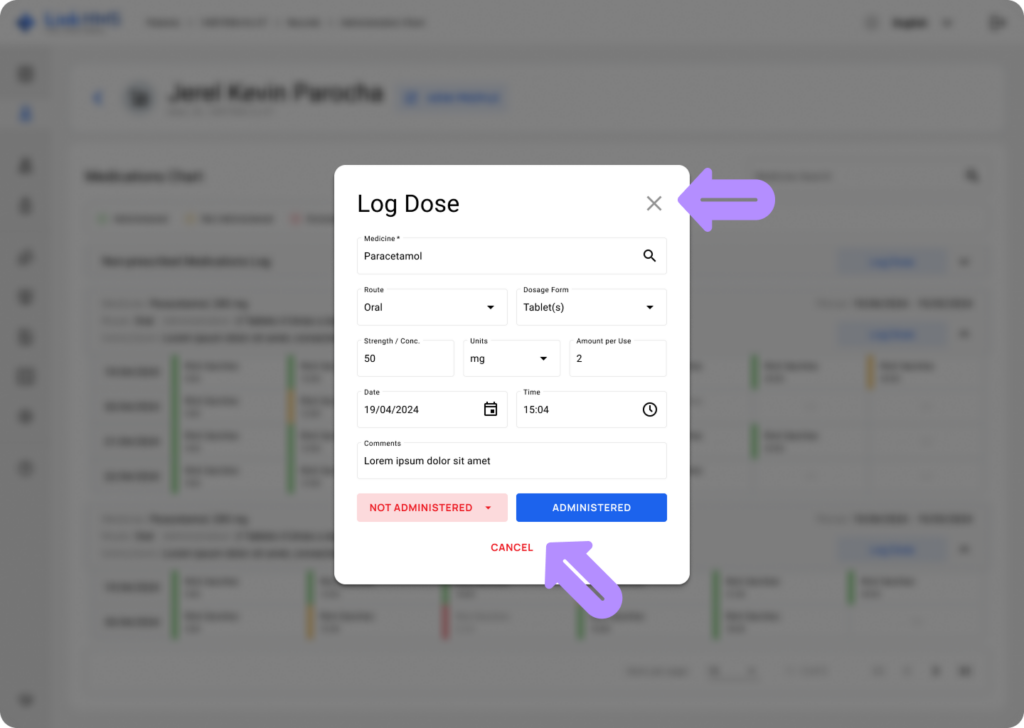
- After logging the dose and selecting the appropriate status, click Cancel or the × in the corner to close the pop-up and return to the medications chart.
Viewing and Logging the Non-Prescribed Medications
💡Notes
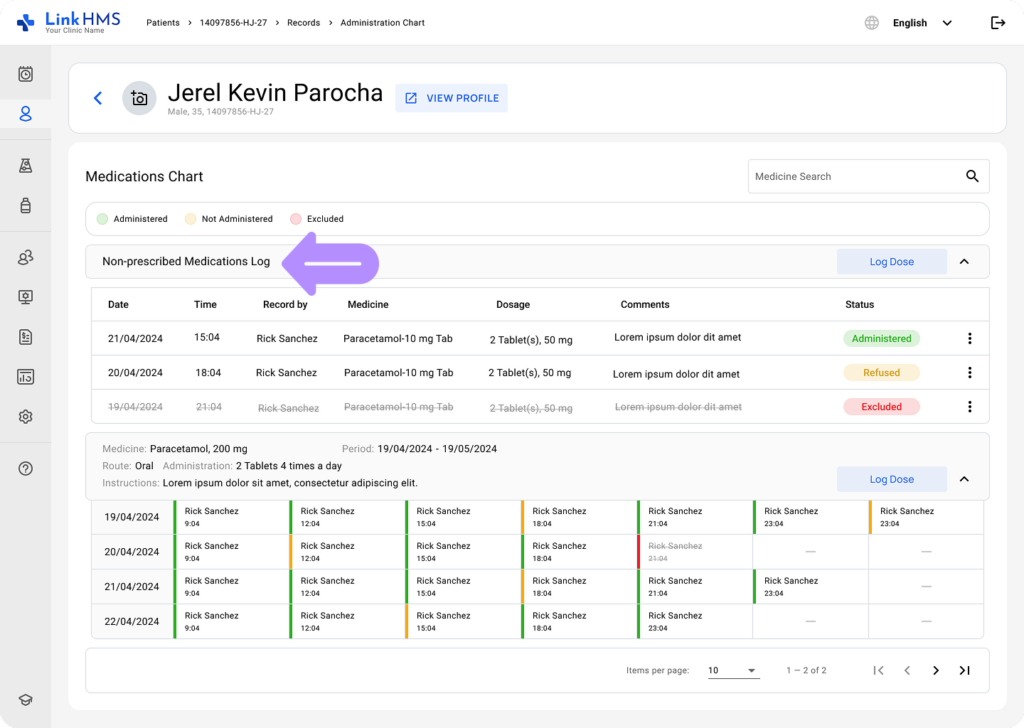
All records for non-prescribed medications are collected in the non-prescribed medications log.
- The view remains the same as in the administration chart. The logged non-prescribed medications are displayed in the list, sorted chronologically with the newest at the top.
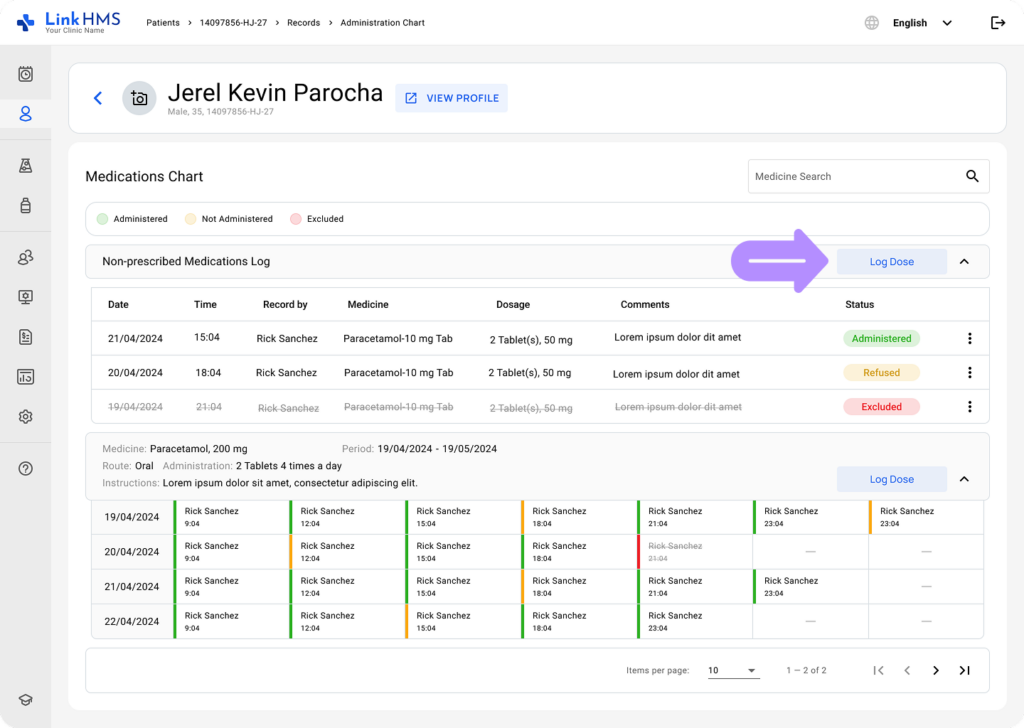
- You can also use the Log Dose button to record new doses of non-prescribed medications.
- A pop-up appears to enter non-prescribed medication details before logging the dose.
- Fill out all required fields, such as Medicine, Route, Dosage Form, Strength / Concentration, Units, Amount per Use, Date, Time, and Comments.
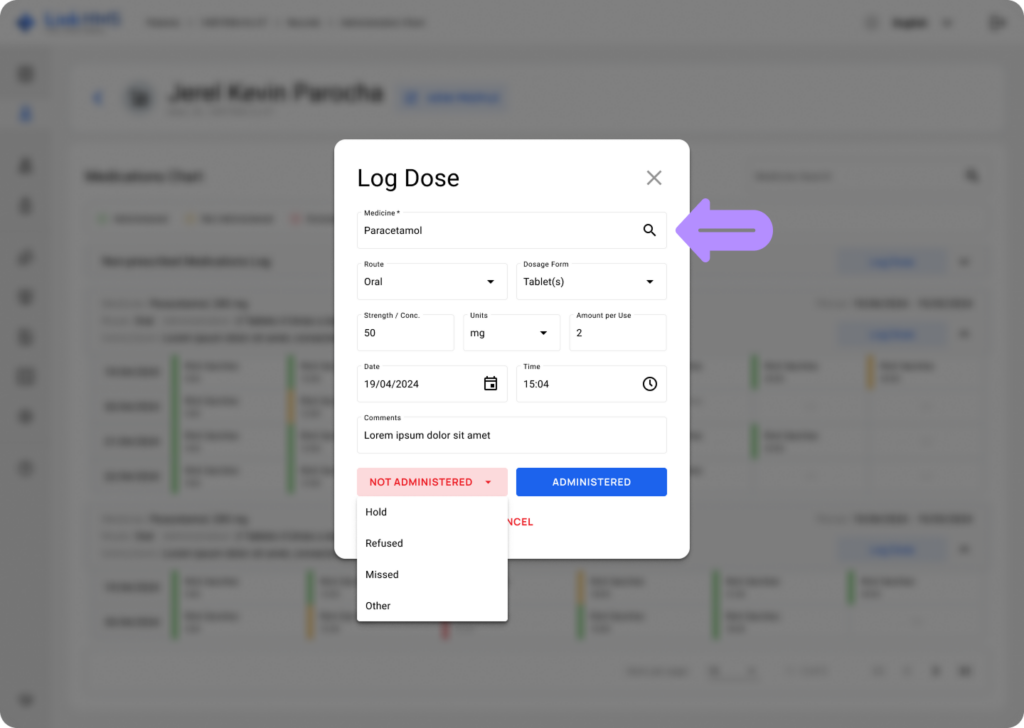
- Choose if the dose is Administered or Not Administered.
- Click the Administered button to record that the non-prescribed medication was given.
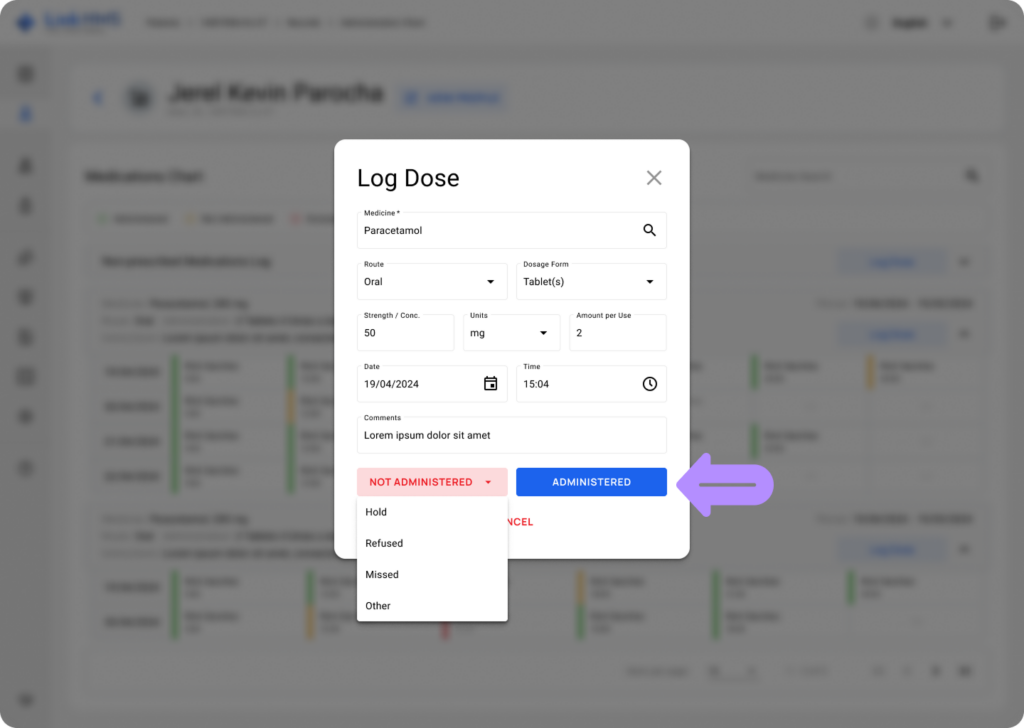
- Use the Not Administered button and pick a reason (Hold, Refused, Missed, Other) to record an ungiven dose.
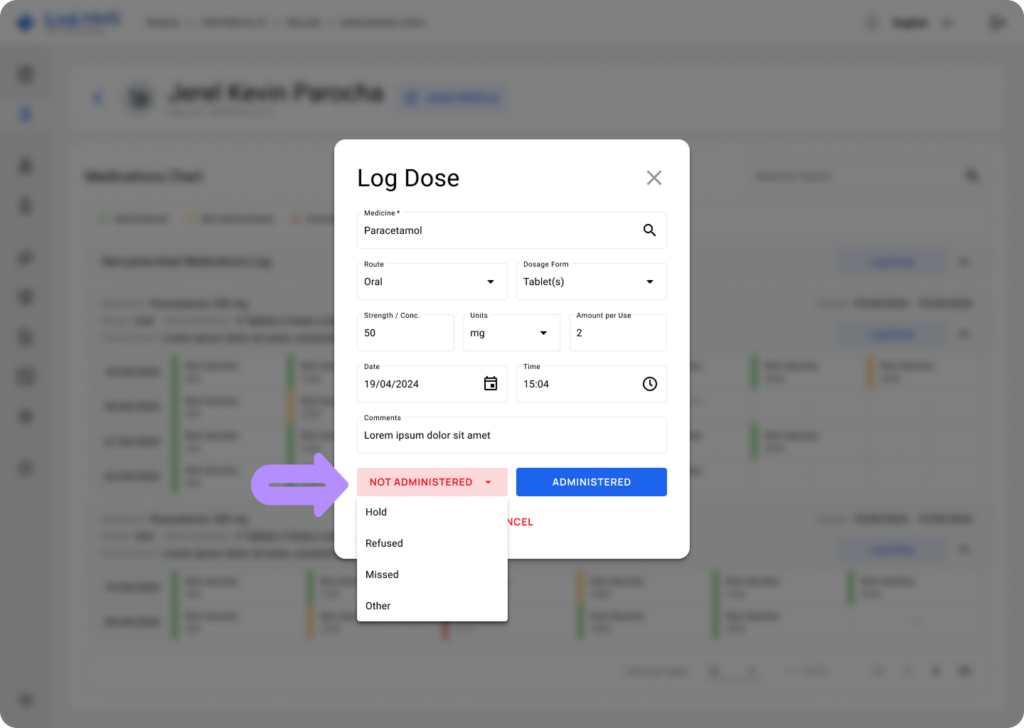
- After logging the non-prescribed medicine dose and its status, you can close the pop-up by clicking Cancel or the × in the corner.
Viewing the Medication Statuses
💡Notes
Statuses refresh automatically, with no additional steps required from clinic staff. The system updates medication statuses based on the logged dose record, prescription frequency, and active prescription dates.
- You can open the non-prescribed medications log to view the recorded status for each logged medicine. The statuses help to categorize administration activity.
- Administered appears when the patient successfully received the dose.
- Hold, Refused, Missed, or Other are shown when a dose was not given, reflecting the selected reason.
- Excluded indicates that the dose was intentionally removed from the record.
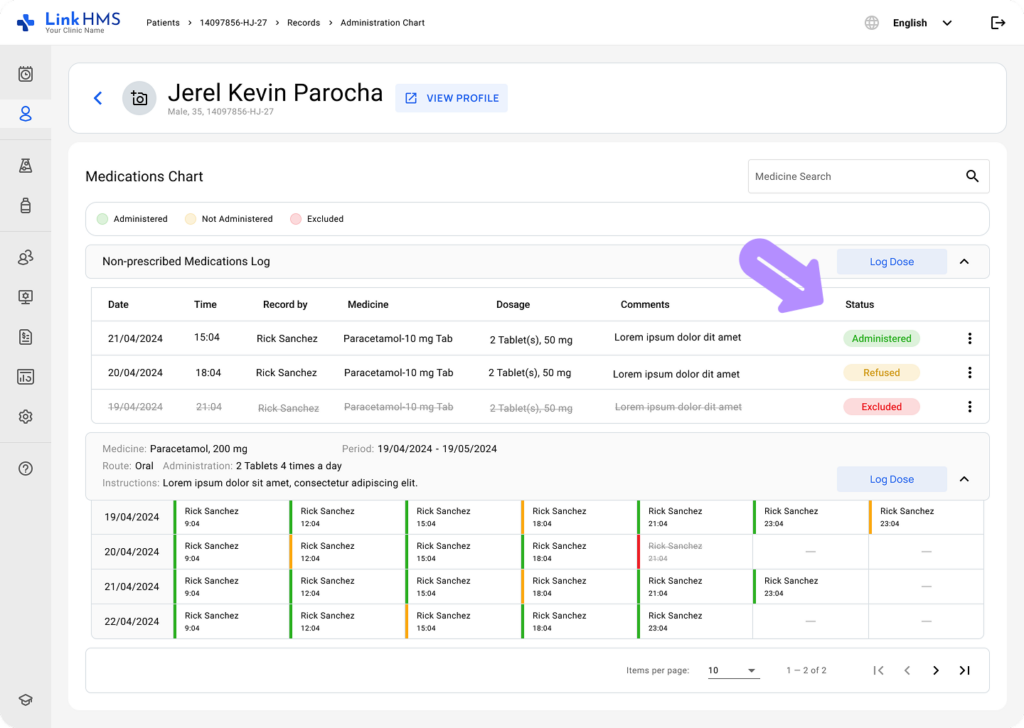
- When you open the prescribed medication card, you’ll see the multi-date administration calendar table.
💡Notes
This table doesn’t use the usual status column; instead, each cell is color-coded to indicate the status specified during dose logging. Logged doses of prescribed medication follow the same color scheme used across all medication tabs.
- Green for the logged doses with the Administered status
- Amber for the logged doses with the Hold, Refused, Missed, and Other statuses.
- Red for the logged doses with the Excluded status.