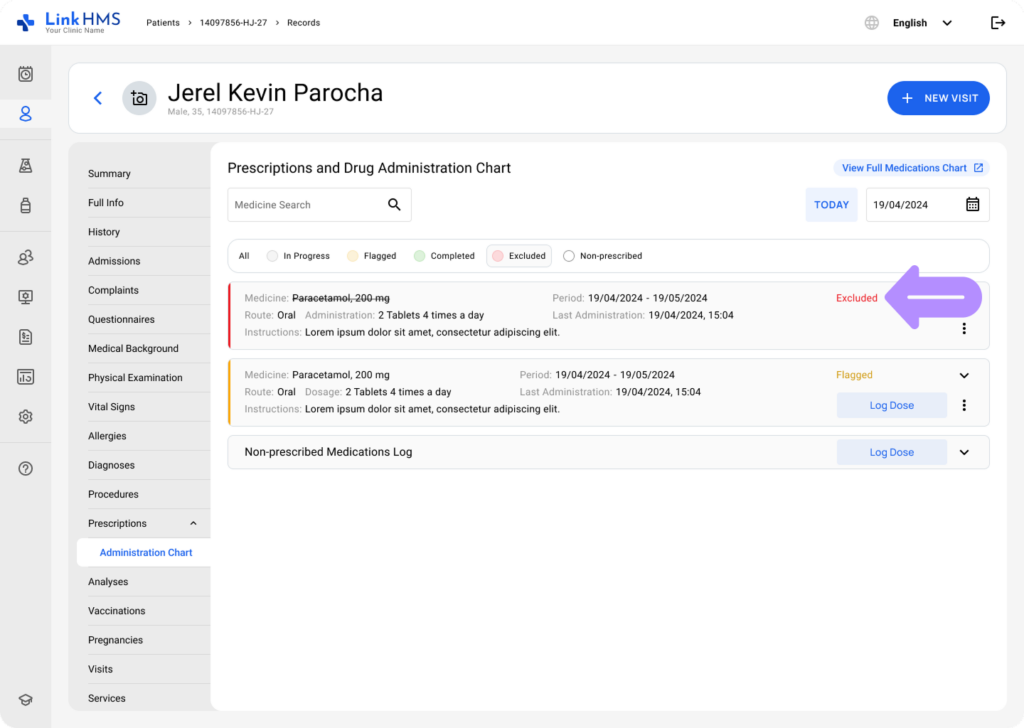
Once a doctor completes the steps to make a prescription, there’s an option to exclude it later if it’s no longer needed or shouldn’t be administered.
💡Notes
Only Doctors and Admins can exclude prescriptions. This feature isn’t available to other users, such as Nurses or Receptionists.
Excluding the Prescription
- Access the Prescription tab either from the patient’s profile or within an active admission or visit. You can exclude a prescription record from any tab you’re working in, as the steps for exclusion are the same.
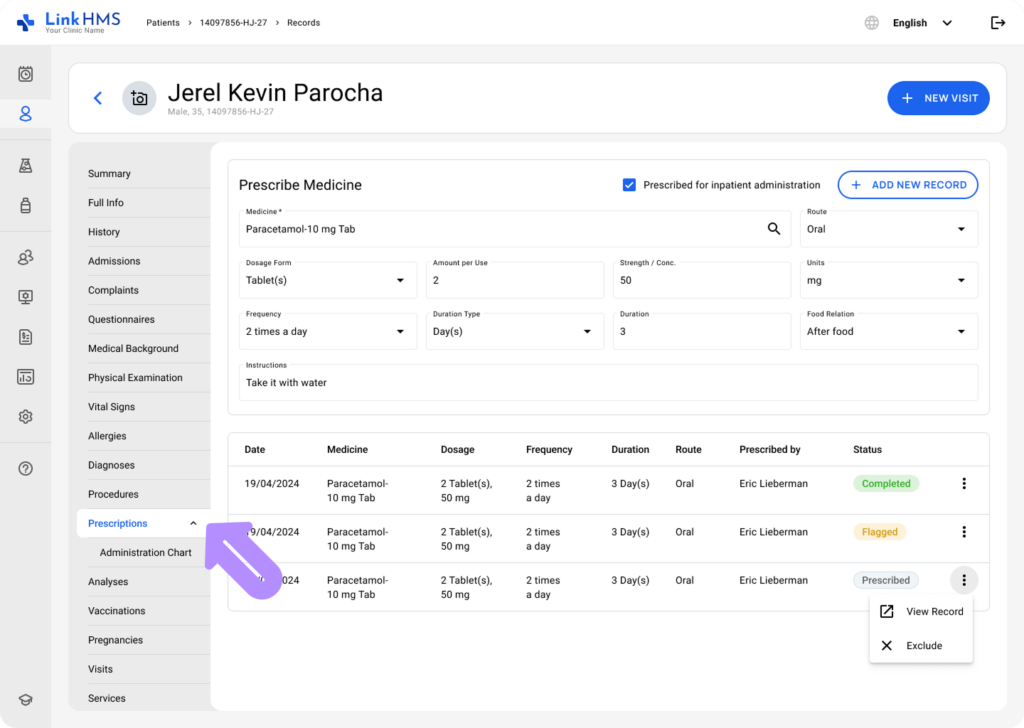
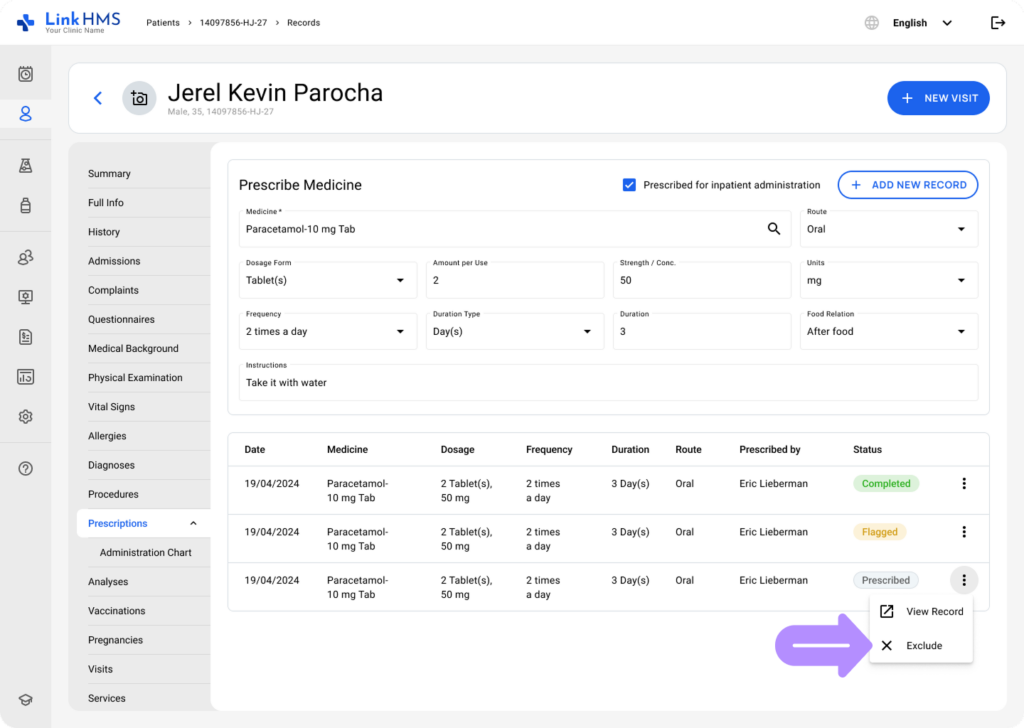
- Locate the prescription you want to exclude, then open the three-dot menu and select Exclude.
- A confirmation window will appear to confirm the prescription exclusion.
- Click Exclude to confirm and complete the exclusion.
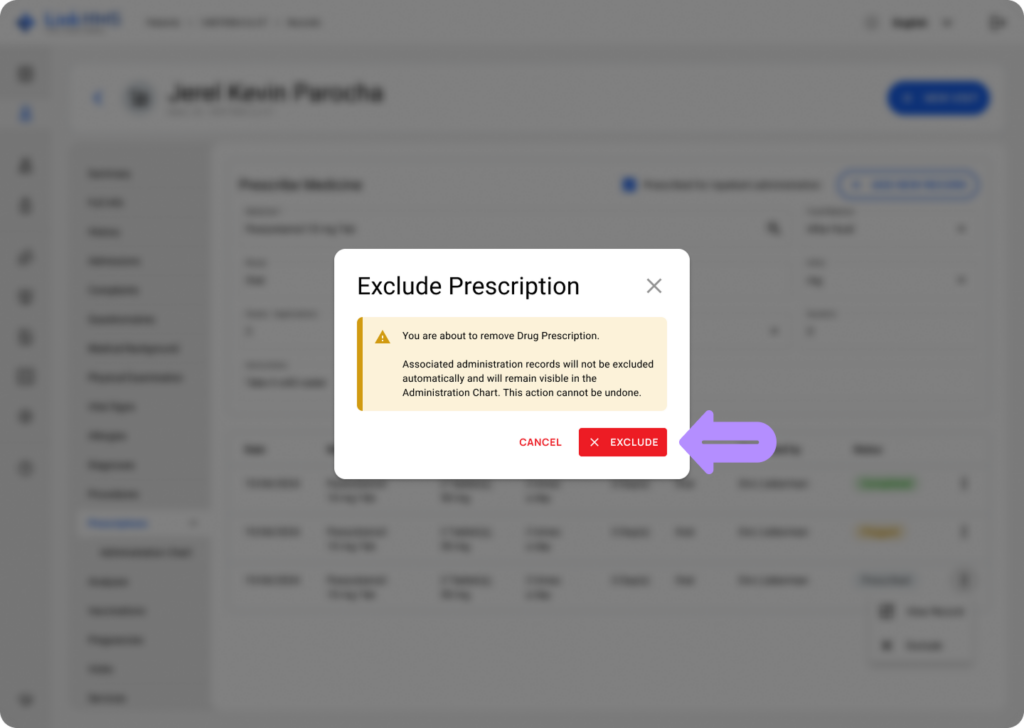
💡Notes
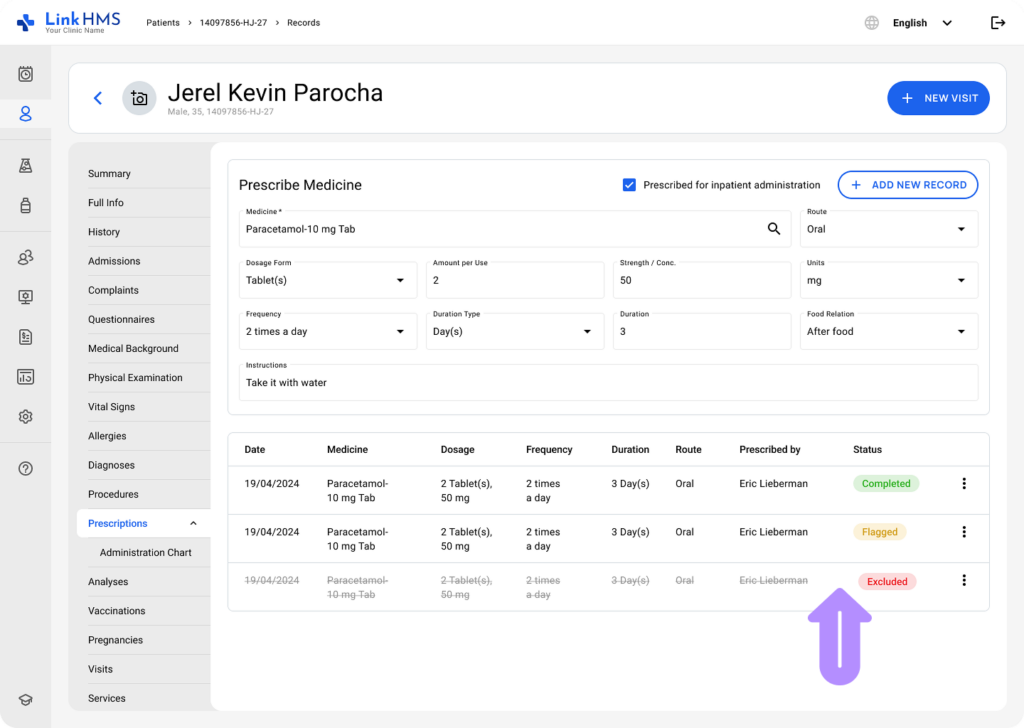
- This action cannot be undone. The system doesn’t delete the prescriptions; the related prescription and administration records will remain visible with an Excluded status and a strikethrough.
Excluding the Prescription from the Administration chart
💡Notes
You can also exclude a prescription directly from the administration chart, which is useful when a medication is discontinued, replaced, or no longer needed, without returning to prescriptions. Please note that medicine dose records are excluded separately. Check the complete guide on How to exclude the administration record.
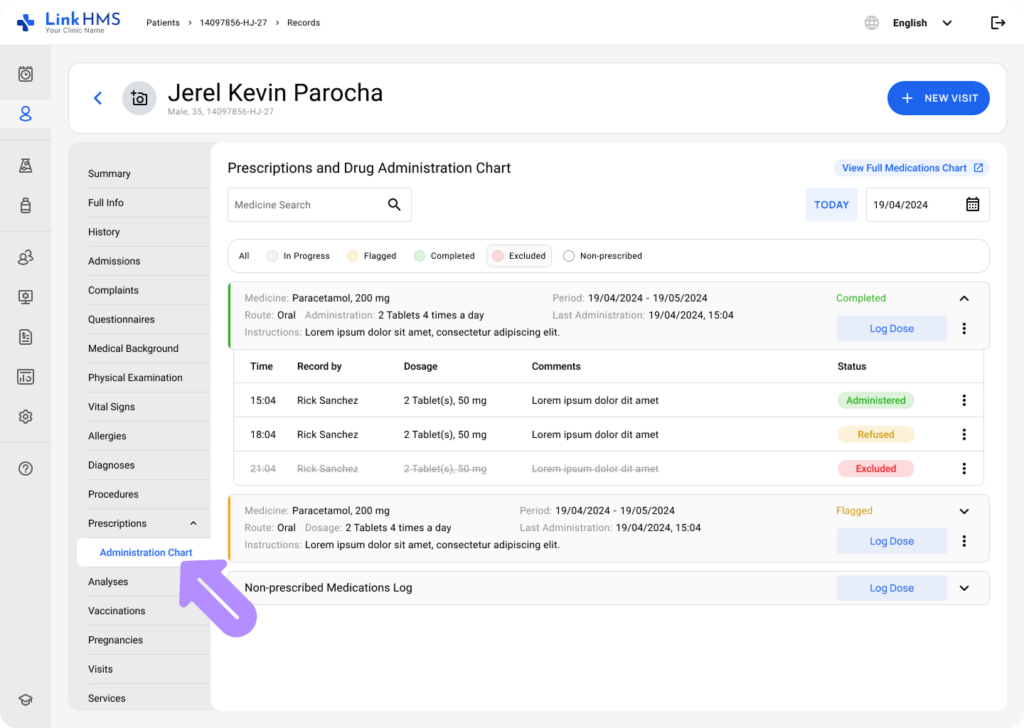
- Open the administration chart from the patient’s profile or through the Prescriptions tab in an active admission or visit.
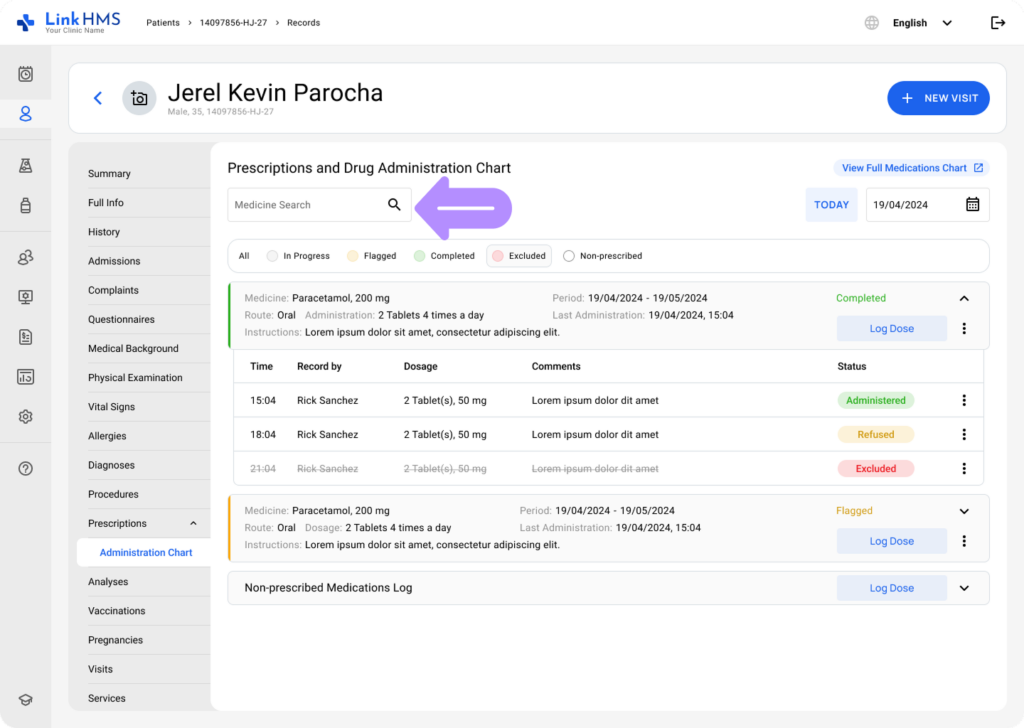
- Use the Medicine Search bar to locate the required prescription to match the medications listed on the prescribed medicine cards.
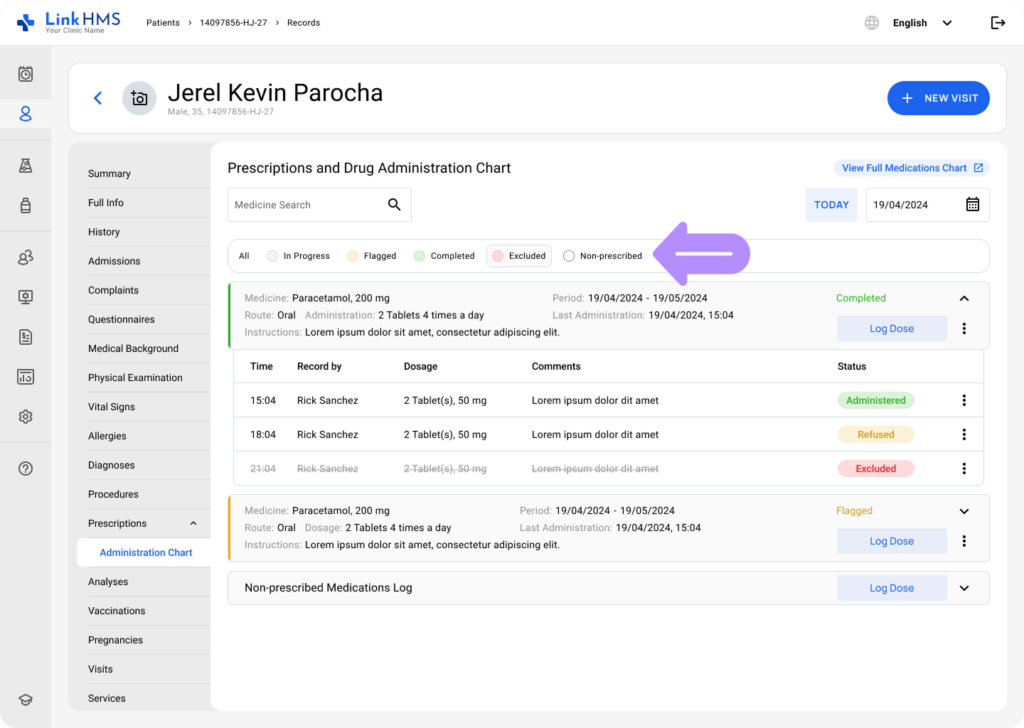
- Filter the list by selecting a relevant status in the legend to display only the corresponding medication cards.
- Locate the prescribed medication card you need to exclude, and then use the three-dot menu to choose the Exclude option.
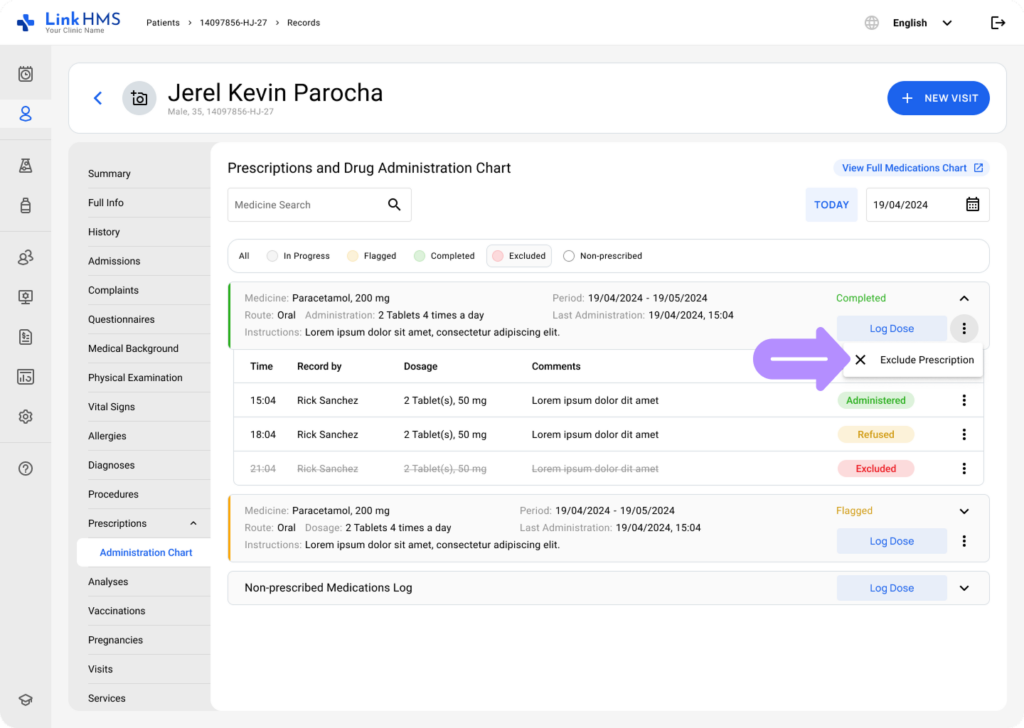
- A confirmation window will appear to finalize the prescription exclusion.
- Click Exclude to apply the change and mark the prescription as excluded.
💡Notes
This action is permanent and cannot be reversed. The system doesn’t delete prescription records; it marks them as Excluded and strikethroughs them to keep the medication history transparent and complete.